This step is easy to overlook and causes real problems if skipped. Set each component's unit of measure, its unit class, and the conversions between units — especially when you purchase in one unit and consume in another.
Before configuring units of measure and conversions on the Bill of Materials, make sure the following are set up correctly on the Unit of measure page.
- Unit Classes
- Units of Measure
- Conversion Rules
How to setup
- Go to Inventory - Inventory Admin. On the Inventory Admin dropdown, select Units of Measure.
Refer to the article : How to Utilize Units of Measurement in Luminous
Setting up Unit of Measure and Conversion on Bills of Materials
-
Go to Inventory - Inventory Admin. On the Inventory Admin dropdown, select Bills of Materials.
-
You can either Create New Bills of Materials or Edit existing rules set.
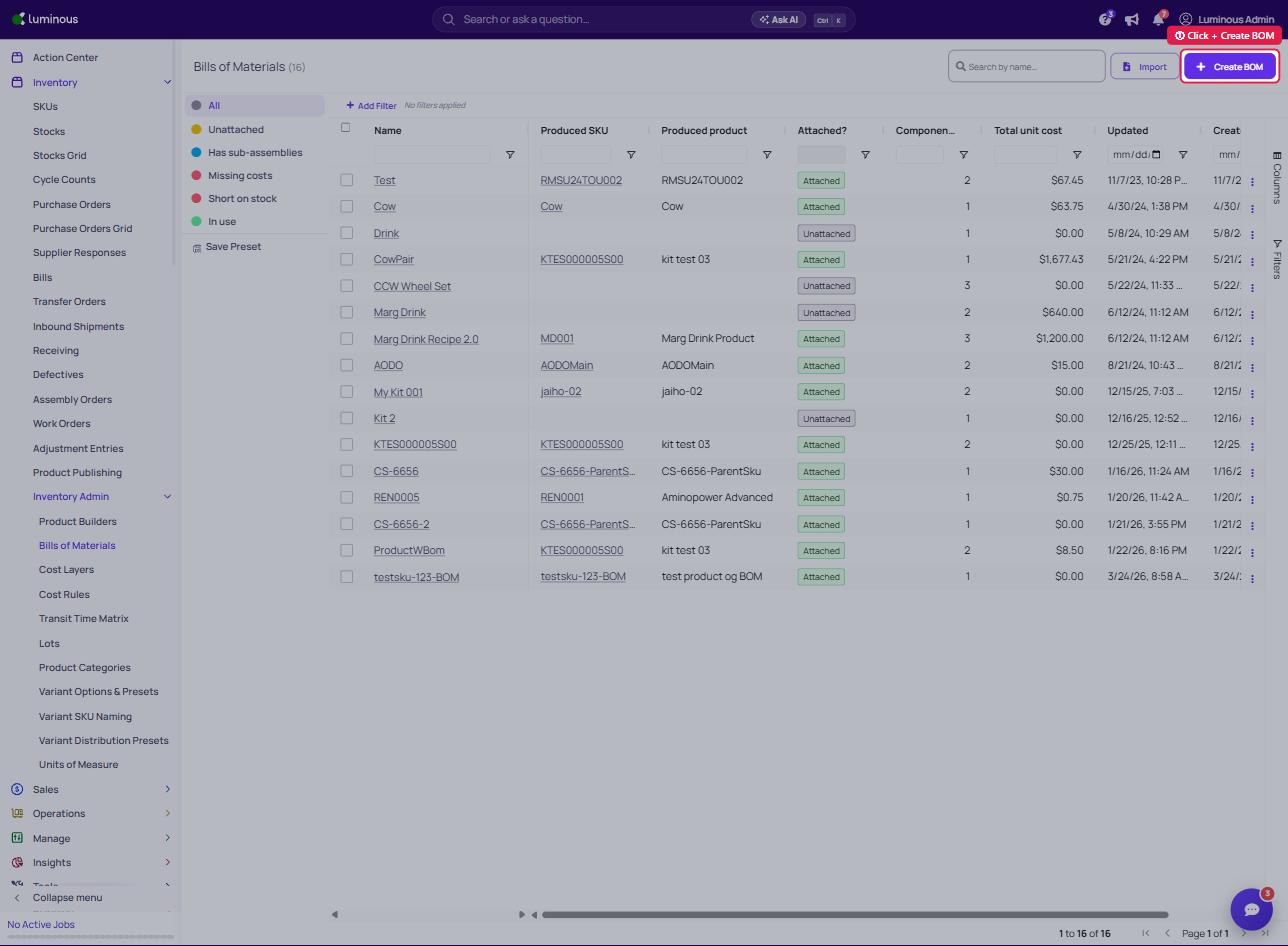
- Click + Create BOM for a new bill of materials.
- Click the three dots to edit existing rule.
The key rule
Luminous registers quantities to six decimal places. If you pick a large base unit (like kilograms) because that's how you buy, a tiny per-unit consumption can round to zero. Set the base unit to the smallest unit you consume in (e.g. grams), and convert up.
What to do
- Make the base unit small (grams, occasionally milligrams — not kilograms).
- Add unit conversions, and set the supplier SKU's purchase unit for how you buy.
- Add any extra costs (e.g. labor) to the build material so they're baked into cost whenever the recipe is used.
More: Why aren't my component quantities registering (tiny decimals)? and Configure supplier SKUs, MOQs, and purchase units.