Your purchasing and costing rules live on the supplier SKU. Setting these up is what lets Luminous auto-generate correct purchase orders from shortages.
-
Go to Inventory → SKUs. Select the SKU you need to configure the Supplier SKU.
-
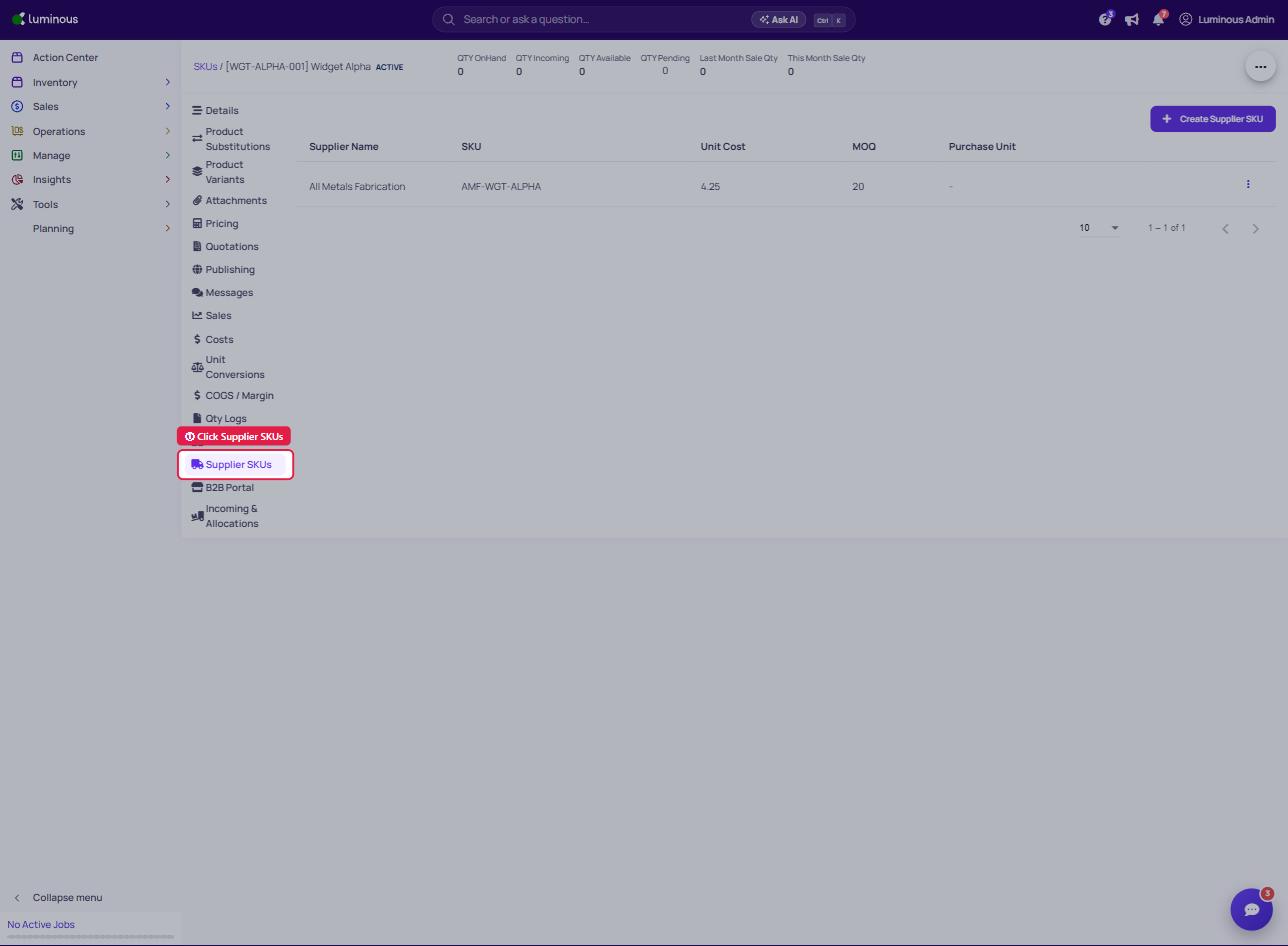
On the left side bar of the SKU page, go to Supplier SKUs.
-
There will be two options available:
-
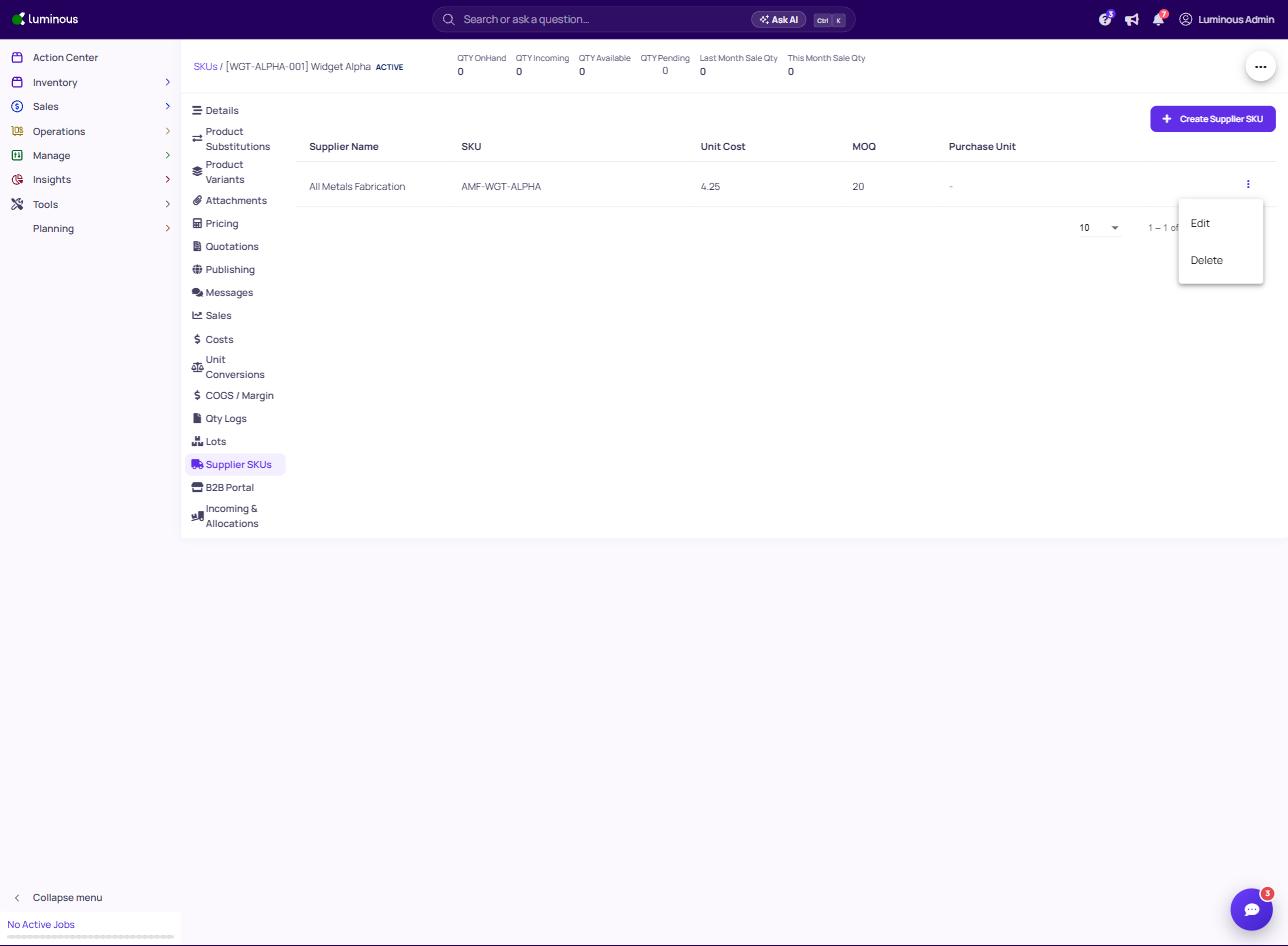
Edit existing Supplier SKU - click three dots to edit
-
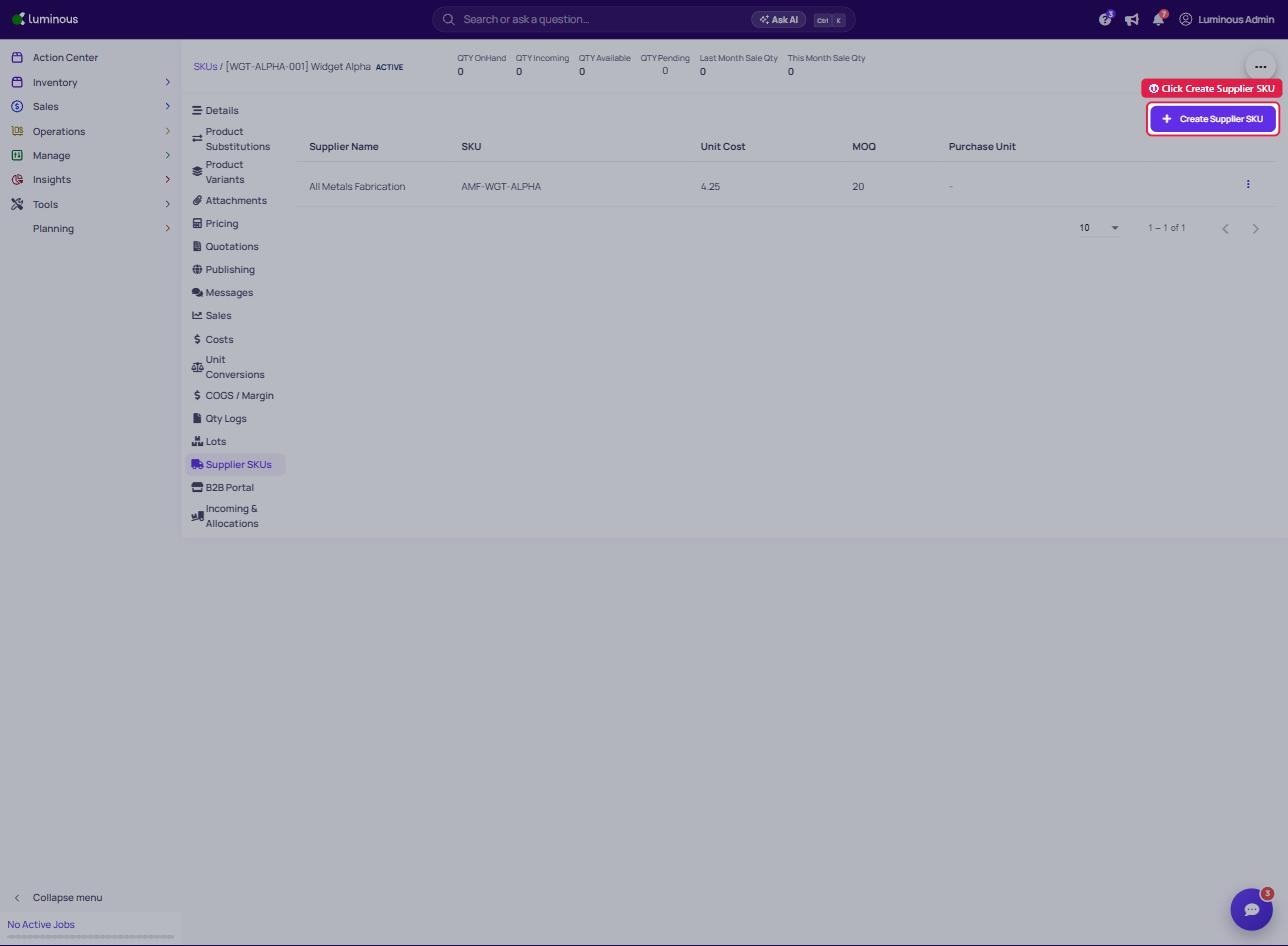
Create new Supplier SKU - Click the Create Supplier SKU button
-
-
What to set
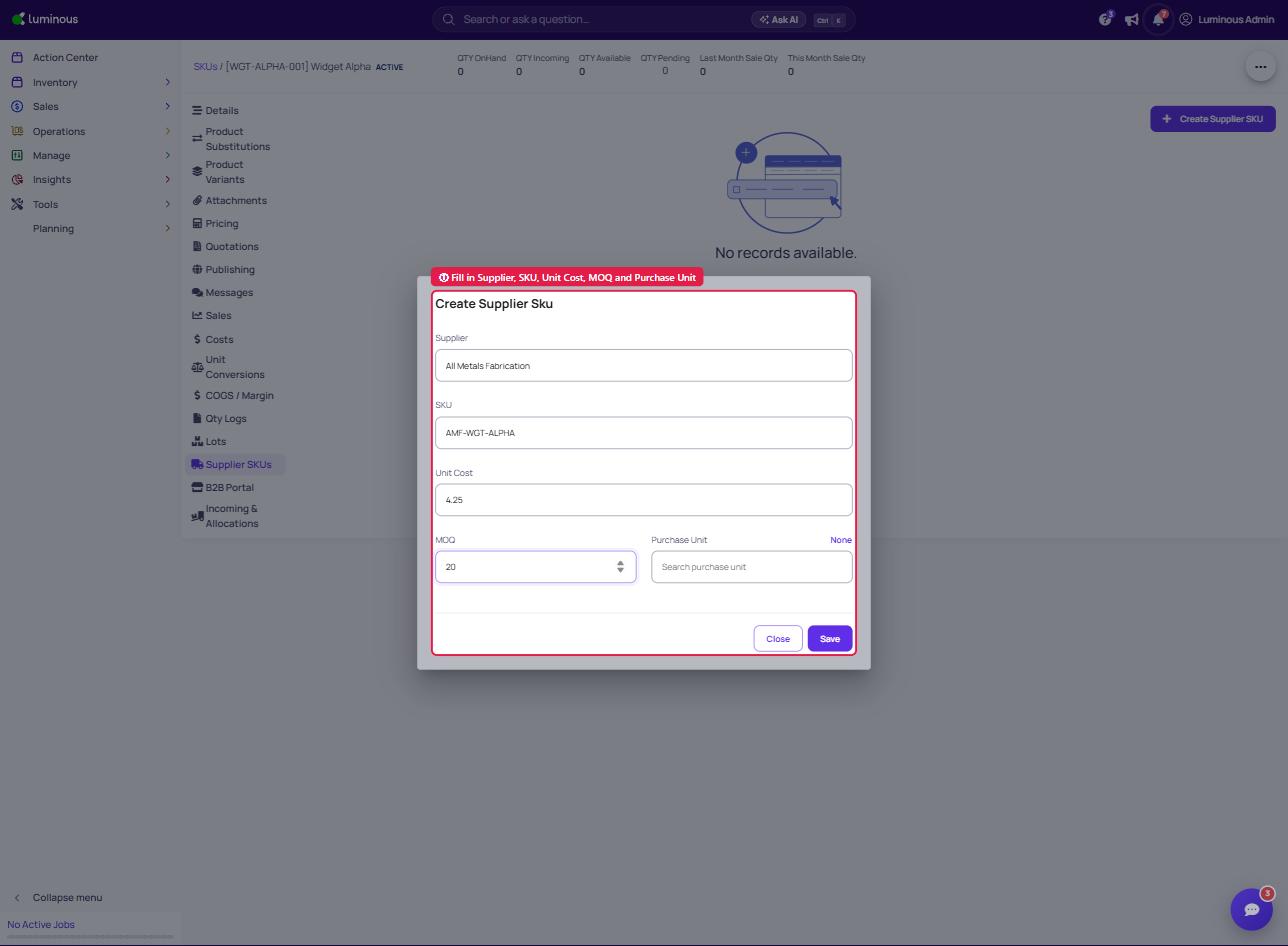
- Unit cost override — price used on generated POs when you're not using cost rules.
- MOQ and default purchase unit — so quantities round correctly (e.g. buy in 20 kg increments).
- Preferred supplier — the vendor auto-selected when covering a shortage.
Supplier SKU Cost Override
Supplier SKU cost is used when you don't have a cost rule set in the Luminous Cost Rules engine to automatically populate the unit cost of a raw material purchase order from the production run page.
If no cost rule is set and you instead want to rely on a unit cost override per supplier, use the supplier SKU. On the supplier SKU, you set a unit cost and map the supplier SKU to the corresponding master SKU in Luminous.
Full details: Configure supplier SKUs, MOQs, and purchase units.