Overview
The Sales Order Grid now displays the EDI file status directly in the order list. This allows users to quickly confirm whether an order’s EDI file has been generated and sent without opening each individual order.
This update makes it easier to monitor EDI activity and verify transmission across multiple sales orders.
How to View EDI File Status.
- Navigate to Operations in the left-hand menu.
- Select Sales Order Grid.
- Review the EDI status displayed in the order grid.
- If your EDI column is not showing, follow steps below:
-
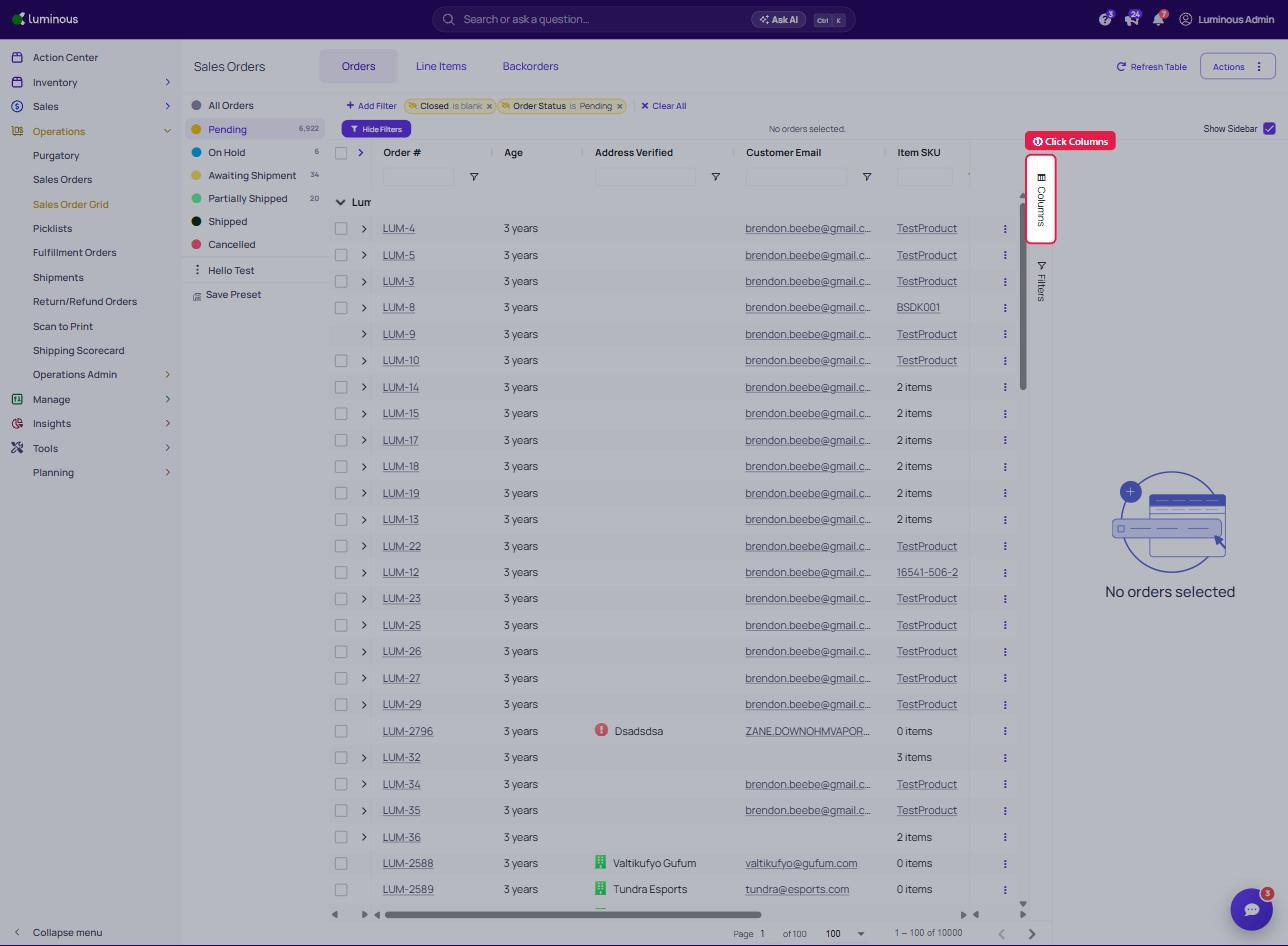
On the rightmost of your screen, click on the Columns
-
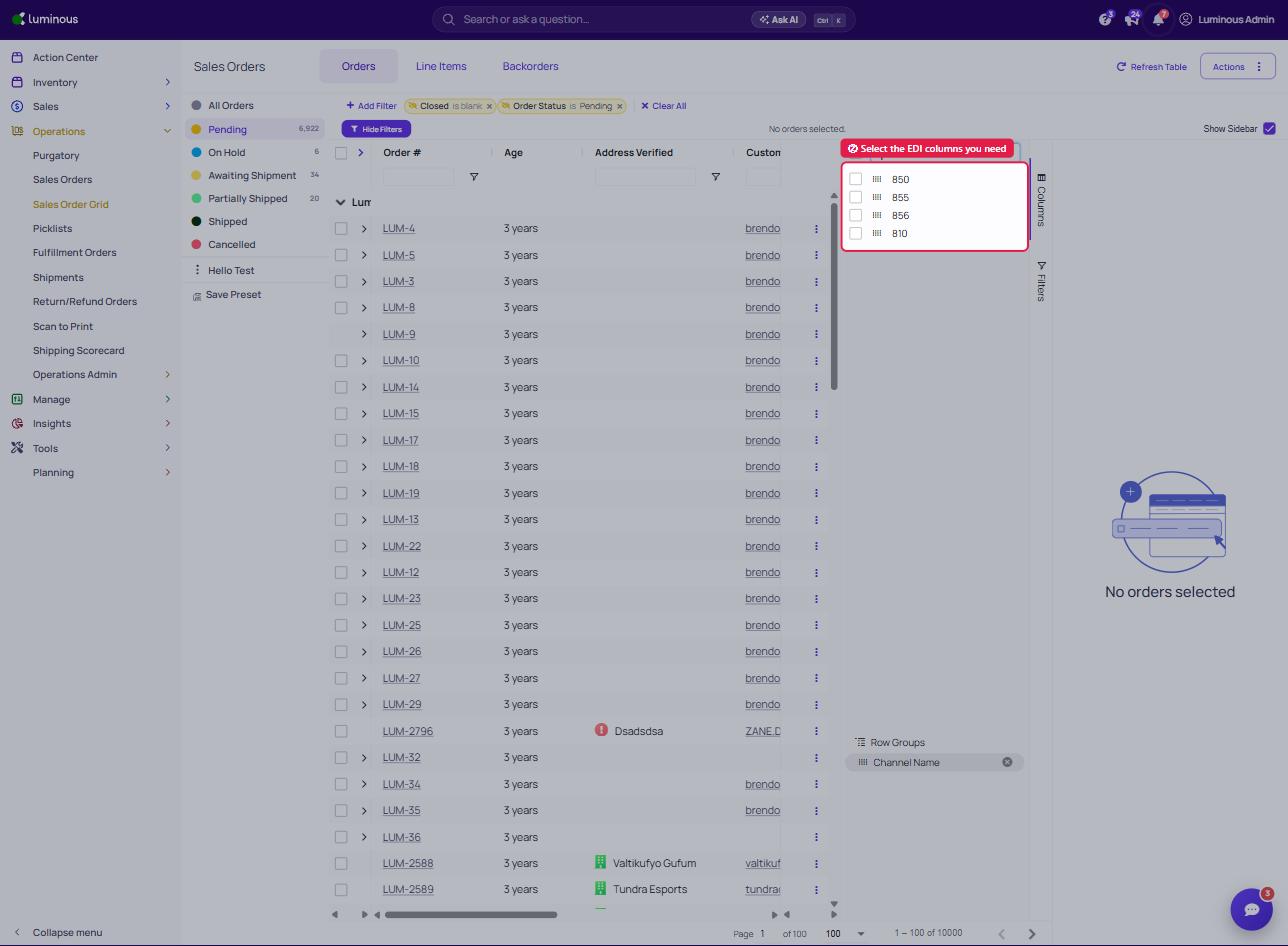
It will show the available column, select the EDI you need.
- 850 - Puchase Order
- 855 - Purchase Order Acknowledgement (response to 850)
- 856 - Advance Shipping Notice
- 810 - Invoice
-
- Orders that have been transmitted will display a Sent indicator, allowing quick verification that the EDI file was successfully generated and sent.
Example
In the Sales Order Grid, the EDI status appears directly in the order list so users can quickly see which orders have been transmitted.