Overview
The QuickBooks Estimate Sync toggle allows Luminous to push invoice records that carry an ESTIMATE invoice status directly to QuickBooks as Estimates rather than standard invoices. This is useful for wholesale and B2B workflows where a quote or pre-order needs to live in QuickBooks before it becomes a confirmed sale. The toggle is found in Settings > QuickBooks > Account Mappings and must be enabled separately from the standard QuickBooks Sync.
How It Works (Step-by-Step)
Navigation: Settings > QuickBooks > Account Mappings
- In Luminous, click your user name in the top-right corner, choose Settings, and select QuickBooks from the left sidebar under Integrations.
- Click the Account Mappings tab at the top of the QuickBooks settings page.
- Scroll down to the QuickBooks Estimate Sync toggle (located below the QuickBooks Purchase Order Sync toggle).
- Toggle QuickBooks Estimate Sync to ON.
- Click Save Account Mappings to apply the change.
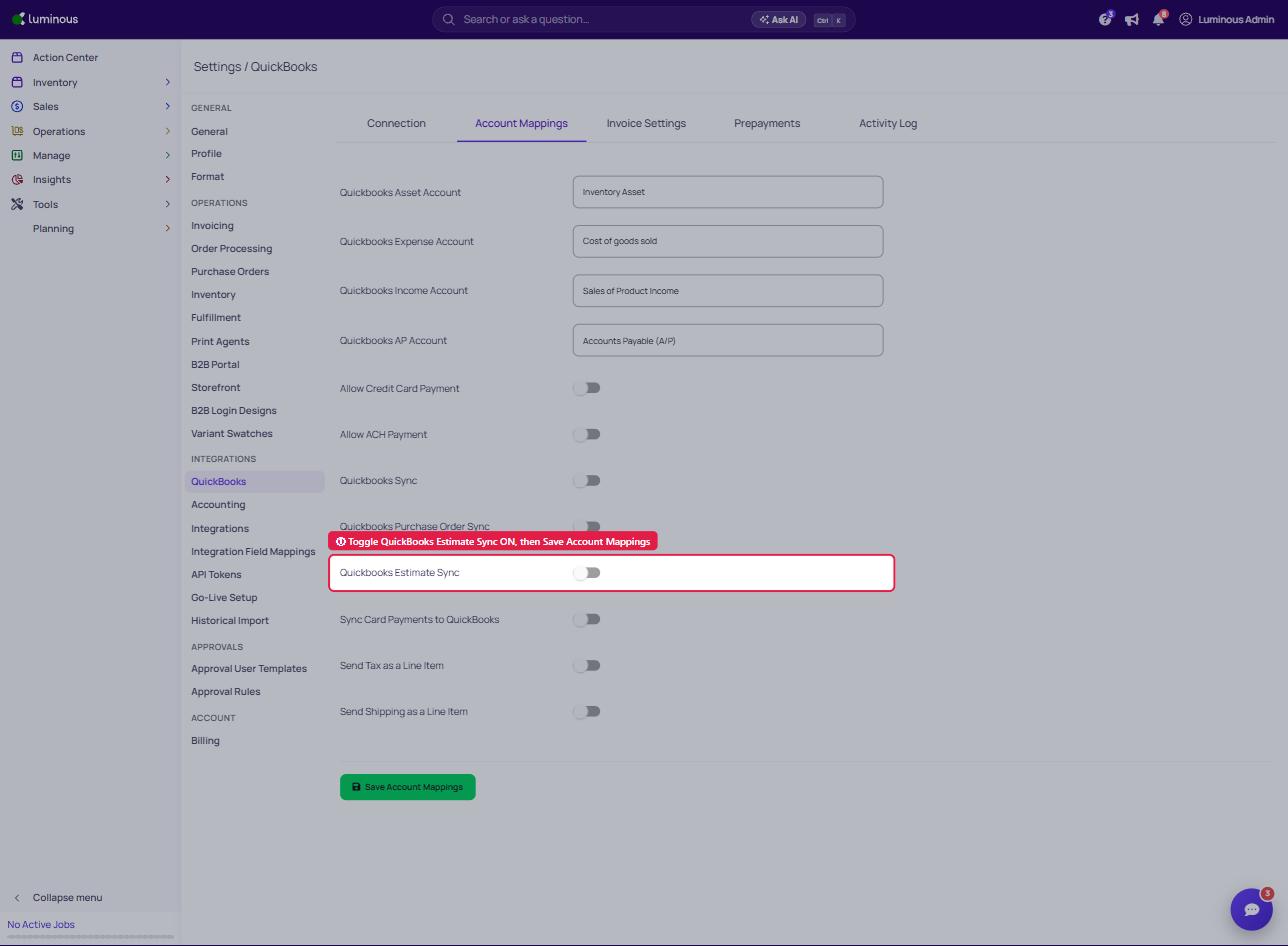
Once enabled, any invoice in Luminous with an Invoice Status of Estimate will be pushed to QuickBooks as an Estimate record automatically. This is under a feature flag, so please reach out to customer support if you would like this turned on.
Key Features / Options
| Setting | Location | Description |
|---|---|---|
| QuickBooks Sync | Account Mappings tab | Master toggle — must be ON before Estimate Sync can function. Controls all invoice and PO syncing. |
| QuickBooks Purchase Order Sync | Account Mappings tab | Pushes POs from Luminous to QBO. Independent of Estimate Sync. |
| QuickBooks Estimate Sync | Account Mappings tab | New toggle. When enabled, ESTIMATE-type invoices in Luminous sync to QBO as Estimates. Disabled by default. |
| Invoice Status: Estimate | Invoices grid | The invoice status that triggers this sync. Identifiable in the Invoice Status column of the Invoices page. |
| Sync Status column | Invoices grid | Displays the QBO sync icon (green) for each invoice row. Click to manually trigger a sync if needed. |
Understanding the Invoice Type: ESTIMATE
On the Invoices page (Invoicing > Invoices), the Invoice Status column indicates the stage of each invoice record. Invoices with a status of Estimate represent pre-sale or quote-stage records — they typically show $0.00 totals until the estimate is confirmed and converted.
When QuickBooks Estimate Sync is enabled, these Estimate-status records are pushed to QBO as Estimates rather than invoices, keeping your QuickBooks data aligned with the actual stage of the sale.
Tips and Best Practices
- Ensure the master QuickBooks Sync toggle is ON first. The Estimate Sync toggle will have no effect if the main QuickBooks Sync is disabled. Both must be active for estimates to push to QBO.
- Estimate Sync only applies to invoices with an Estimate status. Standard invoice records (Invoice Status: Active or Completed) continue to sync via the regular invoice sync process and are not affected by this toggle.
- Check the Sync Status column after enabling. After turning on Estimate Sync, locate an invoice with an Estimate status in your Invoices grid and click the green QBO icon in the Sync Status column to manually trigger a sync and verify the connection is working.
- Estimates in QBO will reflect a $0.00 balance until confirmed. This is expected behavior — ESTIMATE records in Luminous typically have no fulfilled amounts yet.
- Account Mappings must be saved. Changes to any toggle on the Account Mappings tab — including Estimate Sync — are not applied until you click Save Account Mappings.
FAQs and Troubleshooting
Q: I enabled Estimate Sync but my estimates aren't appearing in QuickBooks. What should I check?
First confirm that the main QuickBooks Sync toggle is also enabled on the same Account Mappings page. Then verify the invoice has an Invoice Status of Estimate in the Invoices grid. If both conditions are met, click the green QBO icon in the Sync Status column to manually trigger the sync, then refresh both Luminous and QuickBooks.
Q: Will enabling Estimate Sync affect my existing standard invoices?
No. The Estimate Sync toggle only applies to invoices where the Invoice Type is ESTIMATE. Standard invoices continue to sync through the existing invoice sync process without any change.
Q: Where can I see which invoices are ESTIMATE type?
Navigate to Invoicing > Invoices. The Invoice Status column displays the status for each record, including Estimate. If the column isn't visible, use the column visibility control in the top-right of the grid and toggle on Invoice Status.
Q: Can an ESTIMATE-type invoice be converted to a standard active invoice after syncing?
Yes. When the estimate is confirmed and the invoice becomes Active in Luminous, the updated status will sync to QuickBooks through the standard invoice sync. The QBO record will update accordingly.
Q: The Estimate Sync toggle is grayed out or unresponsive. Why?
Confirm the main QuickBooks Sync toggle is enabled. If it is off, other sync options on the same page may be unavailable. Save Account Mappings after enabling the master toggle, then return to enable Estimate Sync.