Syncing Invoices, Payments, and Bills from Luminous to QuickBooks (QBO)
1. From Luminous to QuickBooks (Pushing Data)
✅ When an Invoice is Created in Luminous
- What Happens: Finalized invoices in Luminous are sent to QuickBooks with full invoice details.
- When: Sync happens automatically right after saving the invoice in Luminous.
✏ When an Invoice is Updated in Luminous
- What Happens: Updates such as changes in quantity, amount, or invoice status (e.g., Active, Completed, or Void / Cancelled) are pushed to QuickBooks.
- When: Shortly after saving changes, provided QuickBooks sync is active in your Settings > QuickBooks.
💳 When a Payment is Recorded in Luminous
- What Happens: Payments added to a Luminous invoice are pushed to the matching invoice in QuickBooks.
- When: Usually during the invoice sync process, right after the invoice is created or updated in QuickBooks.
2. From QuickBooks to Luminous (Pulling Data)
💵 Fetching Recent Payments
- What Happens: Luminous regularly checks for new payments made in QuickBooks on invoices that originated in Luminous. These are pulled in and used to update invoice records.
- When: Automatically runs every 30 minutes.
⏱ Refreshing Invoice Payment Status
- What Happens: Luminous performs an hourly check on recently updated invoices and re-verifies their payment status using QuickBooks data.
- When: Hourly, for recently modified invoices.
3. Syncing Bills from Luminous to QuickBooks
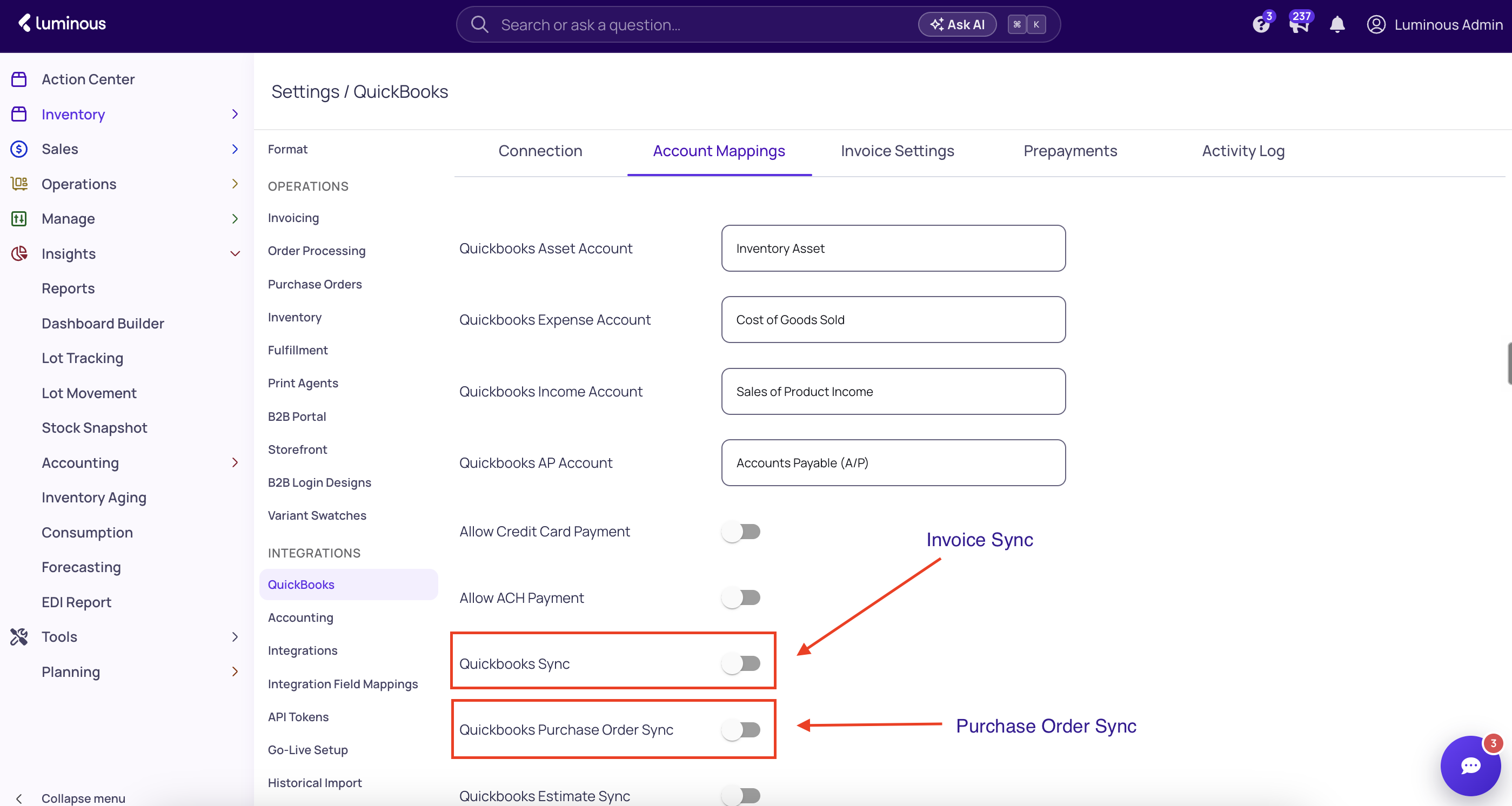
⚠ Important: Do not turn on Bill Sync and Purchase Order Sync at the same time.
Pick one of the two, based on how your team handles accounts payable:
- Bill Sync: Luminous pushes vendor bills to QuickBooks. Your AP team works from those bills in QuickBooks.
- Purchase Order Sync: Luminous pushes POs to QuickBooks. Your AP team turns those POs into bills inside QuickBooks.
If both are on, the same purchase can reach QuickBooks twice: once as a bill that Luminous pushed, and again when someone turns the synced PO into a bill in QuickBooks. That creates duplicate bills and overstates your AP. The PO in QuickBooks also stays open, because it isn't linked to the bill Luminous pushed.
🧾 When a Bill is Created or Updated in Luminous
- What Happens: The vendor bill is pushed to QuickBooks with its vendor and line details. If you've set up bill line-type account mapping, each line type posts to the QuickBooks expense account you mapped it to.
- When: Automatically after the bill is saved. If a synced bill is edited later, it's marked Pending resync and pushed again.
💸 When a Bill Payment, Prepayment, or Vendor Credit is Recorded
- What Happens: Payments, prepayment applications, and vendor credits applied to a bill are sent to QuickBooks as a Bill Payment linked to the matching QuickBooks bill. Voiding or reversing one in Luminous voids it in QuickBooks too.
- Note: The bill has to be synced to QuickBooks first. Payments on a bill that never synced are not sent. Bill payment sync must be turned on for your account, so contact Luminous Support to enable it.
🔍 Checking a Bill's Sync Status
Open the bill. The badge next to the bill number shows one of these:
- Synced: The bill and its booked payments reached QuickBooks.
- Pending / Ready to post: Waiting in the queue to sync.
- Pending resync: The bill was synced but has changed since, so it needs to sync again.
- Failed / Not synced: The bill hasn't reached QuickBooks yet. Luminous retries failed syncs automatically. If a bill stays Failed, contact Support.
💡 Viewing & Managing Invoice Payments
🔘 To Add or View a Payment in Luminous:
- Go to your Invoices page in Luminous.
- On the far right side of any invoice row, click the three dots menu (⋮).
- Select Add/View Payment.
- Any payment added here will be synced to QuickBooks.
📊 To Check Payment Status:
- Look for the "Payment Status" column in your invoice list. It shows whether the invoice is Unpaid, Partially Paid, or Fully Paid.
- If this column isn't visible, click the "Columns" dropdown in the top-right of your table and toggle Payment Status on.
🔄 Manually Syncing an Invoice
If you ever need to manually push an invoice sync to QuickBooks:
- Locate the invoice on your Invoices page.
- Look for the green QuickBooks (QBO) symbol in the "Sync Status" column on the far right.
- Click the green QBO icon to trigger a manual sync.
- Refresh your Luminous and QuickBooks pages to confirm that the data has synced successfully.
🎯 Key Benefits of Syncing
- Accuracy: No double-entry, fewer mistakes.
- Efficiency: Saves hours of manual work.
- Clarity: See up-to-date balances and statuses across both platforms, for both receivables and payables.
⚙ Important Setup Note
To enable synchronization:
- Navigate to Settings > QuickBooks in Luminous.
- Make sure your QuickBooks account is properly connected and the sync toggle is enabled.
- For payables, turn on either Bill Sync or Purchase Order Sync. Never both.
Note: Some syncs run on a scheduled basis and may be affected by system load, but they are designed to run frequently and keep your records current.
🙋 Need Help?
Still have questions? Our support team is happy to help! Reach out anytime via chat or email for more guidance on syncing, invoice and bill management, or payment tracking.
Related articles: How do bill payments, prepayments, and vendor credits sync to QuickBooks? · How do I set up bill line-type account mapping for QuickBooks? · How to Sync Purchase Orders from Luminous to QuickBooks Online
Sources: