Setting Up Auto Incrementing
Made by Heidi Hatch with Scribe\
1. Log in to Luminous
2. Click your name in the top-right corner
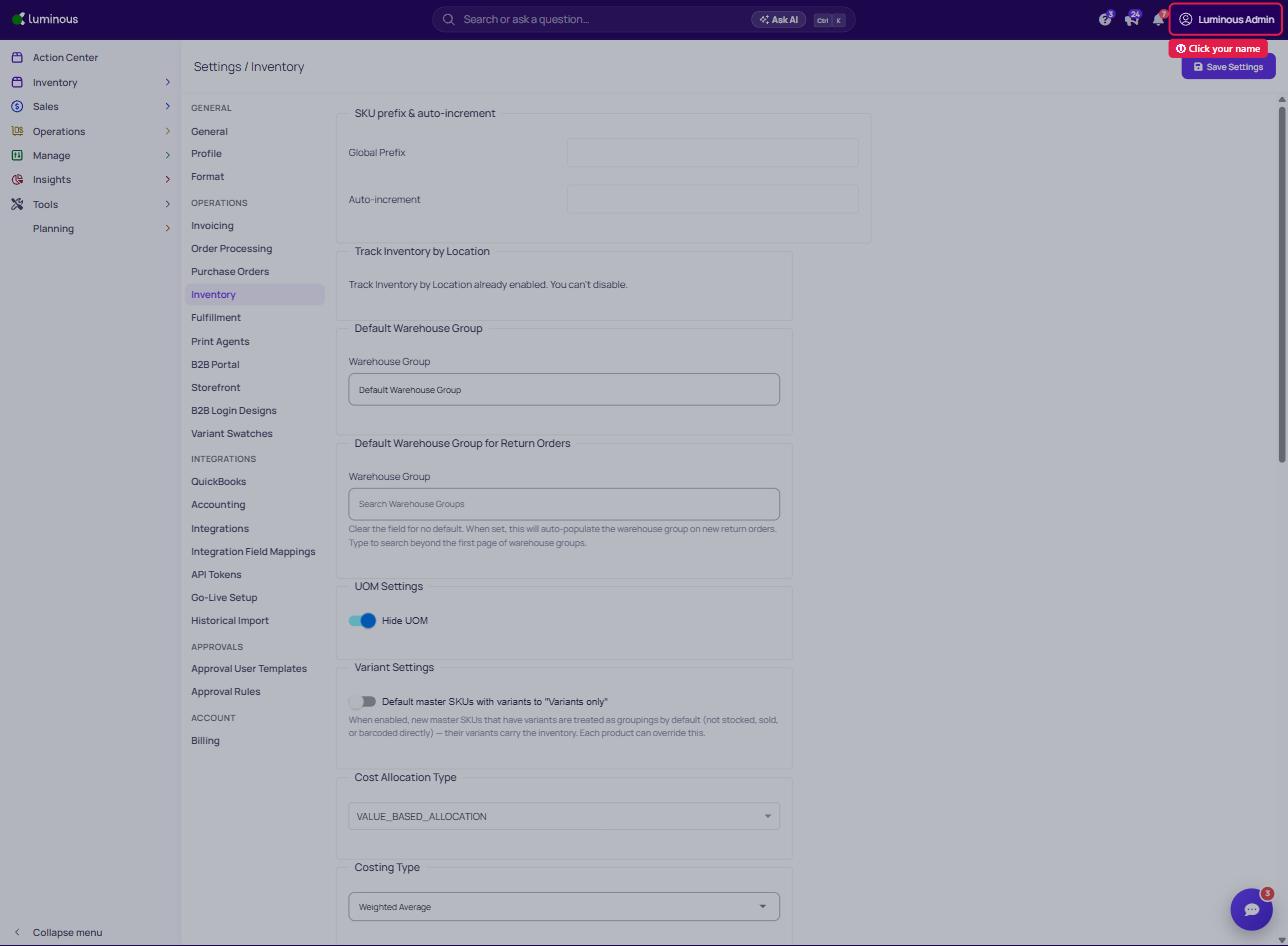
3. Click "Settings"
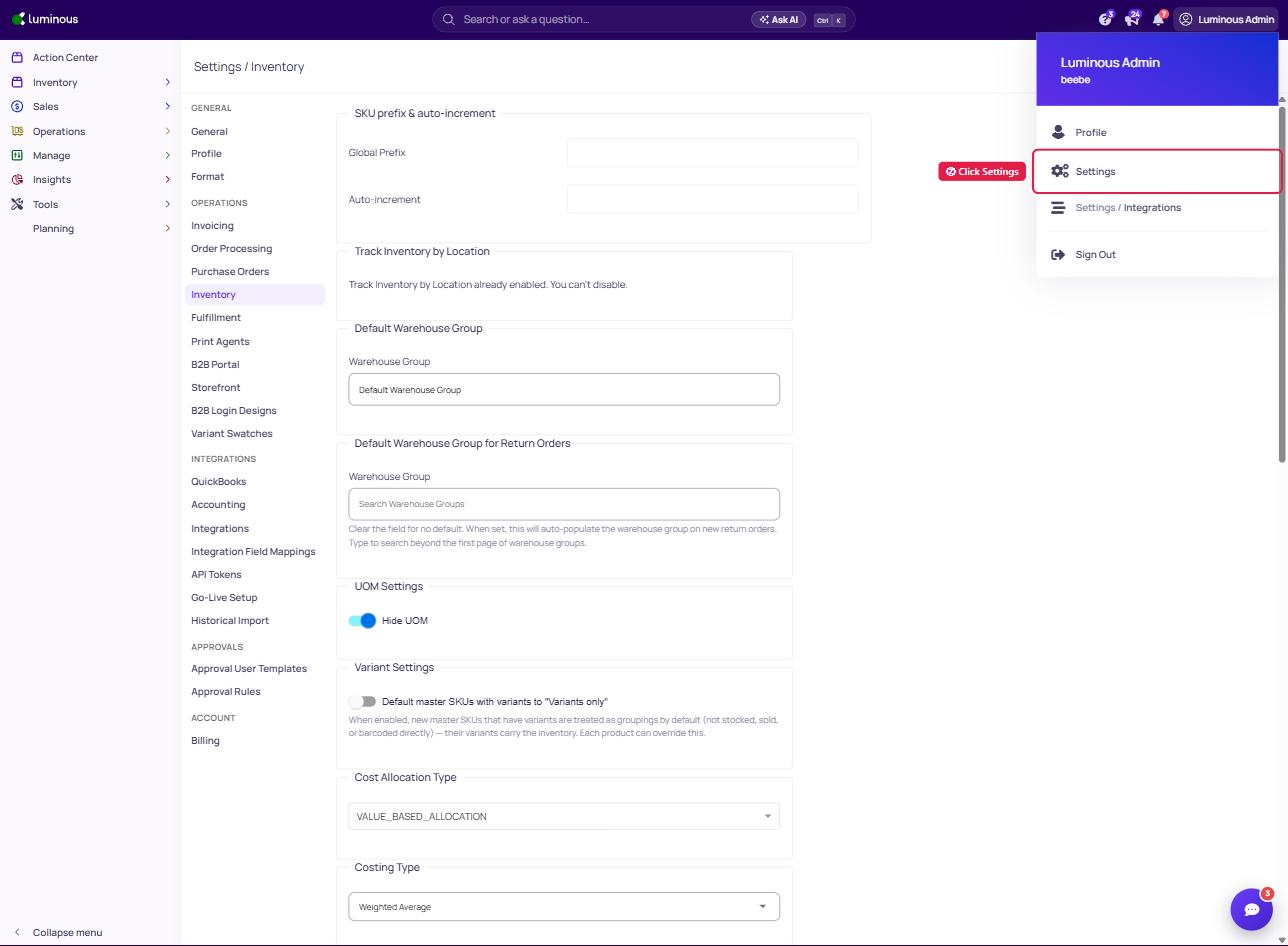
4. Click "Inventory" (under Operations) in the Settings menu
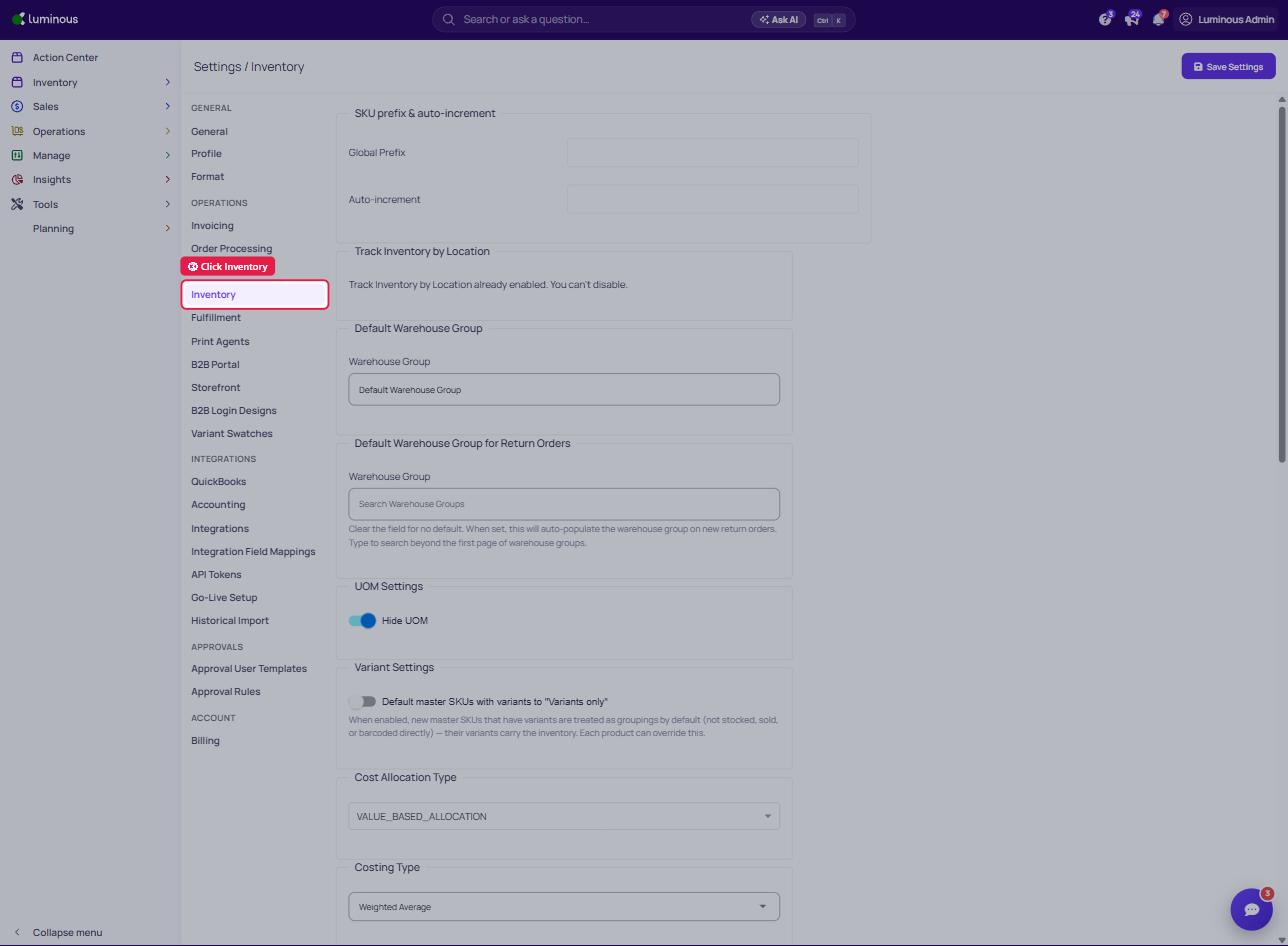
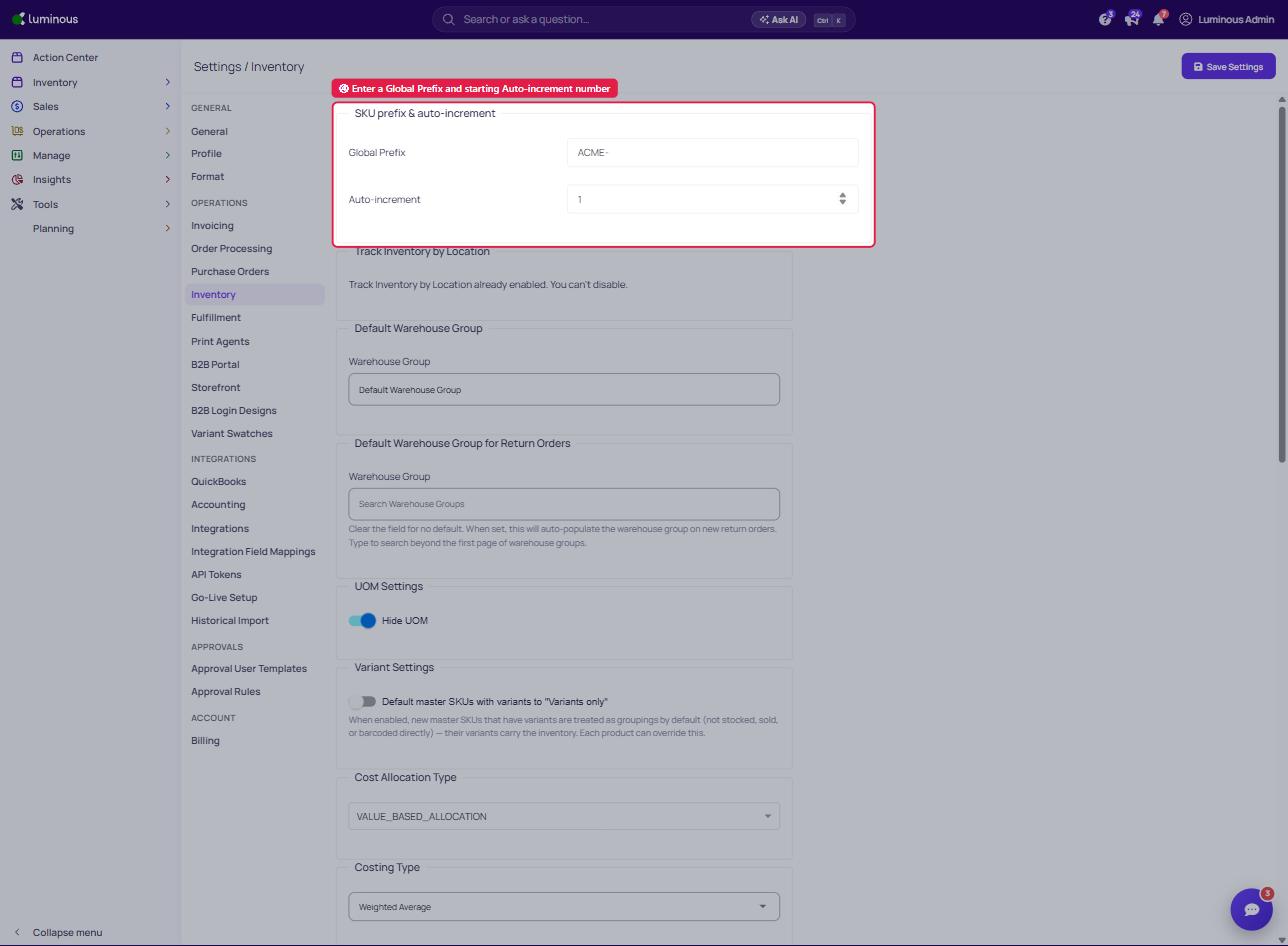
5. In the "SKU prefix & auto-increment" section, fill out Global Prefix and Auto-increment
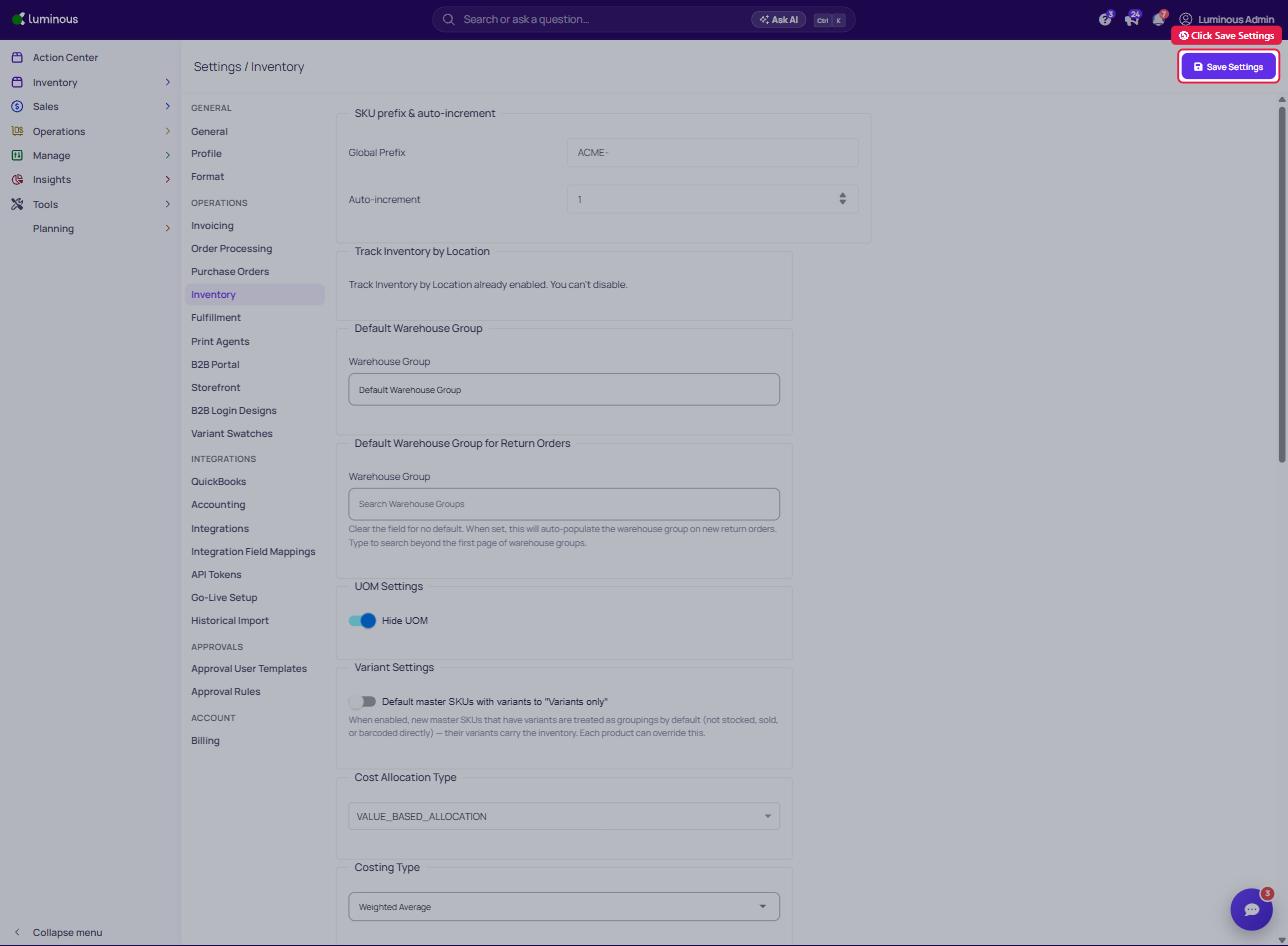
6. Save Settings
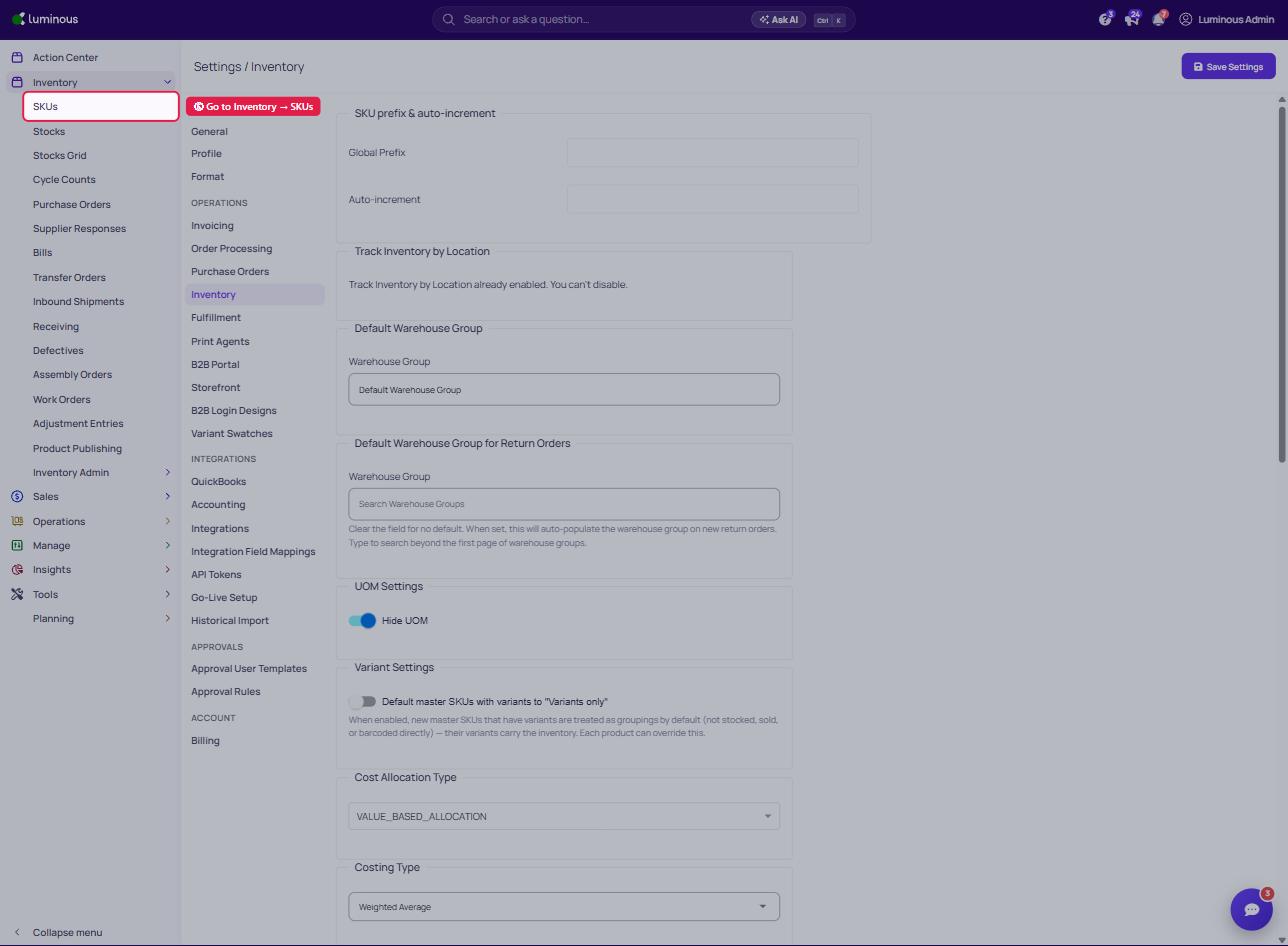
7. Navigate to Inventory → "SKUs"
8. Click "Create"
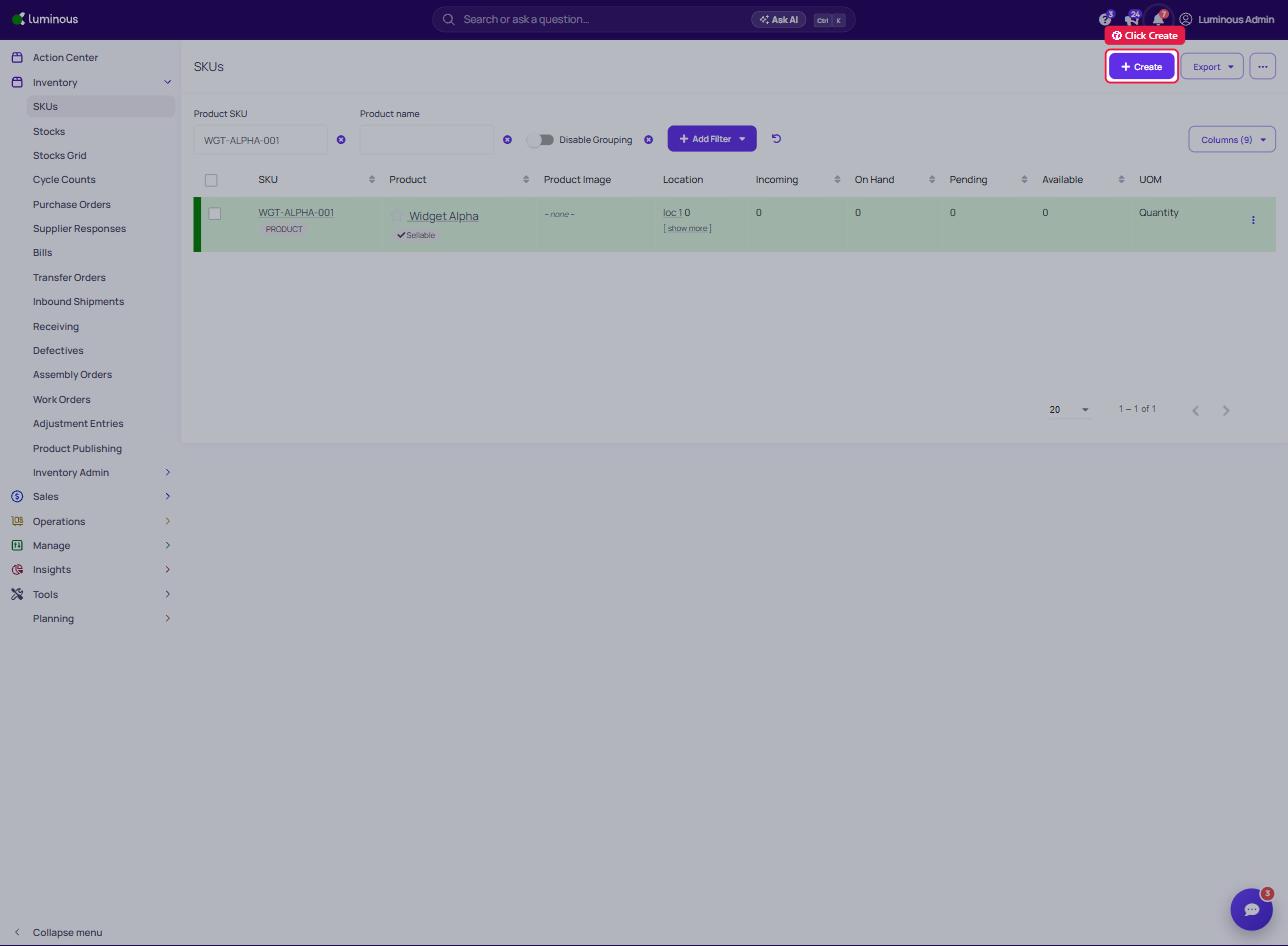
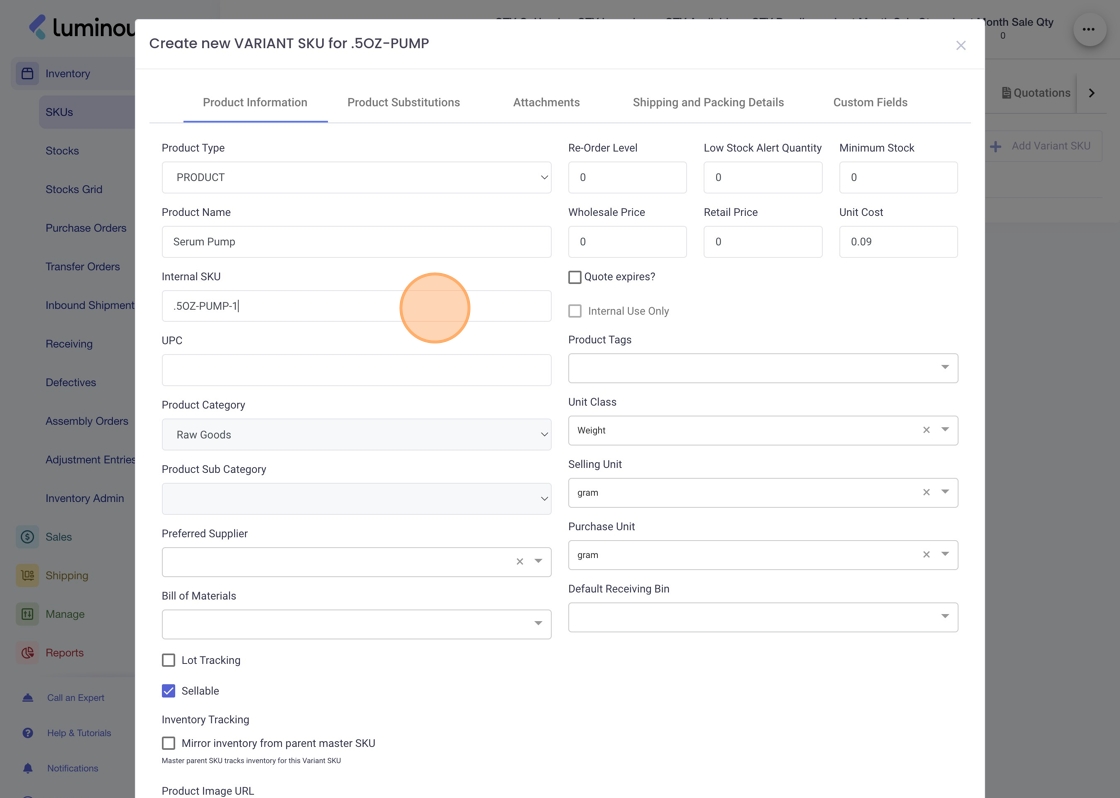
9. See that it will automatically create increments for your internal SKU
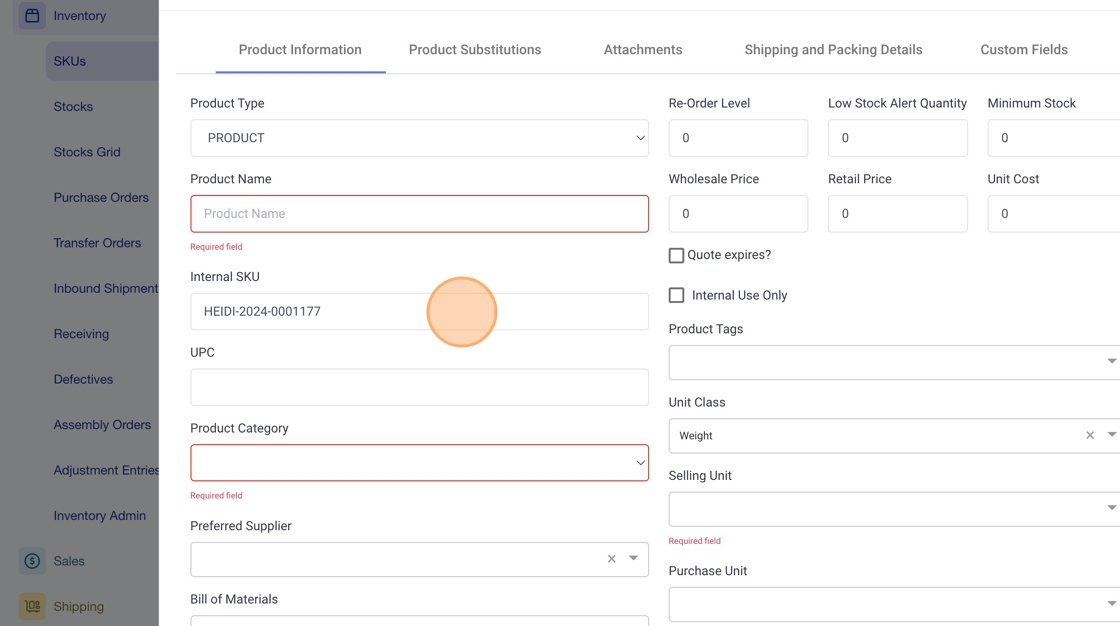
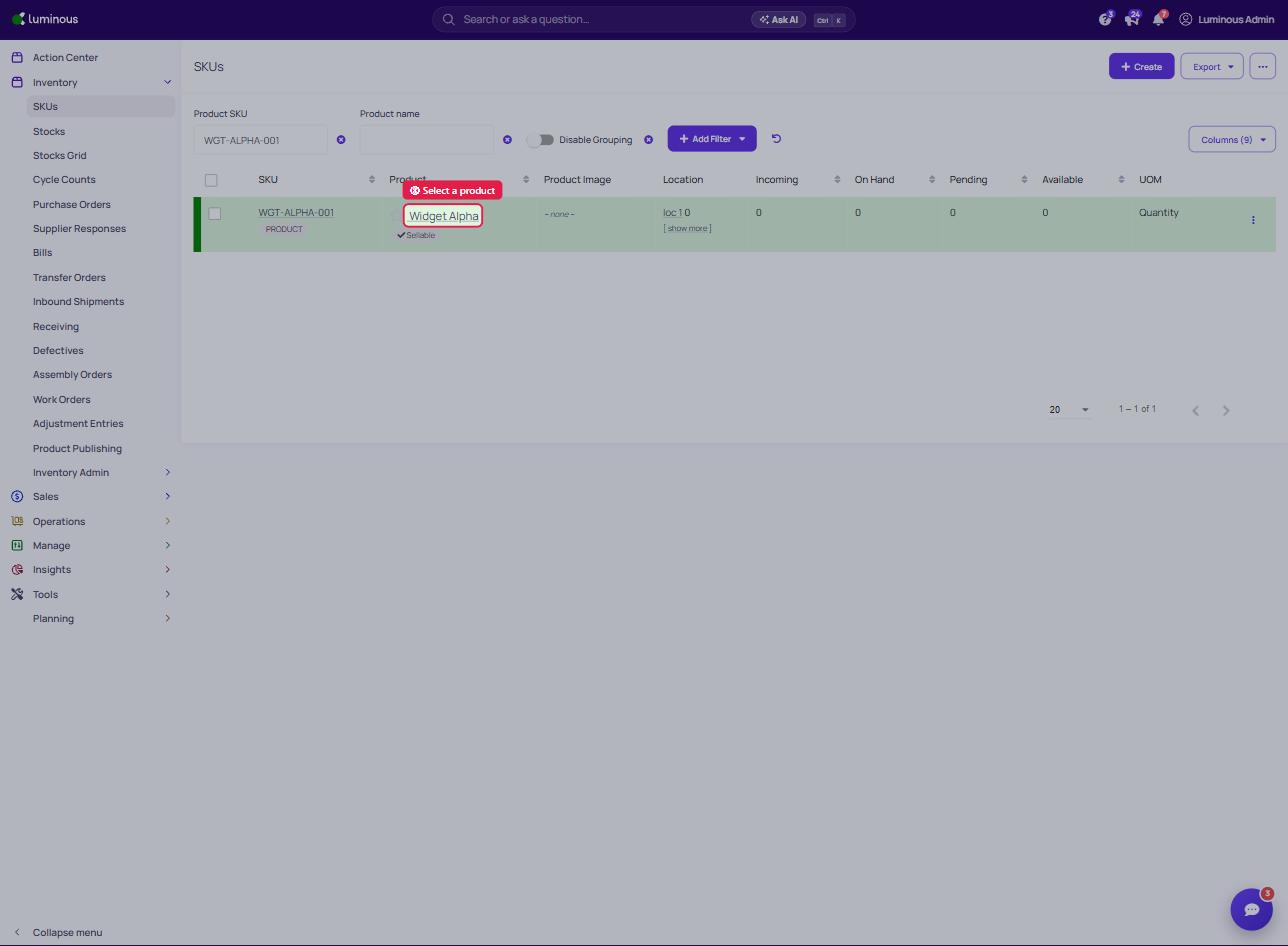
10. Select any product
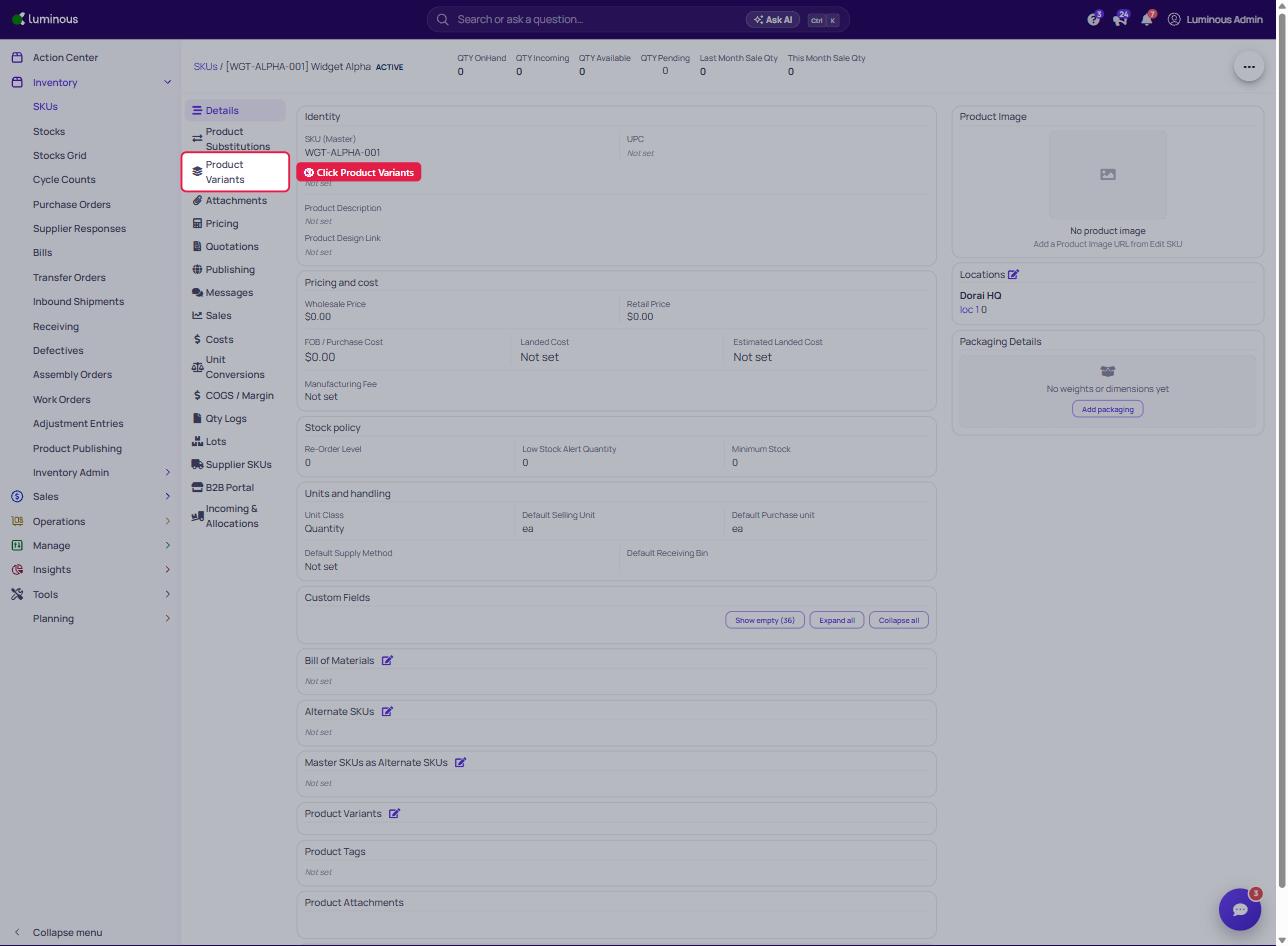
11. Click "Product Variants"
12. Click "Add Variant SKU"
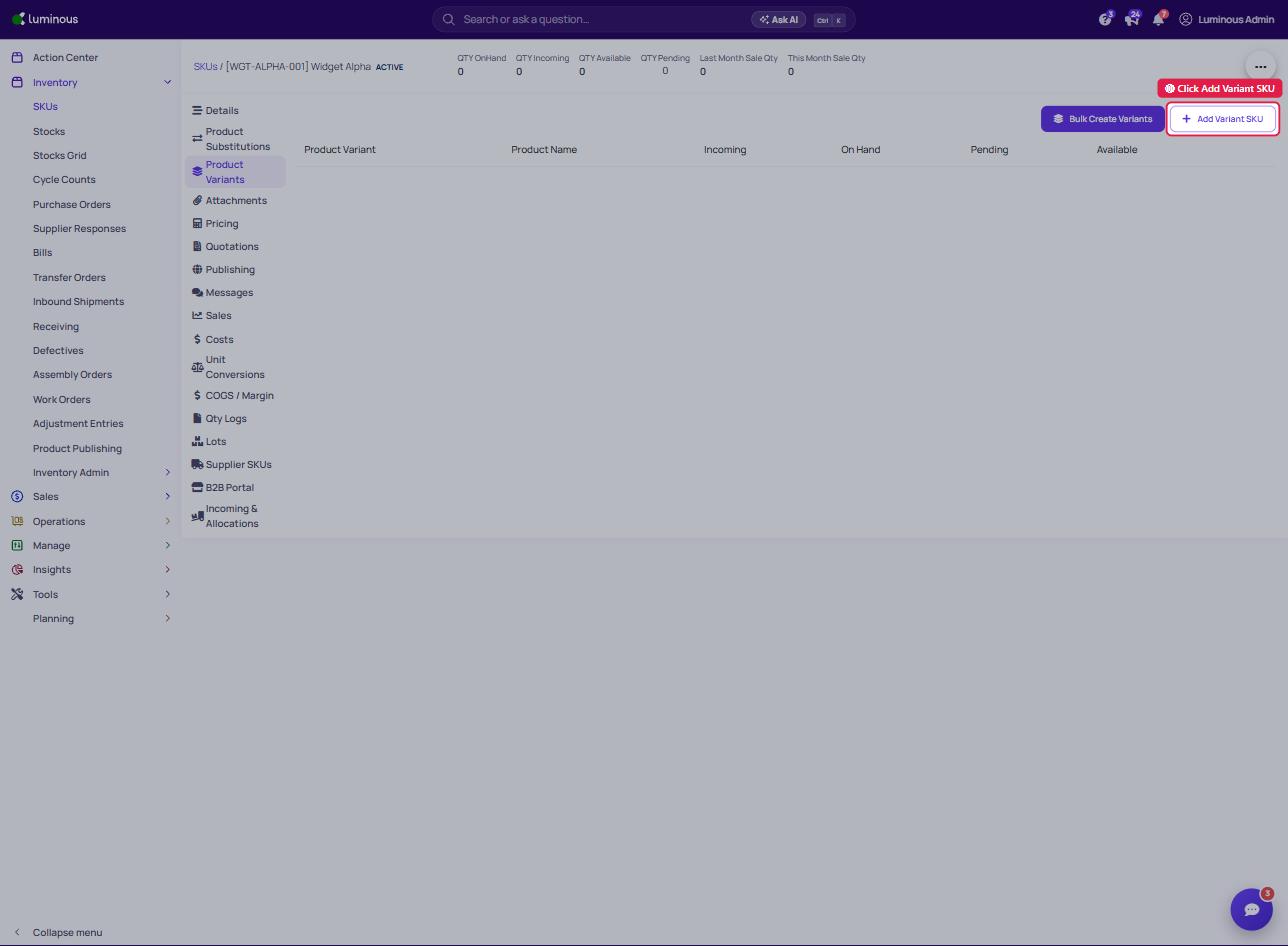
13. This particular SKU is ".5OZ-PUMP" so you can see it is correctly auto-incrementing starting with 1 (as we specified in Inventory Settings)