Overview
The Activity Log gives you a complete, timestamped history of everything that happens to a purchase order — who created it, what changed, when a status was updated, and how it connects to shipments, receiving reports, bills, and inbound shipments. Use it any time you need to answer "who changed this and when," reconcile a discrepancy, or trace a PO's full lifecycle without digging through emails or asking your team.
How It Works (Step-by-Step)
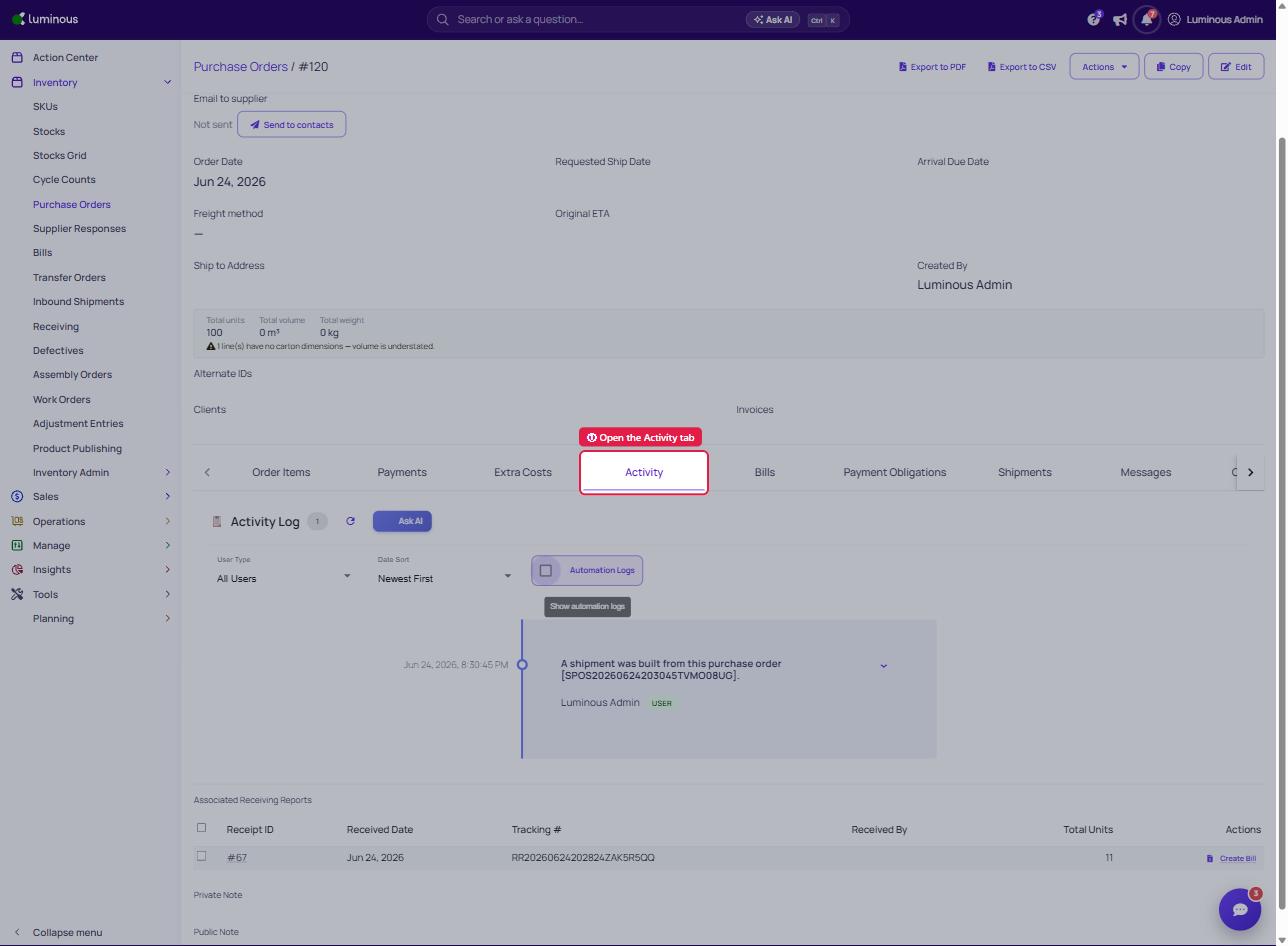
- Go to Inventory > Purchase Orders and open the purchase order you want to review.
- On the purchase order detail page, select the Activity tab.
- Review the list of logged events, shown newest first. Each entry displays:
-
The action that occurred (e.g., PO created, status changed, line item edited, shipment built, PO emailed to supplier)
-
The user who made the change, or System if the change happened automatically
-
The date and time of the change
-
- Select an entry to expand it and see the specific details that changed (for example, the old and new quantity on a line item, or the old and new status).
- If an entry references another record — such as a shipment, receiving report, bill, or inbound shipment — select the linked reference to jump directly to that record.
- Use the filter options at the top of the tab to narrow the log by user-made vs. system-generated changes, or to sort by date.
Key Features / Options
| Feature | Description |
|---|---|
| Full event coverage | Logs PO creation, edits, status changes, deletion, line item additions/edits/removals, shipment builds, lines removed from shipments, pushing a PO as an inbound shipment, and PO emails sent to suppliers (including failed sends). |
| Linked records | Entries that touch another record (shipment, receiving report, bill, inbound shipment, supplier) show a clickable link to that record instead of plain text, so you can navigate straight to it. |
| User vs. System filter | Distinguish between changes your team made and changes Luminous made automatically. |
| Expandable detail view | Click into any entry to see exactly what changed — not just that a change occurred. |
| Same experience as Sales Orders | If you've used the activity log on a Sales Order, this works the same way — pagination, filtering, and expandable entries included. |
Tips & Best Practices
- Check the Activity Log before reaching out to a teammate about a change you weren't expecting — it's often faster than asking.
- If a PO's numbers don't match what you expect, use the Activity Log to see exactly which line items were edited and by whom before assuming a data or receiving issue.
- Use the linked references (shipment, receiving report, bill) to jump between related records instead of searching for them separately.
- The System filter is useful for distinguishing automated updates (e.g., from an integration) from manual edits your team made.
FAQs & Troubleshooting
Why don't I see an Activity tab on my purchase order?
This feature is rolling out gradually. If you don't see the tab yet, reach out to support to check availability for your account.
Does the Activity Log show history from before this feature was enabled?
No. The log only captures activity going forward from when the feature was turned on for your account — it doesn't retroactively populate history for older changes.
Who is listed as the "user" for changes made automatically (e.g., through an integration)?
Automated or system-driven changes are attributed to System rather than a specific user.
Can I see receiving report activity in this same log?
The PO Activity Log will show and link to receiving reports connected to that PO, but receiving reports don't yet have their own dedicated activity feed.
I don't see a change I expected in the log — is something wrong?
Not all field types may be covered yet (for example, some custom fields or tag changes). If you believe an important change is missing, contact support so we can confirm.
Additional Help
If you have questions about the Activity Log or need help locating a specific change, contact Luminous support through the chat widget in-app or at support@luminousolutions.com.