Overview
The Luminous Scripting Platform is a code-based customization tool that lets implementation reps write JavaScript logic to handle complex, client-specific business rules that go beyond what standard Automations or Integration Mappings can support. Use it when a customer has multi-step conditional logic — like dynamically calculating ship dates, setting custom field values based on carrier transit times, or evaluating earliest/latest ship date windows — that cannot be expressed through point-and-click automation rules.
How It Works (Step-by-Step)
Step 1: Access the Scripting Platform
- Navigate to Tools > Automation
Step 2: Create or Open a Script
-
Click the Scripts button to Open Scripting page
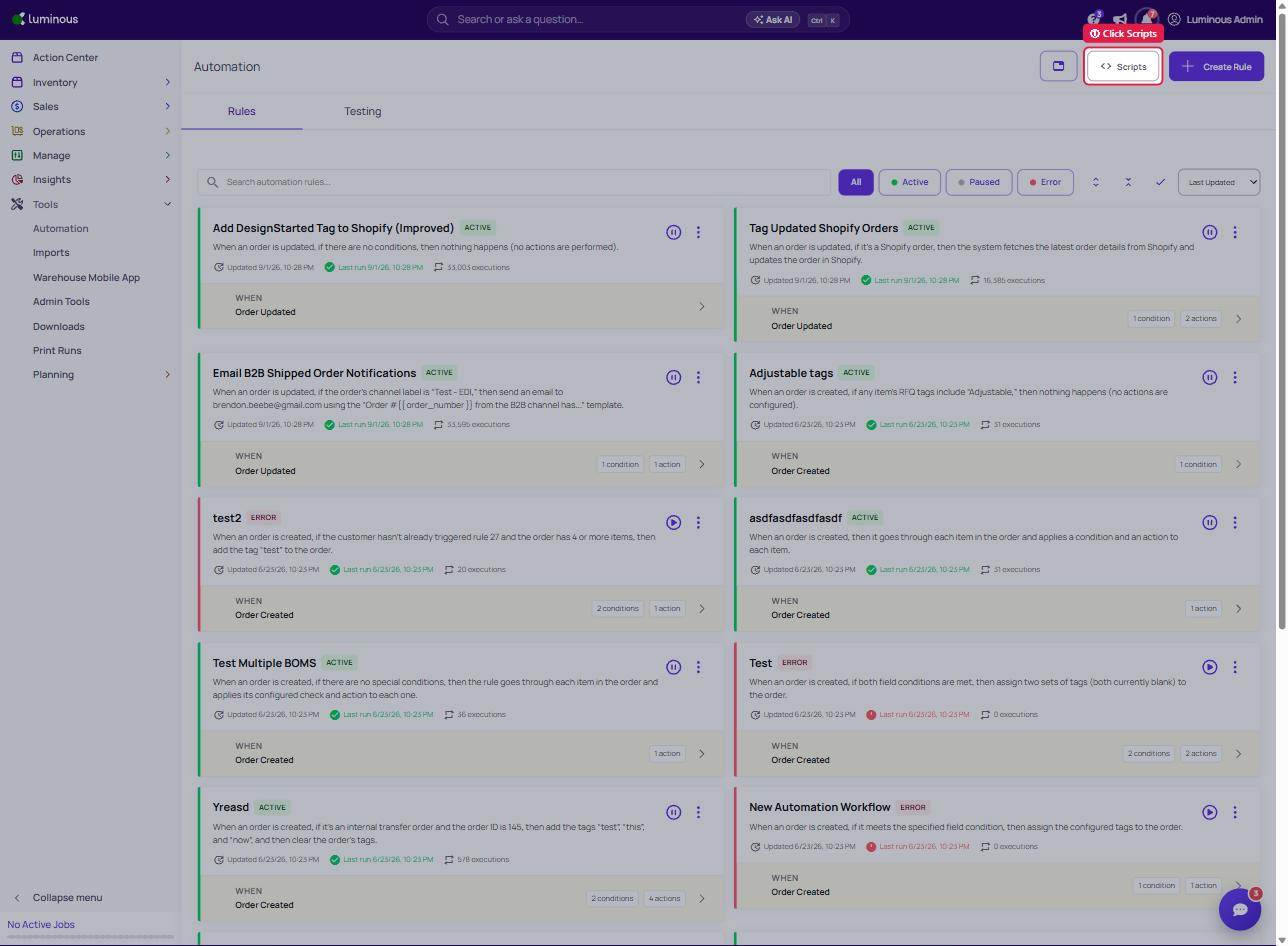
- Click New Script to start from scratch, or select an existing script to edit it. Give the script a descriptive name that reflects the business rule it handles (e.g., "Earliest Ship Date / Last Ship Date Calculator" or "Custom Transit Day Estimator").
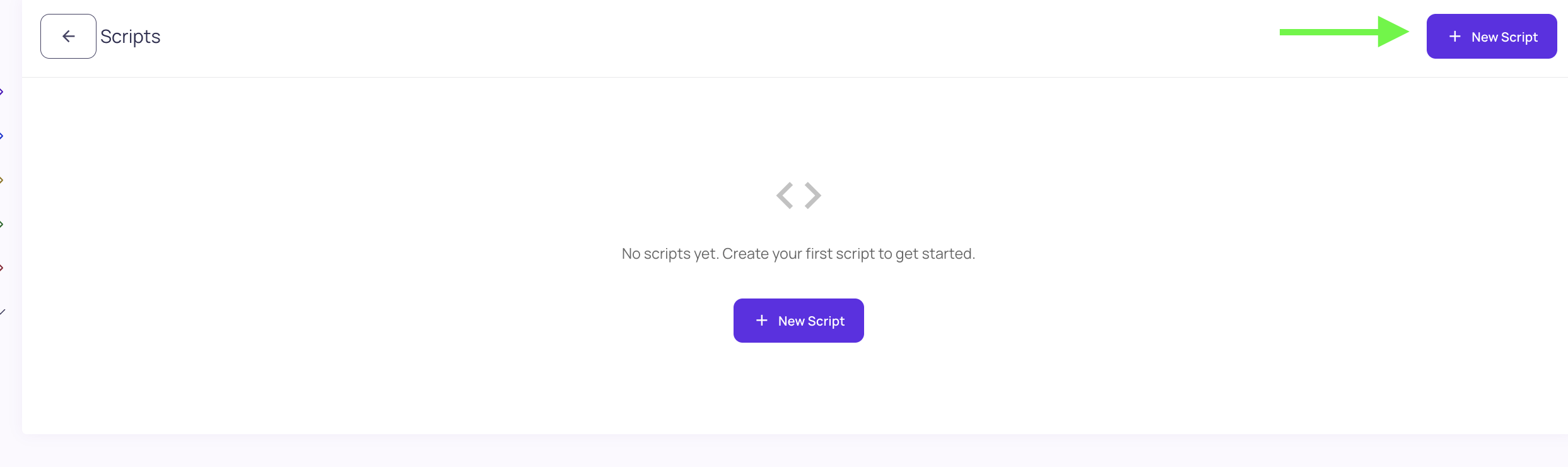
Note: If you do not have an existing Script, there will be two "+New Script" button option. Once you have an existing script only the button on the top-right will be used to create new script.
Step 3: Write Your Logic in the Editor
The editor provides a JavaScript-based environment with:
- Autocomplete — the editor suggests available Luminous objects, methods, and properties as you type, reducing guesswork and typos.
- Luminous module imports — use
require()to import built-in Luminous helper modules. Examples include date utility functions, transit day calculators, and order field accessors. - Order object access — interact directly with order data using the
orderobject. For example:order.setCustomField('fieldName', value)— writes a value into a custom field on the order.order.setValue('fieldName', value)— sets a standard order field.order.getField('fieldName')— reads a field value for use in conditional logic.
- HTTP module support — scripts can make outbound HTTP requests, allowing integration with external databases or third-party APIs when needed.
Step 4: Load Test Orders
Before deploying, use the Order Loader panel to pull in real orders from your account. You can load multiple orders representing different scenarios (e.g., one with a last ship date set, one without, one for a pickup order) and step through each to verify the script produces the expected output for every case.
Step 5: Review the Debug Console
The editor includes a live Debug Console that displays:
- The script's output values after execution
- Any runtime errors encountered
- Step-by-step evaluation results for conditional branches
Use this to confirm that your logic is executing correctly across all loaded test scenarios before activating.
Step 6: Save and Activate
Once the script has been verified against your test cases, click Save. The script is now active and will execute against orders according to the trigger and conditions you have configured.
Key Features and Options
| Feature | Description |
|---|---|
| Autocomplete | Suggests Luminous objects and methods inline as you type, speeding up script development and reducing syntax errors. |
| Module Imports | Import reusable Luminous-native helper libraries (e.g., date utilities, transit calculators) using require(). |
| Order Object API | Read and write order fields, custom fields, and computed values directly through the order object. |
| Multi-Order Test Loader | Load multiple real orders to validate logic across different scenarios before going live. |
| Debug Console | Real-time output display with error reporting and branch evaluation visibility. |
| HTTP Requests | Scripts can call external APIs or databases, enabling integration with customer-specific external systems. |
Tips and Best Practices
- Use the Order Loader extensively before activating. The ability to test against multiple real orders is one of the most valuable parts of this platform — use it. Load at least 4–5 representative orders that cover every logical branch in your script.
- Name your scripts precisely. If a script handles a specific customer's ship date logic, name it accordingly (e.g., "Acme Corp — Ship Date Logic"). Vague names become confusing when multiple scripts are active.
- Comment your logic. Complex conditional branches should have inline comments explaining the business rule being implemented. This makes future edits far easier, especially when the original implementation rep is no longer involved.
- Keep scripts focused. Resist combining multiple unrelated business rules into a single script. One script per business rule is easier to test, debug, and maintain.
- Validate after order data changes. If a customer changes their shipping settings, custom field structure, or carrier configuration, re-test any scripts that depend on those values.
- HTTP calls require error handling. If your script calls an external API, always handle cases where the external system is unavailable or returns an unexpected response — otherwise, order processing may fail silently.
FAQs and Troubleshooting
Q: When should I use the Scripting Platform instead of a standard Automation? Use the Scripting Platform when the logic involves multiple conditional branches, mathematical calculations (like transit day math), date manipulation, external API calls, or any scenario where the Automation rule builder cannot express the full requirement. If you can build it in the Automation UI in under five minutes, standard Automations are the right tool. If you're thinking "this needs code," it does.
Q: What language are scripts written in? Scripts are written in JavaScript. Standard JS syntax applies, and Luminous-specific functionality is accessed through the order object and importable modules.
Q: Can I test a script without affecting live orders? Yes. The Order Loader and Debug Console let you execute and inspect script output against real order data without writing any changes back to those orders. Activate only when you are satisfied with the results.
Q: My script runs without errors but the custom field is not being updated — what's wrong? Verify that:
- The custom field name passed to
order.setCustomField()exactly matches the field name as configured in Settings (case-sensitive). - The script is actually reaching the line that sets the field — use the Debug Console to confirm which branches executed.
- The script has been saved and activated after your last edit.
Q: Can one script call another script or share logic? Shared logic can be packaged into importable Luminous modules using require(). Contact the Luminous implementation team to discuss creating shared utility modules if the same helper functions are needed across multiple scripts.
Q: What happens if a script throws an unhandled error during order processing? The error will appear in the Debug Console during testing. In a live environment, the behavior depends on how the script is triggered — check with the Luminous implementation team for specifics on error handling and fallback behavior for your configuration.
Q: Can scripts make calls to our own company's external database or API? Yes. The HTTP module enables outbound requests from within a script. The external endpoint must be reachable from Luminous's servers, and you should handle authentication, timeouts, and error responses within the script.
Additional Help
If you need assistance building a script, troubleshooting unexpected output, or identifying the right approach for a specific customization requirement, reach out to the Luminous Support team via Intercom. Implementation reps can also escalate complex scripting requests to the Luminous engineering team for guidance.