1. What a Return Order Is
- A return order in Luminous replaces the older practice of using a negative sales order to represent returns.
- Instead of a floating negative sales order, Luminous now creates a dedicated return order that is linked to the original sales order.
- This applies when a return is initiated in Shopify (or manually created in Luminous).
Key points:
-
Return orders show up under a Refund/Return Orders tab on the related original sales order.
-
They represent:
- Refund ONLY — money is returned, but no stock comes back.
- Restock ONLY — inventory increases, but no refund is given.
- Refund + Restock — both inventory and money are reconciled.
2. How Returns Sync from Shopify
-
When a customer initiates a return in Shopify:
- Shopify sends the return to Luminous.
- Luminous creates a return order linked to the original sales order.
- The system processes the return:
- Adds stock back into inventory in Luminous immediately.
- Reverses revenue via refund logic.
-
There are cases where redo or third‑party return apps change how return data flows — these sometimes behave inconsistently.
Example flows:
| Shopify Return Type | Luminous Outcome |
| Refund only | Negative financial return order, no inventory change |
| Restock only | Zero dollar return order, inventory +1 |
| Refund + Restock | Negative financial + inventory restocked |
3. Stock / Inventory Timing and Variances
One of the biggest issues right now is when Luminous restocks returned inventory:
- Current behavior: Luminous restocks the item immediately when the return is created.
- Problem: The item may not actually be physically returned yet — especially if a 3PL or carrier is involved.
- This leads to:
- Temporary inventory variances
- A discrepancy between what Luminous shows and what the warehouse/3PL actually has
How variance can appear:
- Luminous shows +1 inventory when return hits.
- 3PL hasn’t received it yet → 3PL reports 0.
- Luminous creates a stock variance (−1) until the 3PL updates their quantity.
So the system currently shows the inventory before the physical return arrives.
4. Visibility & Status Tracking (Current Limitations)
Return orders today have very limited status tracking — essentially just “created.”
Missing pieces include:
- A richer Return Order List View (a basic list of all returns is now available under Operations → Return/Refund Orders, and a new return can be set to Pending or Received when created)
- A status workflow (e.g., Open → In Transit → Received → Closed)
- Ability to track progress through shipping stages
- A clear “closed” status so returns don’t instantly restock
Result:
Users may see returns as processed immediately even if the item hasn’t physically arrived, and they can’t easily manage or track return progress in Luminous yet.
5. How to Manually Create and View Return Orders in Luminous
Luminous allows users to manually create return orders when a sales order has already been marked as Shipped.
Return orders can only be created for sales orders with Shipped or Partially Shipped status.
- Go to Operations → Sales Order Grid → Shipped or Partially Shipped tab.
- Search for and select the relevant sales order.
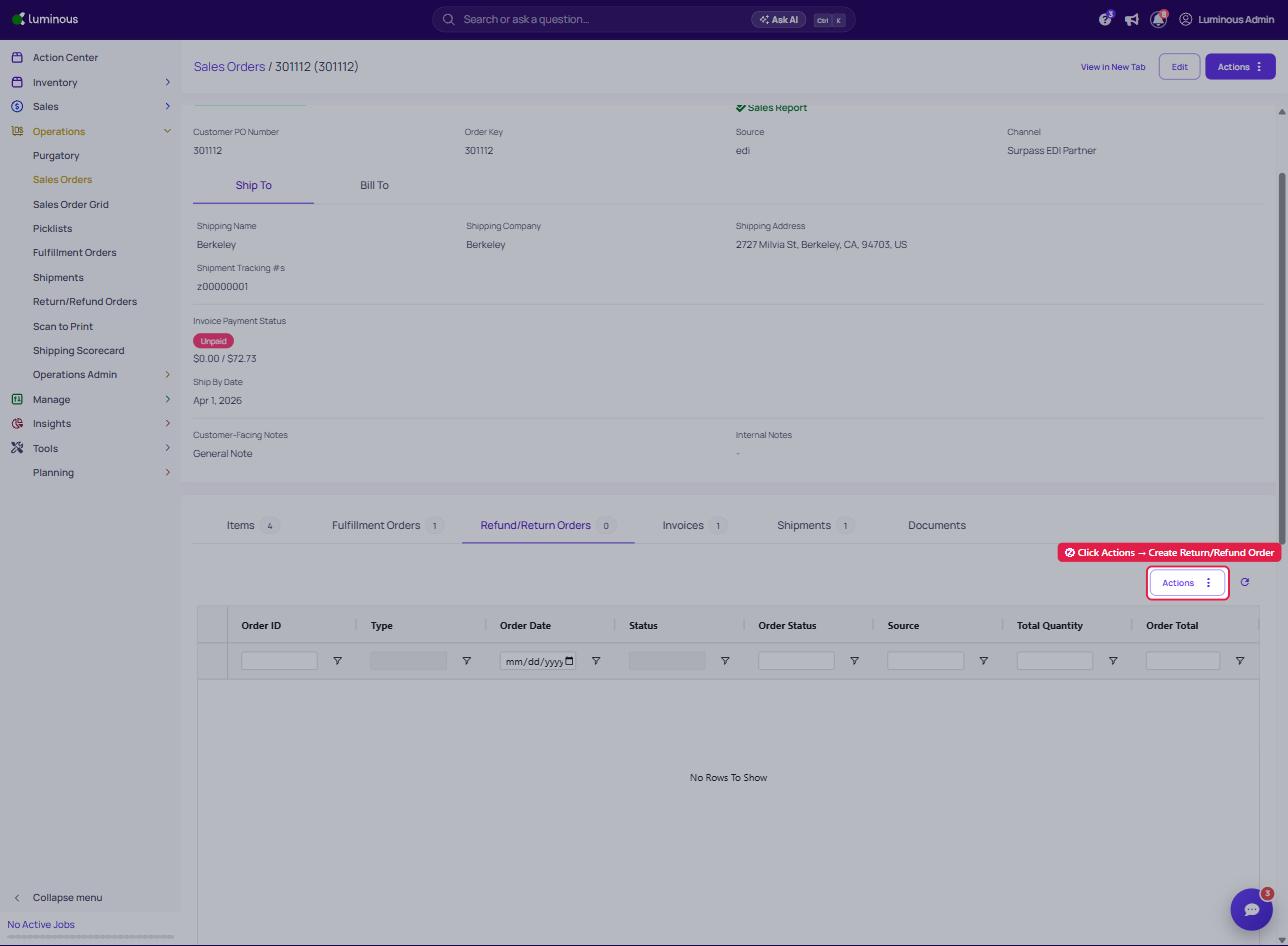
- In the Sales Order view, click the Refund/Return Orders tab.
- Go to Actions → select Create Return/Refund Order.
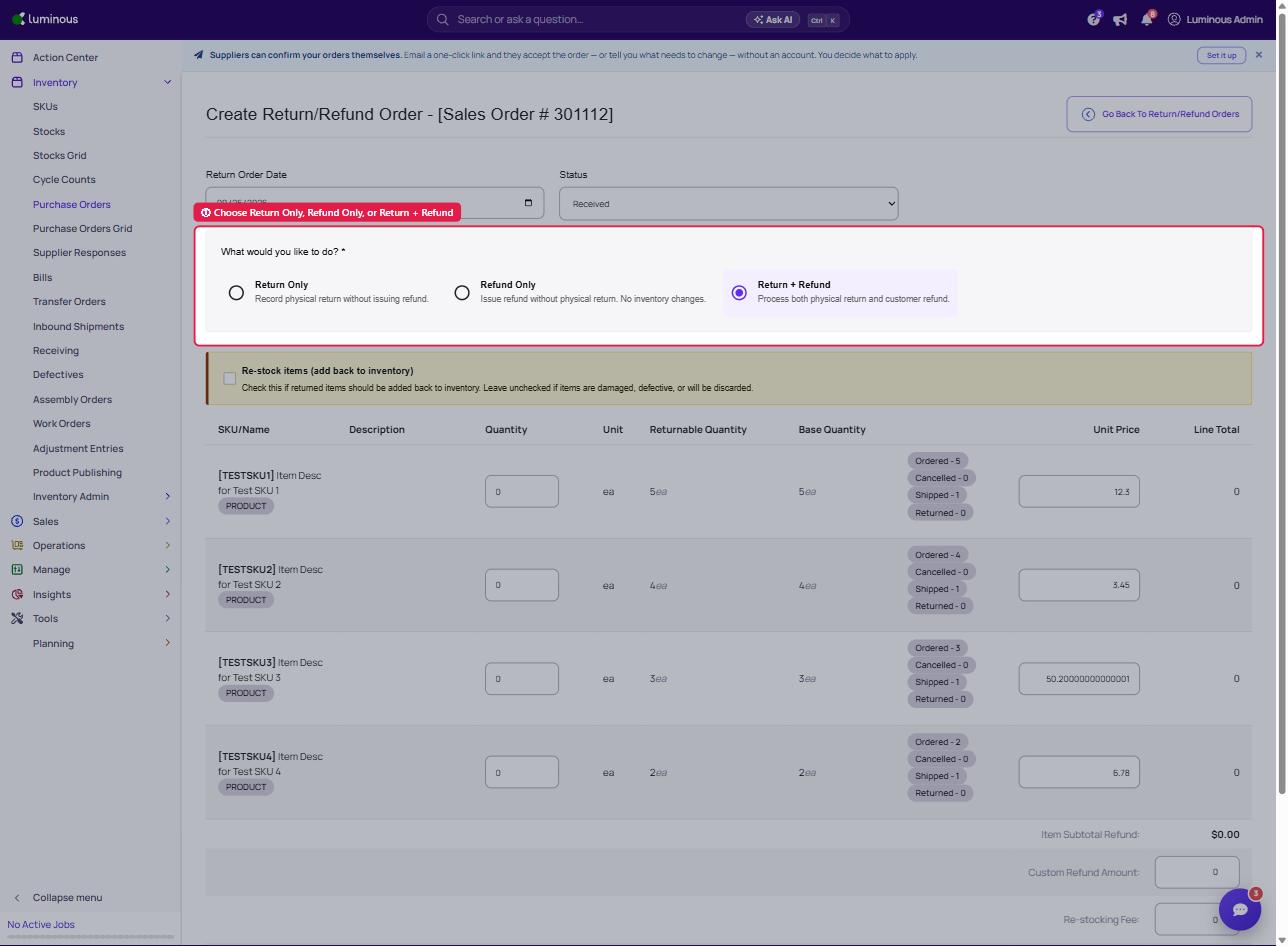
- In the form, select a transaction type: Return Only (physical return, no refund), Refund Only (refund with no inventory change), or Return + Refund (both a physical return and a customer refund).
- Enter the quantity of items to be returned.
- Click Submit Return/Refund Order to create the return order.
-
Return Order Editing Limitations
Once created, return orders are mostly locked and cannot be edited. If changes are needed, a new return may need to be created.
Checking Inventory After a Return
To check updated inventory after a return:
- Go to Inventory → Stocks
- Search for the product to view current stock levels.
6. Exchanges
Exchanges are treated differently:
- Shopify may mark an order as an exchange (with an exchange tag or new order)
- In Luminous, exchanges generally show up as a separate sales order, not a modified existing order
- There isn’t a clear status or linkage between the return and new order yet in the system
- So tracking an exchange in Luminous requires referencing Shopify side to understand the full flow