Overview
Custom fields let you capture business-specific data on Luminous records beyond the standard fields Luminous provides out of the box — things like a compliance flag, an internal routing code, or a supplier-specific reference number. Today, custom fields are available on records like Sales Orders and Work Orders and Purchase Order Shipments.
How It Works (Step-by-Step)
Setting up a custom field for PO Shipments (Admin):
-
Go to Manage > Custom Fields.
-
Click Create Custom Field.
-
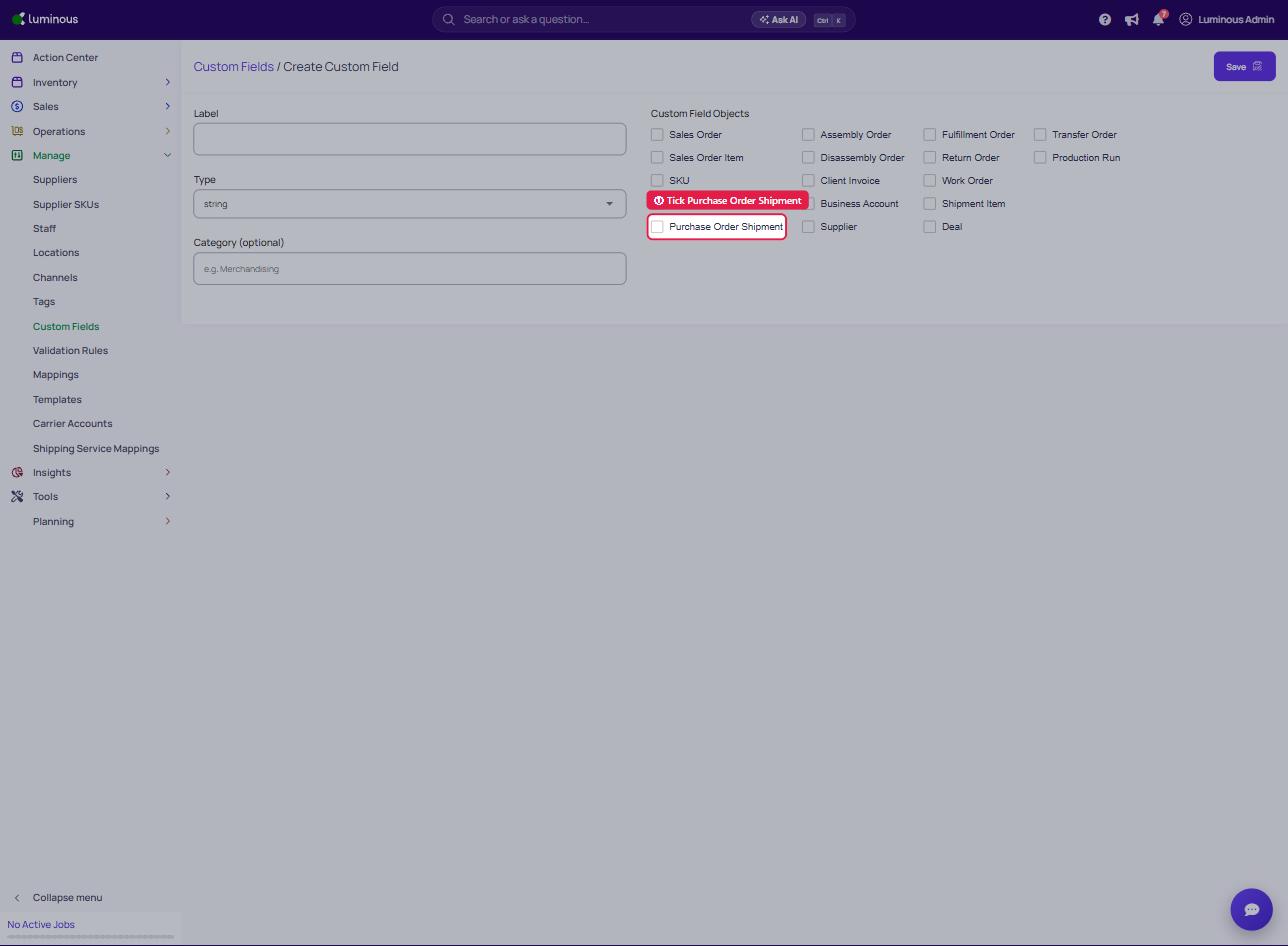
Under Custom Field Objects, tick Purchase Order Shipment.
-
Enter a Label for the field and choose its Type (string, number, date, dropdown, or multi_dropdown).
-
Optionally enter a Category to group the field.
-
Click Save.
Filling in a custom field on a PO Shipment (User):
-
Open a Purchase Order and go to its Shipments section (or open the PO Shipments grid directly).
-
Open the shipment you want to edit.
-
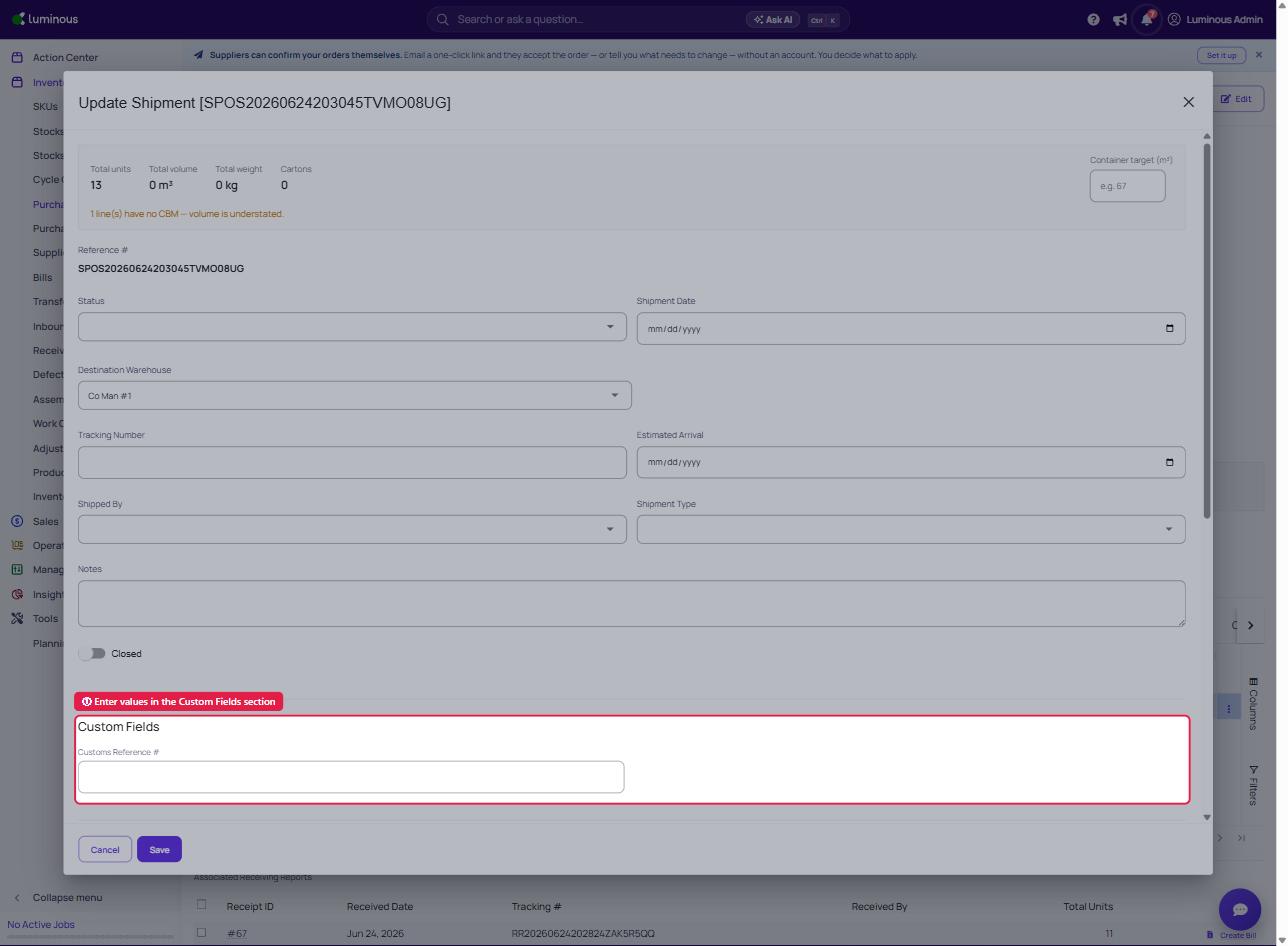
Scroll to the Custom Fields section of the shipment record.
-
Enter or select a value for each custom field you want to populate.
-
Click Save (or Update) on the shipment.
Your entries are saved with that shipment record and will appear the next time you or a teammate opens it.
Key Features / Options
| Feature | Details |
|---|---|
| Scope | Custom fields apply to the PO Shipment record itself (header-level details like carrier, ship date, or a reference number) — not to individual line items within the shipment. |
| Field types | Same field types available for other custom-field-enabled records (string, number, date, dropdown, multi_dropdown), configured by your admin. |
| Where values are saved | Values are saved as part of the shipment when you save or update the shipment record — there's no separate save step for custom fields. |
| Visibility | Only an admin can create or edit the custom field definitions themselves; any user with access to PO Shipments can fill in values once a field exists. |
Tips & Best Practices
- Plan your fields before creating them. Since custom fields apply to the whole shipment (not line items), use them for shipment-level details — e.g., a customs reference number or an internal handling note — rather than per-item data.
- Use required fields sparingly. If a field is marked required, users won't be able to save the shipment without filling it in — reserve this for data your team truly can't operate without.
- Coordinate naming with other custom fields. If you already use custom fields on Sales Orders or Work Orders, consider consistent naming conventions across record types to avoid confusion for your team.
FAQs & Troubleshooting
Q: Can I add custom fields to individual line items within a PO Shipment?
A: Not at this time. Custom fields on PO Shipments apply to the shipment record as a whole, not to individual line items within it.
Q: Will my PO Shipment custom field values be logged in an activity history?
A: No. PO Shipments don't currently have activity logging, and custom field edits follow that same behavior — changes aren't tracked in a history log.
Q: Do these custom field values get pushed to connected systems (like ShipStation or QuickBooks)?
A: Not currently. This is not part of the initial release — check with your Luminous admin or support if this is a requirement for your workflow.
Q: I don't see "PO Shipments" as an option when creating a custom field.
A: This feature may not yet be live on your account, or you may not have admin permissions. Confirm with your account admin, or reach out to support.
Additional Help
If you have questions about setting up or using custom fields on PO Shipments, contact Luminous Support at support@joinluminous.com or visit the Help Center.