Overview
This automation sends an email reminder to customers when an invoice reaches its due date and remains unpaid. It helps ensure timely payments by automatically notifying customers on the day their invoice is due.
How It Works
The automation triggers when:
- An invoice is created or updated
- The due date is today
- The invoice status is not paid
Once these conditions are met, an email reminder is sent automatically.
Step-by-Step Setup
1. Navigate to Tools
- Go to Automations
- Click Create Rule
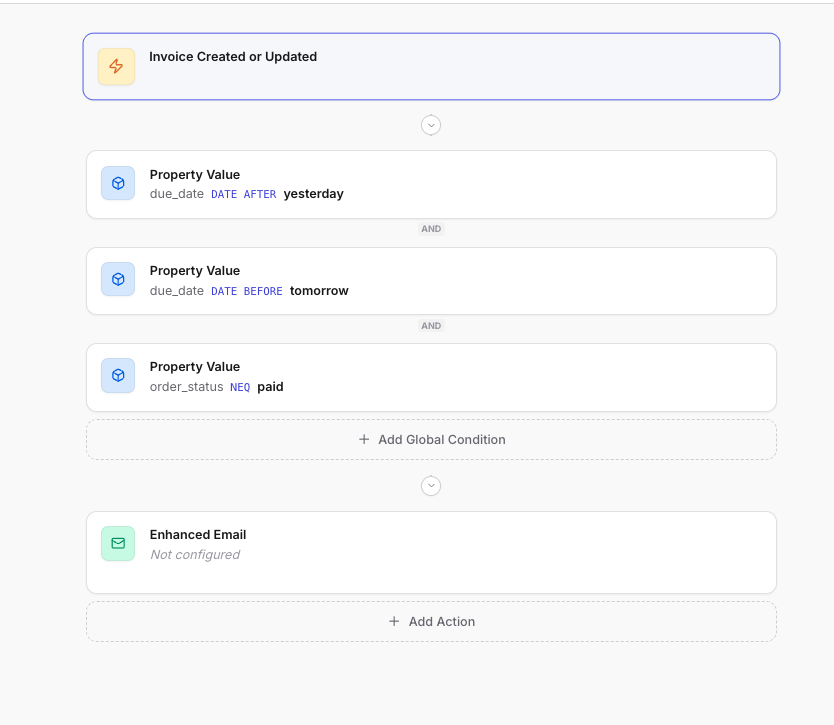
2. Set the Event Trigger
- Select Invoice Created or Updated
3. Add Due Date Conditions
Add the following filters to ensure the automation runs only on the invoice due date:
- due_date → Date After → yesterday
- due_date → Date Before → tomorrow
This ensures the due date is exactly today.
4. Exclude Paid Invoices
Add an additional condition:
- order_status → does not equal (!=) → paid
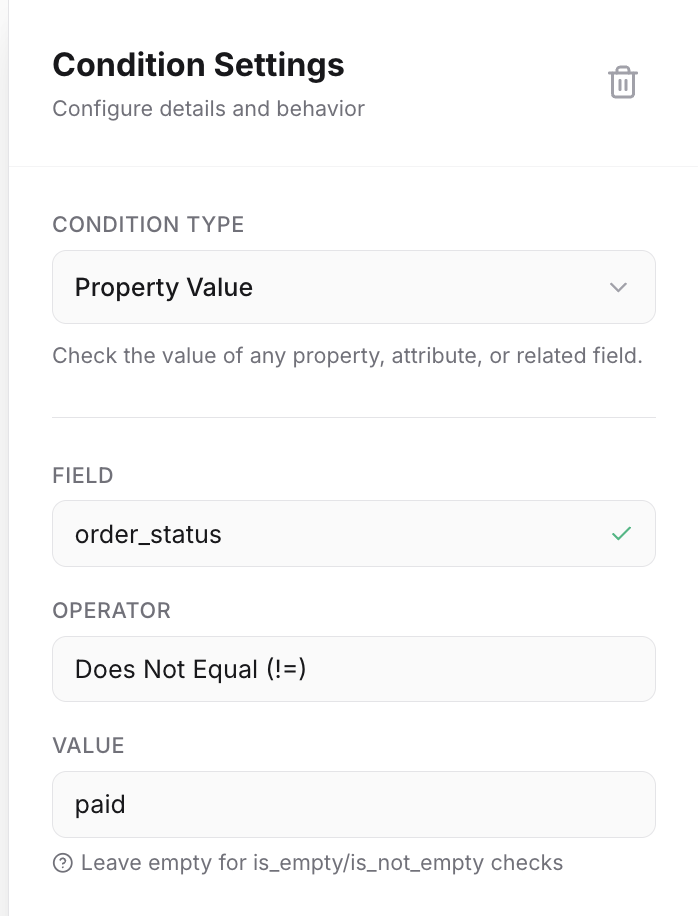
This prevents reminders from being sent for invoices that have already been paid.
5. Add the Email Action
- Click + Add Action
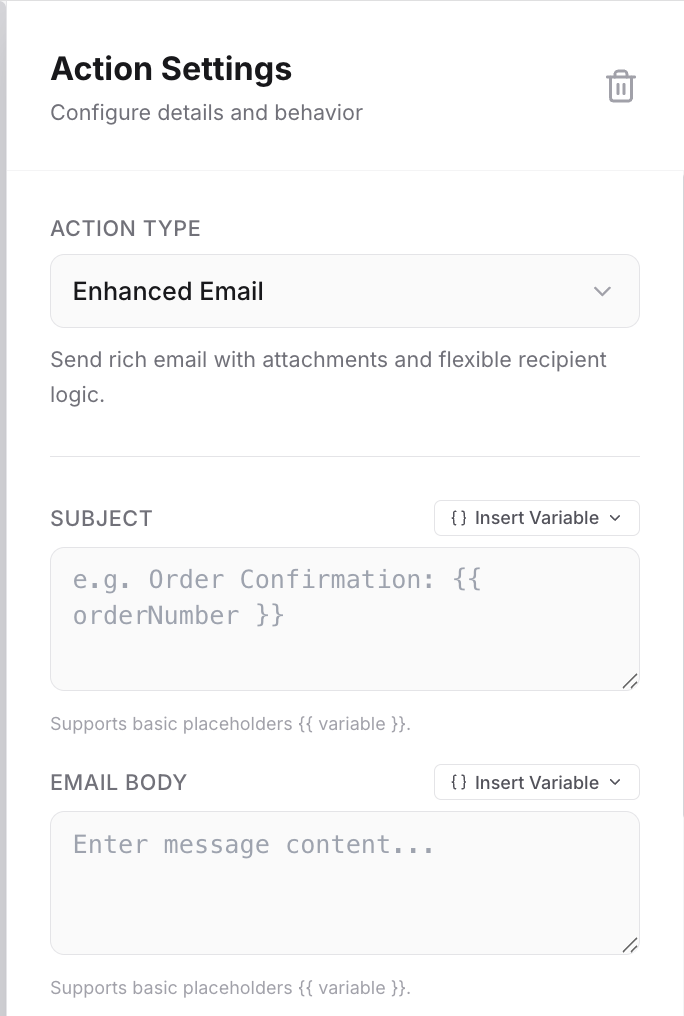
- Select Enhanced Email
- Configure the email content:
- Subject line (e.g., Invoice Due Today)
- Message body with invoice details and payment instructions
- Include a payment link if available
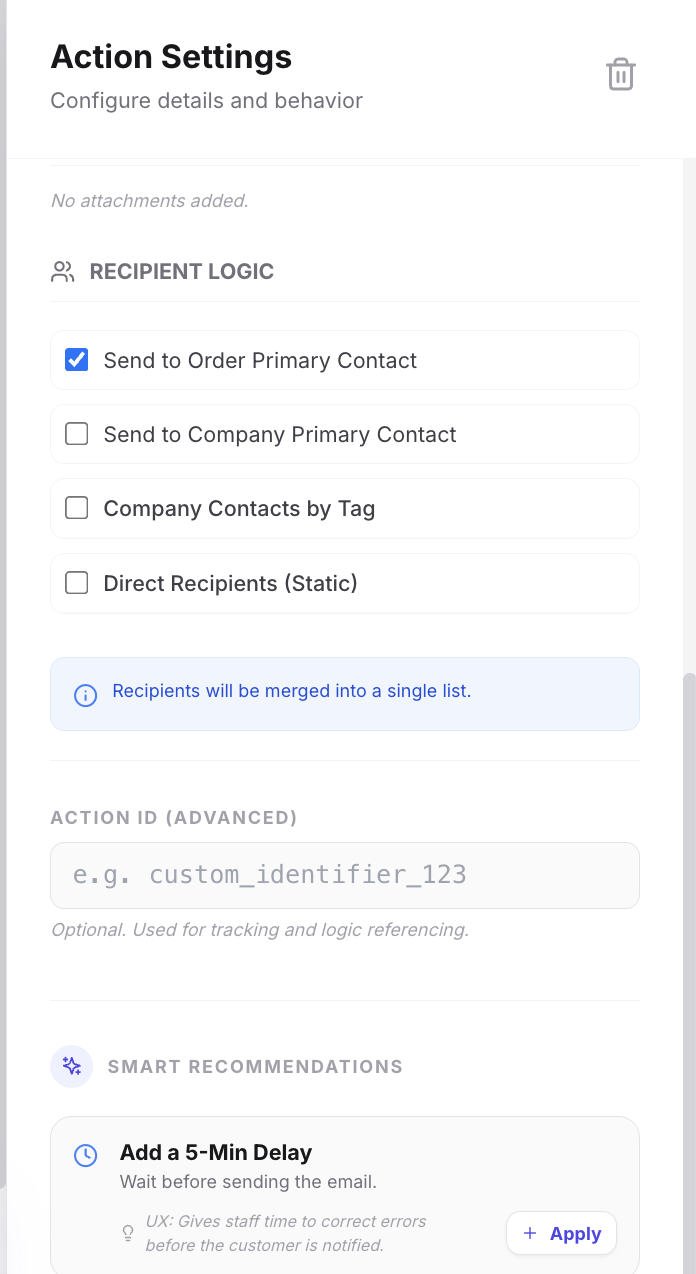
- Recipient Logic
6. Save and Activate
- Review the automation
- Name your Automation and Click Save
Tips & Best Practices
- Use clear subject lines like “Reminder: Invoice Due Today” to improve open rates
- Include invoice amount, due date, and payment link in the email
- Consider adding a follow-up automation for overdue invoices
FAQs
Why use “after yesterday” and “before tomorrow”?
This combination ensures the automation only triggers on the exact due date.
Will this send multiple emails?
No, the automation triggers when conditions are met. If the invoice remains unchanged, it will not repeatedly send emails unless retriggered.
Can this be customized for different timing?
Yes. Adjust the date conditions to send reminders before or after the due date.
Need Help?
If assistance is needed setting up or customizing invoice reminders, contact the support team.