Step-by-Step: Bulk Importing a BOM
- Go to Tools - Imports
- Select the Import Bill of Materials
- Click Download Bill of Materials Template on the top right corner of the screen
- This downloads the Excel template format
- Fill Out the Template
- Open the excel file and complete the following fields:
Product SKU– the item you’re creating the BOM forComponent SKU– each material usedQuantity– how many units of the component are required- (Optional)
Unit of Measure,Notes, or other columns if applicable
- Save the file once complete
- Open the excel file and complete the following fields:
- Upload the Completed Template
- Return to Tools > Imports > Bill of Materials
- There are two type of actions you can take to update BOMs
- Adding new BOM and Updating existing information in bulk
- Clear/Import
- Under Select excel file, click Choose File, select your excel, and follow the prompts.
- Review the preview to confirm correct mapping of columns
- Review and Confirm Import
-
If there are any errors (e.g. unknown SKUs), they will be outlined in red before import and will show what kind of error it is.
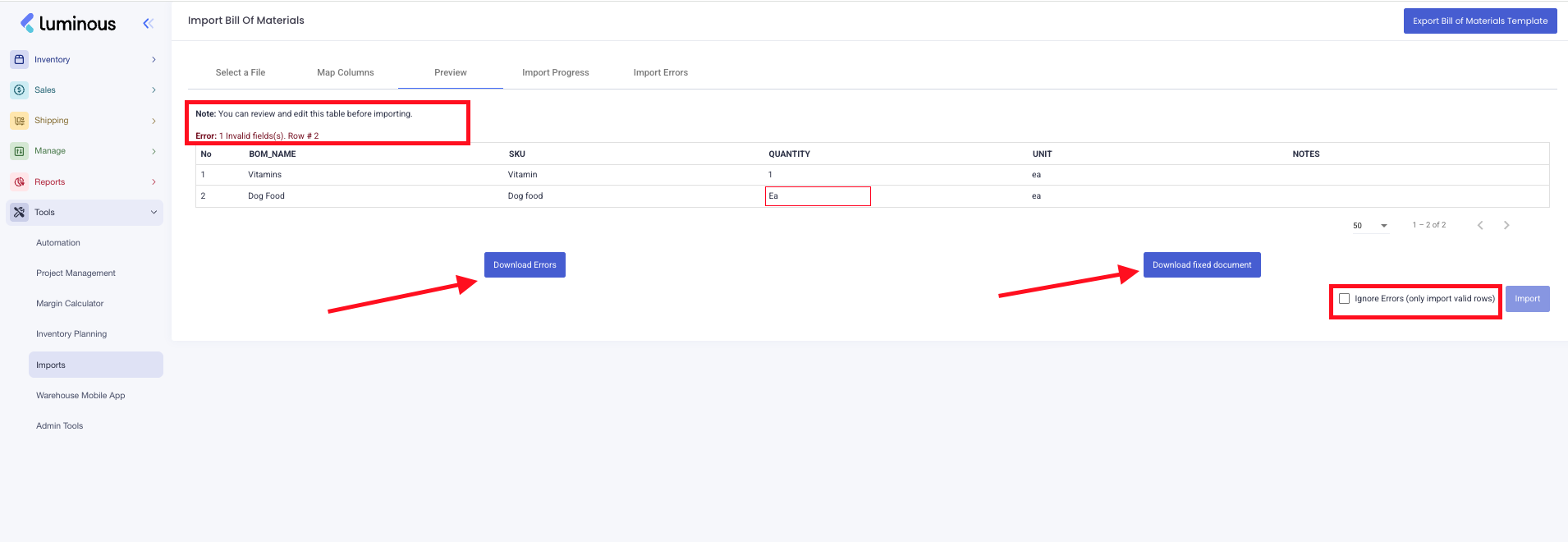
- If you would like to download the errors on an excel file, you can do so by selecting the "Download" button - this will allow to download only the field with errors and upload once corrected.
- If you would like to ignore the errors before importing, toggle the "Ignore Errors" before continuing to import. If you choose to select this and ignore the error and proceed to import, only those valid rows will be imported.
-
Click Import to finalize and save your Bill of Materials.
-
A loading should appear to track progress of import completion
-