Overview
The Pricing import tool allows bulk uploading of price overrides for specific SKUs. This is useful for updating pricing across different schedules, tiers, or price levels without making manual changes.
How to Import Price Overrides through the Tools Page
-
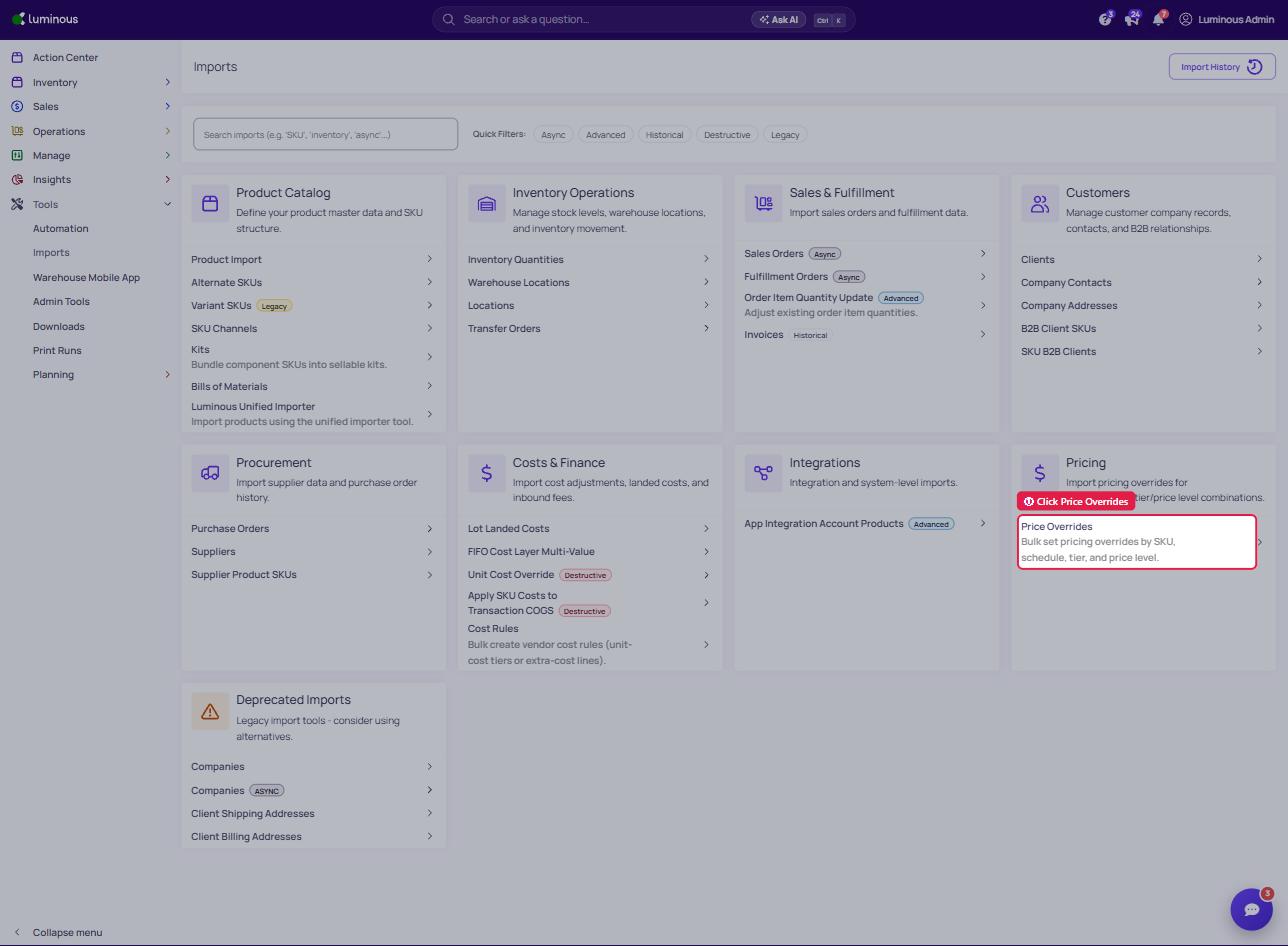
Navigate to Tools - Imports.
-
Locate the Pricing section.
-
Click Price Overrides.
-
Download the import template (if available) or prepare a CSV file with the required fields.
- Fields
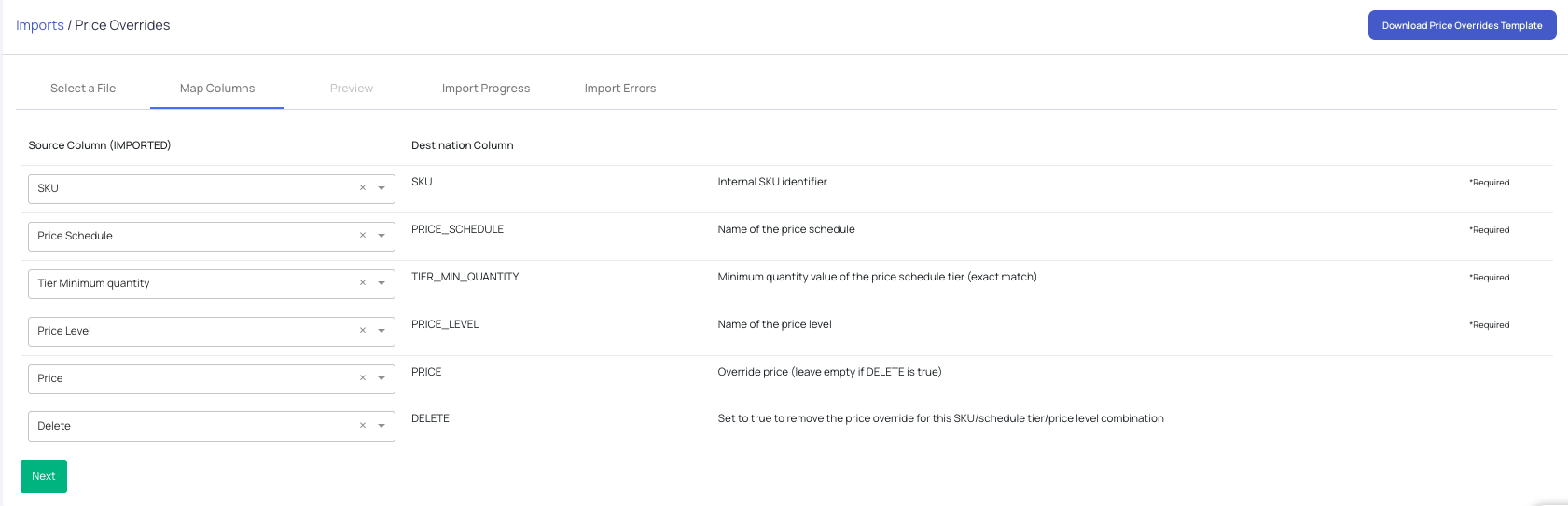
- SKU (Required)
- Price Schedule (Required)
- Tier Minimum Quantity (Required)
- Price Level (Required)
- Override Price
- Fields
-
Upload the completed template sheet file.
-
Map the columns.
-
Review the data for accuracy.
-
Click Import to process the price overrides.
How to Import Price Overrides through the Sales Page
This import tool is a company level price override.
- Navigate to Sales > CRM, open the company, then select Pricing Structure
- Select the SKU Price Overrides
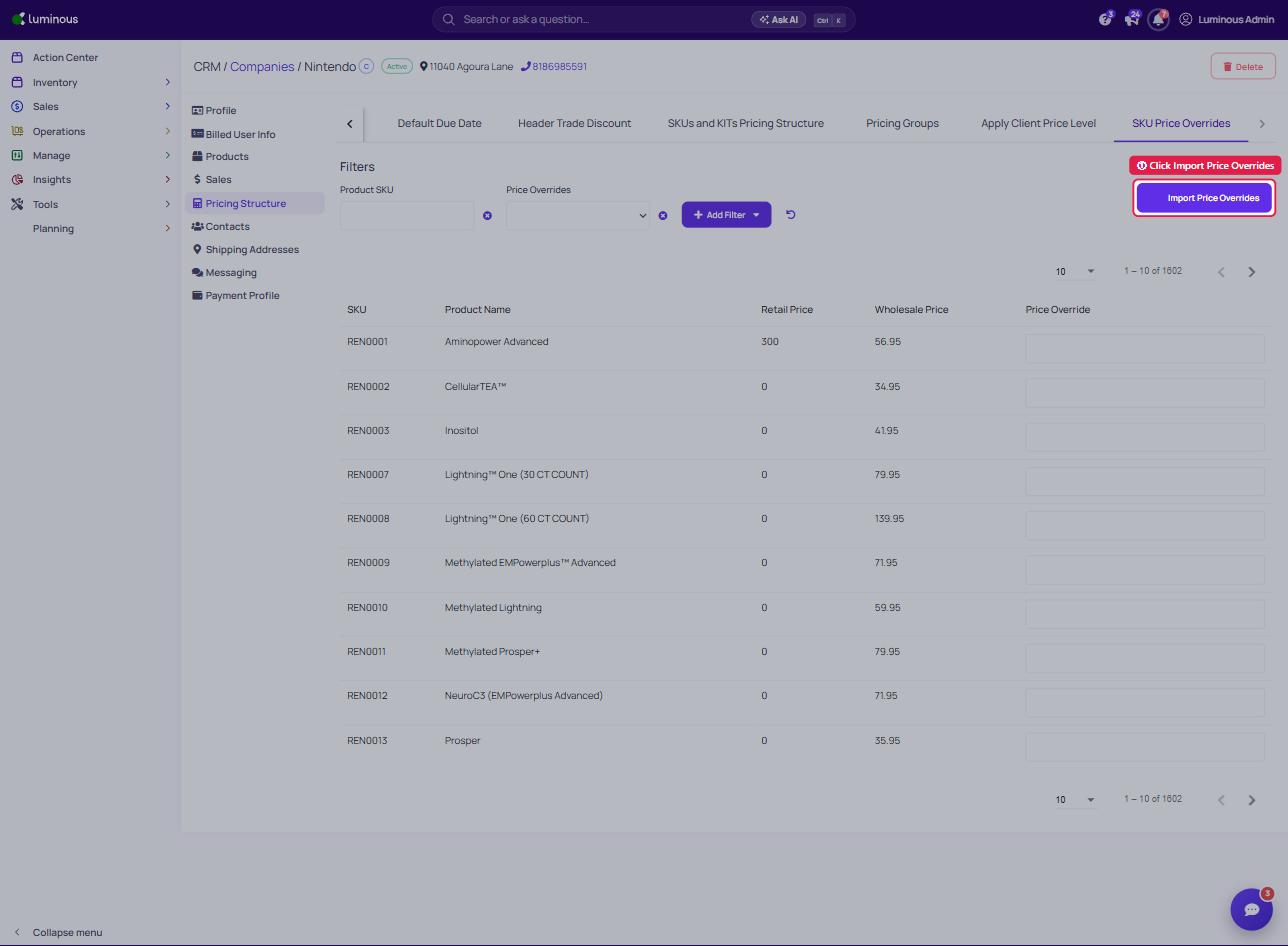
- Download the CSV template and fill out the required details.
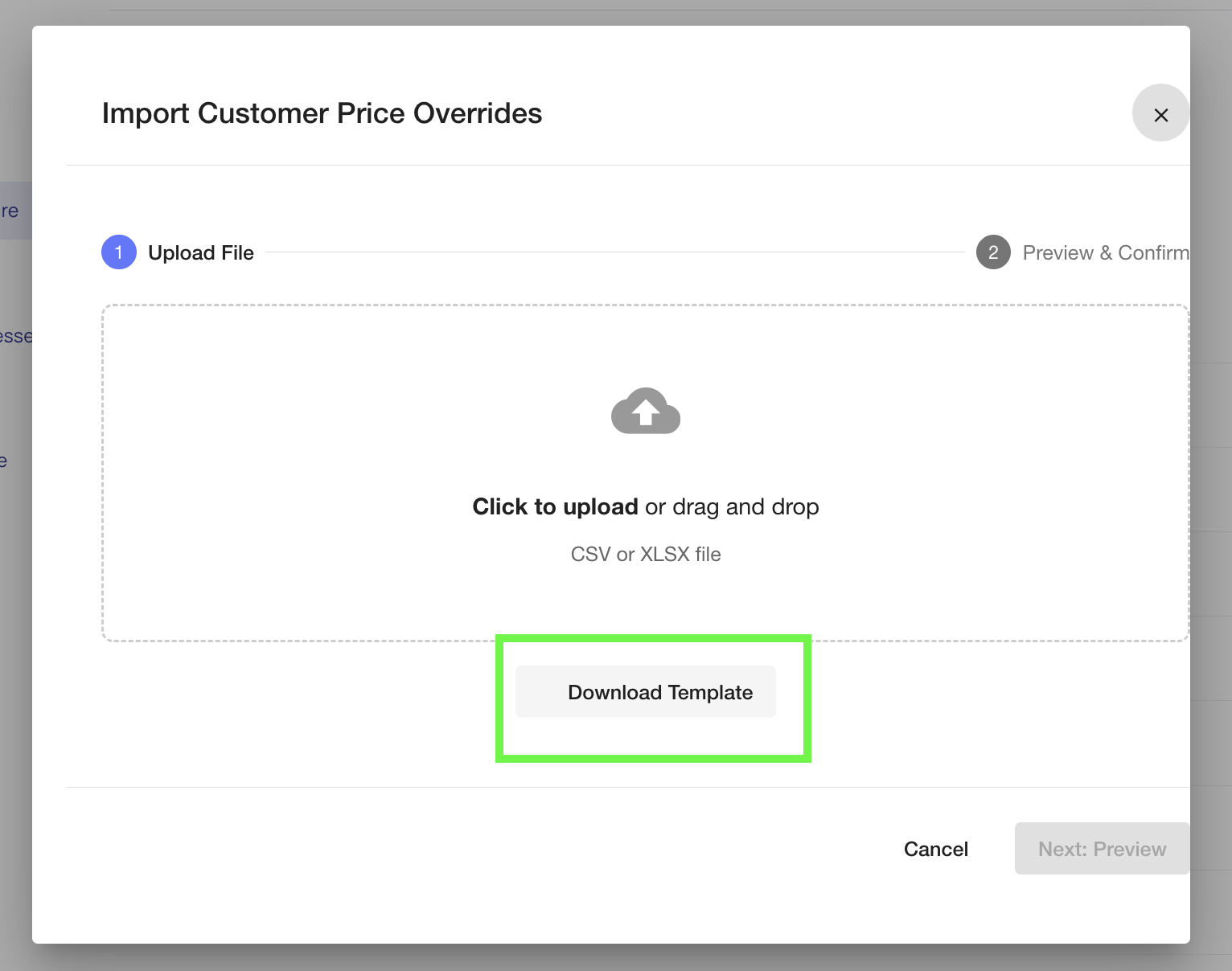
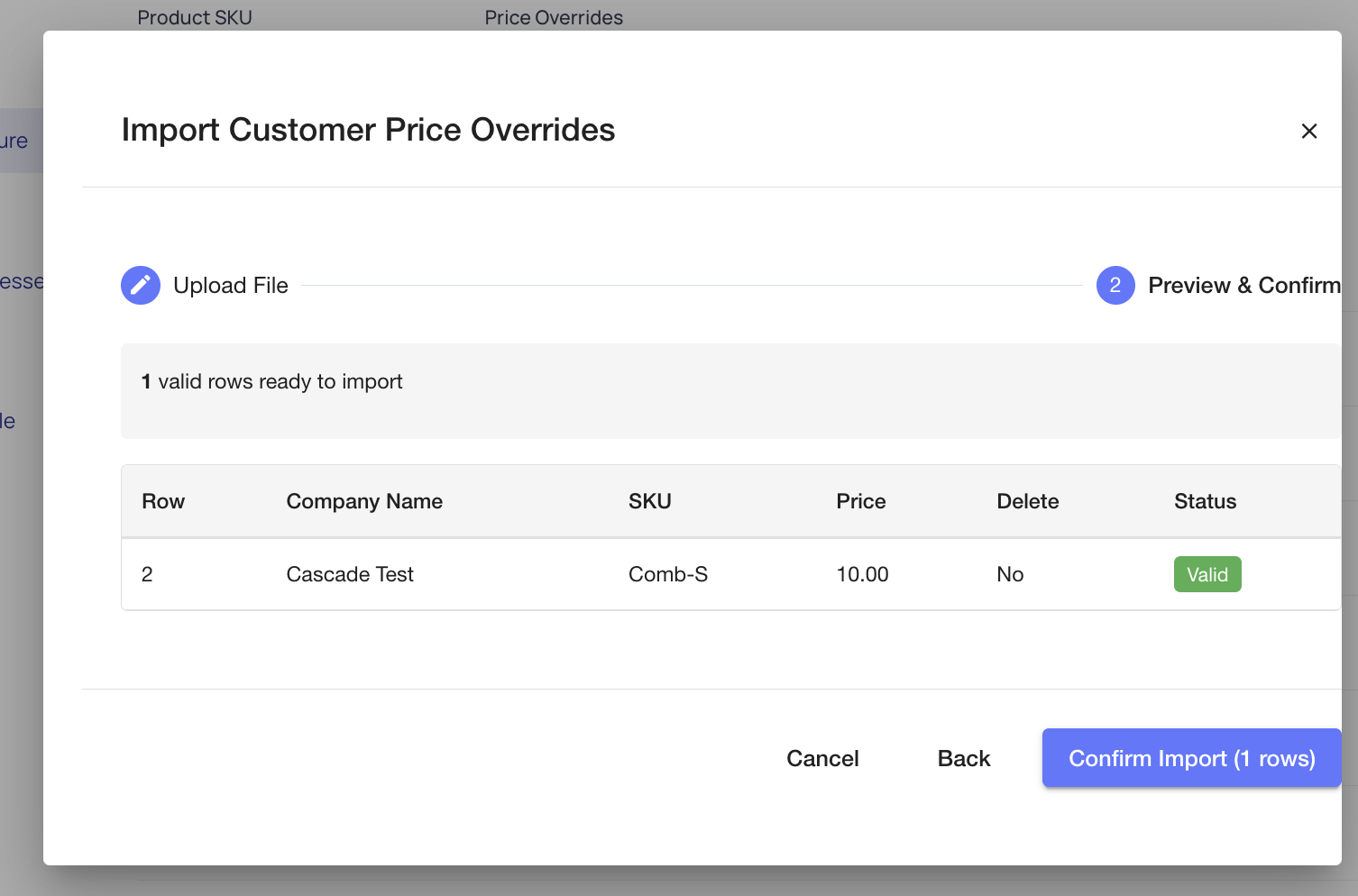
- Pop up window will show if the import is valid then confirm if all information are correct.
Key Notes
- Price overrides apply only to the specified SKU and pricing combination.
- Existing overrides may be updated if matching records are found.
- Ensure SKU values match exactly with those in the Product Catalog.
Tips & Best Practices
- Use the template to avoid formatting errors.
- Double-check pricing values before importing.
- Test with a small batch before uploading large datasets.
Troubleshooting
- Import fails: Check for missing required fields or incorrect formatting.
- Prices not updating: Confirm that SKU, schedule, and tier combinations match existing records.
- File not accepted: Ensure the file is in CSV format and follows the template structure.
Need Help?
If issues persist, contact the support team for further assistance.