Overview
The Go Live Health Check monitor helps identify issues immediately after a customer goes live. It automatically checks for problems like missing shipments, duplicate orders, and inventory sync issues.
This monitor should be set up for every go-live and reviewed daily to ensure everything is working as expected.
How to Set Up the Monitor
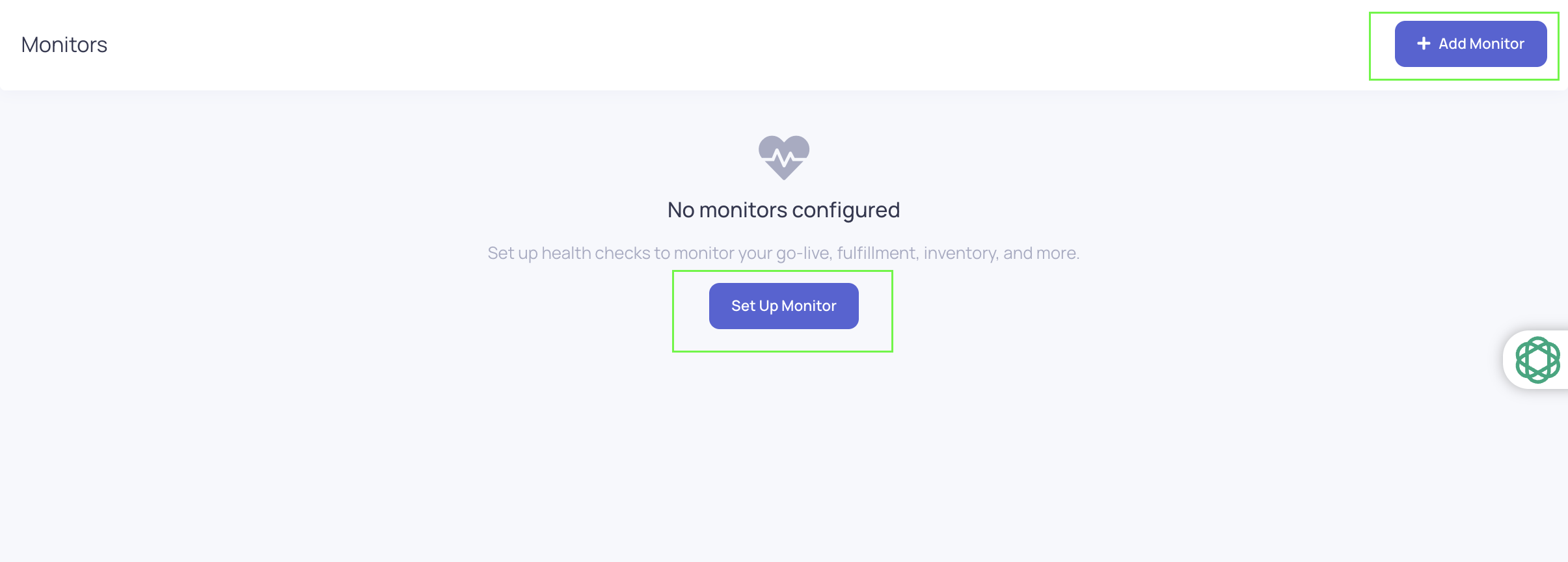
- Go to Tools → Admin tools → Monitors → Open Monitors
- There are two ways to set up a Live Monitor depending on whether this is the first monitor being created or an additional one. Both will have the same step in setting up.
- Option 1: Set Up Monitor (First-Time Setup)
Use the Set Up Monitor button when no monitors have been created yet.
- This option is only available for first-time setup
- Clicking this will guide through creating the initial Live Monitor
b. Option 2: Add Monitor (Additional Monitors)
Use the Add Monitor button to create additional monitors after the first one has been set up.
- Allows adding multiple monitors as needed
- Choose the monitor type (Go-Live Health Checks) and click Next
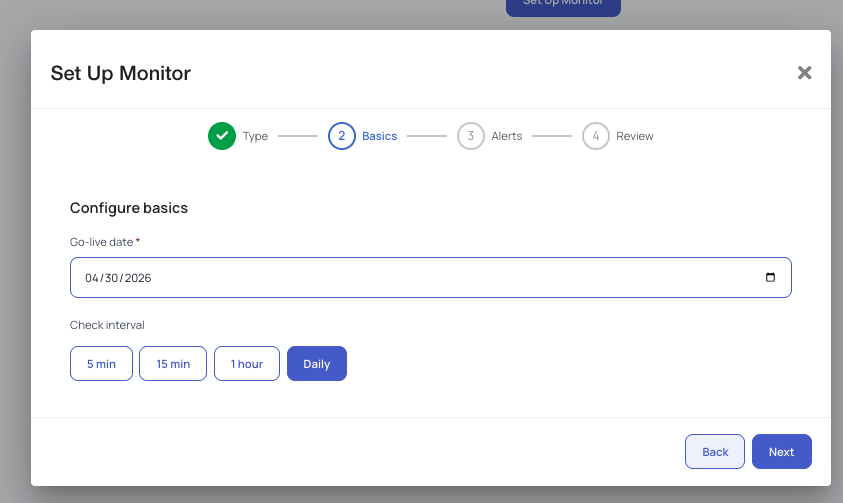
- Configure basics
- Set the Go Live Date and Intervals
- Example: If the customer went live on the 27th, select the 27th
- This ensures the monitor only checks data created after go-live and with the selected Interval checking.
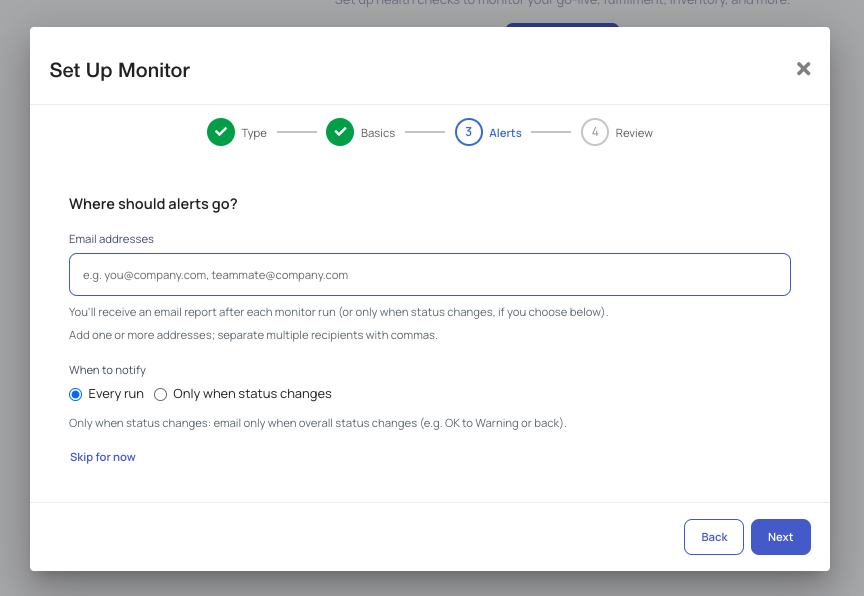
- Where should alerts go: You'll receive an email report after each monitor run (or only when status changes, if you choose below). Add one or more addresses; separate multiple recipients with commas.
- When to notify:
- Every Run
- Only when status changes - Only when status changes: email only when overall status changes (e.g. OK to Warning or back).
- When to notify:
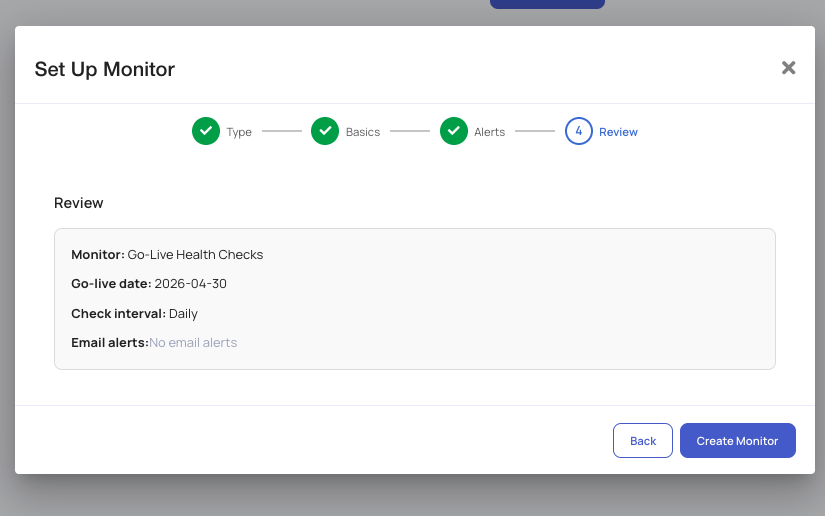
- Before finalizing, review the basic information. If all information are correct Click Create Monitor.
-
After creating monitor, you will see the "Configuration" page where you will need to set different threshold.
-
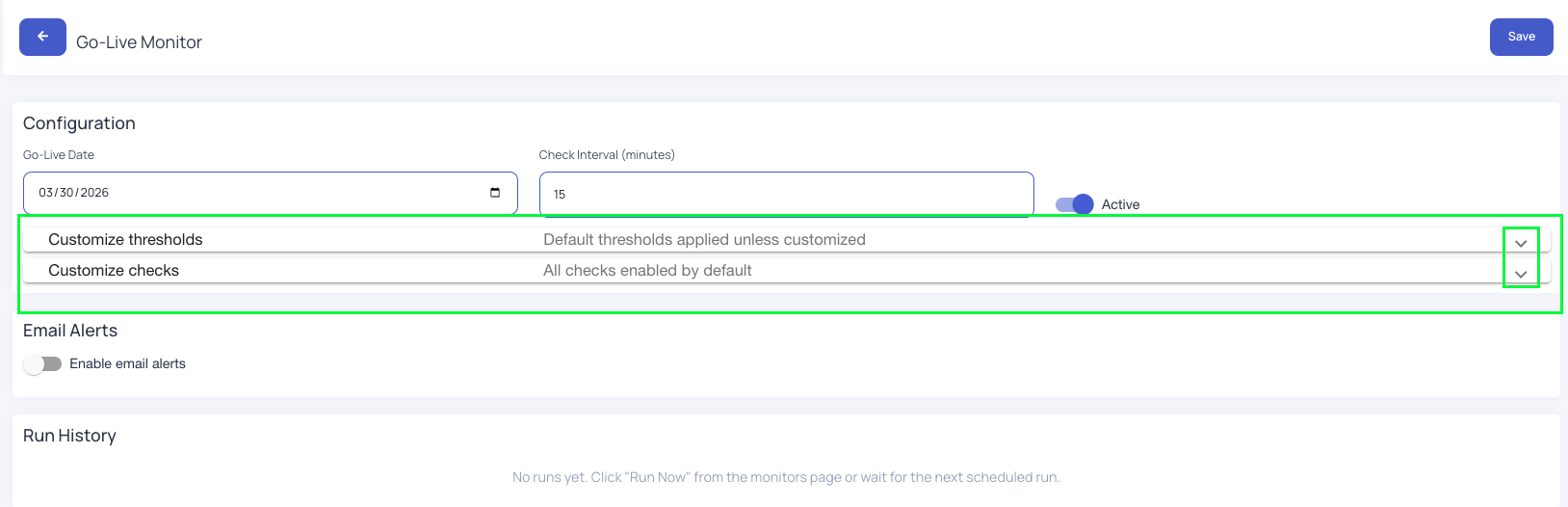
Click the dropdown to customize the Threshold and customize the checks.
Threshold Categories Explained
Each category tracks a specific type of issue. Warning and Critical thresholds determine when alerts are triggered.
inventory_push_parity (in Percentage)
Max percentage of expected inventory pushes that may be missing.
- Detects missing inventory updates
- Warning % / Critical %: Percentage of expected inventory pushes that are missing
order_intake_anomaly
Order volume vs baseline; requires at least 5 orders in baseline.
- Compares current order volume to historical baseline
- Baseline Window Days: Number of days used for comparison
- Warning / Critical Std Devs: Sensitivity to deviations from normal volume
- Minimum Order Count: Required order volume to evaluate
missing_fulfillment_orders
Sales orders without a fulfillment order after min age.
- Identifies orders that have not been fulfilled after a set time
- Min Age Minutes: Time before an order is considered delayed
- Warning / Critical Count: Number of affected orders
fulfillment_not_pushed
Fulfillment orders not pushed within age threshold.
- Detects fulfilled orders not sent back to the source system
- Warning / Critical Age (hours): Delay thresholds
fulfillment_errors
Fulfillment orders with error status.
- Detects fulfilled orders that has error status
- Warning / Critical Age (count): Delay thresholds
shipment_pushback_mismatch
Shipments not pushed back to source after min age.
- Flags shipments not pushed back to the source
- Min Age Minutes: Delay before evaluation
- Warning / Critical Count: Number of impacted shipments
over_fulfilled_lines
Lines where shipped quantity exceeds ordered (after tolerance).
- Identifies orders where shipped quantity exceeds ordered quantity
- Tolerance %: Acceptable variance
- Warning / Critical Count: Number of affected lines
exact_duplicate_orders
Orders sharing the same external order number.
- Detects orders with identical external order numbers
- Warning / Critical Count: Number of duplicates
near_duplicate_fingerprint
Orders with similar fingerprint within time window.
- Identifies similar orders within a time window
- Time Window Minutes: Timeframe for comparison
- Warning / Critical Count: Number of similar orders
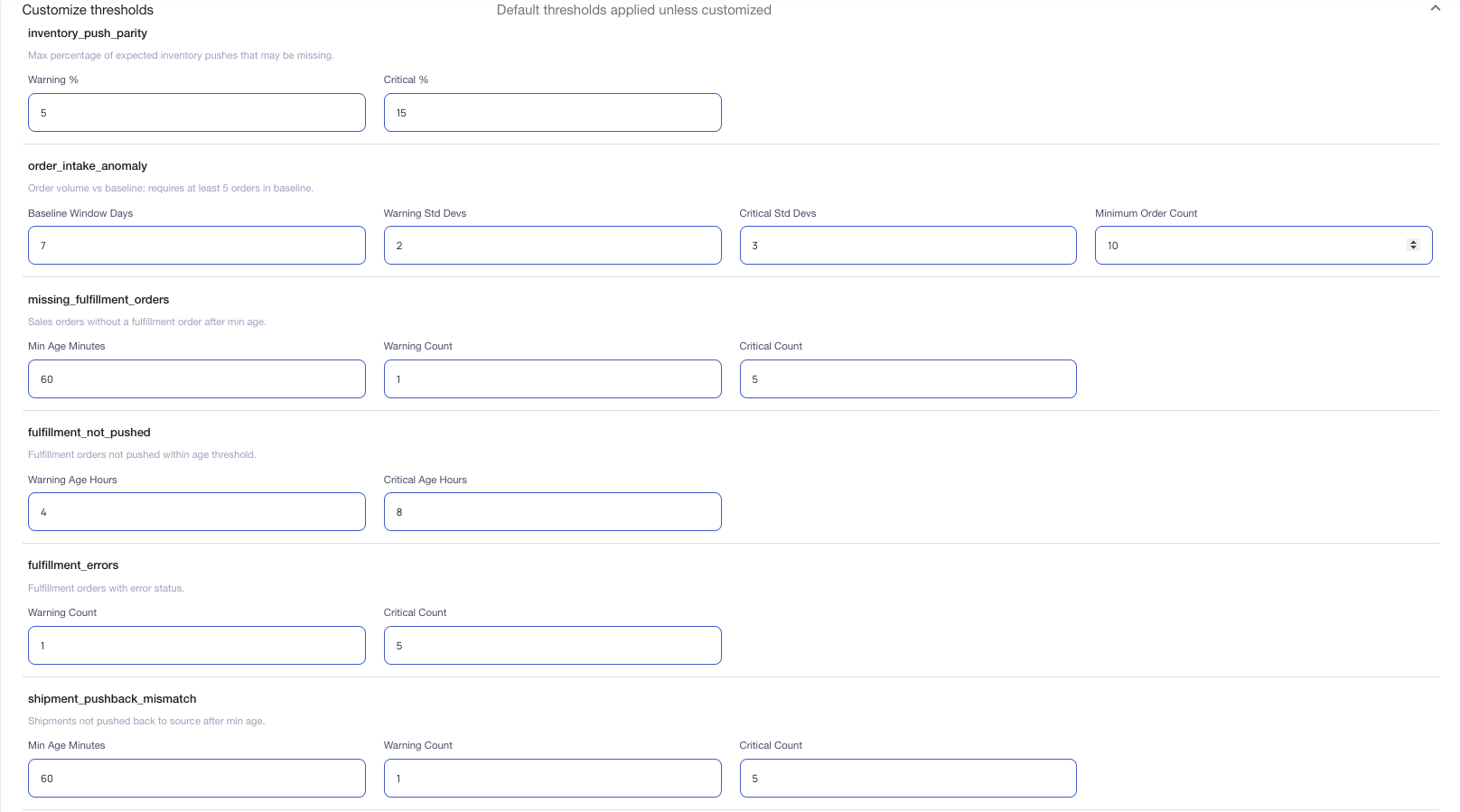
Enable or Disable Checks
All monitoring checks are enabled by default.
Unchecking a box will disable that specific check, meaning:
- No alerts will be triggered for that condition
- Threshold settings for that check will be ignored
This allows control over which types of issues are monitored during go-live.
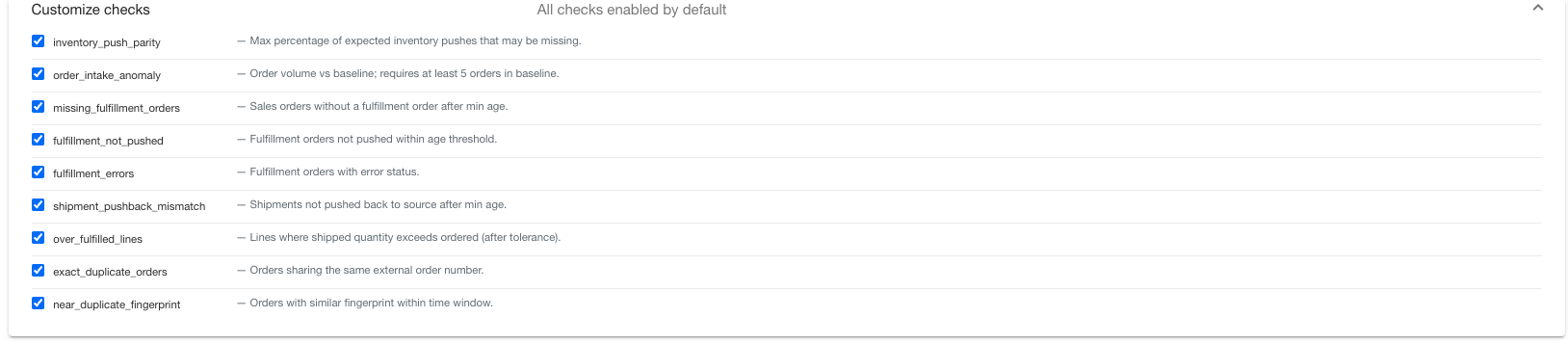
How to Run the Monitor
- Run the monitor manually, or allow it to run automatically
- A report will be generated and sent via email
- Ensure that on step 4, you indicate the email address
- Results can also be viewed directly in the monitor
-
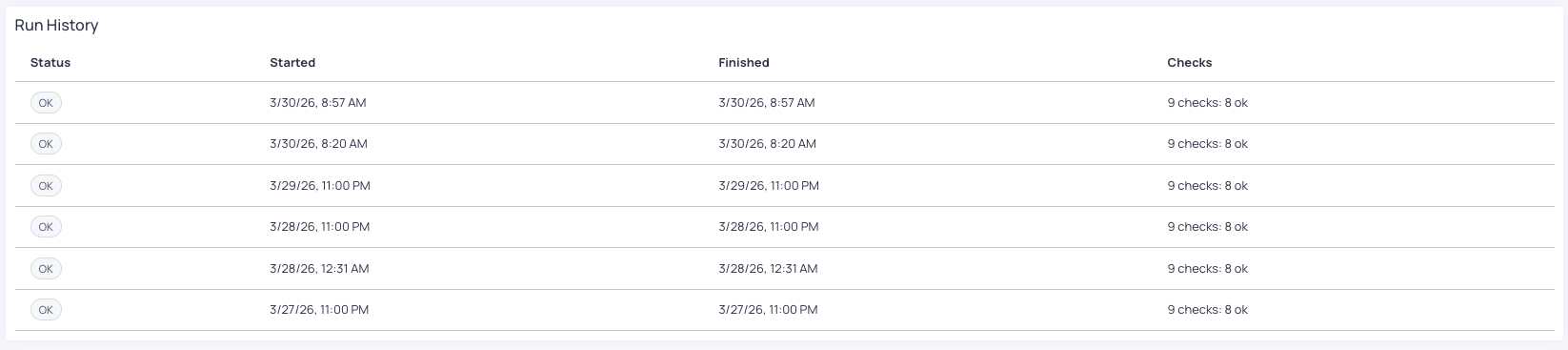
Click View if you want to see the Run History
-
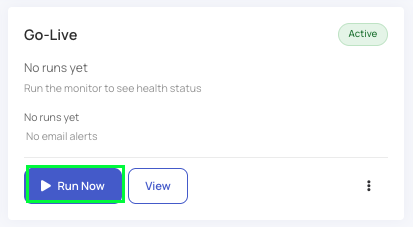
- To run the monitor Manually, click "Run now"
Deactivating and Reactivating the Live Monitor
How to Deactivate Live Monitor
All monitors can be Deactivated if you do not wish to use the Live monitor
- Click the three dots and a pop up will appear "Deactivate Monitor"
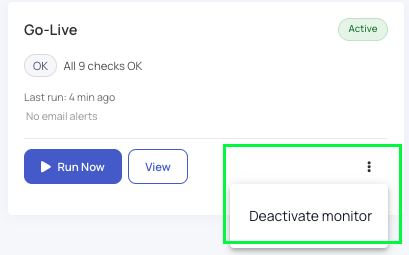
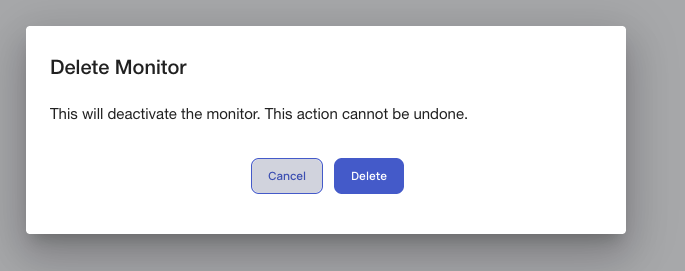
- Click Deactivate monitor and it ask you to confirm "Delete Monitor"
- Click Delete
How to Reactivate Live monitor
When you decided to reactivate the monitor follow these steps below:
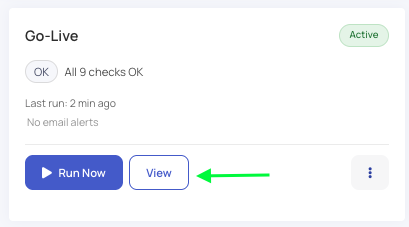
- Click View
- Toggle on the Active button
- Click Save

Understanding the Report
The report highlights system health across several areas:
✅ Normal Results
- Inventory push is working
- Order intake appears normal
⚠ Issues That Need Attention
- Shipments not pushed to channel
→ Requires immediate investigation - Duplicate sales orders
→ May indicate a syncing issue - Near-duplicate fingerprints
→ Review to confirm if duplicates are valid
How to Investigate Issues
- Open the monitor run
- Review the detailed logs
- Drill into specific records
- Download the JSON file if needed
- Use order IDs to trace and diagnose issues
Key Features
- Fingerprinting
Detects duplicate or near-duplicate orders using unique identifiers - Run History
Every monitor run is logged and can be reviewed later - Customizable Backend
Thresholds and checks can be adjusted, but default settings are recommended
Tips & Best Practices
- Set this up for every customer go-live
- Run the monitor daily after go-live
- Treat duplicate orders and missing shipments as high priority
- Default settings are sufficient—no need to customize initially
Known Limitations
- Some checks may include deleted sales orders
- This may cause false positives in duplicate or shipment checks
- Improvements are ongoing
Need Help?
If something looks incorrect or requires further investigation, contact the support team for assistance.