Overview
The Trigger: Order Created and Trigger: Order Updated actions allow automations to be manually run on selected orders.
This is useful when an automation did not run as expected or when actions such as tagging, routing, or updates need to be re-applied in bulk.
Manually triggering these events does not create new orders. Instead, it simulates the selected event so any automations tied to that trigger will run.
How to Trigger Automations for Orders
1. Select Orders
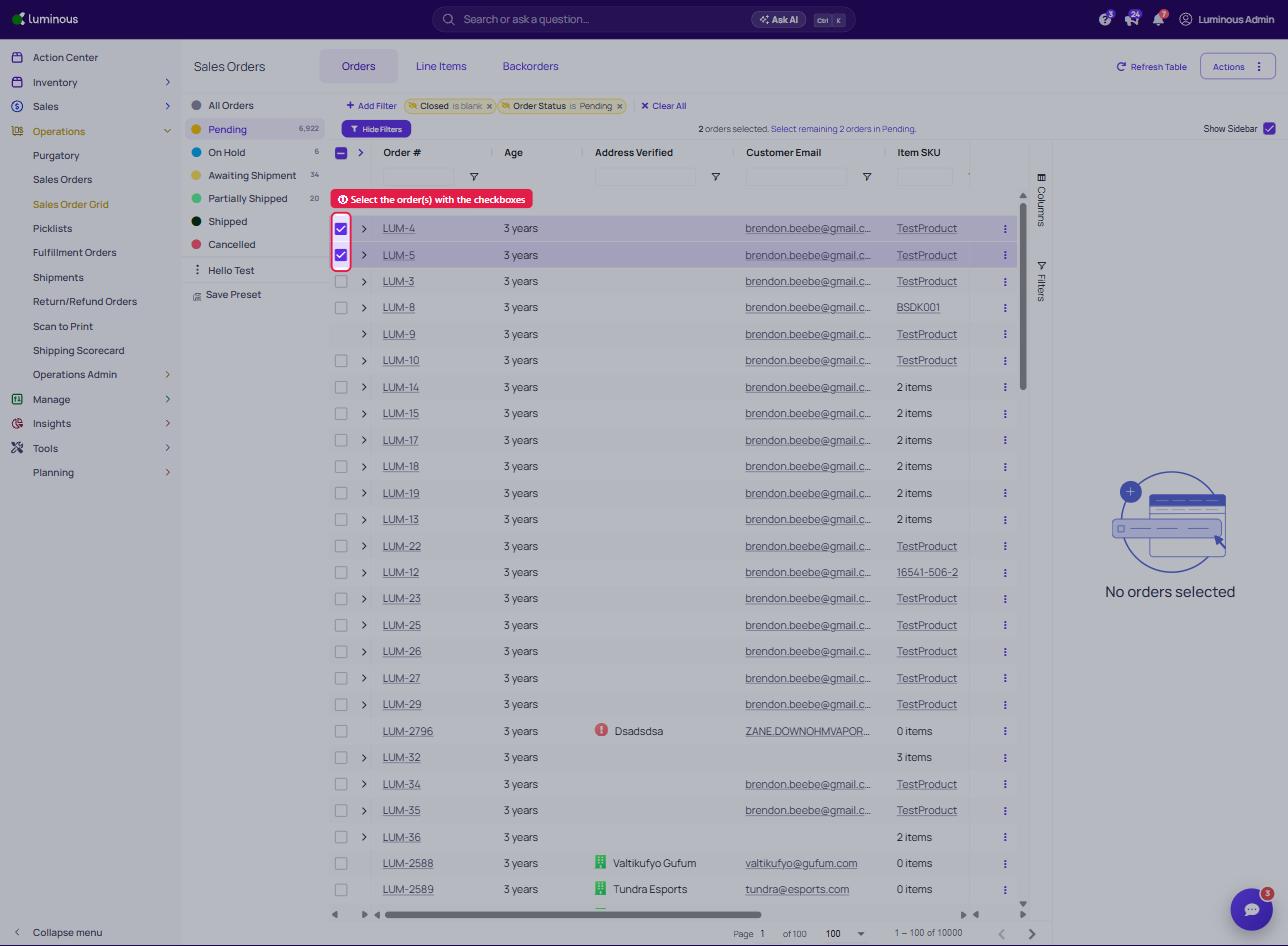
a. Navigate to Operations > Sales Order Grid then select the order you need to manually trigger the update.
- If you need select more than one order use the checkboxes beside the order number to select one or more orders
2. Open Bulk Actions
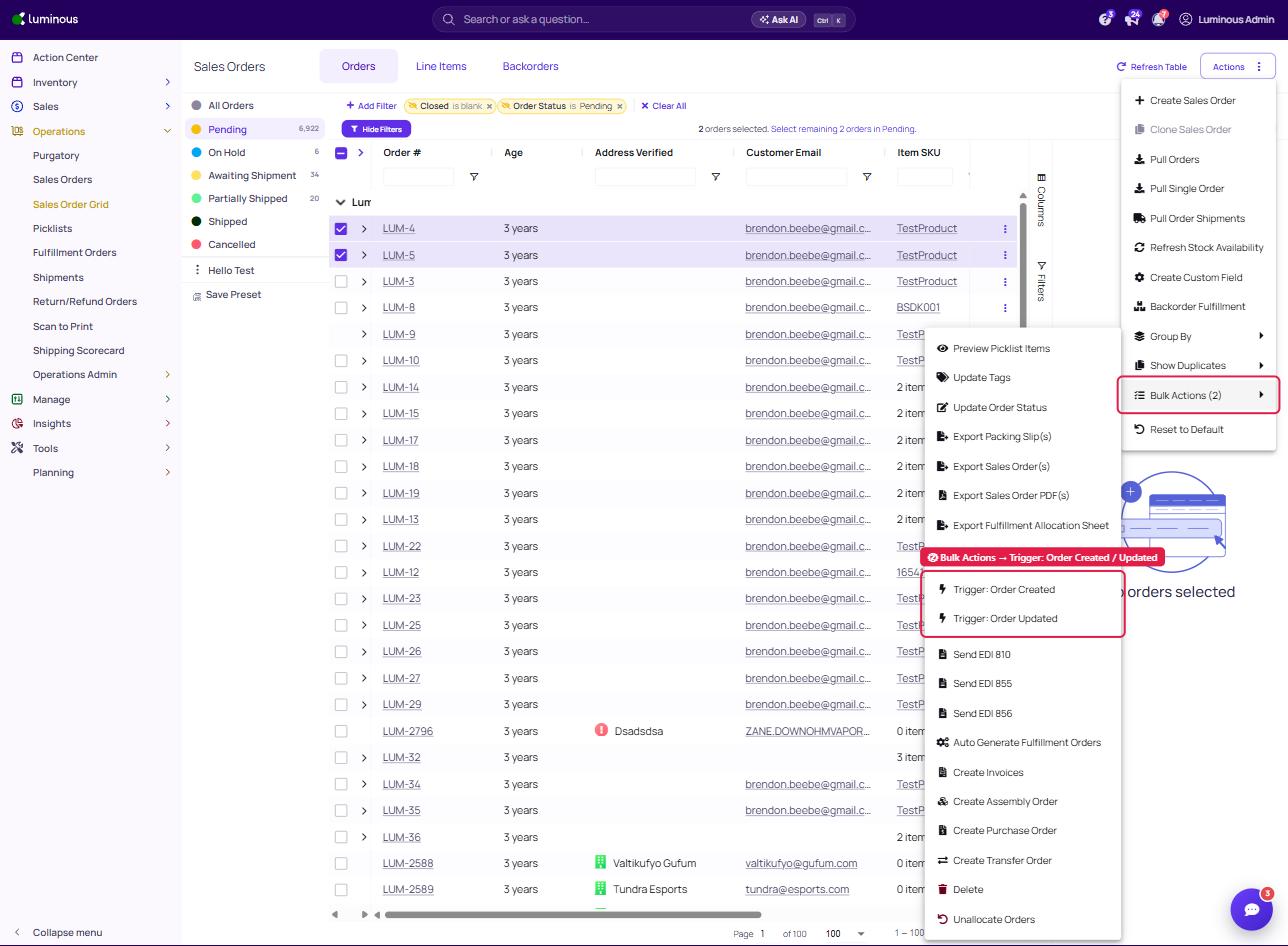
a. Click the Actions dropdown in the top right
b. Click Bulk Actions dropdown and choose Trigger: Order Created or Trigger: Order Updated
3. Trigger the Event
- Select one of the following:
- Trigger: Order Created
- Trigger: Order Updated
4. Confirm the Action
The system will run any automations associated with the selected trigger on the selected orders
-
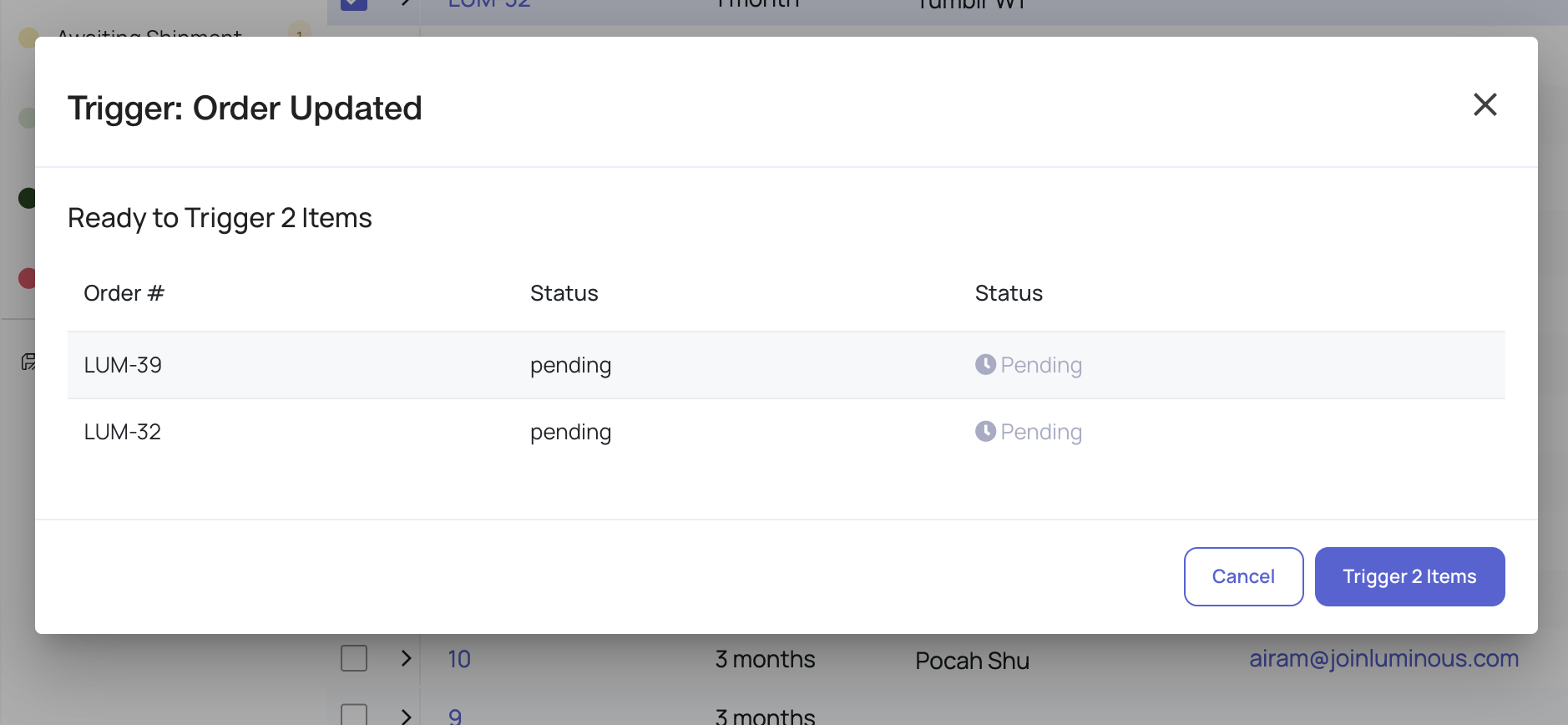
Once you choose a trigger, a pop up window will appear to confirm your action
-
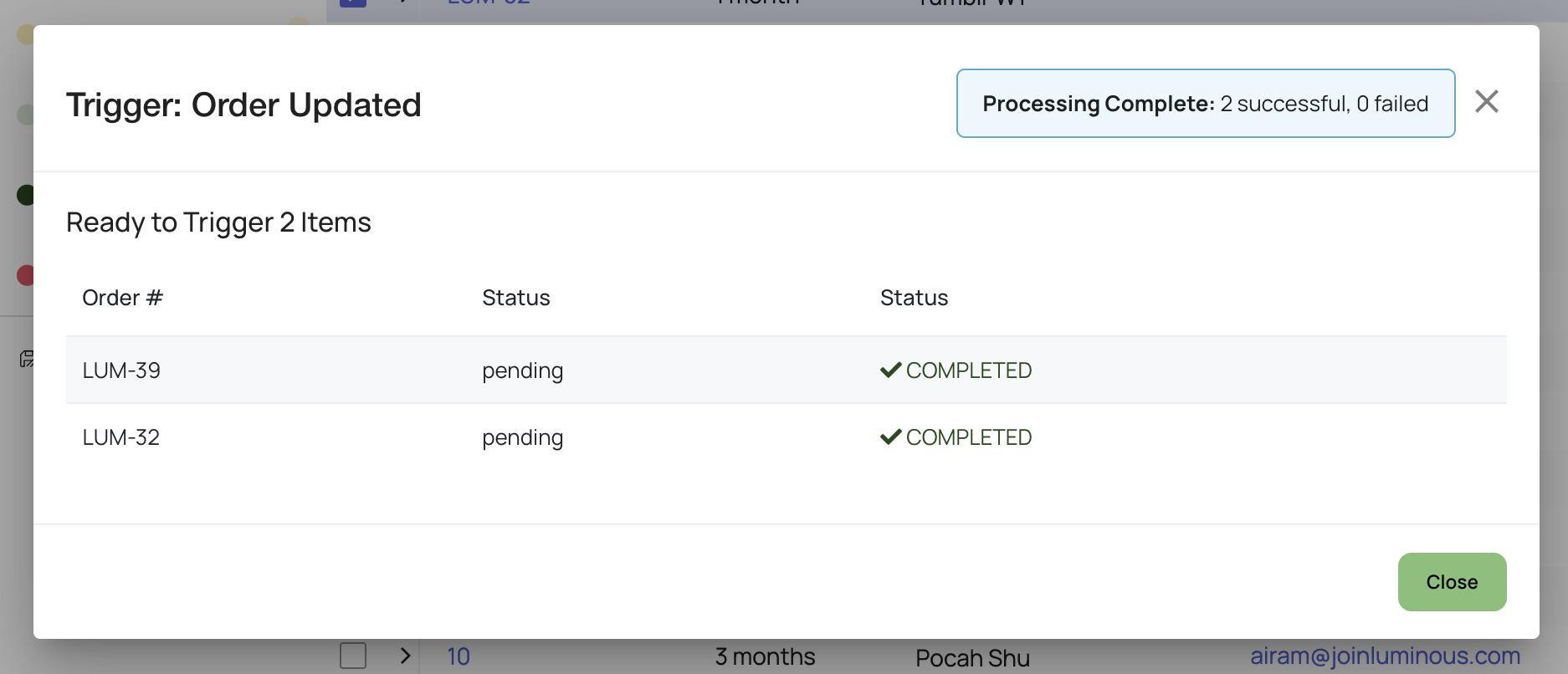
Once completed, it will show Status Completed.
When to Use This Feature
- An automation did not run when expected
- Orders are missing tags, assignments, or updates
- Automations need to be applied to existing orders in bulk
- Testing automation behavior on specific orders
Key Notes
- This action does not create duplicate orders
- It simulates the selected event (Created or Updated)
- Any automation tied to that trigger will run immediately
- Multiple orders can be processed at the same time
Troubleshooting
Automation did not run
- Confirm the automation is active
- Verify the automation uses the selected trigger (Created vs Updated)
- Check if additional conditions in the automation were met
Unexpected results after triggering
- Review automation logic for unintended conditions or actions
- Test with a single order before running in bulk
Additional Help
If automations are not behaving as expected, contact the support team for further assistance.