This article walks through how to manage staff and user access in Luminous — adding new users, editing existing accounts, and configuring roles and permissions to control what each user can see and do. It also covers a common permissions-related issue: users unable to view Unit Price and Total Price during Purchase Order creation, and how to fix it via role permissions.
Step 1: Access the Staff Management Section
- Navigate to the Manage tab in Luminous.
- Select Staff to view all existing users with access to Luminous.
Step 2: Add a New User
- Click Add New in the top-right corner.
- Fill in the required details:
- First Name
- Last Name
- Login Email
- Password
- Assign a User Role to define their access and permissions (details on roles in Step 4).
- Optional Notifications:
- Receive Purchase Order Notifications: Notifies the user when a purchase order (PO) is created in Luminous.
- Receive B2B Purchase Orders Notifications: Alerts the user when a B2B portal order is received.
- Click Save to create the user account.
Step 3: Edit an Existing User
- Locate the user in the staff list.
- Click to edit their details:
- Change their assigned role.
- Reset their password if needed.
- Save changes.
Step 4: Manage Roles and Permissions
Roles in Luminous control what actions users can perform.
Edit Existing Roles
- Click the three dots (⋮) in the top-right corner of the Staff page.
- Select Manage Roles.
- Choose an existing role to:
- Rename the role.
- Modify permissions to tailor access.
- Save changes.
Create a New Role
- Click Create Role in the roles and permissions section.
- Choose a Base Role to inherit default permissions.
- Provide a new name for the role.
- Customize the permissions for the new role as needed.
- Save the new role.
Troubleshooting: Unit Price / Total Price Not Visible During PO Creation
If a user can't see the Unit Price and Total Price fields while creating a Purchase Order on screen — but the values do appear correctly on the exported PDF — this is caused by a role permission setting, not a bug in the PO template or an issue with that user's individual profile.
To resolve:
- Click the three dots (⋮) in the top-right corner of the Staff page.
- Select Manage Roles.
- Select the affected role (e.g., Admin) in the Roles list.
- Click the permission that controls Unit Price / Total Price visibility during PO creation to toggle it on (a Save / Revert option appears once you've made changes).
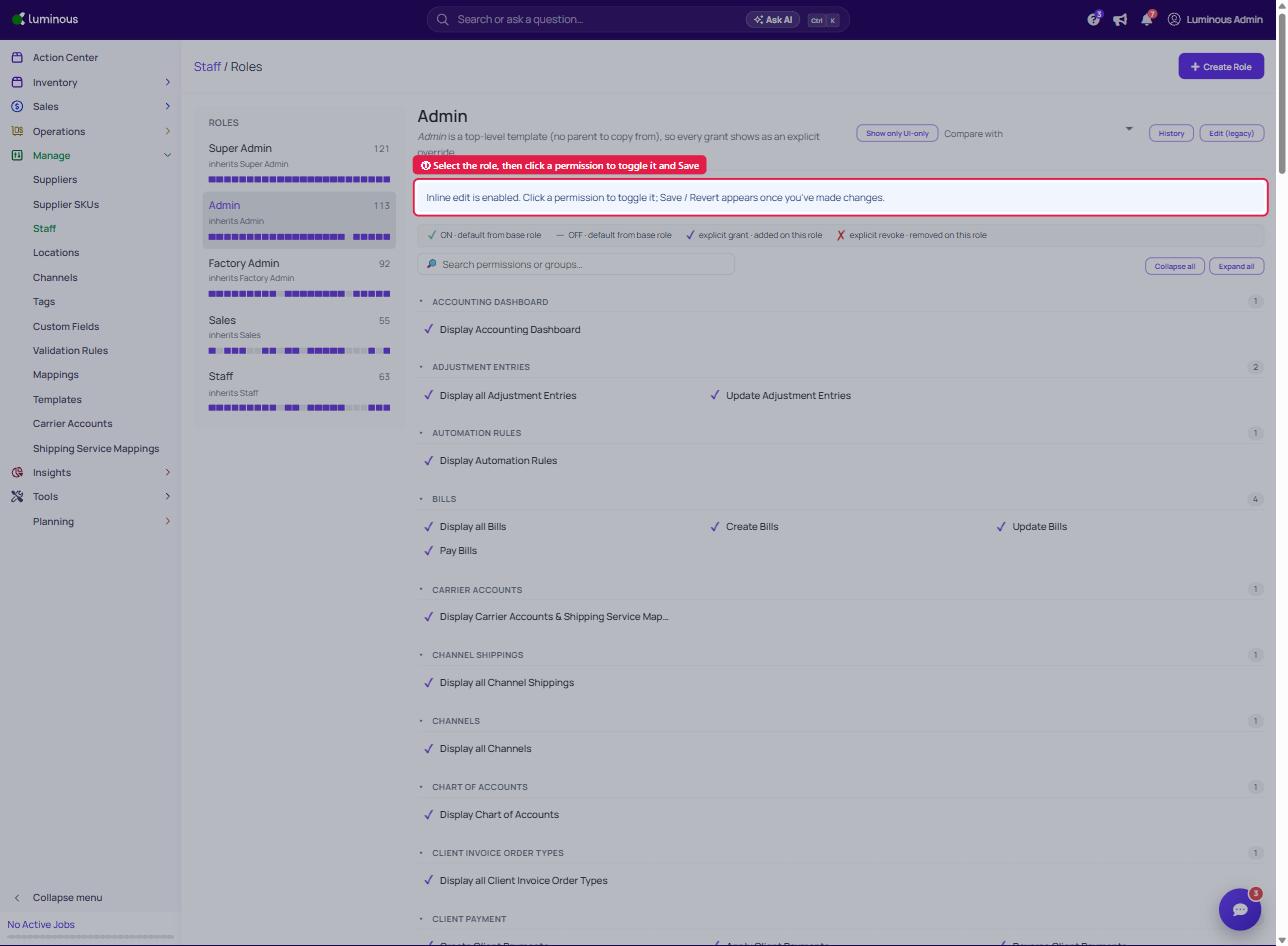
- Save changes.
- Have the affected user refresh or re-open the PO creation screen to confirm the fields now display.
Key Features of Staff Management
- User Notifications: Assign users to receive important updates, such as PO creation or B2B order alerts.
- Flexible Permissions: Adjust or create roles to match your team’s responsibilities.
- Easy Account Management: Quickly add or update user information, including password resets.
Managing staff and users effectively ensures your team has the appropriate tools and information to keep operations running smoothly.