What?
The B2B Portal is a client-facing site where your wholesale customers can make purchases.
Why?
Streamline your wholesale operations by using the portal!
How?
Follow these steps to reset a client’s portal password and enable access:
A. New Contact:
There will be two option when adding new contact:
-
Adding the contact directly on the Contacts tab by selecting "Add New Client Contact".
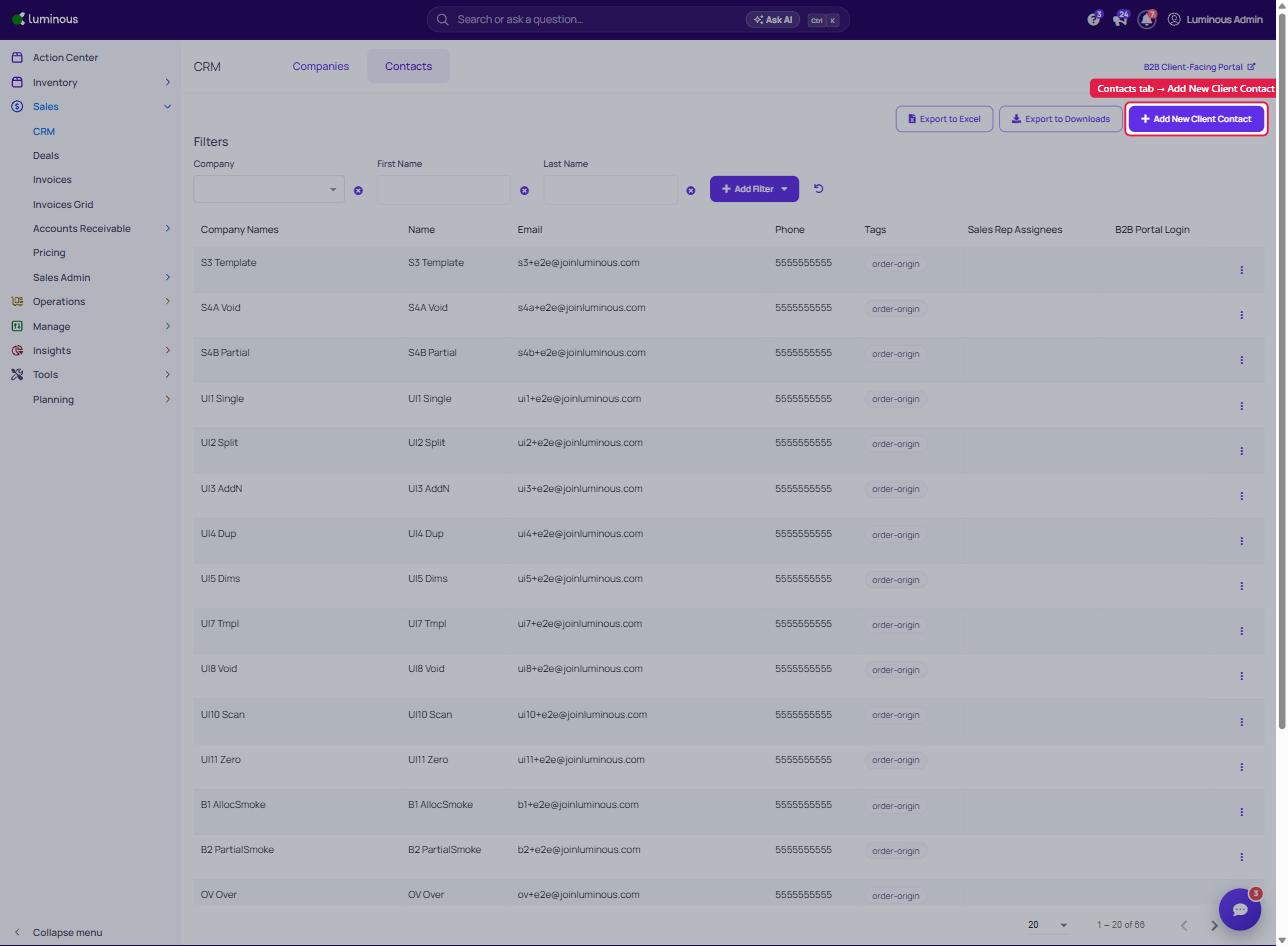
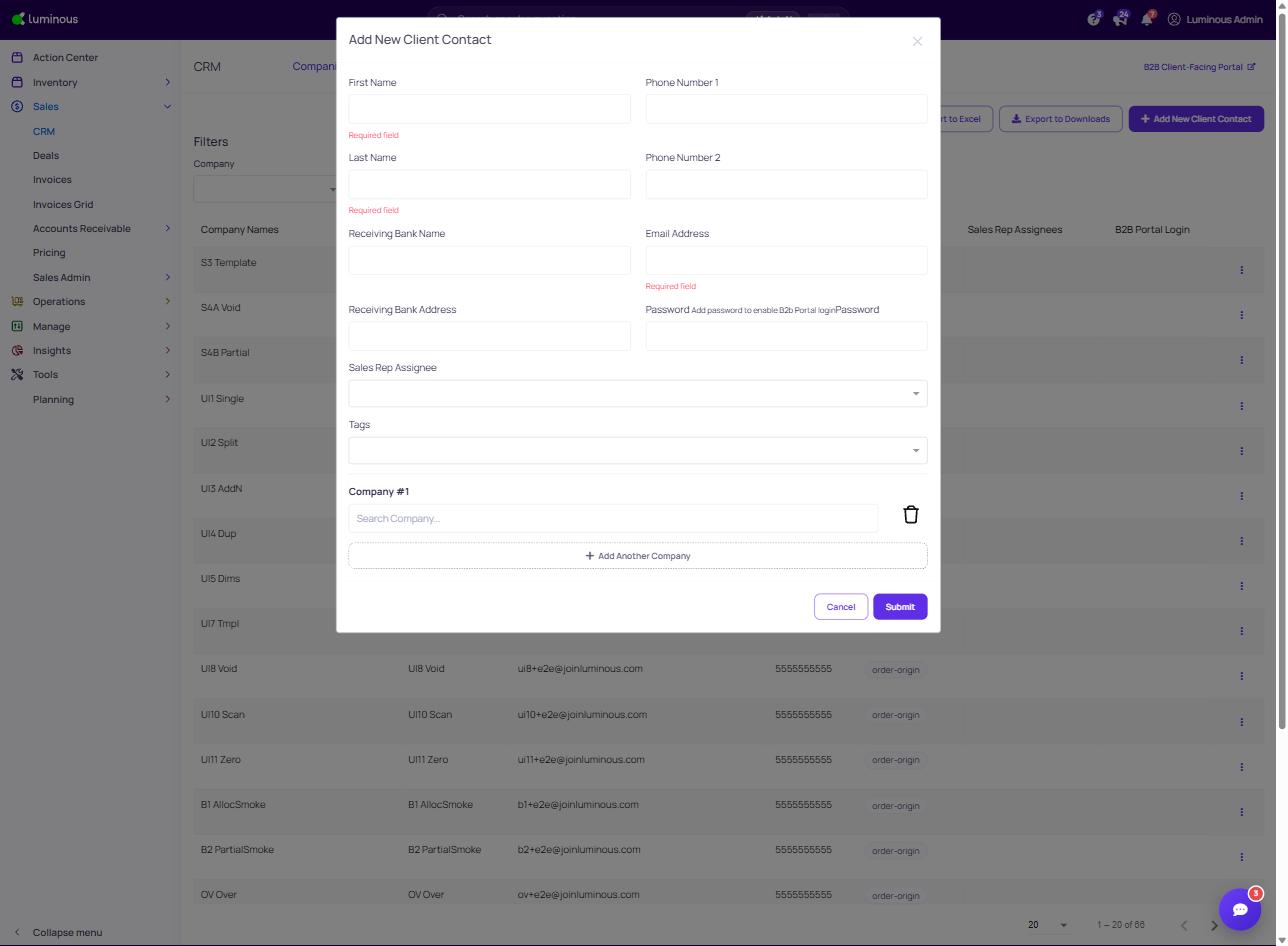
- Fill out all the required field
- First and Last Name
- Email Address
- Password - password to be used on the B2B Portal.
- Submit
- Fill out all the required field
-
Add new contact inside company record.
From Sales - CRM - Companies Tab
-
Select the company that need add new contact record.
-
Select Contact → Add new contact
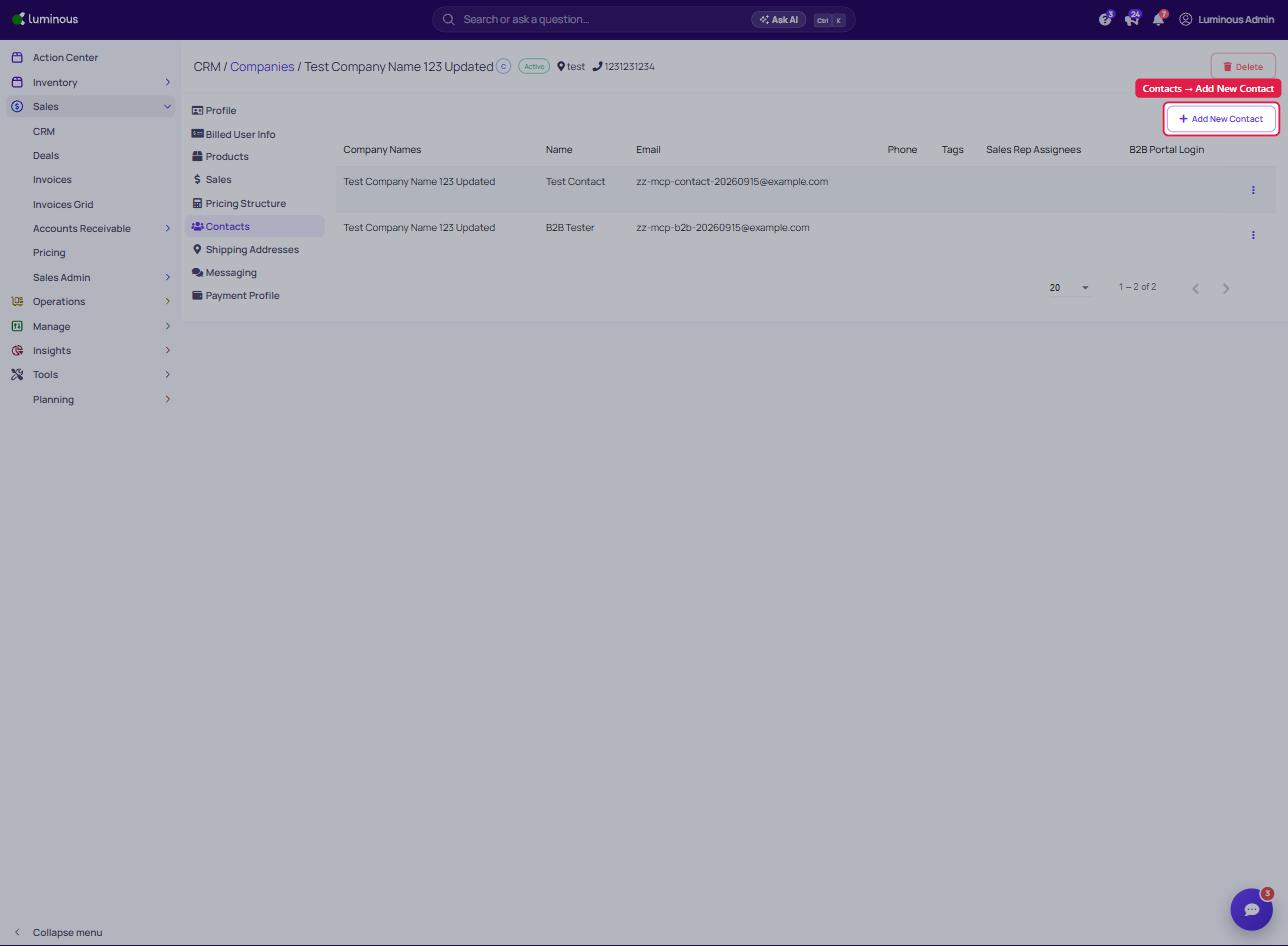
Fill out the needed information including:
- First and Last Name
- Email Address
- Password - password to be used on the B2B Portal.
- Submit
-
B. Existing Contact:
-
Open the CRM Module
Navigate to Sales → CRM → Contacts. -
Locate the Client Record
Find the specific contact (client) whose portal password you want to reset. -
Access Account Options
Click the three dots (⋮) on the right-hand side of the contact record. -
Reset the Password
Select Reset Password from the dropdown menu.
You need to create password for your client and click "Reset Password".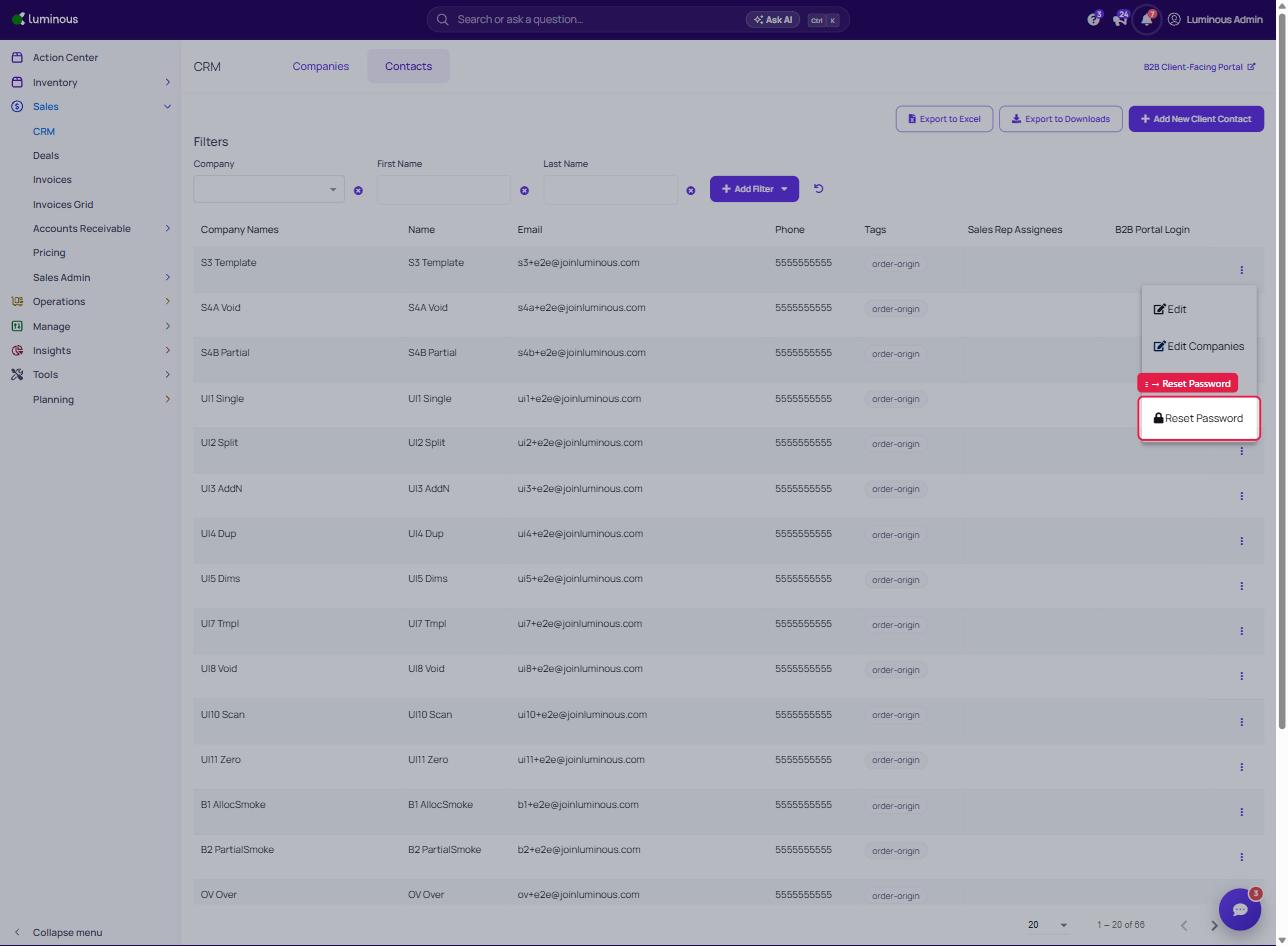
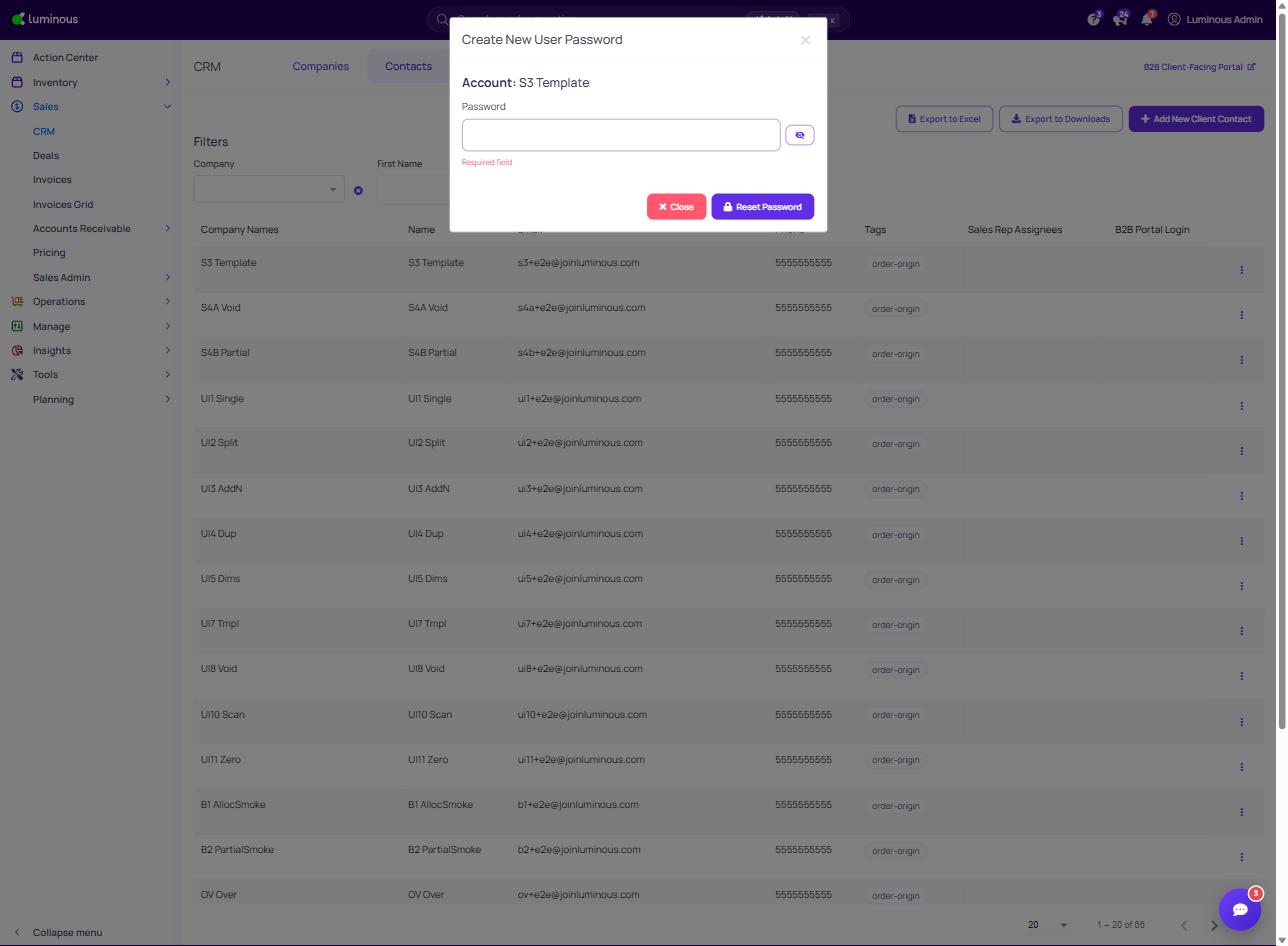
-
Notify the Client
Inform your client that their password has been reset.
They can now log in to the B2B Portal using:- Their email address, and
- The new password you just created.
Notes & Tips
- The password reset process takes effect immediately.
- For security, encourage clients to change their password upon first login.
- You can verify portal access in the CRM under the client’s account activity log.