Step 1: Understand Luminous CRM Structure
- Key Concepts:
- Companies: Represent B2B clients in your CRM.
- Contacts: Individuals associated with a company.
- Note: Luminous does not have the concept of leads or deals.
- Required Data: Ensure you have an accurate list of companies and associated contacts to import.
Step 2: Prepare Your Data
Export Data from Your Source System
- Go to your existing CRM or accounting system (e.g., QuickBooks).
- Export the customer or contact list to an Excel file.
Scrub and Format Your Data
- Open the exported file and review the data for completeness.
- Ensure fields like phone numbers, emails, and addresses are populated.
- Match your data to the Luminous format:
- Split combined fields into separate columns (e.g., shipping address into street, city, state, and zip code).
- Remove unnecessary or incomplete data.
Optional Assistance
- If needed, reach out to Luminous support or your implementation representative for help with data scrubbing.
- It’s recommended to scrub your data internally to protect sensitive information.
Step 3: Import Companies
Download the Template
- Navigate to Tools - Imports in Luminous.
- In the Customers section, click Clients.
- Old version is to use Import Companies however this import tool is deprecated and may be removed in future versions. We strongly recommend using Clients instead for better performance and reliability.
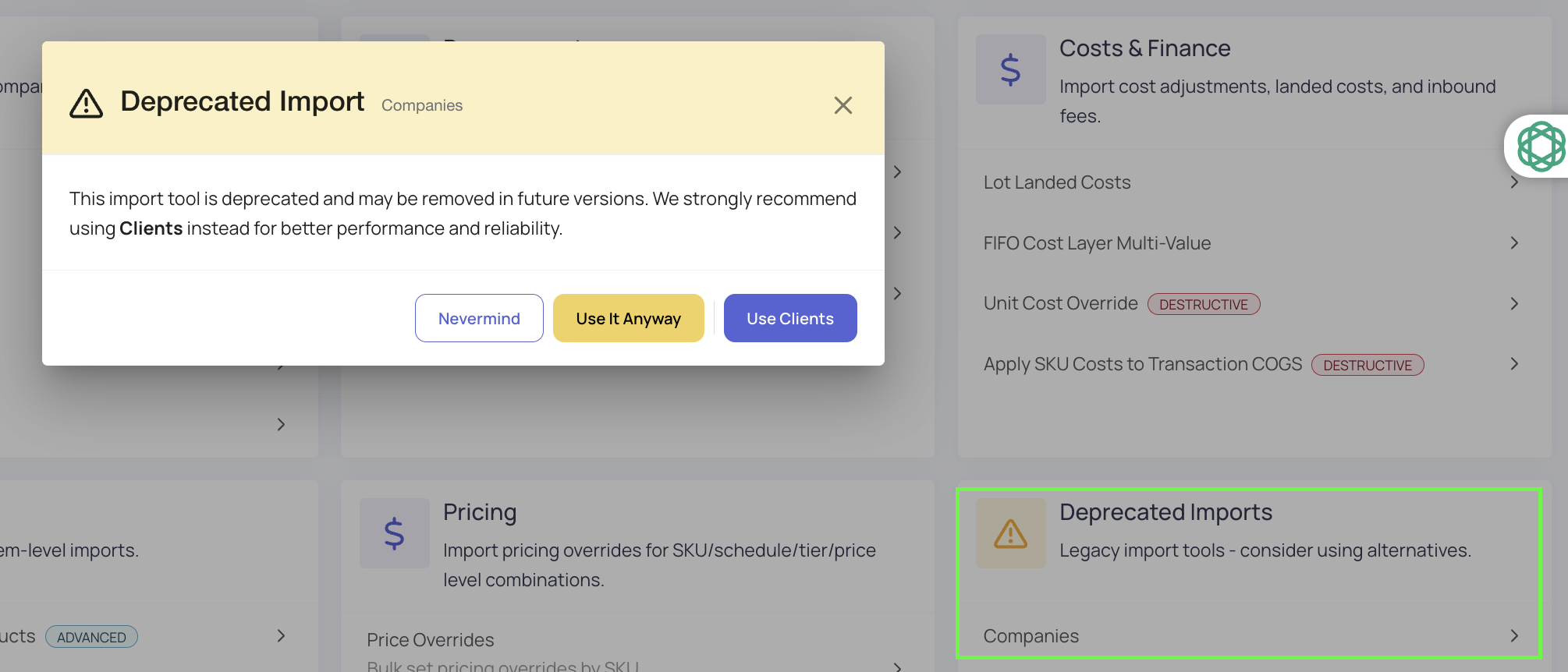
- Click Download Clients Template to download the Excel template for companies.
Populate the Template
- Copy your scrubbed data into the downloaded template.
- Ensure all fields match the required format:
- Name
- Type (e.g., client type)
- Business Address (separated into street, city, state, zip code)
Import the File
- Upload the completed Excel template on the Clients import page.
- Address any flagged errors:
- Common Issue: Ensure client types match exactly with those defined in Luminous.
Step 4: Import Contacts
Download the Template
- Go to Tools > Imports and select Company Contacts (Customers section), then click Download Company Contacts Template to download the Excel template for contacts.
Populate the Template
- Add details for each contact in the template:
- Company Name (must match the exact name of an imported company)
- First Name and Last Name
- Phone Number
- Sales Rep (if applicable)
Import the File
- Upload the completed contact template on the Company Contacts import page.
- Confirm that each contact is linked to the correct company.
Step 5: Verify Imported Data
View in Luminous CRM
- Navigate to the Sales CRM section.
- Verify that:
- Companies are listed with complete details.
- Contacts are nested under their associated companies.
Summary
By following these steps, you will have successfully imported companies and contacts into Luminous CRM. This foundational data will allow you to manage your sales and invoicing processes more efficiently.