Overview
When a SKU ignore rule (an ignored SKU, product name, or pattern) is active in your Order Processing settings, any incoming order line item whose SKU or product name matches the rule is automatically flagged as ignored. The order is still saved to Luminous and will appear in Purgatory, but its matching line items are marked so they do not block or affect inventory.
After you remove the rule, existing orders in Purgatory are not automatically re-evaluated — Luminous only applies setting changes to new incoming orders. You must manually trigger a re-mapping job to clear the ignored flag and map those line items to your products.
Step 1 — Confirm the ignore rule has been removed
- Go to Settings → Order Processing.
- Scroll to these section below (whichever contained the rule you want to remove):
- Mark orders with the following Product Names as Ignored automatically
- Mark orders with the following SKUs as ignored automatically
- Ignored Patterns
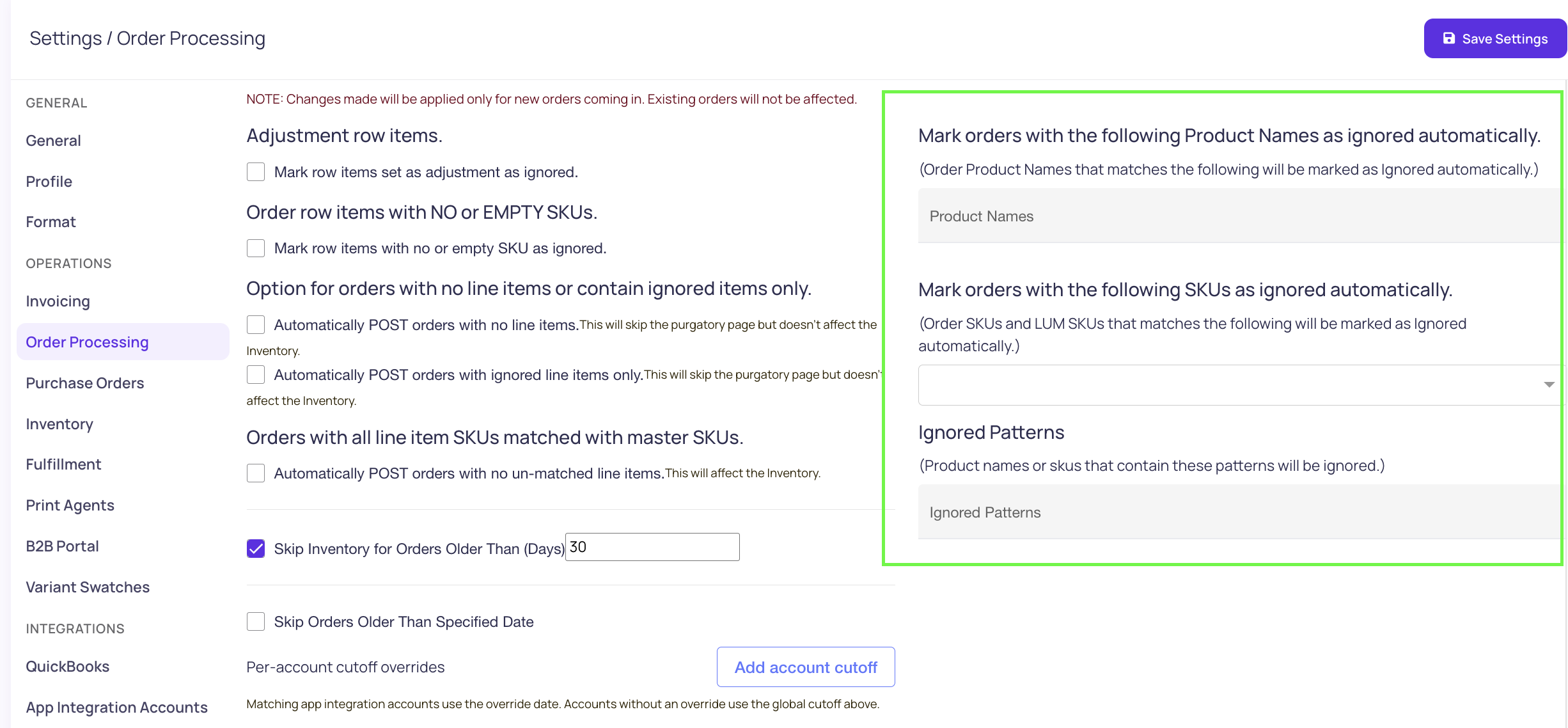
- Verify the rule is no longer listed. If it is still there, remove it and click Save Settings before continuing.
Step 2 — Run "Auto Map SKUs and Reprocess Orders"
Important: Use the Auto Map SKUs and Reprocess Orders option, not the "Reprocess with Current Settings" option. The reprocess-only button re-evaluates auto-posting rules but does not clear the ignored flag on existing line items. Only the auto-mapping job re-evaluates each line item against your current settings and can remove the ignored flag.
- Go to Operations → Purgatory.
- Open the ⋯ menu at the top right of the page and click Auto Map SKUs and Reprocess Orders.
- Confirm the dialog. The system will:
- Re-evaluate every line item on all non-posted orders against your current settings (including the now-removed ignore rule).
- Attempt to match each previously-ignored line item to a Luminous product SKU.
- Re-apply your auto-posting rules (e.g. "Auto-post clean orders") to any orders that are now fully mapped.
- A progress bar appears on the page while the job runs. When it finishes you will see a "finished" notification.
Step 3 — Review results in Purgatory
After the job completes, refresh the Purgatory list. Orders whose previously-ignored line items now match a Luminous SKU will show those items as mapped. Depending on your Order Processing settings:
- If Automatically POST orders with no un-matched line items is enabled, fully mapped orders will post automatically.
- If it is disabled, you can select the orders and post them manually using Confirm Selected Orders.
If any line items are still unmapped (shown in red), the SKU was not found in your product catalog. Use Edit Item SKUs on that order to map the line item to the correct product, and optionally save the channel SKU as an alternate SKU so future orders auto-map.
Important limitations
- Only orders saved to Purgatory can be recovered. SKU ignore rules mark line items as ignored but keep the order in Luminous. These orders are recoverable by following the steps above.
- Orders dropped by a date cutoff cannot be recovered this way. If a separate "skip orders older than date" cutoff was also active, orders falling before that date may have been deleted entirely and will not appear in Purgatory.
- The auto-mapping job is asynchronous. For large order volumes it may take several minutes to complete. You can monitor progress directly on the Purgatory page or in the Jobs panel.