Luminous gives you two ways to account for inventory you can no longer sell — a general-purpose Inventory Adjustment Entry for any warehouse stock reduction (spoilage, damage, shrinkage, etc.) and a Production Scrap record on Work Orders for waste that happens during a manufacturing or assembly run.
Method 1 — Inventory Adjustment Entry (general-purpose)
Use this for any damaged, spoiled, or wasted stock that is not tied to a work order.
Steps
- In the left navigation go to Inventory → Adjustment Entries.
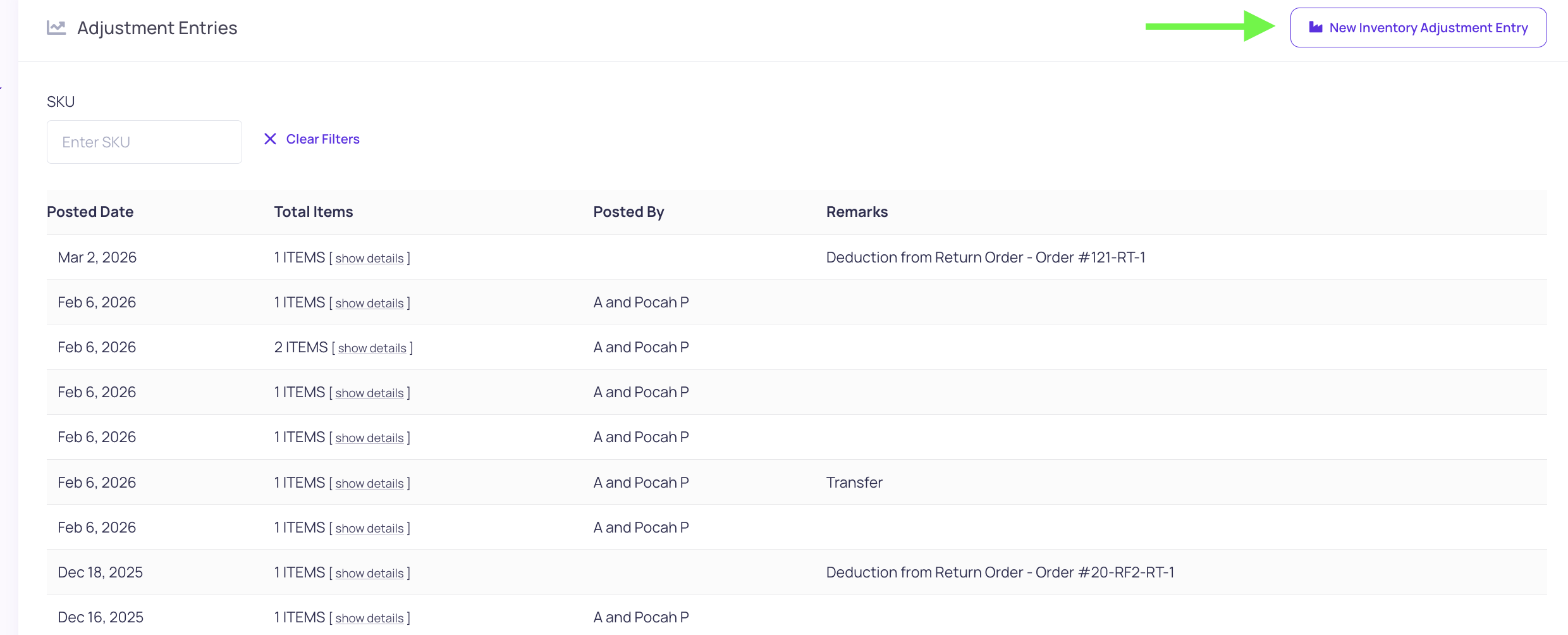
- Click New Inventory Adjustment Entry (top-right button).
- Use the Select SKU search to find the product.
- The table shows every warehouse / location / bin where that SKU has stock, along with current on-hand quantities.
- In the New Quantity column, type the quantity that remains after removing the waste or damaged units. The Adjustment column automatically shows you the negative delta.
- Alternatively, you can type directly into the Adjustment (±) field with a negative number representing the units to remove.
- Select the correct unit of measure if the SKU uses multiple units.
- If your account uses lot tracking, confirm the correct lot row is being adjusted.
- Once all affected rows are updated, click Add to Adjustment Entries to stage the changes.
- Repeat steps 3–8 for any additional SKUs involved.
- In the Remarks field, describe the reason (e.g., "Damaged in transit — QC reject 2026-07-24").
- Click Post Adjustment Entries to apply the changes.
What happens after posting
- On-hand quantities are reduced immediately.
- The adjustment is stamped with your name, a timestamp, and your remarks, creating a permanent audit record.
- Cost layers are consumed in FIFO order to match the quantity reduction, keeping your inventory valuation accurate.
- The change appears in the SKU's Quantity Log so you can trace every stock movement.
Reviewing past adjustment entries
Go to Inventory → Adjustment Entries to see the full list. Each row shows the posted date, number of items affected, who posted it, and the remarks. Click show details on any row to see per-SKU, per-warehouse, and per-location breakdowns.
Method 2 — Work Order Production Scrap (manufacturing)
If waste occurs during a production run, record it on the Work Order instead.
- Open the work order and find the Production and Logistics Steps section.
- Click Log Production.
- Enter Quantity Produced and Quantity Scrapped, plus optional notes.
- Save the entry — it is immediately stamped with who logged it and when.
Scrapped quantities appear in the sidebar under each production log entry alongside units produced, giving you a running waste-vs-yield history for the job.
For component-level scrap (materials wasted in the process), use the Material Usage & Scrap table on the work order. Each BOM component has a Log Scrap input; enter the wasted quantity and submit to record it against that component.
Note: How component stock is depleted when the assembly completes is governed by each component's consumption basis (Planned vs Actual). See the related article Complete assembly orders: lots, yields, and consumption basis for details.
Tips
| Situation | Recommended approach |
|---|---|
| Damaged goods received or found in warehouse | Inventory Adjustment Entry |
| Spoilage of lot-tracked items | Inventory Adjustment Entry (select the correct lot row) |
| Multiple SKUs damaged in the same incident | Add all SKUs to the same Adjustment Entry before posting — they share one remarks note |
| Scrap during a manufacturing run | Work Order → Log Production (Quantity Scrapped) |
| Component material wasted in assembly | Work Order → Material Usage & Scrap table |
Cost impact
Both methods reduce on-hand quantities and trigger corresponding cost-layer adjustments so your inventory valuation stays in sync with physical reality. Negative adjustments consume cost layers in FIFO order — no manual cost entry is required.