When a warehouse group pulls stock from a Trackstar-connected WMS, you can customize exactly which raw WMS stock fields feed into each of Luminous's quantity buckets (On Hand, Pending, Available, Incoming). Use this when your 3PL's WMS tracks inventory across multiple statuses and the defaults don't match how you want that stock represented in Luminous.
How it works (step-by-step)
- Go to Manage > Locations and click the Warehouse Groups button.
- Find the warehouse group tied to your Trackstar-connected warehouse, click the "⋯" menu, and select Edit.
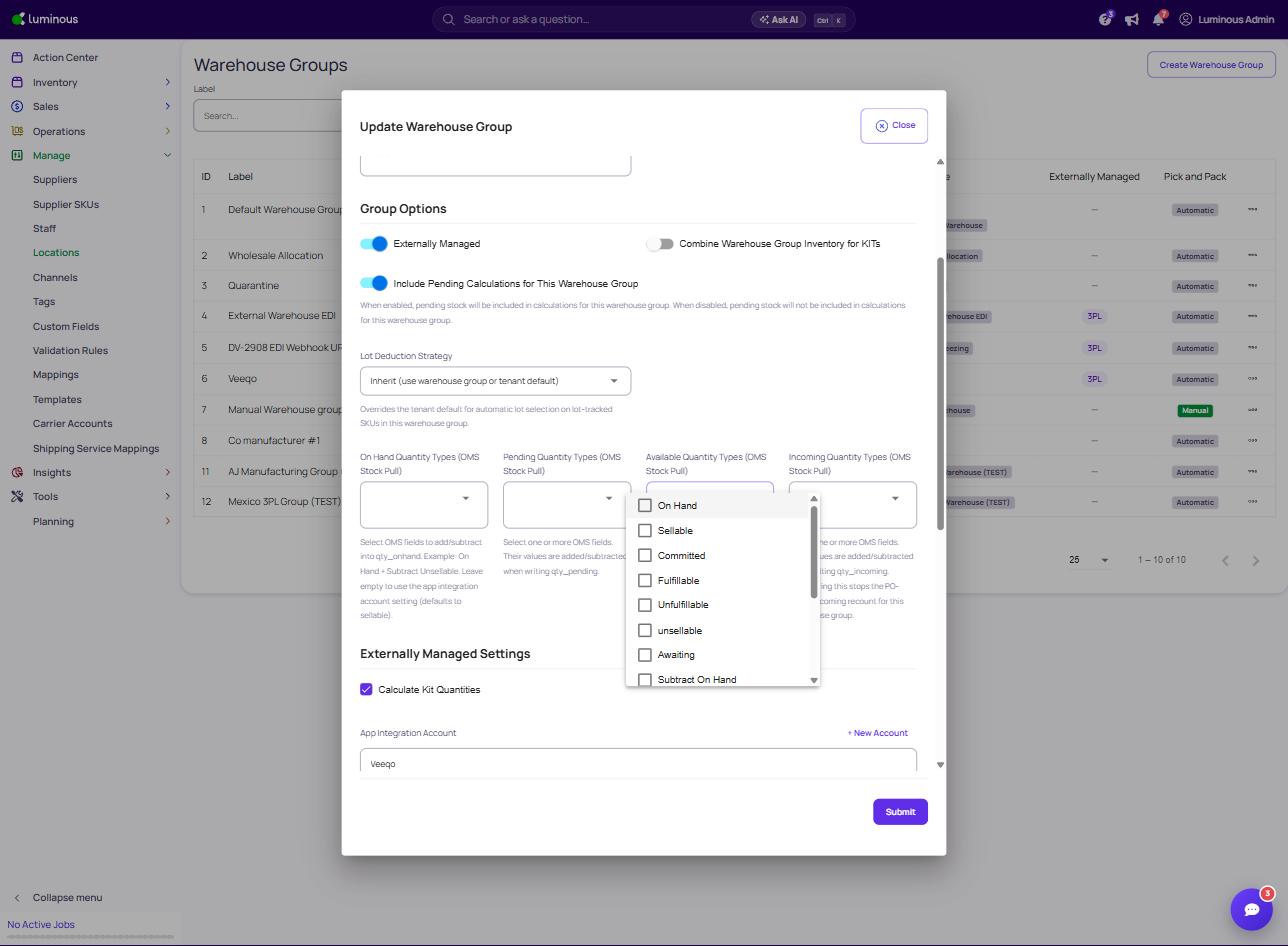
- Scroll to the Group Options section.
- You'll find four quantity type selectors:
-
On Hand Quantity Types (OMS Stock Pull)
-
Pending Quantity Types (OMS Stock Pull)
-
Available Quantity Types (OMS Stock Pull)
-
Incoming Quantity Types (OMS Stock Pull)
-
- Click into any selector to see the full list of raw WMS fields you can add or subtract: On Hand, Sellable, Committed, Fulfillable, Unfulfillable, Unsellable, Awaiting — plus a "Subtract [field]" option for each one.
- Check the boxes for the fields you want included. Leaving a selector empty falls back to the default behavior described in its helper text.
- Click Submit to save.
Key features / options
- On Hand Quantity Types — feeds
qty_onhand. Leave empty to default to the app integration account's setting (defaults to Sellable). - Pending Quantity Types — feeds
qty_pending. - Available Quantity Types — feeds
qty_available. - Incoming Quantity Types — feeds
qty_incoming. Configuring this stops the PO-based incoming recount for this warehouse group — Luminous relies entirely on the WMS-reported incoming value instead. - Every selector supports both additive fields (On Hand, Sellable, Committed, Fulfillable, Unfulfillable, Unsellable, Awaiting) and their Subtract counterparts, so you can build formulas like "On Hand minus Unfulfillable" instead of just summing raw fields.
Example: excluding AWD reserved-for-transfer stock from Available If you sell on Amazon through AWD, "Reserved FC Transfer" and "Reserved FC Processing" both collapse into a single Committed value. To keep that stock out of your Available total, check Subtract Committed under Available Quantity Types for that warehouse group. (See also: Excluding AWD Reserved-for-Transfer Stock from Available Inventory.)
Tips and best practices
- Configure this per warehouse group — different WMS-connected warehouses can each have their own formula.
- Changes only affect stock pulls going forward; existing inventory isn't retroactively recalculated.
- If you're unsure which fields your WMS actually populates, leave selectors empty and verify against a known SKU after a stock pull before customizing.
FAQs and troubleshooting Q: I don't see these selectors anywhere. A: They live under Manage > Locations > Warehouse Groups > Edit (a specific warehouse group) > Group Options — not under the Trackstar connection itself in Settings > App Integration Accounts.
Q: Will this affect existing inventory records? A: No — only future stock pulls use the new configuration.