Overview
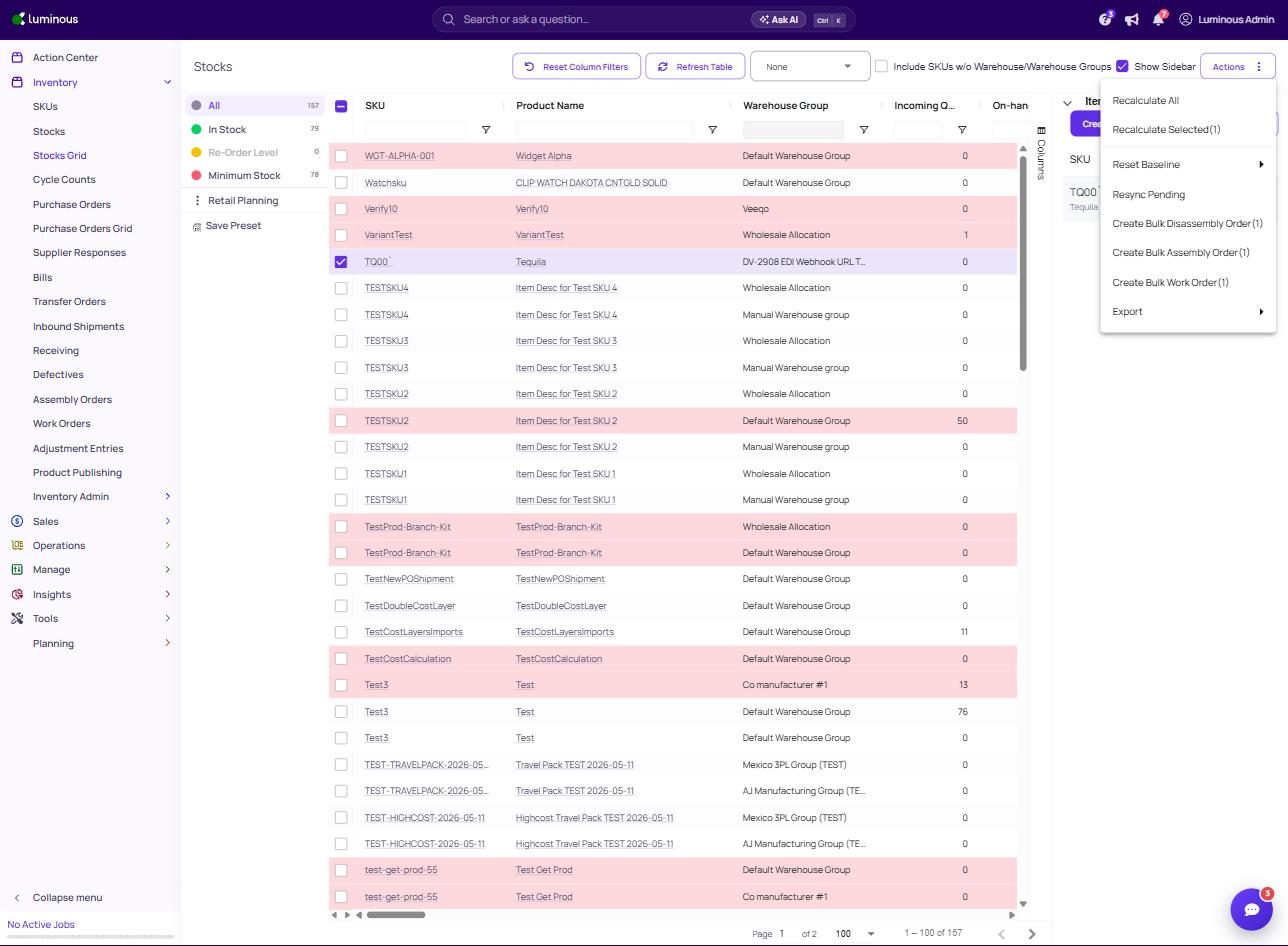
You can now generate Assembly Orders and Work Orders directly from the Stocks Grid's bulk Actions menu, in addition to the existing Bulk Disassembly Order option. This lets you select one or more rows and kick off production-related orders without leaving the grid or navigating to a separate module.
How It Works (Step-by-Step)
-
Navigate to Inventory > Stocks Grid.
-
Check the box next to one or more rows for the product(s) you want to build, disassemble, or put on a work order.
-
Click Actions in the top-right corner of the grid.
-
From the dropdown, select one of the following:
- Create Bulk Assembly Order (#) — creates an Assembly Order for the selected line(s)
- Create Bulk Work Order (#) — creates a Work Order for the selected line(s)
- Create Bulk Disassembly Order (#) — creates a Disassembly Order for the selected line(s)
(The number in parentheses reflects how many rows are currently selected.)
- Luminous generates the order(s) and confirms creation. Complete the order as you normally would from its respective module.
Key Features / Options
| Option | What It Does |
|---|---|
| Create Bulk Assembly Order | Builds one or more Assembly Orders from selected Stocks Grid rows |
| Create Bulk Work Order | Builds one or more Work Orders from selected Stocks Grid rows |
| Create Bulk Disassembly Order | Builds one or more Disassembly Orders from selected Stocks Grid rows (pre-existing capability) |
| Recalculate All / Recalculate Selected | Recalculates stock figures for all rows or just the checked rows |
| Reset Baseline | Resets baseline inventory quantities |
| Resync Pending | Re-syncs pending inventory quantities |
| Export | Exports the current grid view |
Tips & Best Practices
- Double-check your row selection before clicking a bulk action — there's no visible preview of line items before the order is created.
- Use Recalculate Selected if on-hand or incoming quantities look off before creating a bulk order, to avoid building from stale numbers.
- If you're creating orders across multiple warehouse groups in one bulk action, confirm with your team whether Luminous groups them into separate orders per warehouse or combines them.
Additional Help
If you run into issues creating a bulk order from the Stocks Grid, contact Luminous Support at help@joinluminous.com or use the in-app chat.