Overview
The PO shipment view in Luminous now displays a Total Carton Quantity, Total CBM (cubic meters), and Carton Dimensions for each shipment — summarizing these values across all line items automatically. Use these when planning container loads, booking freight, and verifying shipment volumes before goods leave the supplier.
How It Works
Under "This Shipment," each line item shows three columns: CBM, Carton Qty, and Carton Dimensions. These reflect the shipment's carton-level packing data when available. Carton data is entered via the shipment's Import Items flow, not by typing directly into the grid.
To view the rollups:
- Go to Inventory → Purchase Orders.
- Open an existing Purchase Order.
- Select the Shipments tab (or open a shipment record associated with the PO).
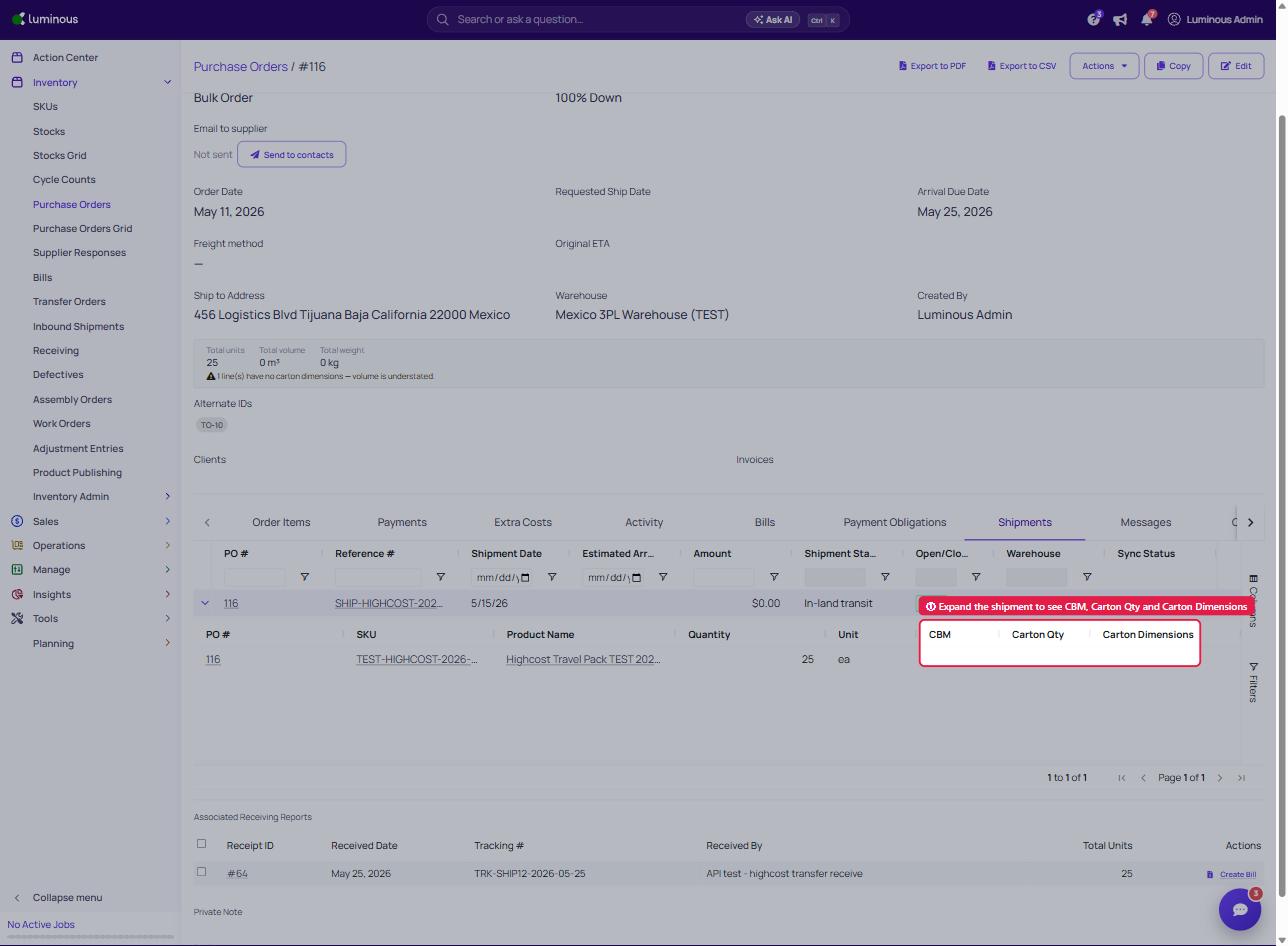
- Expand the Shipment using the dropdown arrow on the left hand side. Review the shipment summary panel — you will see:
- CBM — the cubic volume (in cubic meters) of the carton(s) for that line item.
- Carton Qty — the number of cartons the line item's quantity is packed into. (Note: the literal UI label is "Carton Qty," not "Carton Count.")
- Carton Dimensions — the length × width × height of each carton, used alongside Carton Qty and CBM for freight and logistics calculations.These figures update in real time as line items are added, edited, or removed from the shipment.
There is currently no inline-edit mode for these fields — carton data is entered via the shipment's Import Items flow, not by typing directly into the grid.
How to Add or Update Carton Dimensions on a SKU
- Go to Inventory → SKUs.
- Select the SKU you want to update.
- Click the 3 dots in the upper right corner.
- Select Edit SKU.
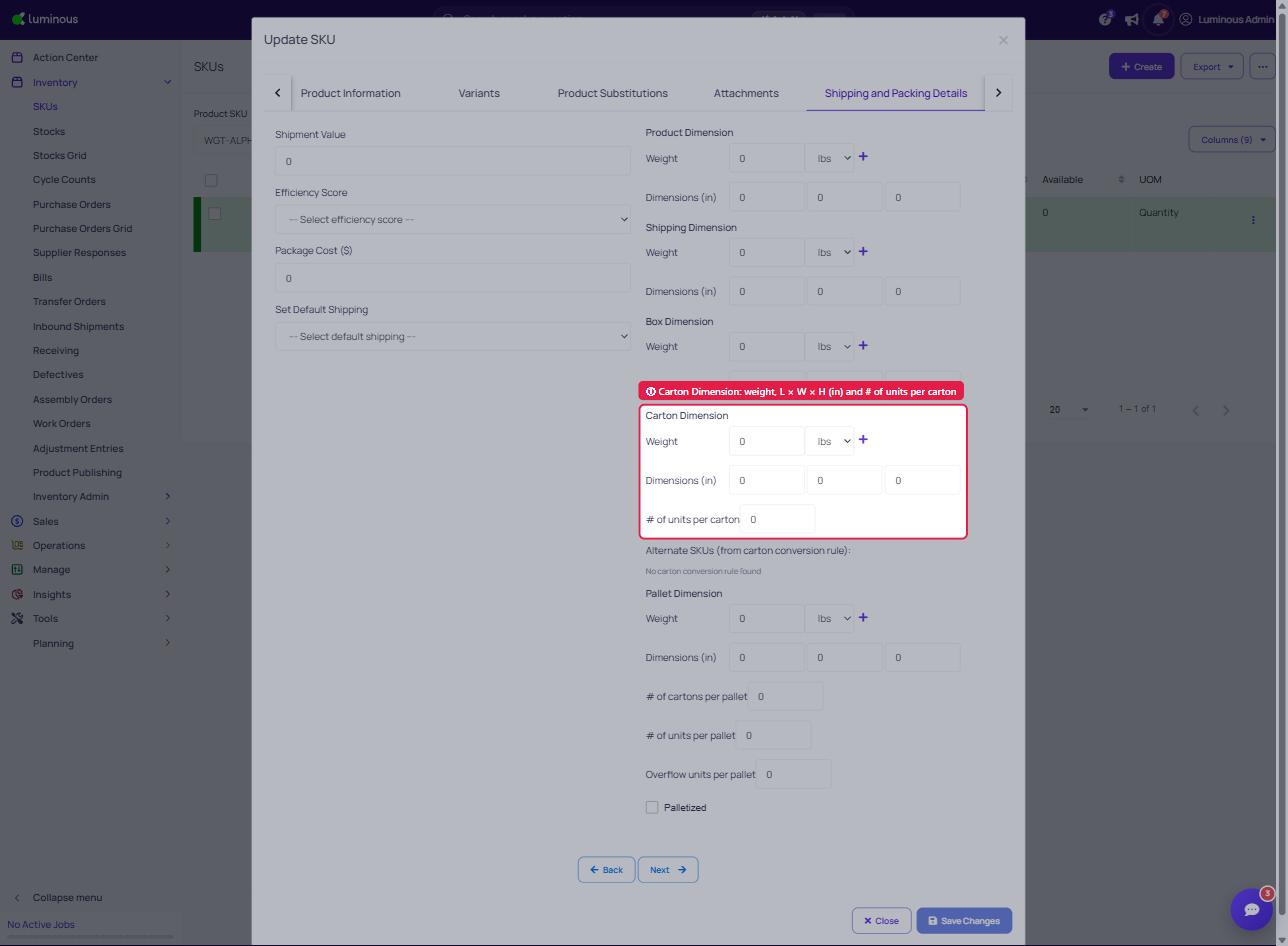
- Click the Shipping and Packing Details tab.
- Scroll to the Carton Dimension section and change/update the Weight and Dimensions (Length, Width, Height in inches), plus # of units per carton as needed.
- Save your changes.
Key Fields / Options
| Field | What It Shows | Pulled From |
|---|---|---|
| Total Carton Qty | Sum of all cartons for every SKU in the shipment | Units per carton + shipped quantity per line item |
| Total CBM | Sum of CBM values for every SKU in the shipment | CBM entered directly on each Master SKU |
| Ordered / Shipped / Received | Existing unit quantity totals (unchanged) | PO line items |
Note: Total CBM is drawn directly from the CBM value stored on each Master SKU — Luminous does not convert dimensions to CBM automatically. CBM must be entered in cubic meters on the SKU record. If a SKU is missing a CBM value, that line item will not contribute to the shipment total. Carton dimension fields (e.g., CARTON_DIMENSION) are stored as reference metadata and are not used in the CBM calculation.
Total CBM is drawn directly from the CBM value stored on each Master SKU — Luminous does not convert dimensions to CBM automatically. CBM must be entered in cubic meters on the SKU record. If a SKU is missing a CBM value, that line item will not contribute to the shipment total. Carton Dimension fields (Length x Width x Height, in inches, plus weight) are stored as reference metadata and are not used in the CBM calculation — they display per SKU rather than rolling up into a single summed figure, since dimensions can't be meaningfully added across different SKUs.
Tips and Best Practices
- Enter CBM in cubic meters on your SKUs before creating shipments. The rollup pulls the CBM value stored on the Master SKU directly — there is no automatic conversion from inches, centimeters, or any other unit. Make sure the value on each SKU is already expressed in cubic meters (m³).
CARTON_DIMENSIONis a reference field, not a calculation input. Carton dimension data (e.g.,12x10x8 inchesor30x25x20 cm) is stored as metadata for your own reference. It does not feed the CBM rollup and is not validated for unit consistency. Use it to store supplier packing specs alongside the calculated CBM value.- Use the rollups at the shipment stage, not the PO stage. A single PO may have multiple shipments (e.g., split shipments). The carton quantity and CBM shown reflect the specific shipment — not the full PO — so compare against your actual container booking.
- Cross-check CBM against your freight forwarder's quote. The rollup gives you a reliable starting point, but always confirm against the supplier's packing list, since actual packing may vary.
- Split shipments each get their own rollup. If you've split a PO into multiple shipments, each shipment view shows its own independent Total Carton quantity and Total CBM. There is no combined rollup across shipments within one PO view.
FAQs and Troubleshooting
Q: The Total CBM is blank or lower than expected. Why?
One or more SKUs in the shipment are missing a CBM value on the Master SKU record. Go to the affected SKU and confirm that a CBM value in cubic meters (m³) is entered. Luminous does not calculate CBM from carton dimensions — the value must be entered directly.
Q: Can I enter carton dimensions in inches or centimeters and have Luminous calculate CBM automatically?
No. Luminous does not convert dimension entries to CBM. The CARTON_DIMENSION field stores whatever format you enter (e.g., 12x10x8 inches, 30x25x20 cm) as reference metadata only. You need to calculate the CBM value separately and enter it in cubic meters on the Master SKU.
Q: The Total Carton quantity seems too low. What could be wrong?
Check that UNITS_PER_CARTON is set correctly for each SKU. If this field is blank or set to 1 incorrectly, the carton quantity will not reflect your actual packing configuration.
Q: Does this affect cost allocation or landed costs?
No. The carton quantity and CBM rollups are display-only fields in the shipment view. They do not change how landed costs are allocated. Landed cost allocation continues to use the volume/weight allocation methods selected on the Supplier Receiving Report.
Q: Are these rollups visible on the PO export or the supplier-facing PDF?
Not at this time. The rollups are visible in the Luminous shipment view interface only.
Additional Help
If Total Carton quantity or Total CBM figures are not appearing on your shipment view, or if the values look incorrect after verifying your SKU data, contact Luminous Support through the chat widget or email your account team.