Section: Settings > Integrations > Manage Products
Overview
The Auto-Create Master SKUs feature lets you automatically generate master product records in Luminous by pulling product data directly from your connected ShipStation channel — no manual data entry required. Use this feature when setting up a new channel integration or when your product library is out of sync with what is actually being sold.
How It Works — Step by Step
- Go to Integrations — From the Luminous admin panel, open the user menu (top right) and navigate to Settings > Integrations and select the ShipStation channel you want to work with.
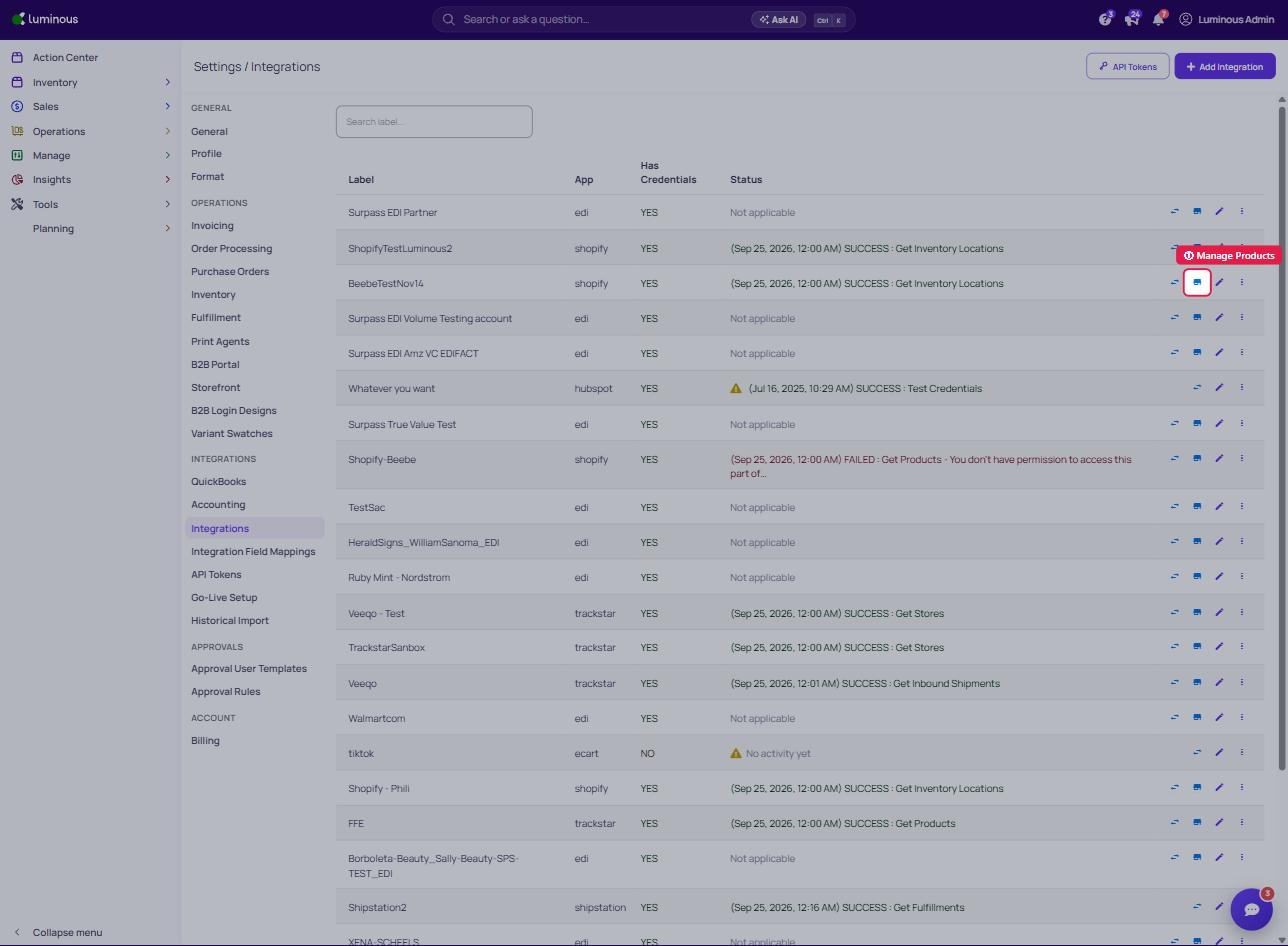
- Open Product Mapping — Click the Manage Products icon on the integration's row. This opens the product mapping interface where Luminous compares your channel products against your master SKU library.
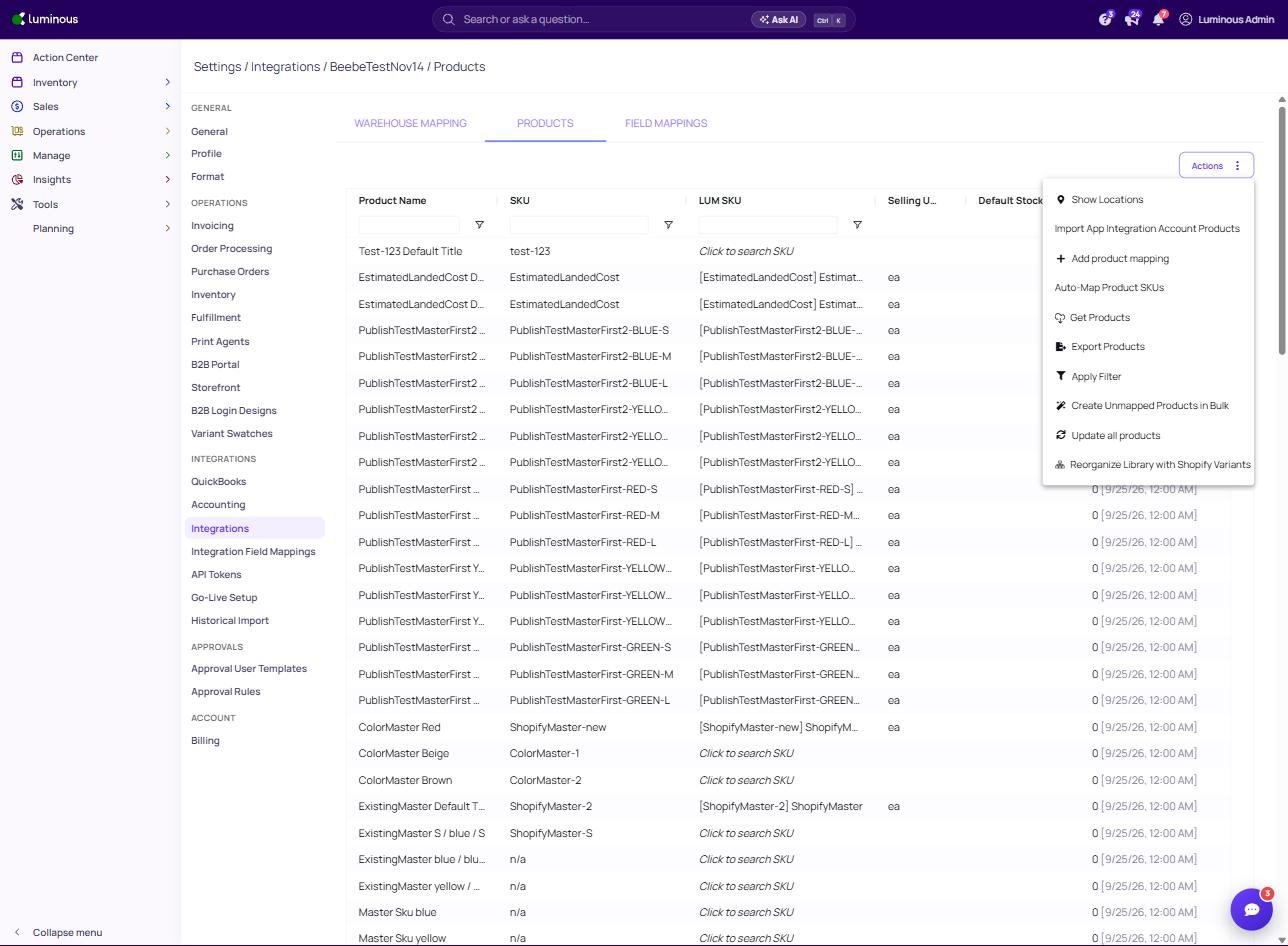
- Click Actions — In the Product Mapping screen, click the Actions button. A dropdown menu will appear.
-
Choose your action — Select one of the two options depending on your situation (see Key Options below). Luminous will process the unmapped products and generate master SKU records automatically.
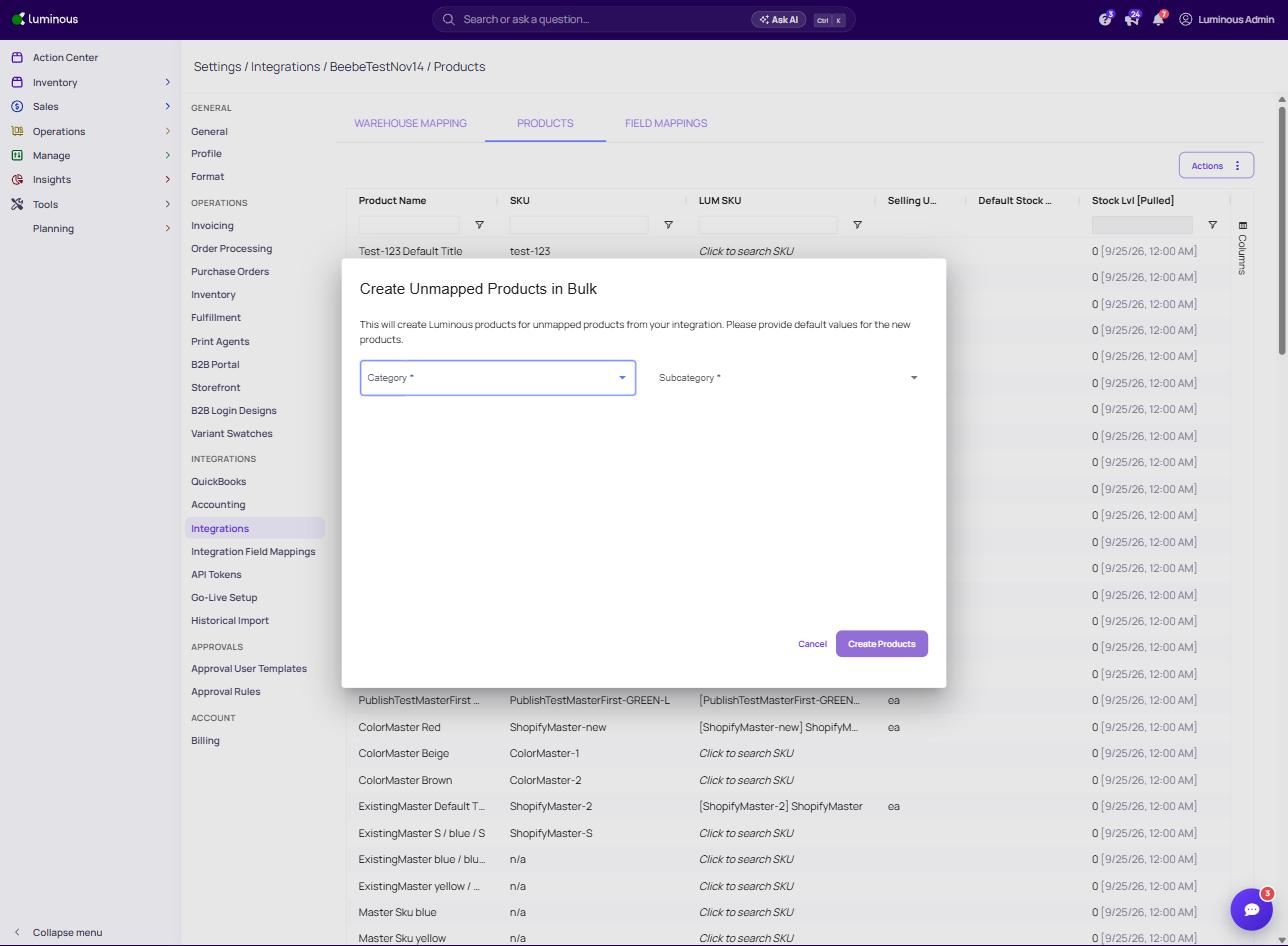
Action When to Use What It Does Create Unmapped Products in Bulk New or empty product library Scans all products in the ShipStation channel not yet mapped to a Luminous master SKU and creates new master records for each one in bulk. Reorganize Library with Shopify Variants Shopify variants have changed Syncs your master SKU library structure to reflect the current variant configuration in Shopify — useful after adding sizes, colors, or other variant options. -
Review & Confirm — Once complete, review the newly created SKUs in your product library. Spot-check names, variants, and quantities to confirm everything mapped correctly.
Create Unmapped Products in Bulk
Reorganize Library with Shopify Variants
- Click "Run Preview" to show what are the products that are not mapped yet.
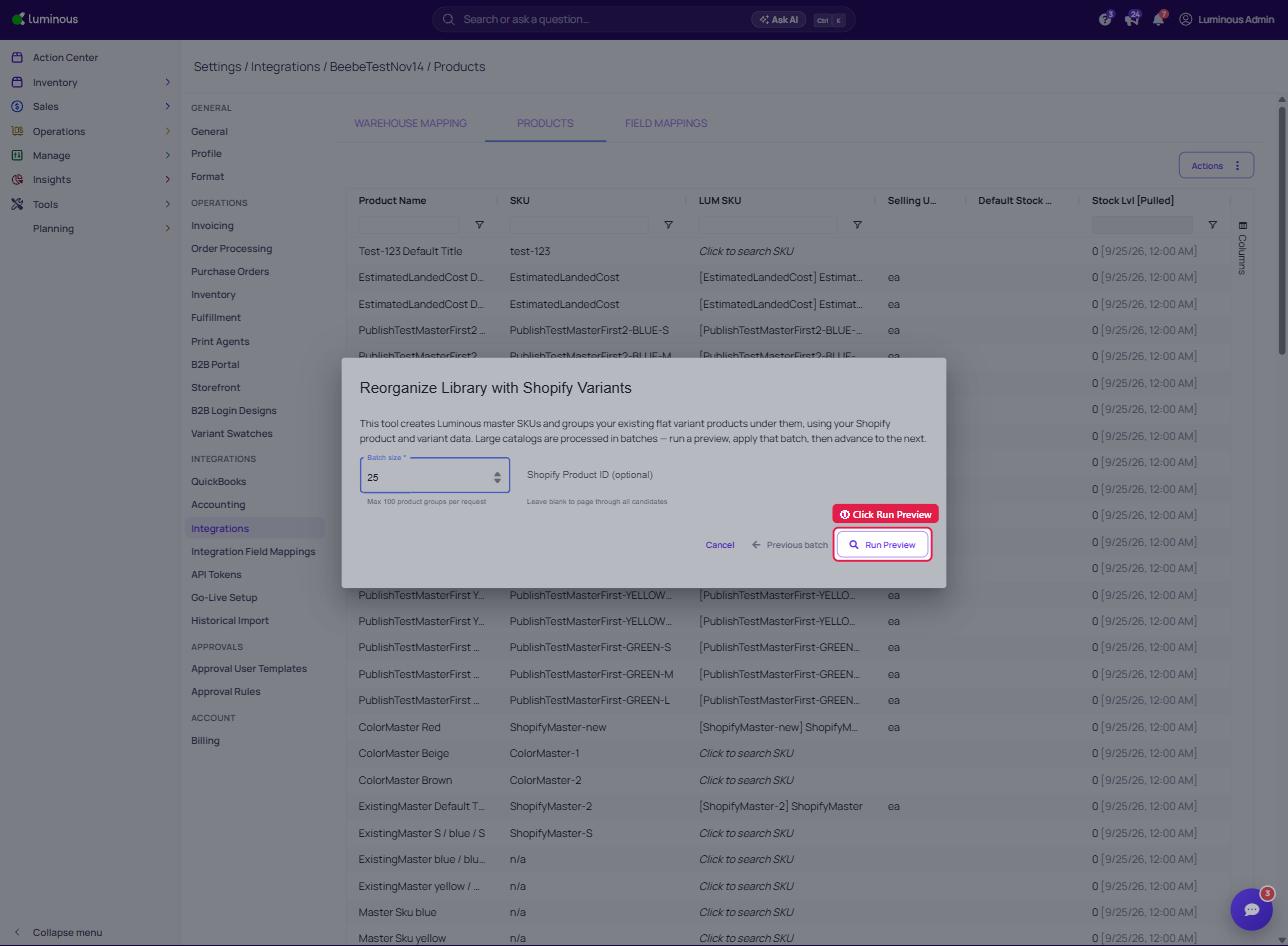
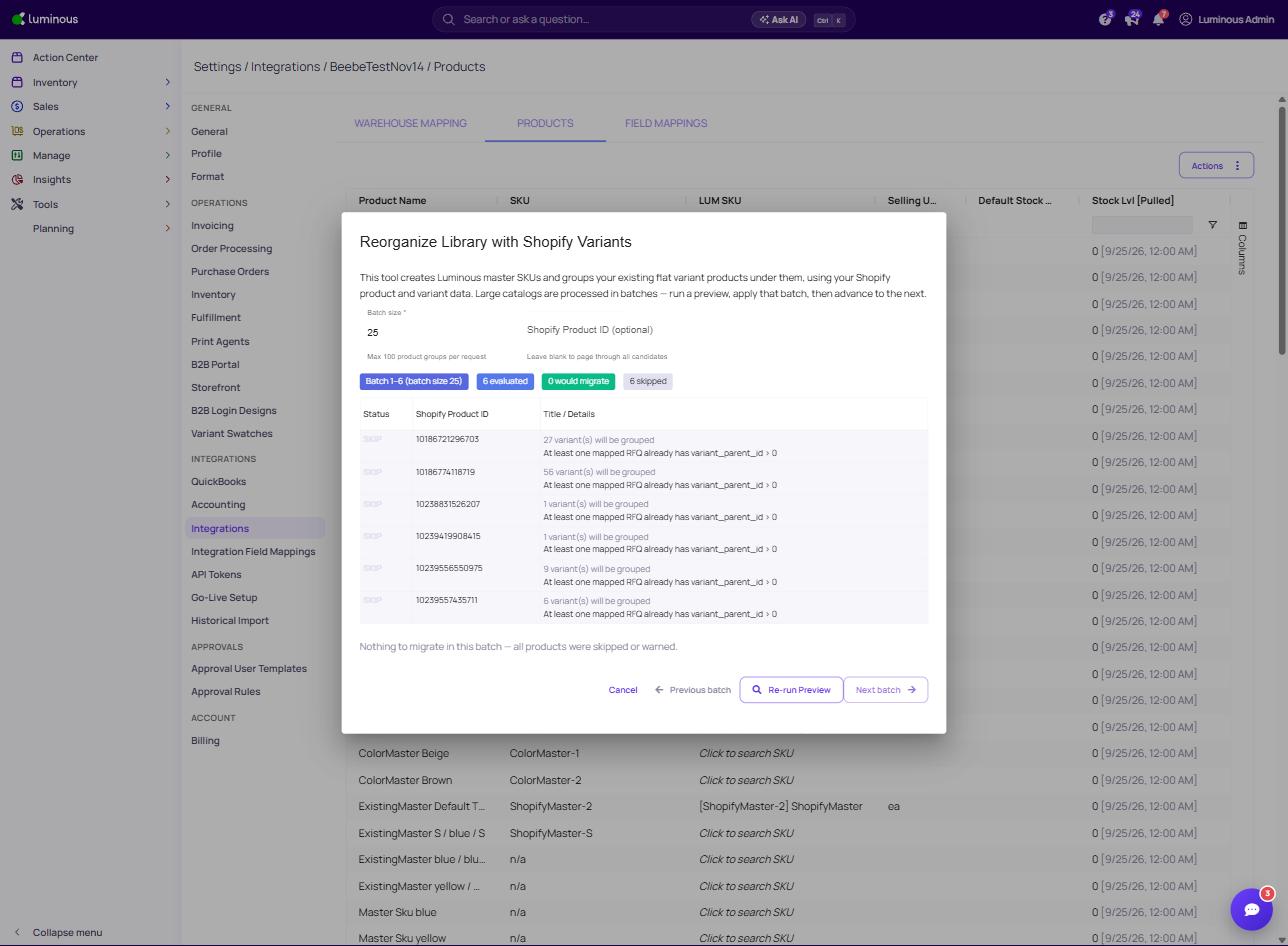
- This will display products that have been evaluated showing the status and details. Also, what course of action is required.
Tips & Best Practices
- Make sure your ShipStation channel is fully connected and active before running either action.
- If unsure which option to choose, start with Create Unmapped Products in Bulk — it's the safer option and won't overwrite existing records.
- Run this during off-peak hours if you have a large catalog, as bulk creation can take a few minutes.
- After the process completes, spot-check 5–10 SKUs to confirm names, variants, and quantities look correct.
- Avoid running Reorganize Library with Shopify Variants repeatedly as a troubleshooting step — use it only after intentional Shopify variant changes.
FAQs & Troubleshooting
I clicked the action but nothing happened. What should I do? Wait a minute and refresh the page — bulk creation runs in the background. If still nothing, confirm your ShipStation channel status is Active under Integrations.
Will this overwrite my existing master SKUs? No. Both actions only create new records for unmapped products. Existing master SKUs are not modified or deleted.
I don't see the Product Mapping button. Why? The button only appears for fully connected channels. Check that your ShipStation integration is Active and that you have Admin-level permissions.
Some products were created with incorrect names. How do I fix them? Go to your product library and manually edit the master SKU name. The auto-create pulls names directly from ShipStation, so discrepancies usually reflect the source data.
Can I run both actions back-to-back? Yes, but run Create Unmapped Products in Bulk first, review the results, then run Reorganize Library with Shopify Variants only if needed.