Sales Orders
- Go to Operations > Sales Order Grid.
- Click on the relevant Sales Order
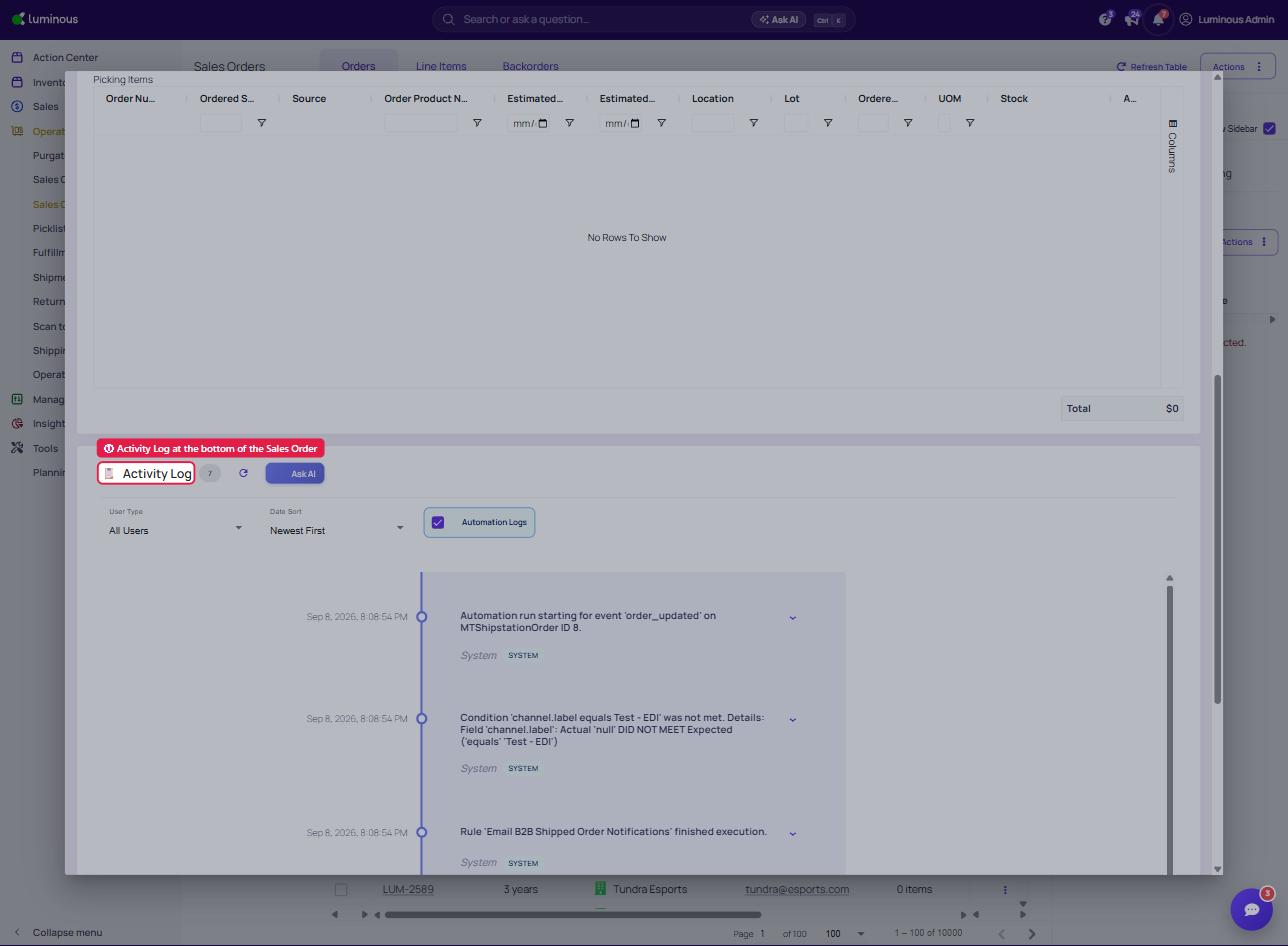
- Scroll to the bottom of the order detail page to view the Activity log.
- Shows order placement, edits, fulfillment creation, and status updates
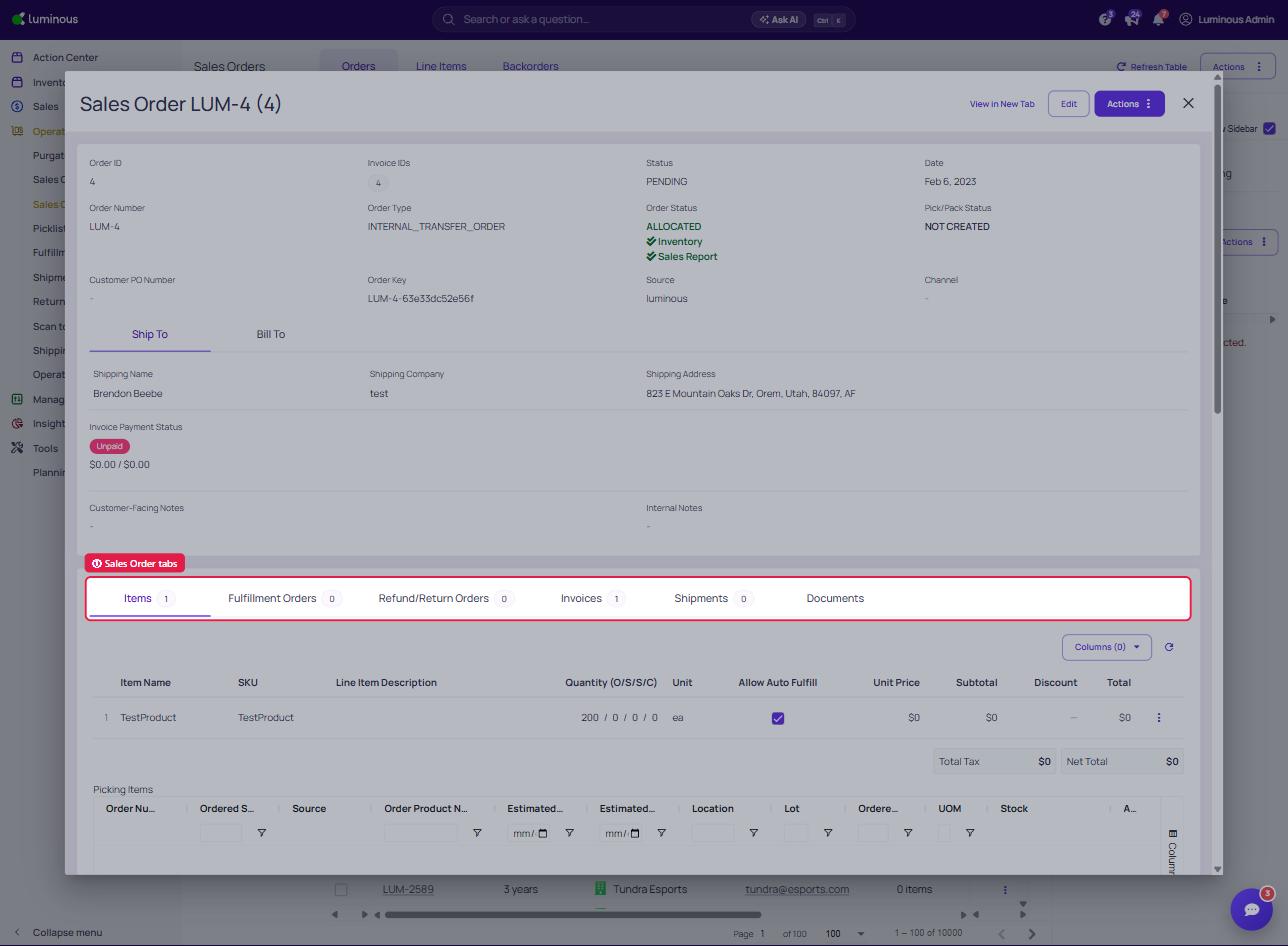
Tabs Available on a Sales Order
When viewing a Sales Order (via Operations > Sales Order Grid), multiple tabs provide detailed insight into the order’s lifecycle — including related documents and activity logs:
- Items: Displays all SKUs included in the order, along with quantity, pricing, and inventory movements.
- Fulfillment Orders: Lists all Fulfillment Orders generated from this Sales Order. Each entry links to its own detail view and activity log.
- Refund/Return Orders: Manage return and refund order.
- Invoices: Shows any invoices created from the Sales Order, along with a record of updates and status changes.
- Shipments: Displays shipment tracking details and associated activity, such as carrier scans and delivery confirmations.
Each of these tabs helps piece together the full journey of an sales order — from creation to delivery — and complements the main Activity Log for deeper traceability.
Fulfillment Orders
-
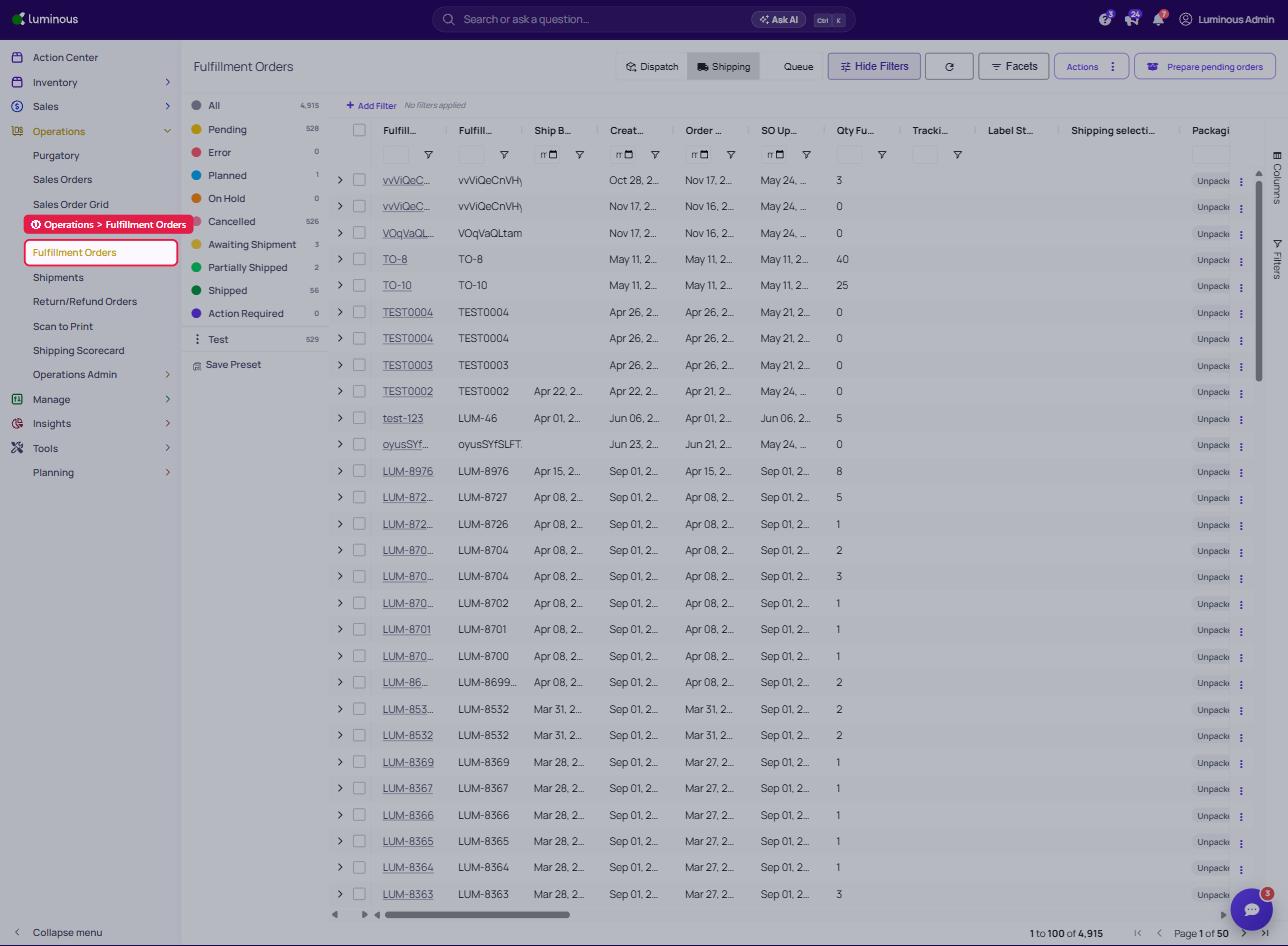
Go to Operations > Fulfillment Orders.
-
Select the Fulfillment Order in question.
-
Scroll to the bottom and click the Activity Log tab.
- Displays creation time, updates, who triggered them, and whether actions were manual or automated.