Overview: Multi-currency allows you to write sales orders and purchase orders in a foreign currency while keeping all internal reporting and records in your company's base currency. Use it whenever you need to invoice customers or record vendor bills in a currency other than your default.
How it works (step by step)
- Enable the feature — Multi-currency is controlled by a feature flag. Contact your Luminous administrator or support to have it turned on for your account.
- Create a sales order or purchase order as usual — Navigate to your sales orders or purchase orders and begin a new order. Nothing about this process changes by default.
- Locate the currency field — Where you find the currency field differs depending on the order type:
-
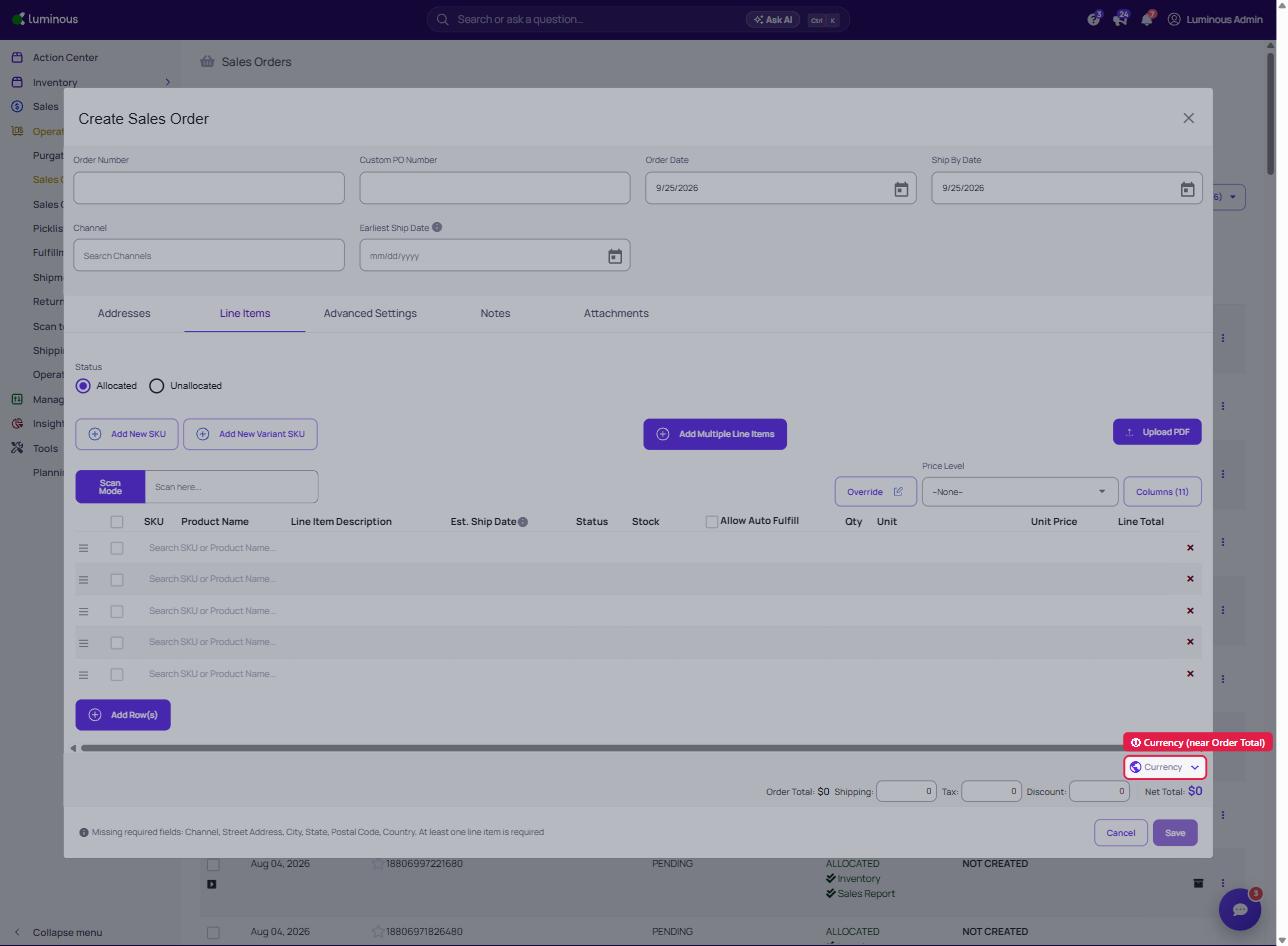
Sales order — Go to the Line Items tab and locate the currency field near the Order Total details. By default, it will show USD as your base currency.
-
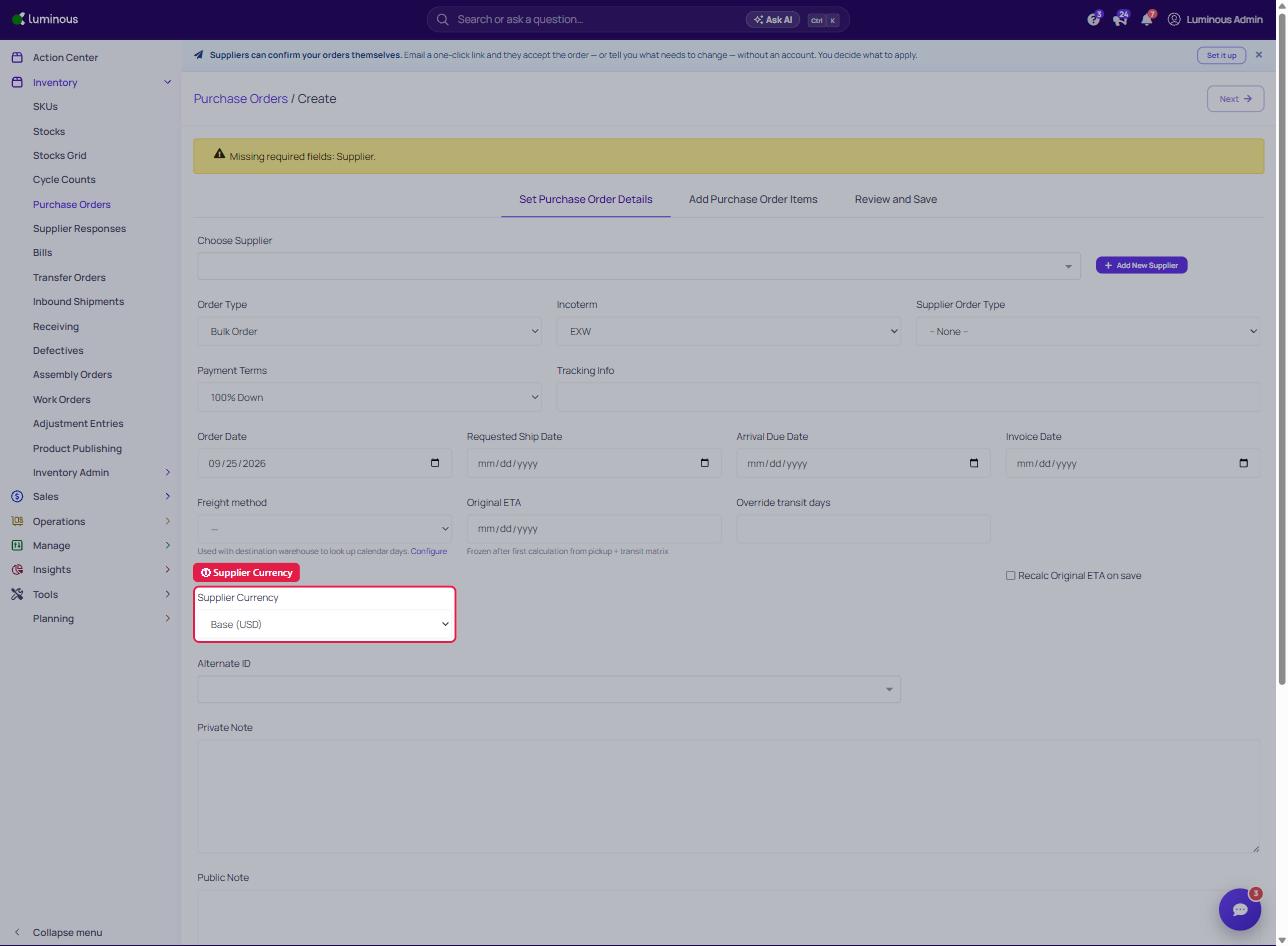
Purchase order — Open the purchase order and go to the Set Purchase Order Details tab. Look for the Supplier Currency field to view or search for the applicable currency.
-
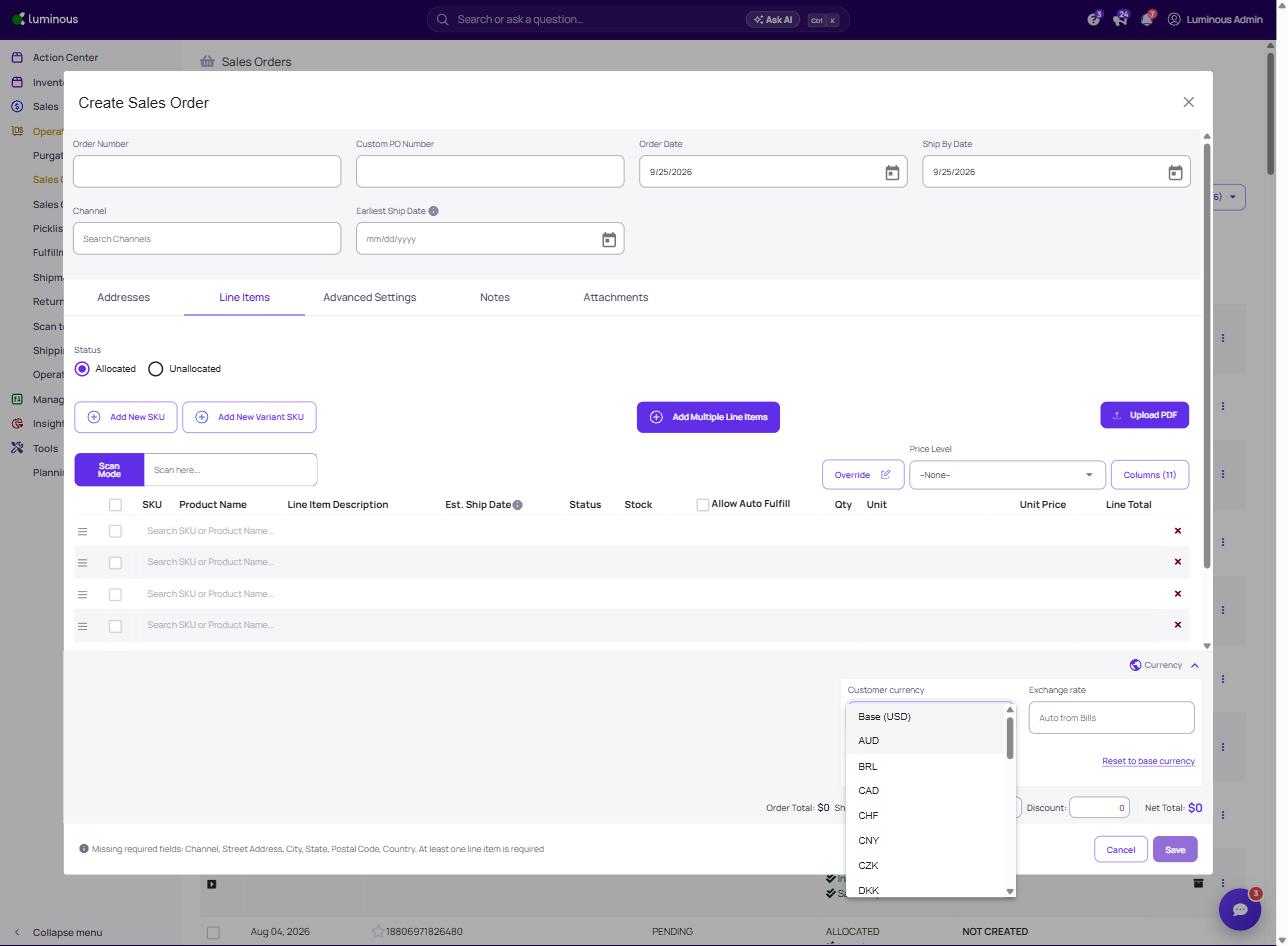
- Change the currency — On a sales order, click Currency to expand it and pick the desired currency from the Customer currency dropdown (e.g., AUD); on a purchase order, use the Supplier Currency dropdown. Once selected, enter the product price in that currency.
- Review the converted total — Luminous automatically converts the foreign currency amount to your base currency.
- Save and process the order — The sales order or purchase order and its associated invoice or bill will display the foreign currency to the customer or vendor. Internally, all records and reporting reflect the base currency amount.
Key features
Sales order — currency field location: Found on the Line Items tab, near the Order Total details. Defaults to your base currency with no changes required if not needed.
Purchase order — supplier currency field location: Found on the Order Details page under the Supplier Currency field. Use this field to view, search for, or set the correct currency for a given vendor.
Automatic conversion: Luminous converts the foreign currency total to your base currency in real time. No manual math needed.
Dual display: Orders and invoices/bills present the customer- or vendor-facing currency, while reports and financials always show the base currency.
Tips and best practices
- If you don't need multi-currency, ignore the currency field entirely — it defaults to your base currency and nothing changes.
- On sales orders, the currency field is near the Order Total on the Line Items tab — don't look for it in the order header.
- On purchase orders, always check the Supplier Currency field on the Order Details page before finalizing an order with a foreign vendor.
- Always double-check the converted base currency total before saving, especially if exchange rates fluctuate frequently.
- Confirm with your admin that the feature flag is enabled before expecting to see the currency fields — they won't appear if the feature is off.
FAQs and troubleshooting
I don't see a currency field on my sales order. Make sure you're on the Line Items tab and scrolling to the Order Total section — the currency field is located there, not in the order header.
I don't see a Supplier Currency field on my purchase order. Ensure you're on the Order Details page of the purchase order, not the line items view. If the field is still missing, the feature flag may not be enabled — contact your Luminous administrator.
Where do I see the foreign currency vs. the base currency? Both are shown on the order itself. The invoice or bill and customer/vendor-facing documents show the selected foreign currency. Reports and internal records always use your base currency.
Can I change the currency after saving an order? Editing the currency on a finalized order may require voiding and reissuing it.
Does multi-currency apply to other document types? Currently, multi-currency is live for sales orders and purchase orders. Support for additional document types may follow — confirm the latest scope with your Luminous contact.