Overview
The Filter Incoming Orders section in your channel settings lets you control exactly which orders are pulled into a Luminous channel. With the addition of the NOT CONTAINS operator, you can now explicitly exclude orders that match a specific value — giving you finer, more precise control over how orders are routed across your channels without requiring manual workarounds.
How It Works
The NOT CONTAINS operator is available as a filtering condition in any channel's Filter Incoming Orders configuration. When applied, only orders whose specified field value does not contain the defined string will be pulled into that channel.
To add a filter using the NOT CONTAINS operator:
- Navigate to Manage > Channels in Luminous.
- Click three dots to Edit on the channel you want to configure (or create a new one).
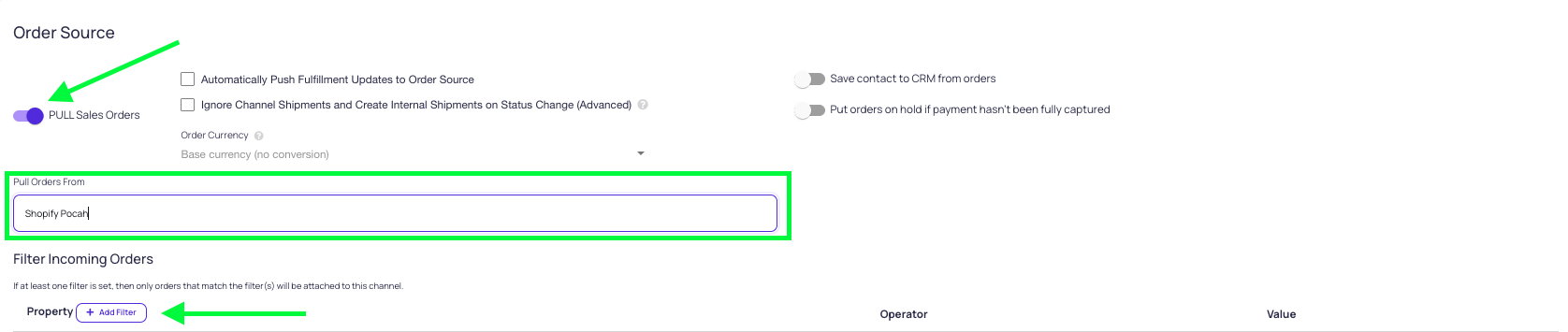
- Scroll to the Order Source section
- Enable the PULL Sales Orders toggle
- Select where your orders will be pulling from.
- Locate Filter Incoming Orders.
-
Click + Add Filter.
-
Enter the Property you want to filter on (e.g.,
tags). -
In the Operator dropdown, select NOT CONTAINS.

-
Enter the Value you want to exclude (e.g.,
Sample Warehouse). -
Add additional filter rows as needed, then save your channel settings.
Note: If at least one filter is set, only orders that match all filter conditions will be attached to the channel. Filters using NOT CONTAINS will exclude any order whose property value contains the specified string.
Available Filter Operators
| Operator | Behavior |
|---|---|
| EQUALS | Only pulls orders where the property value is an exact match to the value entered. |
| CONTAINS | Pulls orders where the property value includes the specified string anywhere within it. |
| NOT CONTAINS | Pulls orders where the property value does not include the specified string. Excludes matching orders from the channel. |
| EXACT IN | Pulls orders where the property value exactly matches any one of a defined list of values. |
Tips & Best Practices
- Combine with CONTAINS for precise segmentation. Use a
CONTAINSfilter on one row and aNOT CONTAINSfilter on another row to both include a specific order group and exclude another — useful for channels that service overlapping tag structures (e.g., includeUS Ordersbut excludeLUM Warehouse). - Order matters with multiple filters. When multiple filter rows are set, all conditions must be satisfied for an order to be attached to the channel. Think of them as AND logic: all conditions must be true simultaneously.
- Use tags thoughtfully. The
NOT CONTAINSoperator works particularly well with order tags since tags often carry fulfillment-routing context (e.g., warehouse identifiers, customer tier, or fulfillment method). Make sure your upstream system (e.g., Shopify, ShipStation) is tagging orders consistently before relying on this filter. - Validate your values against real order data. Before going live, pull a raw order payload to confirm the exact string being used in the field you're filtering on. In Luminous, go to Sales Orders, copy the Order ID of a representative order, then go to Actions > Pull Single Order, select your integration, and paste the Order ID to inspect the raw data.
- Removing filters temporarily is safe for testing. If you're unsure whether your filter is the cause of missing orders, temporarily remove all filters and check whether orders begin appearing in the channel. If they do, your filter logic or values need to be reviewed.
FAQs & Troubleshooting
Q: I set a NOT CONTAINS filter, but orders I expected to be excluded are still flowing into the channel.
Double-check that the value you entered exactly matches what appears in the order payload. String matching is case-sensitive and the filter checks whether the substring is present anywhere in the field value. Use the Pull Single Order tool under Sales Orders > Actions to inspect the raw field value before adjusting your filter.
Q: Can I use NOT CONTAINS alongside other operators in the same channel?
Yes. You can mix operators across multiple filter rows. For example, you can combine tags CONTAINS [Value A] with tags NOT CONTAINS [Value B] to define both an inclusion and exclusion condition on the same property. All active filter rows must be satisfied for an order to attach to the channel.
Q: What happens to orders that are excluded by my NOT CONTAINS filter?
Excluded orders simply do not attach to that channel. They are not deleted or discarded — they may still be visible in your Sales Order grid and can attach to other channels whose filters they do match. If no channel's filter matches an order, the order will remain unattached.
Q: Does the NOT CONTAINS operator work on all order properties, or only tags?
The operator is available for any property field exposed in the Filter Incoming Orders configuration — not just tags. You can apply it to fields like advancedOptions.warehouseId, shippingMethod, custom field values, or any other property available in your order payload.
Additional Help
If you're unsure how to configure your channel filters or need help identifying the right property and value for your use case, contact our support team at support@joinluminous.com.