Overview
The Luminous MCP Server connects Claude CoWork directly to your live inventory and forecast data, letting you review stock levels, define reorder logic, build a buy sheet, and generate purchase orders — all from a single conversational interface. Use this workflow when you need to replenish inventory across multiple vendors without manually building spreadsheets or entering PO line items by hand.
How It Works (Step-by-Step)
Step 1: Start the Buy Sheet Flow in Claude CoWork
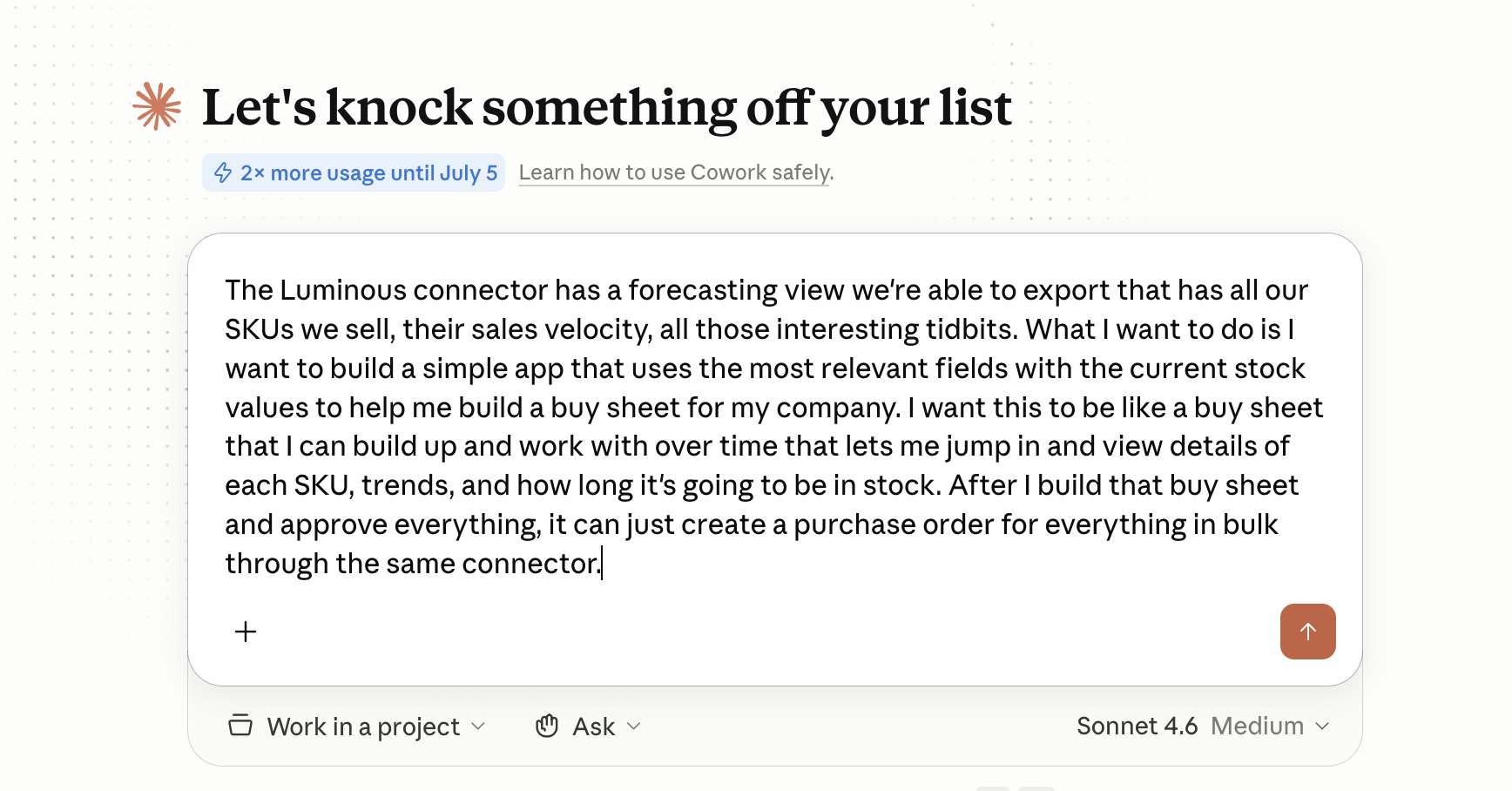
Open Claude CoWork and prompt it to build an inventory buy sheet. Claude connects to the Luminous MCP Server and immediately pulls your forecast data — including current on-hand quantities, sales velocity across multiple windows, days of stock remaining, lead times, MOQs, reorder points, and recommended order dates — to understand what's available before asking you anything. Below is the sample prompt that you can reference:
Step 2: Answer the Calibration Questions
Claude walks you through a short set of setup questions to configure the buy sheet for your business. You'll define:
| Setting | Options |
|---|---|
| Forecast view | Company-wide or filtered by location/channel |
| Reorder trigger | Days of stock remaining (recommended) |
| PO grouping | One PO per vendor/supplier |
| SKU detail level | Summary or full deep-dive |
| Sales velocity window | 7, 14, 30, 60, 90, 180, or 365 days (30-day recommended) |
| Reorder threshold | Lead time + safety stock (recommended) |
| Target days of cover | How many days of inventory each order should cover (e.g., 60 days) |
Once you've answered, Claude will ask for the below, let Claude work on the background.
- Tenant ID - your subdomain (e.g. if you log in at
test.joinluminous.com, it'stest) - API token - found at Settings → API Tokens in Luminous
Step 3: Review the Buy Sheet
The buy sheet appears in the side panel and displays all flagged SKUs grouped by vendor. For each line item, you'll see:
- SKU and product name
- On-hand quantity
- Days of stock remaining
- Pre-filled order quantity (based on your target days of cover)
- Unit price and line total
- Days After — how long the ordered quantity will last
- Vendor assignment
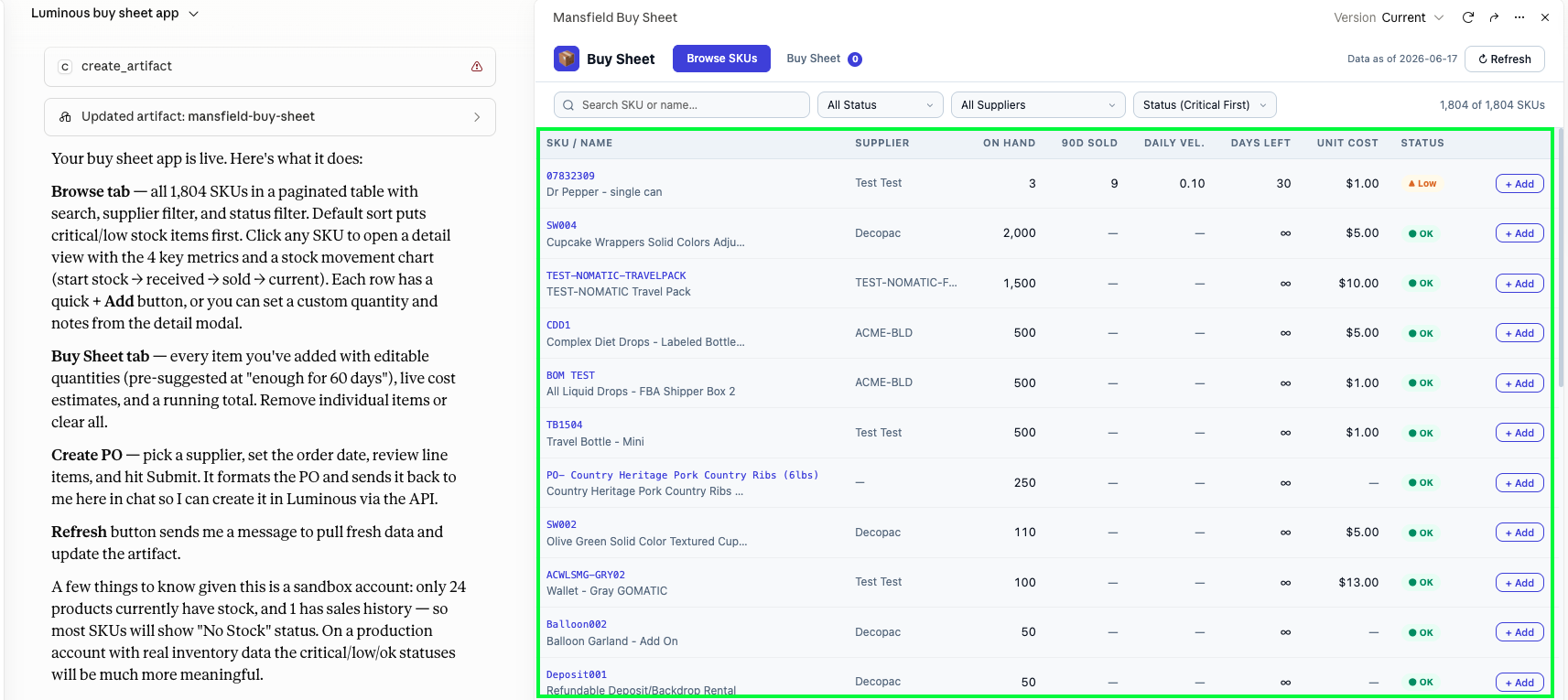
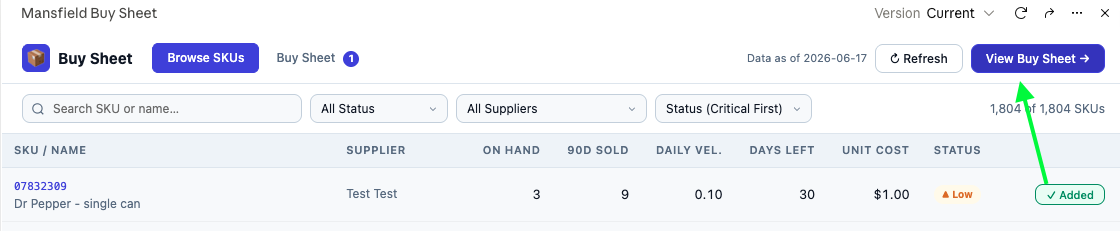
Once you added the SKU, you can edit any order quantity directly in the buy sheet before proceeding.
- Click the View Buy sheet to validate if the SKU you selected.
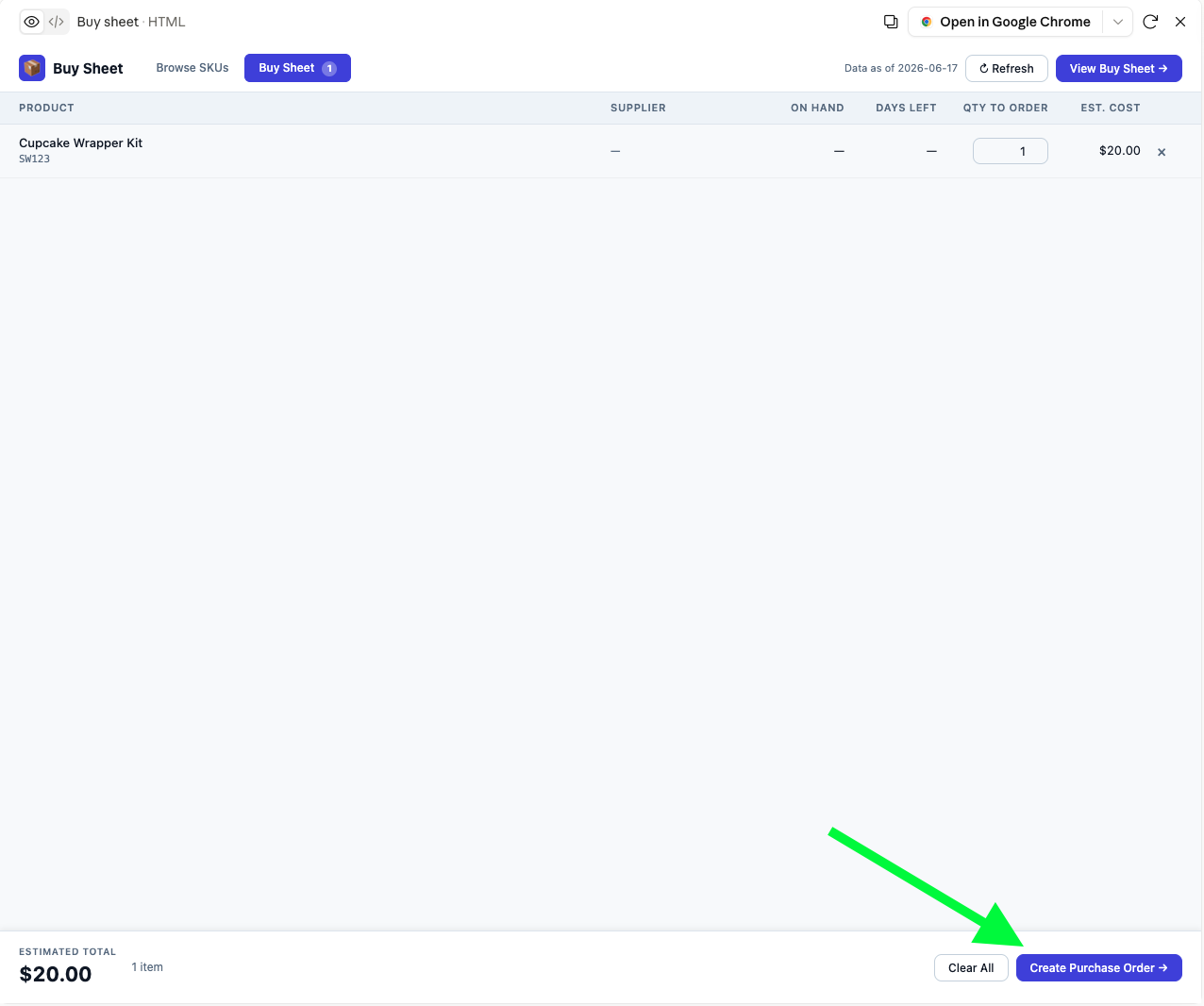
- Edit the quantity under the column, QTY to order(if necessary)

Step 4: Approve and Generate Purchase Orders
When the buy sheet looks correct, click Approve & Create POs. A confirmation dialog shows the PO breakdown by vendor — including the number of line items, estimated total, and payment terms. Set the order date, add an optional note, then confirm to generate all POs at once.
Luminous creates one purchase order per vendor instantly. No manual PO creation or re-entry is needed. The generated POs appear in your standard Inventory > Purchase Orders list in Luminous and follow your existing PO workflows from that point forward (approval flows, PDF export, supplier emails, QuickBooks sync, etc.).
Key Features
Live data connection — The buy sheet pulls directly from your Luminous forecast in real time, not a snapshot or export.
Configurable velocity windows — You control which sales velocity period drives reorder calculations, so the buy sheet reflects your actual planning horizon.
Editable quantities before approval — Order quantities are pre-filled recommendations, not locked values. Adjust any line before committing.
Vendor-grouped POs — Each approved PO maps to a single vendor, consistent with how POs are structured elsewhere in Luminous.
No code required — The entire workflow runs through plain-language prompts in Claude CoWork.
Tips and Best Practices
Use the 30-day velocity window as your default starting point. Shorter windows (7 or 14 days) can overreact to recent spikes or slow periods. A 30-day window gives a more stable baseline for most businesses.
Review your lead times and MOQs in Luminous before running the buy sheet. Claude uses the values stored on each SKU — if lead times or MOQs are outdated, the recommended quantities and reorder thresholds will be off. Audit these in Inventory > SKUs before generating a buy sheet for a high-stakes replenishment cycle.
Adjust quantities for SKUs with upcoming promotions or seasonal demand. The buy sheet uses historical velocity; it doesn't account for planned events. Increase order quantities manually for any SKUs you expect to spike.
Check your supplier contacts before approving. Once POs are created, Luminous will send them via the supplier contacts stored in Manage > Suppliers. Make sure emails are current before you push the POs out.
PO approval flows still apply. If your account has approval rules configured (e.g., POs over a certain dollar threshold require sign-off), those rules will trigger for AI-generated POs just as they would for manually created ones.
FAQs and Troubleshooting
Does this workflow require any coding or technical setup?
No. The entire process runs through Claude CoWork using plain-language prompts. Your account just needs the Luminous MCP Server enabled.
Where do the generated POs appear in Luminous?
In Inventory > Purchase Orders, exactly where manually created POs appear. They follow the same status, approval, and export workflows from that point.
Can I run this for a single vendor instead of all flagged SKUs?
Yes. After the buy sheet is populated, you can remove line items or filter the view before approving. Only the items you leave in the buy sheet will generate POs.
What if the recommended order quantity doesn't account for my Minimum Order Quantity (MOQ)?
The buy sheet uses MOQ values stored in Luminous. If a pre-filled quantity falls below a product's MOQ, review and adjust it manually before approving. Confirm MOQs are up to date in Inventory > SKUs.
Will approval flows trigger for AI-generated POs?
Yes. Any approval rules you've configured in System Settings apply to these POs. Approvers will receive the standard email notification and can approve directly from it.
Can I edit the buy sheet after initial generation?
Yes, order quantities are editable directly in the buy sheet panel before you click Approve. You cannot add new SKUs to the buy sheet after generation — re-run the flow if you need to include additional items.
What if a SKU has no vendor assigned in Luminous?
The buy sheet will not be able to group that SKU into a PO. Assign a supplier to the SKU in Inventory > SKUs before running the buy sheet, or add it manually to an existing PO afterward.
The buy sheet is showing incorrect days of stock remaining. What's wrong?
The calculation depends on the velocity window you selected and the on-hand quantities in Luminous at the time of the run. If numbers look off, check that your on-hand quantities are reconciled and try adjusting the velocity window to better match your actual sales patterns.
Additional Help
If you run into issues with the Luminous MCP Server connection, buy sheet generation, or PO creation, contact Luminous Support. Include the relevant SKUs, your calibration settings, and any error messages you received so the team can assist efficiently.