Overview
The Luminous MCP (Model Context Protocol) Server is a powerful integration that connects Claude Desktop or Web directly to your Luminous account. Once configured, you can use natural language to search orders, check inventory, pull reports, manage vendors, and much more — all from within Claude's chat interface, without switching between applications.
Use this integration when you want to query Luminous data, trigger workflows, or perform actions using conversational commands instead of navigating the Luminous UI manually.
Important: Owner Access Required
To connect Claude Desktop to Luminous, you must be the Owner of your Claude account. Standard users and admins do not have access to the MCP server credentials required for this setup. If you are not the account Owner, please contact your support to complete the setup or request access on your behalf.
How It Works — Step-by-Step Setup
- Install Claude Desktop or Open Claude in Web.
- Log in to Luminous system Open the user menu (top right) and go to Settings > Integrations > API Tokens. Click Add MCP Server.
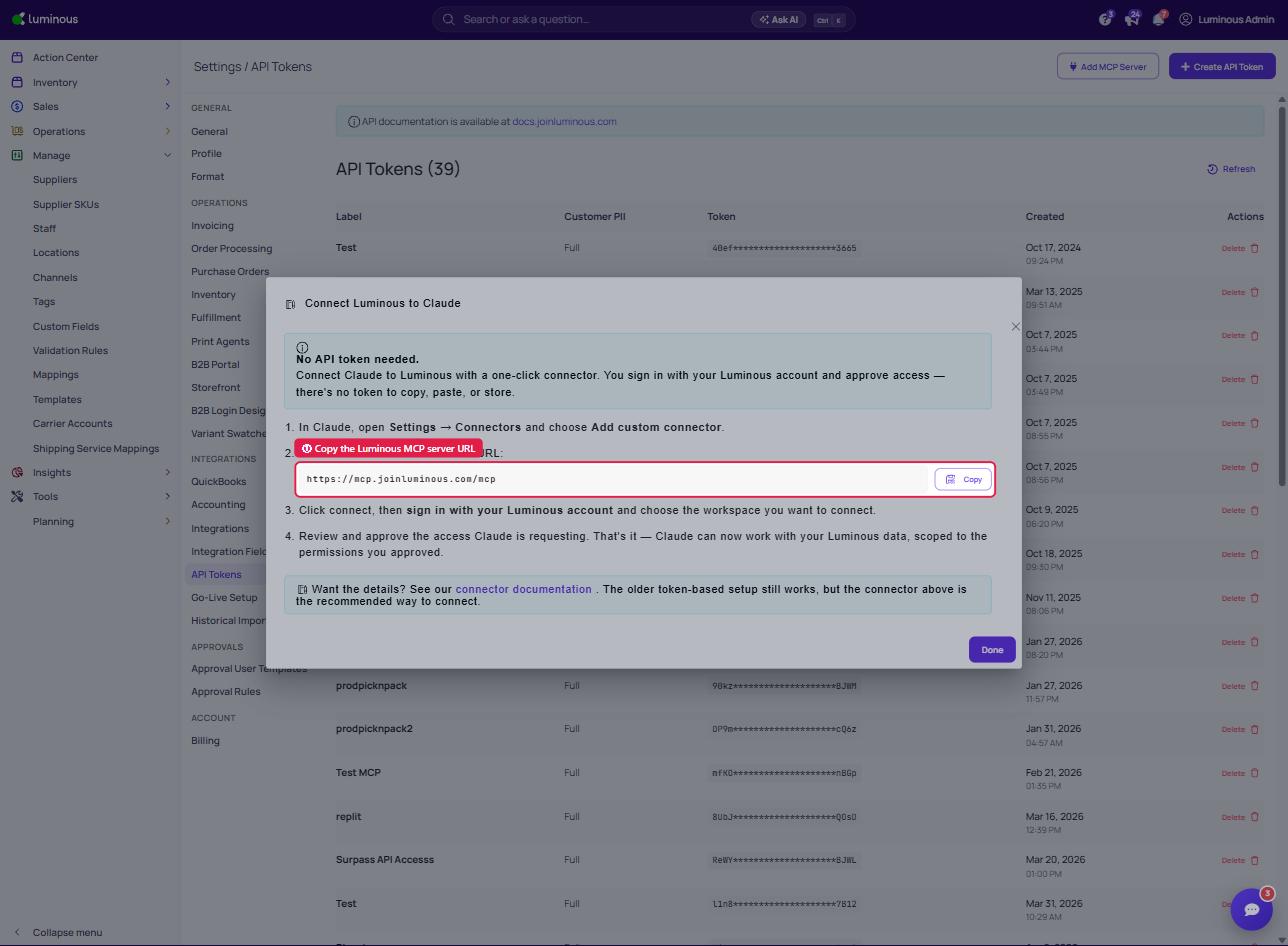
- Copy Your MCP Server URL In the Connect Luminous to Claude pop-up window, copy the Luminous MCP server URL (https://mcp.joinluminous.com/mcp). No API token is needed — you sign in with your Luminous account and approve access when you connect. (The older token-based setup via Create API Token still works.)
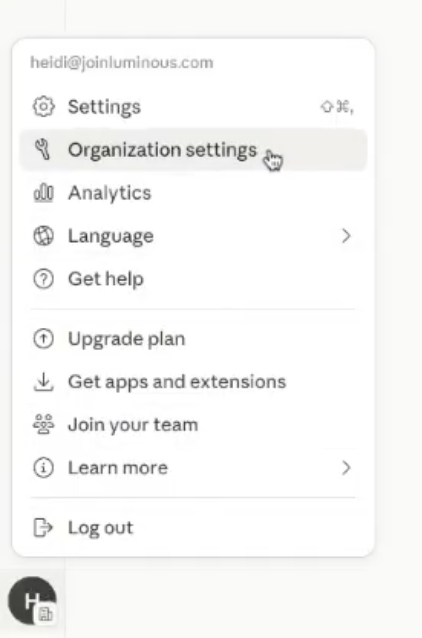
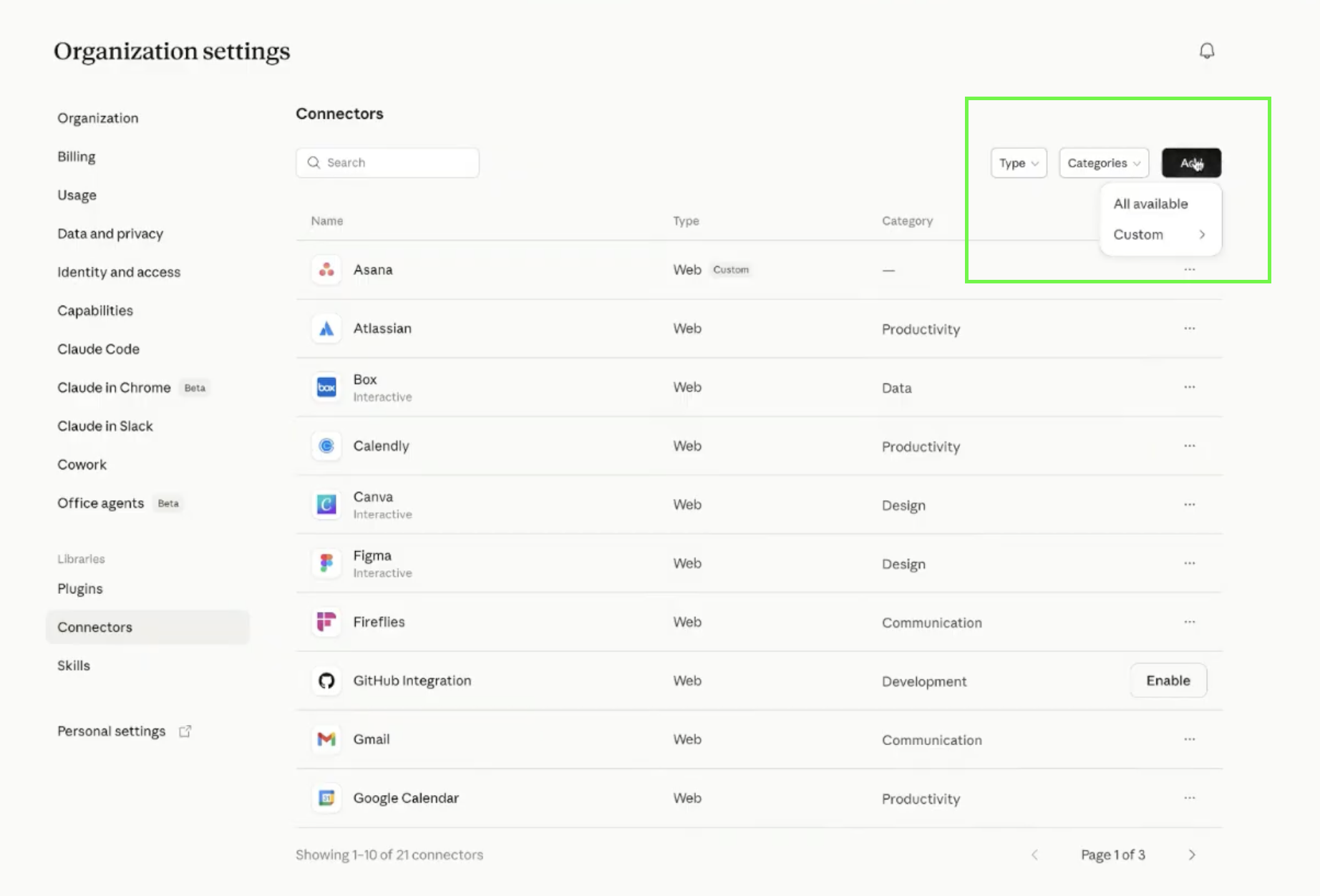
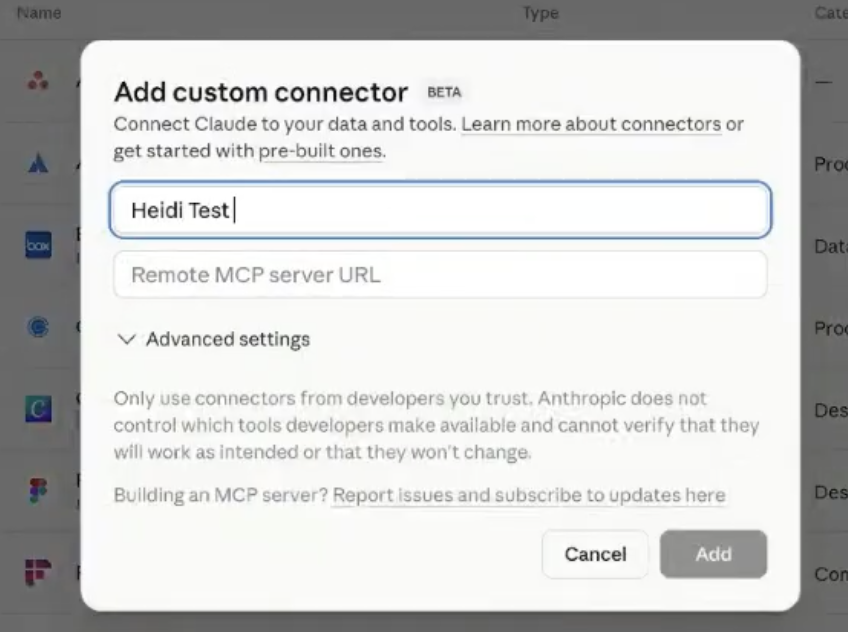
- Add the MCP Server to Claude Desktop/Web In Claude Desktop or Web, open Settings > Organization Settings > Connectors and click Add > Custom, select either Web or Desktop . Paste your Luminous MCP Server URL, give it a name (e.g., "Luminous"), and click Save.
Step 6 — Authorize the Connection Claude Desktop will prompt you to authorize the connection. Follow the on-screen steps. You may be redirected to Luminous to confirm authorization.
Step 7 — Start Using Claude with Luminous Open a new chat in Claude Desktop. You'll see Luminous tools available. Try commands like:
- "Show me all open purchase orders from this week."
- "What's the current stock level for SKU-1042?"
- "Pull the AP aging report for this month."
What You Can Do
Once connected, Claude can help you with:
- Orders & Sales — Look up sales orders, check status, view line items, and search by customer or date range.
- Inventory — Check stock levels, view inventory aging, adjust stock, and surface low-inventory alerts.
- Purchase Orders — Search open POs, review line items, check shipment status, and view vendor details.
- Bills & Payments — Look up bills, check AP aging, review payment status, and retrieve vendor statements.
- Reports — Generate consumption reports, COGS summaries, stock snapshots, and close-the-books data.
- Products & SKUs — Search products, view pricing, check BOMs, and look up alternate SKUs.
Tips & Best Practices
- Be specific. Instead of "show me orders," try "show me open orders from the last 7 days for Acme Corp." More context = more accurate results.
- Ask follow-up questions. Claude retains context throughout a conversation, so you can refine or drill deeper without starting over.
- Combine data. Claude can pull from multiple tools in one request — e.g., "Compare this month's inventory to last month's consumption report."
- Review before confirming. For actions that modify data (inventory adjustments, record updates), always review Claude's proposed changes before approving.
- Keep your MCP URL private. Your URL is unique to your account. Don't share it publicly or store it in unsecured places.
- Reconnect if tools disappear. Go to Settings > Developer > MCP Servers in Claude Desktop and re-authenticate if Luminous tools stop appearing.
FAQs & Troubleshooting
I don't see the MCP Server option in Luminous Settings. This option is only visible to the account Owner. Log out and log back in with Owner credentials. If you're the Owner and still don't see it, contact Luminous Support — the feature may need to be enabled on your account.
Can other users on my account use this integration? The MCP Server URL is generated at the Owner level and reflects Owner-level access. Contact Luminous Support if you need scoped access options for other users.
I'm getting an "Unauthorized" or "Authentication Failed" error. Your MCP Server URL may have expired. Return to Settings > Integrations > API Tokens > Add MCP Server in Luminous, copy the MCP server URL, reconnect, and update it in Claude Desktop under Settings > Developer > MCP Servers.
Will Claude automatically make changes to my Luminous data? Claude will always describe proposed changes and ask for your confirmation before acting. Still, review carefully — especially for inventory adjustments, order updates, or financial entries.
Is this available on the Claude mobile app? Not at this time. MCP server integrations are supported in Claude Desktop only.
Still Need Help?
Contact our support team:
- Email: help@joinluminous.com
- Help Center: help.joinluminous.com
- In-App: Click the Help and support button in the bottom-right corner of any Luminous page.