Overview
The Shopify integration account includes three stock push settings that control how Luminous sends inventory data to Shopify. Use these settings to fine-tune whether stock is pushed via GraphQL, how negative quantities are handled, and whether Shopify receives on-hand or available inventory values.
How It Works (Step-by-Step)
- Go to Settings > Integrations in Luminous.
- Locate your Shopify integration and click Edit (pencil icon) to open the Edit Integration Account modal.
- Scroll down to the Settings section (below Minimum Order Age).
- To configure the stock push that you want, you can do either of these three:
- Use GraphQL for stock push (adjustment method)
- Allow negative buffered sellable quantity (before push)
- Push stock to Shopify on-hand instead of available
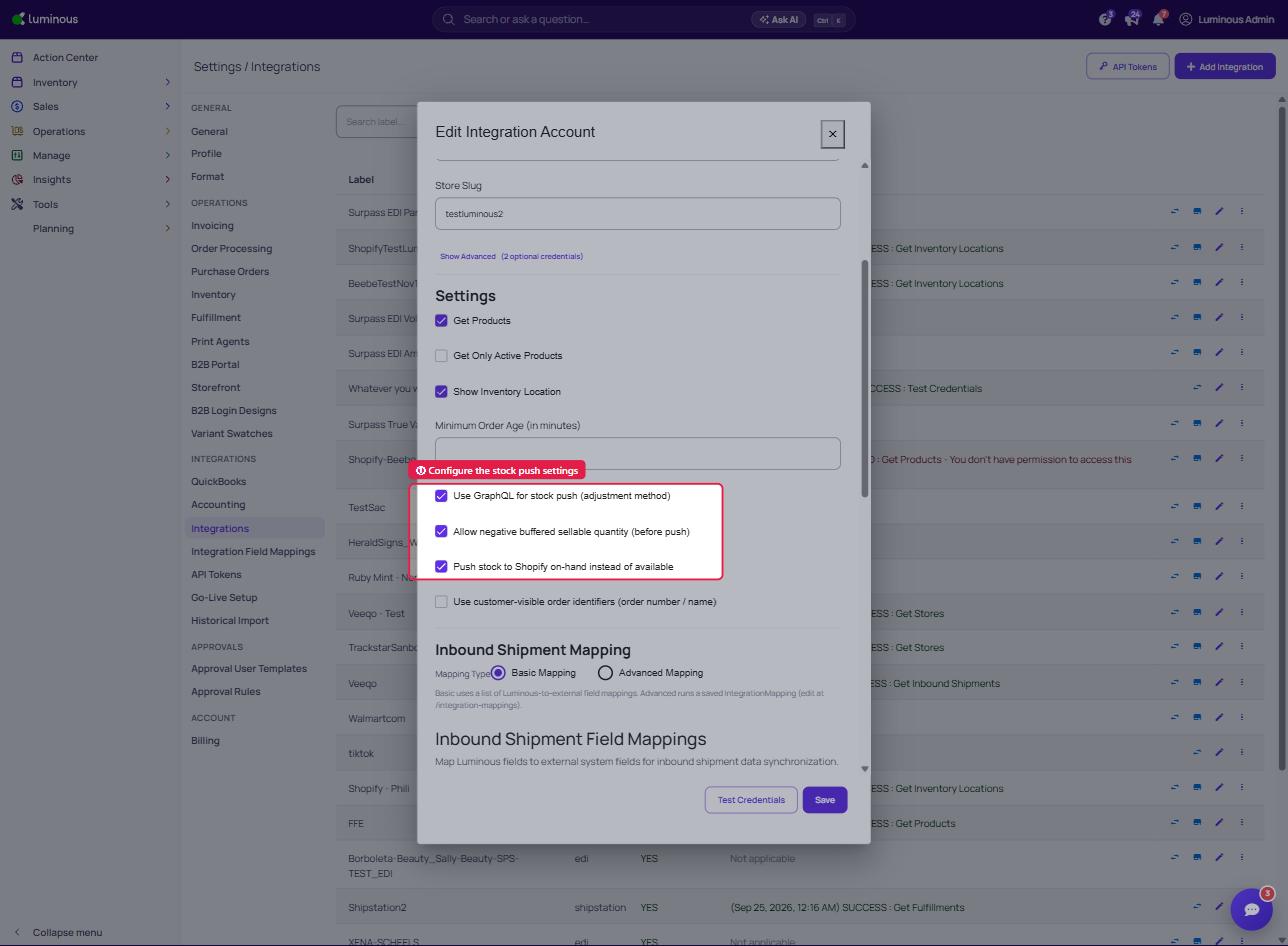
- Click Save to apply your changes.
- To verify the push is working, check the Status column on the integrations list — a successful push will show a green checkmark with a SUCCESS : Push Stock entry.
Additional insights:
Use GraphQL for stock push (adjustment method) Uses Shopify's GraphQL API to push inventory as an adjustment rather than a set value. Recommended for most modern Shopify stores, as it is the more reliable and performant method.
Allow negative buffered sellable quantity (before push) When enabled, Luminous will push a quantity to Shopify even if the buffered sellable quantity calculates to a negative number. This prevents Shopify from being stuck at 0 when your buffer settings are aggressive. Disable this if you never want to push negative values to Shopify.
Push stock to Shopify on-hand instead of available (New) When enabled, Luminous pushes the on-hand quantity to Shopify rather than the available (sellable) quantity. Use this if your Shopify store should reflect raw on-hand stock, regardless of reservations or buffers.
Tips & Best Practices
- If you want Shopify to reflect what is physically in your warehouse (ignoring open orders or buffers), enable Push stock to Shopify on-hand instead of available.
- If you want Shopify to only show stock that is actually available to sell, leave that option unchecked so Luminous pushes the available quantity instead.
- Enable Allow negative buffered sellable quantity only if you're intentionally overselling or want Shopify to reflect negative stock situations rather than flooring at zero.
- After changing any stock push setting, trigger a manual Push Stock action to confirm the update is reflected in Shopify immediately rather than waiting for the next sync cycle.
FAQs & Troubleshooting
Q: My Shopify inventory isn't updating after I changed the on-hand setting. A: Check the Status column in your integration list. If there is no recent SUCCESS : Push Stock entry, trigger a manual push. If the status shows a warning icon, check for credential or permission issues.
Q: What's the difference between on-hand and available? A: On-hand is the total physical quantity in your warehouse. Available (sellable) accounts for reservations, open orders, and buffer rules — it's typically lower than on-hand.
Q: Should I use GraphQL or the legacy push method? A: GraphQL is the recommended method for Shopify stores on API version 2023-01 and later. If you experience issues with stock not updating correctly, confirm GraphQL is enabled.
Q: Can I push on-hand to some locations and available to others? A: Not within a single integration account. If you need location-specific logic, contact support to discuss advanced configuration options.
Additional Help
If you're unsure which settings are right for your store or run into unexpected behavior after saving changes, reach out to the Luminous support team for assistance.