Overview
The Shopify Product Scrubber converts raw Shopify product export files into a Luminous-ready import format. This tool automatically structures products, variants, categories, and required fields so files can be uploaded directly using the Luminous Unified (6-in-1) Importer—saving hours of manual data cleanup.
This feature is designed for teams importing large Shopify catalogs into Luminous.
What this tool does
- Converts Shopify product exports into a Luminous Unified Importer template
- Automatically creates Master SKUs and attaches variants
- Splits nested Shopify product categories into Category and Subcategory fields
- Generates variant options for each SKU
- Concatenates variant values into product names where required
- Flags data validation issues before import
Before you begin
- A Shopify Product Export file as CSV.
- Convert the file into a Excel file.
- Access to the Shopify Product Scrubber
- Access to the Unified (6-in-1) Importer in Luminous
Step-by-step: Convert a Shopify product file
1. Export products from Shopify
Export the product file from Shopify. This file contains raw product and variant data.
2. Upload the file to the Shopify Product Scrubber
- Open the Shopify Product Scrubber
- Upload the exported Shopify product file as excel file
3. Choose product structure in the Configure tab
a. Select how products should be created in Luminous:
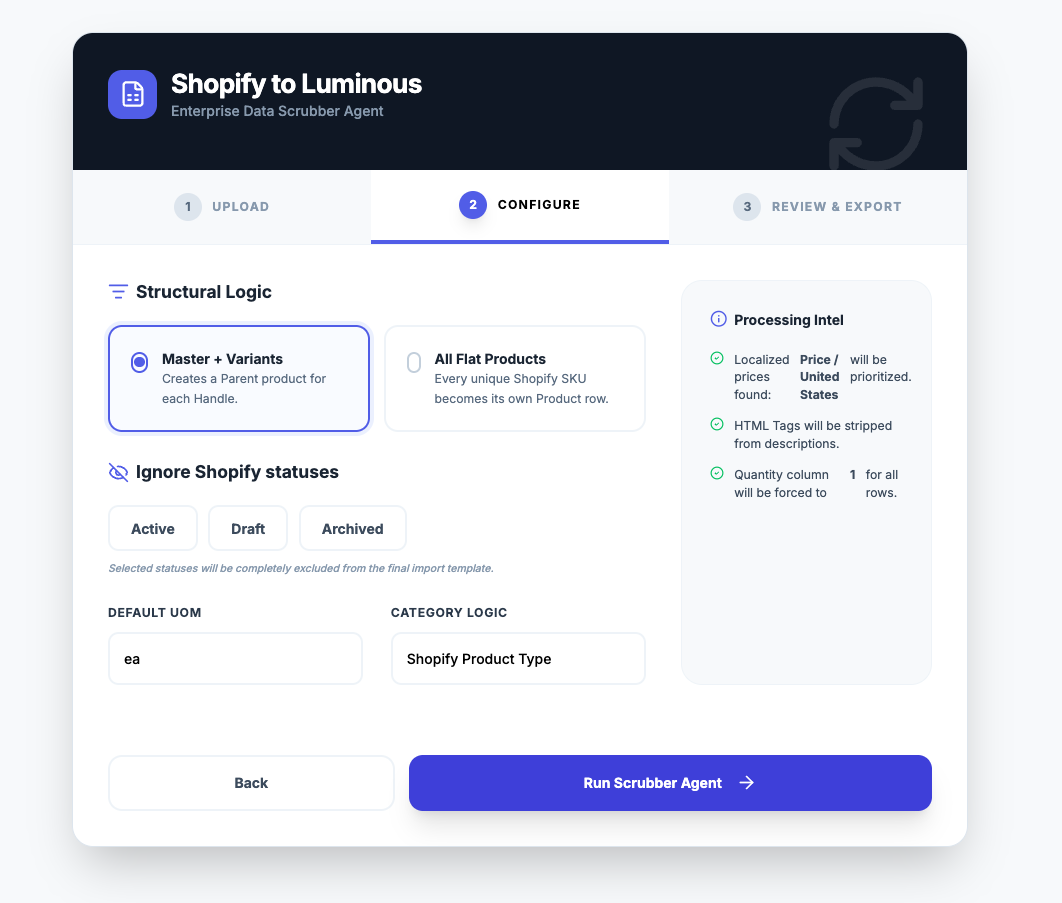
b. Under Structural logic, you need to select either of following:
- Master + Variants – Creates a master SKU (also known as Parent Product) with variants attached.
- Flat Products – Converts all items (Unique Shopify SKU) into master SKUs with no variants.
4. Select which product statuses to include
Choose which Shopify product statuses should be processed:
- Active
- Draft
- Archived
Example:
- Include Active products only
- Ignore Draft and Archived products
5. Choose category logic
Select how categories should be handled:
- The scrubber uses the first level of the Shopify category as the Category
- The last nested value becomes the Subcategory
This automatically converts Shopify’s nested category format into Luminous-compatible fields.
6. Run the scrubber
Click Run Scrubber to process the file.
After processing, the tool displays:
- Total number of Master SKUs created
- Total number of Variants created
- Any data validation issues that may need review
7. Download the scrubbed file
- Download the processed file
- The output is formatted specifically for the Luminous Unified (6-in-1) Importer
How data is transformed
Master SKUs and variants
- Shopify exports only support variants
- Luminous requires a Master SKU
- The scrubber automatically:
- Creates a master SKU
- Attaches all related variants to it
Product names
- Variant values are automatically concatenated to the product name
- This ensures each variant has a clear, unique name in Luminous
Variant options
- Variant options are automatically created
- Multiple option values are separated by commas
Example:
- Color: Red, Blue
- Size: Small, Medium
Import into Luminous
Upload using the Unified Importer
- Go to Tools > Imports in Luminous
- Open the LUMINOUS UNIFIED IMPORTER
- Upload the scrubbed file
- Review and confirm the import
Categories, subcategories, master SKUs, and variants are already mapped and ready for import.
Tips and best practices
- Review data validation issues before importing
- Use Master + Variants unless flat products are required
- Verify category assignments if Shopify categories are deeply nested