When integrating your WMS Logiwa instance with Luminous via Trackstar, it’s essential to use dedicated API credentials and the correct URL prefix. This article guides you through the setup process and outlines what to request from your 3PL.
🔍 Overview
While some integrations with Logiwa may use your WMS login credentials, Trackstar requires separate API-specific credentials. The username and password needed for this integration are not the same as the ones used to log into the Logiwa user interface (UI).
🧭 Reproduction Steps
To begin the setup process in Luminous:
- Go to:
Settings / Integrations(in the user menu at the top right) - Click + Add Integration
- Search for and select Logiwa in the integration catalog
- On the Connect Logiwa page, click the Authorize Logiwa button
- TrackStar opens in a window over the page to connect Logiwa
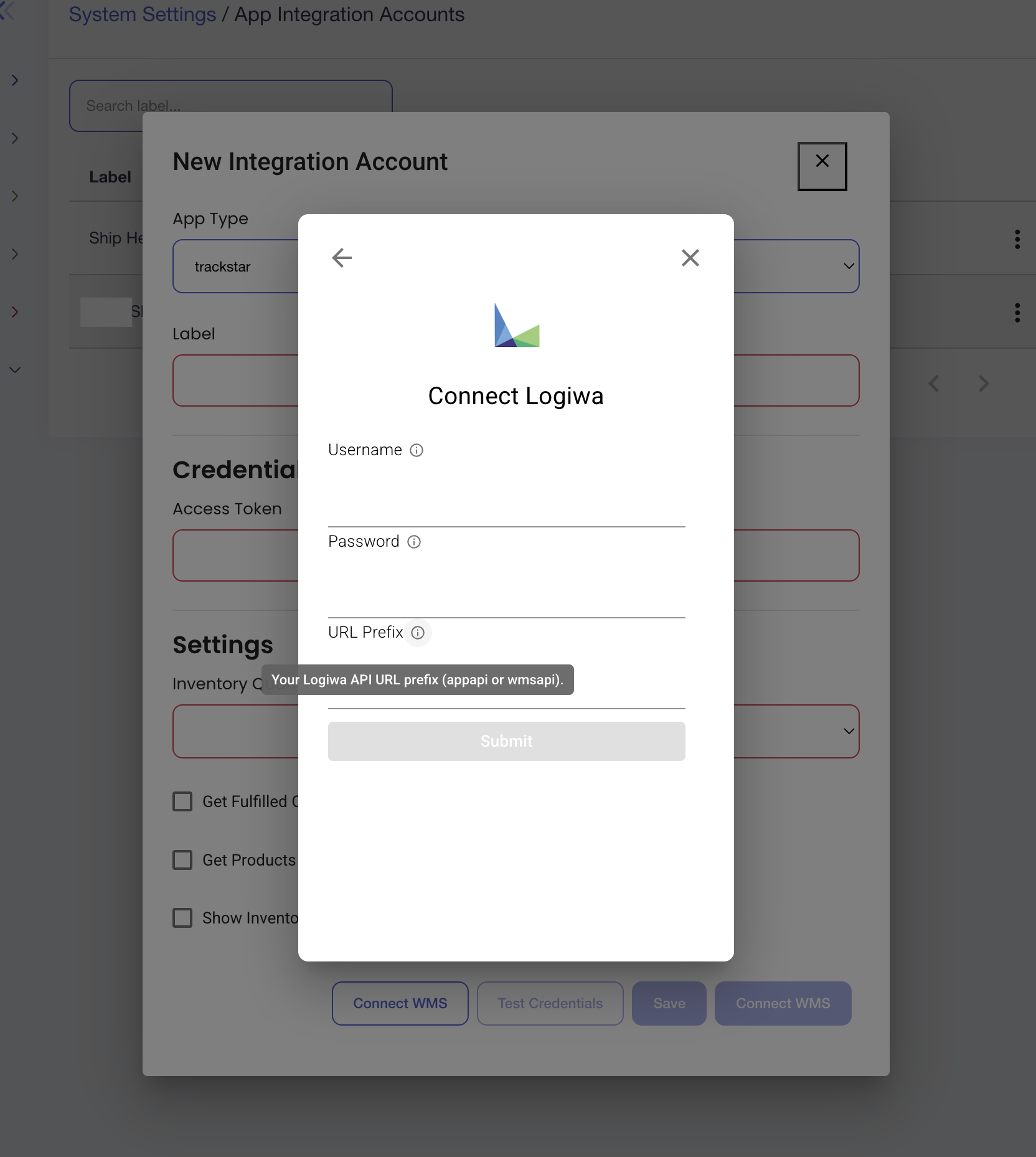
- A popup screen will appear asking for:
- Username
- Password
- URL Prefix
This is where you'll input the API credentials provided by your 3PL.
🔑 Important Details
Credentials
- The username and password entered here must be API credentials.
- These are different from the credentials used to log in to the Logiwa UI.
- You must contact your 3PL and ask them to create a dedicated API user.
Guide for Your 3PL
Share this article with your 3PL to help them create the API user:
👉 Logiwa Open API User Setup Guide
🌐 URL Prefix: What to Use?
Logiwa may use one of two URL prefixes when connecting to their API:
wmsapiappapi
You won’t know which one works until credentials are entered. Once you receive the API username and password, try both prefixes in the popup screen. You may test each to determine which one connects successfully.
📸 What You’ll See
✅ Final Checklist
Before clicking "Connect":
- Have you contacted your 3PL to create an API user?
- Did you use the Logiwa Open API guide?
- Have you entered the API username and password?
- Have you tried both
wmsapiandappapias the prefix?
If the connection still fails after entering the correct credentials and testing both prefixes, please contact Luminous support for further troubleshooting.