Overview
The Remove Item feature allows you to delete individual line items from a Fulfillment Order (FO) directly within Luminous. Use this when an item needs to be pulled from a fulfillment order due to cancellations, order changes, or fulfillment errors.
How It Works (Step-by-Step)
- Navigate to Operations > Sales Orders in the left-hand menu.
- Open the relevant Sales Order by clicking its order number (e.g., LUM-11111).
- Click into the associated Fulfillment Order (e.g., Fulfillment Order [LUM-11111-1]).
- Scroll down to the Items tab in the lower section of the Fulfillment Order detail page.
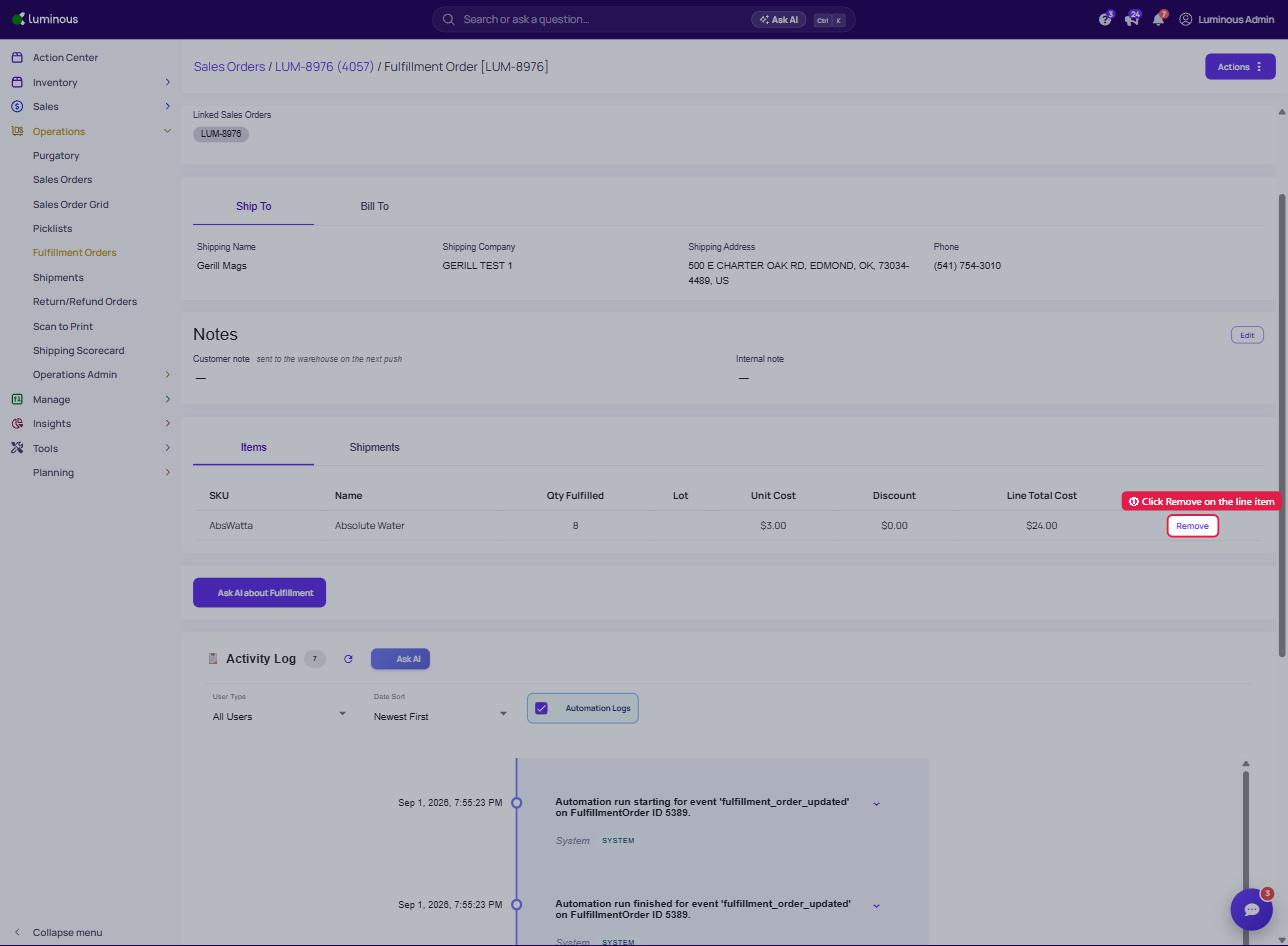
- Locate the line item you want to remove.
- Click the Remove button on the far right of that line item row.
- Confirm the removal when prompted.
The item will be deleted from the Fulfillment Order and the order totals will update accordingly.
Key Features / Options
- Remove appears per line item — you can selectively remove individual SKUs without affecting other items on the same FO.
- The Line Total Cost, Total Cost, and Quantity Fulfilled fields will recalculate automatically after removal.
- Removal is reflected in the Activity Log at the bottom of the page, giving you a timestamped audit trail of the change.
Tips & Best Practices
- Check the FO status before removing. If the FO is already marked as Shipped, confirm with your ops team whether a removal is appropriate — the physical shipment may have already gone out.
- Review linked Sales Orders. Removing an item from an FO does not automatically cancel it on the linked Sales Order. Make sure to update the Sales Order separately if needed.
- Use the Activity Log to document why an item was removed — you can add a note via Ask AI or manual log entry for internal tracking.
- If you're removing items due to inventory issues, resolve the stock discrepancy in Inventory before re-fulfilling.
FAQs & Troubleshooting
Q: I don't see a "Remove" button on my line items — why? The Remove button may not appear if the FO is in a locked or finalized status. Check the Fulfillment Order Status field at the top of the page. If it shows Shipped or Closed, removal may be restricted.
Q: Will removing an item affect my inventory levels? Yes — removing a fulfilled item should adjust allocated or committed inventory. Verify your stock levels in the Inventory module after making changes.
Q: Can I remove all items from a Fulfillment Order? Removing all line items from an FO is not recommended and may result in an empty or invalid order state. If the entire FO needs to be cancelled, use the Actions menu (top right) to cancel or void the order instead.
Q: Is this action reversible? Removals may not be easily undone. If you removed an item by mistake, contact your account admin or re-add the item manually if the FO status allows it.
Additional Help
If you run into issues not covered here or need assistance with a specific order, reach out to the Luminous Support Team through your account's support channel or in-app chat.