Overview
The PO Quantity Reconciliation view gives you a complete, per-line-item breakdown of what was originally ordered, what the supplier shipped (based on packing list quantities), what the warehouse has received, and how much remains — all in one place inside the Purchase Order. Use this when you need to quickly identify gaps between supplier shipments and warehouse receipts without pulling data from external spreadsheets.
How It Works
Step 1: Open a Purchase Order
Navigate to Inventory → Purchase Orders and select the PO you want to review.
Step 2: View the Line-Item Table
On the individual PO detail view and the PO Line-Items tab, each line item shows Ordered, Shipped, Received, and Remaining:
| Column | What It Shows |
|---|---|
| Ordered | The original quantity requested on the PO line |
| Shipped | The total packing-list quantity across all shipments linked to this line (converted to the base unit of measure) |
| Received | The quantity finalized at the warehouse upon receiving |
| Remaining | Ordered minus Shipped — how much the supplier still needs to send. On the PO detail view this appears as "N to ship" / "N to receive" beneath the Qty Shipped and Qty Received values; the Line Items tab shows separate Remaining to ship and Remaining to receive columns. |
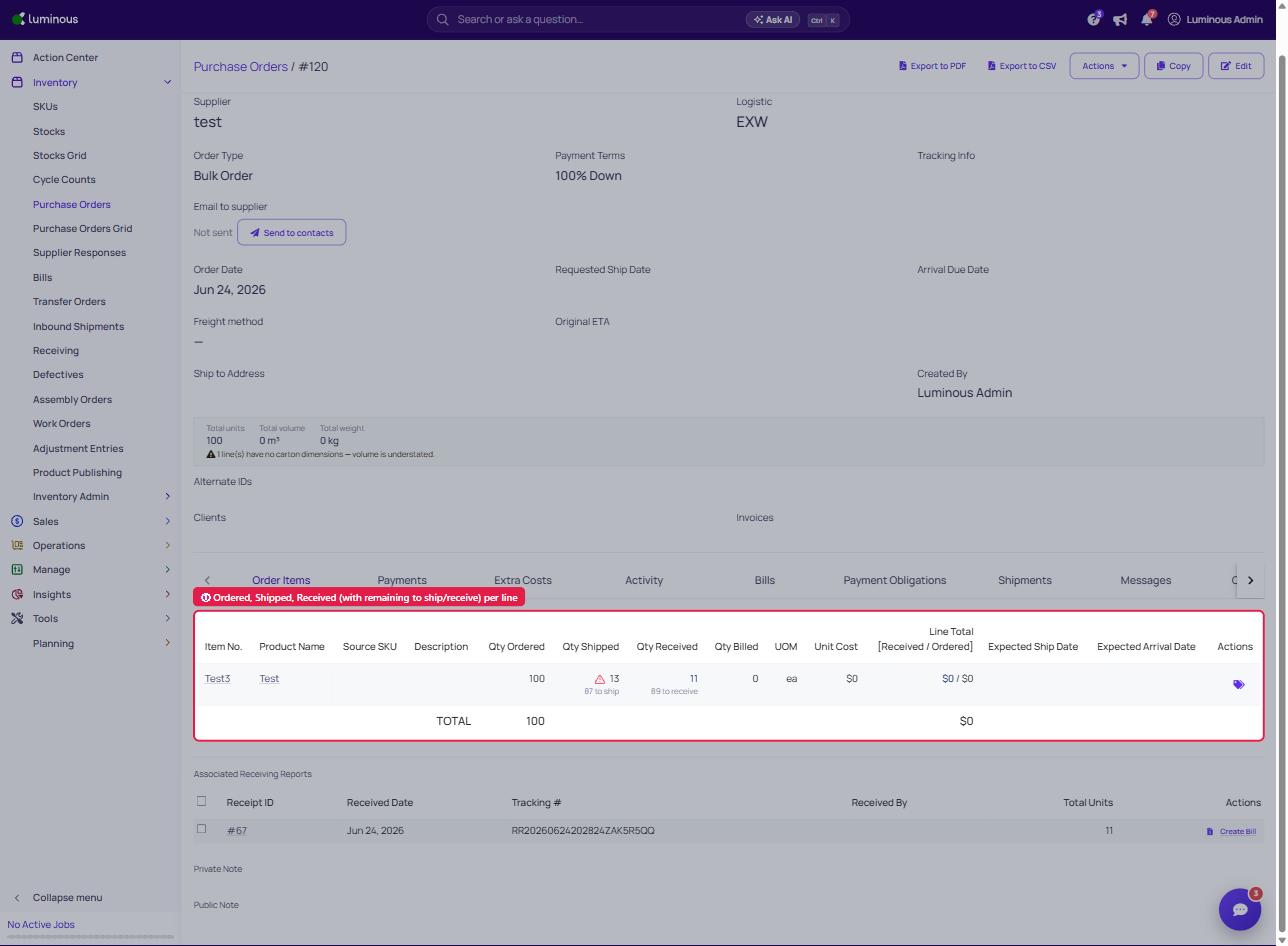
All quantities display in the base unit of measure for that line. The existing UOM column identifies the unit.
Step 3: Check the PO Line-Items Tab (Optional)
If you use the Line Items tab on the Purchase Orders page to manage items across multiple POs, the same five columns are available there as well. Use filters to narrow results by PO number, supplier, or SKU.
Step 4: Identify Variance Flags
Any line where the difference between Shipped and Received exceeds 5% of the Shipped quantity will be visually highlighted. This makes it easy to spot discrepancies at a glance — for example, when a supplier's packing list shows 100 units shipped but only 90 units were confirmed at the warehouse.
Note: A line is only flagged when both Shipped and Received quantities are greater than zero. Lines with no shipment data or no receiving data yet will not be highlighted.
Key Features / Options
| Feature | Details |
|---|---|
| Shipped quantity source | Summed from shipment line items linked to this PO — not from legacy shipping records. Converted server-side to the base UOM. |
| Remaining to Ship | Calculated as Ordered minus Shipped. Updates as new shipments are added. |
| Remaining to Receive | Calculated as Ordered minus Received. Updates as receiving reports are completed. |
| Available in two views | Individual PO detail view and the PO Line-Items tab |
| UOM consistency | All five columns render in the same base unit; no manual conversion needed |
Tips & Best Practices
- Remaining to Ship ≠ Remaining to Receive. A line can have zero remaining to ship (the supplier sent everything) but still show remaining to receive if the warehouse hasn't completed the receiving report yet. Check both columns to understand where the gap is.
- Complete receiving reports promptly. The Received and Remaining to Receive columns update only after a receiving report is saved. Delayed reports will make remaining quantities appear higher than they actually are.
- Shipment quantities are based on packing list entries. Shipped reflects what was declared at shipment creation — make sure packing list quantities are entered accurately when creating or updating shipments.
- All values are in the base UOM. If your PO was written in cases but your base UOM is each, the quantities displayed have already been converted. Cross-reference with the UOM column if the numbers look unexpected.
FAQs & Troubleshooting
Why does a line show a Shipped quantity but no Received quantity?
The supplier has a linked shipment for that line, but no receiving report has been completed for it yet. Complete the receiving report under Inventory → Receiving to update the Received and Remaining to Receive values.
Why is Shipped showing zero when I know a shipment exists?
Shipped sums quantities from shipments linked directly to this PO's line items. If the shipment was created against a different PO, or if packing list quantities were not entered at shipment creation, the value may appear as zero. Confirm the shipment is associated with the correct PO and that line-item quantities were recorded.
Can I export these columns?
Export functionality for these columns is not part of this update. Contact support if you need a data export for reconciliation purposes.
Does the variance flag persist or get saved anywhere?
No. The highlight is display-only and is derived on the fly. It is not stored and does not trigger any workflows.
What happens to the Remaining columns after a PO is fully received?
Both Remaining to Ship and Remaining to Receive will show zero once the PO is fully shipped and received.
Additional Help
If quantities are not updating as expected or you're seeing discrepancies you can't resolve, contact the Luminous Support Team through the in-app chat or at support@joinluminous.com.