What?
Kits are finished products that are comprised of other components that are assembled prior to selling.
Why?
If you purchase product components separately and assemble them prior to sell, then kits may be the best way for you to organize your SKU's.
How?
Create a Kit SKU
-
Go to Inventory → SKUs.
-
Click Create (top-right).
-
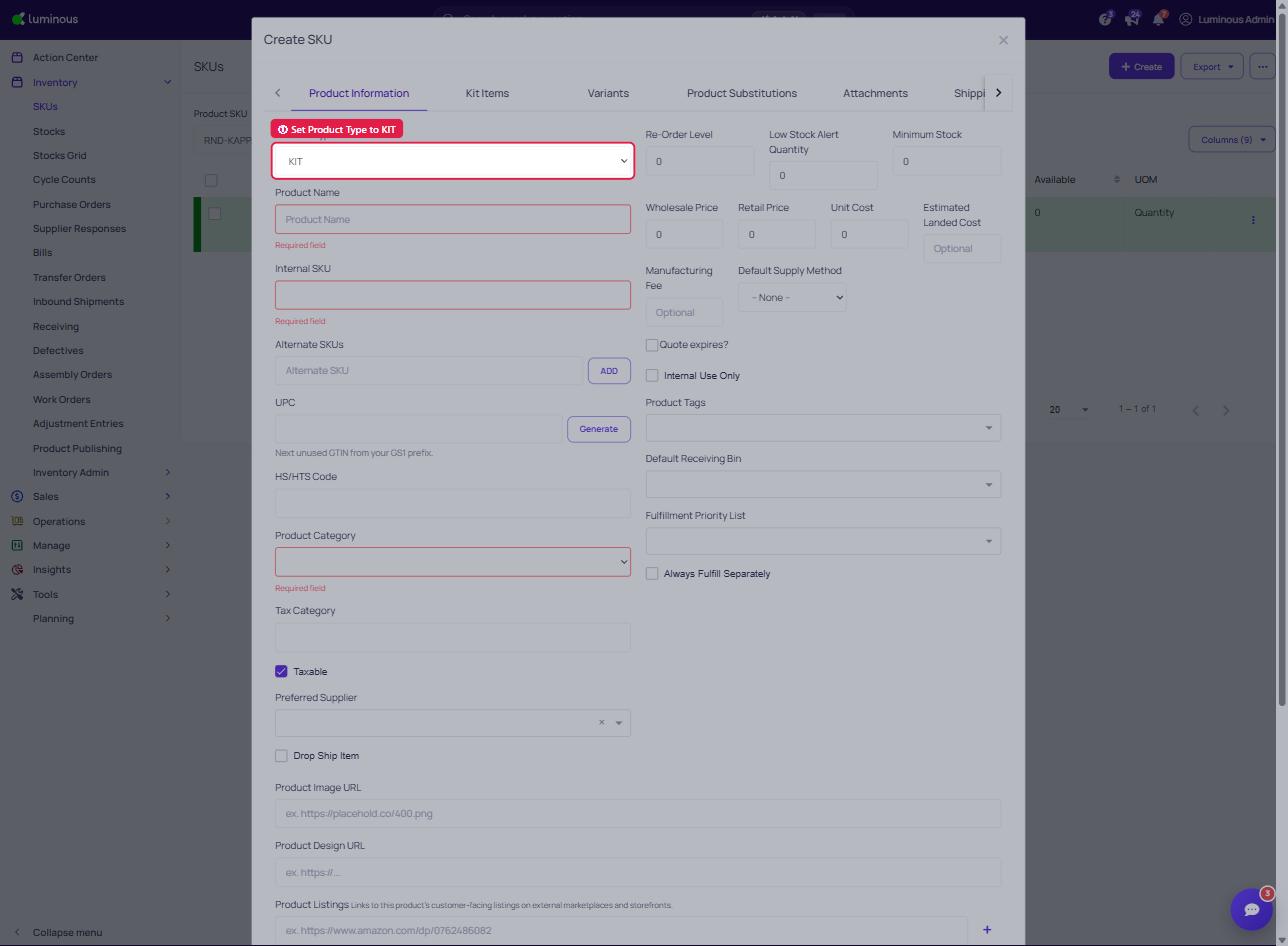
In Product Information:
- Product Type: select Kit.
- Required fields:
- Product Name
- Internal SKU
- Product Category
- (Optional) Set Re-Order Level, Low Stock Alert, Minimum Stock, Unit Cost, Prices, UPC, Supplier, Tags, etc.
-
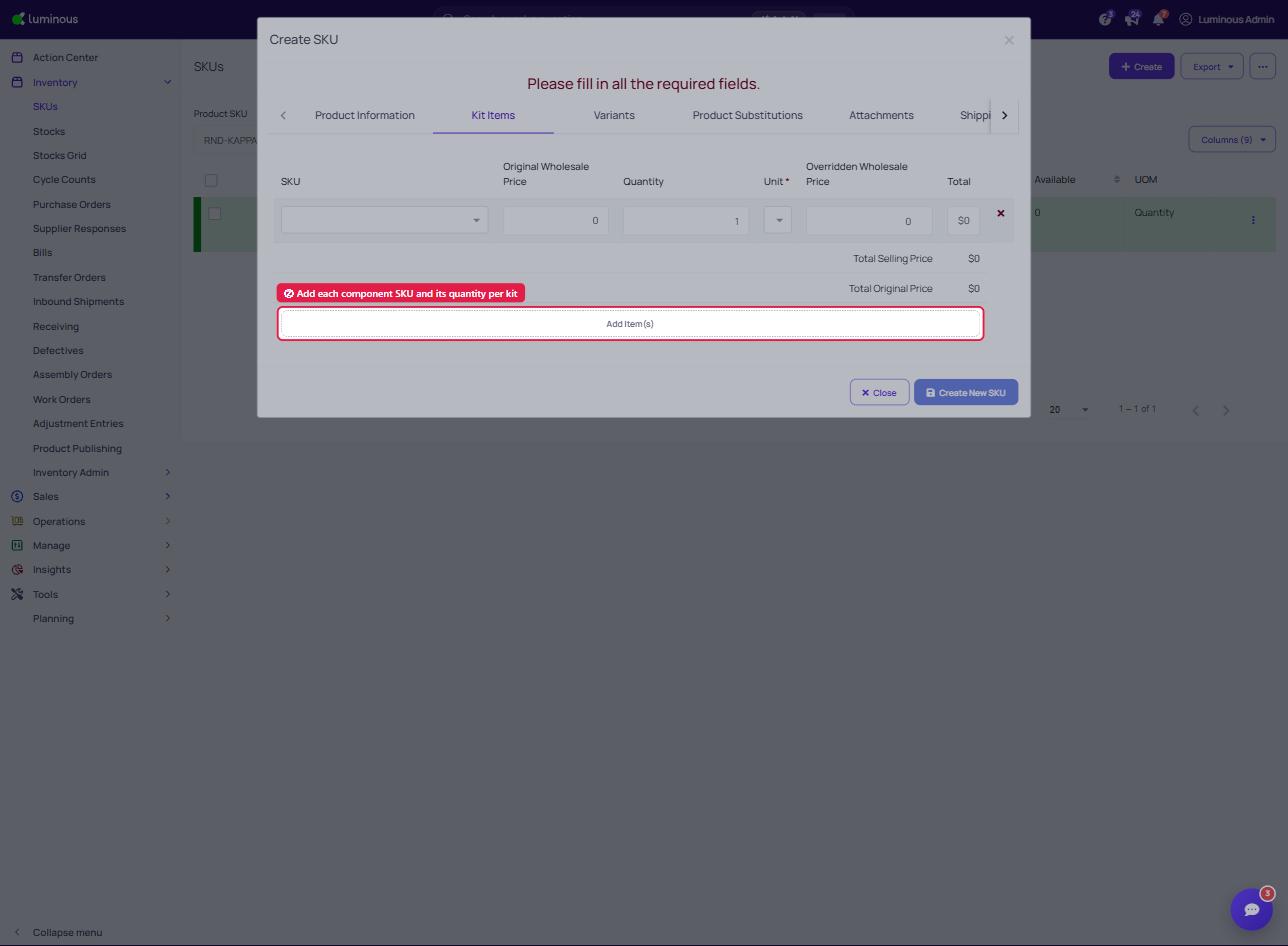
Click Kit Items (tab) at the top. Then proceed to on next step.
Add Kit Components
-
Click Add Item(s).
-
Search/select each component SKU.
-
Enter the Quantity per Kit for each component.
-
Repeat for all items in the bundle.
-
Click Create New SKU to save.
Managing Kit SKUs
After creation, you can:
- View and edit kit details from the SKUs page.
- Track availability across channels just like any other SKU.
- Monitor On Hand, Incoming, and Pending quantities, which are automatically linked to the availability of the individual component SKUs.
How and where to Export Kit and its component
You can export all of your Kit items information and its component by following the step below:
-
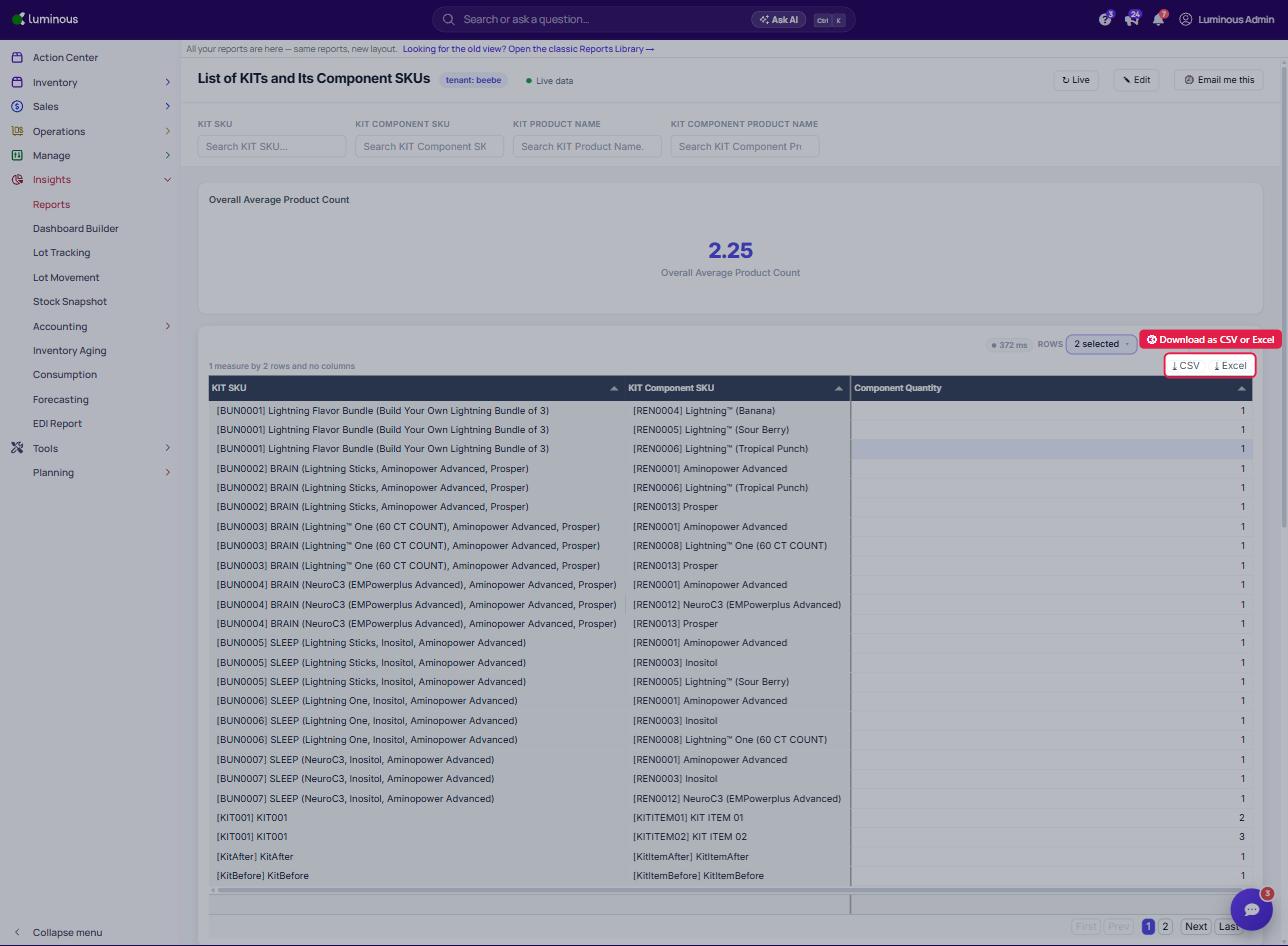
Go to Insights → Reports
-
Search for "kit" and open List of KITs and Its Component SKUs
-
Use the CSV or Excel buttons at the top-right of the table to download.
-
Choose CSV or Excel (XLSX) format
Note - For more information about kits, refer to the video below.
Kits item must be products themselves. Kit item cannot be a Kit themselves.