Overview
Mistakes made during purchase order receiving are handled differently depending on what was entered incorrectly. Luminous gives you three main paths: edit the report for administrative details or costs, create an Adjustment Entry to fix quantity errors, or delete the entire Receiving Report to fully reverse the receipt. Each option is described below.
What can be fixed directly on the Receiving Report?
Once a Receiving Report has been saved, certain fields remain editable (subject to your permissions):
| What was wrong | How to fix it |
|---|---|
| Received Date | Open the report and edit the Date field |
| Tracking Number | Open the report and edit the Tracking Number field |
| Received By / Received At | Open the report and update those fields |
| Extra Cost (e.g. freight or duties) | Open the report and edit the Extra Cost entry |
How to edit a submitted report:
- Go to Inventory → Receiving.
- Adjust the date filters if needed to locate the report.
- Click the three dots to Edit the report.
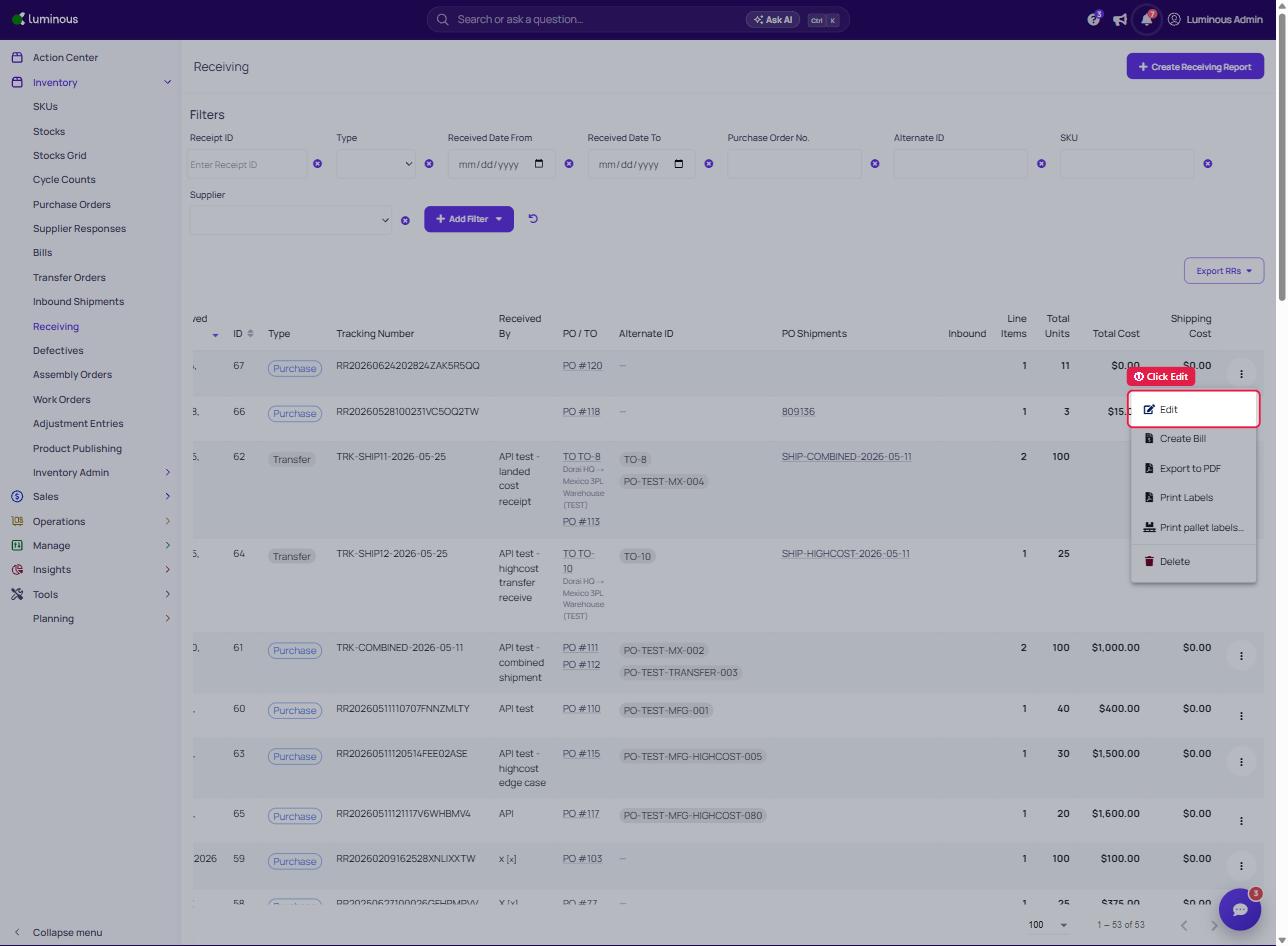
- Edit the relevant field(s) and Submit..
Note on cost edits: Updating an Extra Cost on a submitted report recalculates the inventory valuation for any stock from that receipt that has not yet been sold or shipped. Costs already consumed by fulfilled sales orders are not automatically updated. If that correction matters for historical COGS, contact Luminous Support.
What if I received the wrong quantity?
Quantity is locked once a Receiving Report is saved — it cannot be changed by editing the report. This protects the integrity of the inventory cost records created at the time of receipt.
To correct a quantity error, use an Adjustment Entry:
- Go to Inventory → Adjustment Entries.
- Create a new adjustment for the affected SKU.
- To reduce inventory (e.g. you received less than recorded): enter a negative adjustment.
- To add inventory (e.g. you received more than recorded): enter a positive adjustment.
- Save the adjustment.
This keeps the original receiving record intact while correcting the on-hand count.
What if the entire Receiving Report was created by mistake?
If the receipt should never have been recorded — for example, you selected the wrong PO or received items at the wrong warehouse — you can delete the Receiving Report entirely. Deletion reverses the inventory and cost-layer changes created by that report.
How to delete a Receiving Report:
- Go to Inventory → Receiving (or open the PO and navigate to its Receiving Reports tab).
- Locate the report you want to remove.
- Click the ⋮ actions menu on that row.
- Select Delete.
- Confirm the deletion in the dialog that appears.
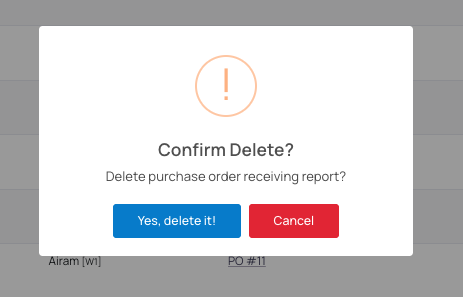
Important: Deletion works cleanly when the received stock has not yet been shipped or sold. If items from the report have already been consumed by outbound orders, deleting the report may create inventory discrepancies. In that scenario, use Adjustment Entries to reconcile on-hand quantities and contact Luminous Support for guidance on correcting cost layers.
Quick reference
| Mistake | Recommended fix |
|---|---|
| Wrong date, tracking number, or personnel | Edit the Receiving Report |
| Wrong extra cost (freight, duties, etc.) | Edit the Extra Cost on the Receiving Report |
| Wrong quantity received | Create an Adjustment Entry (Inventory → Adjustment Entries) |
| Entire receipt was incorrect (no stock consumed) | Delete the Receiving Report |
| Entire receipt was incorrect (stock already sold/shipped) | Adjustment Entry + contact Luminous Support |