Overview
In Luminous, a prepayment is an advance payment made to a vendor before a specific bill is issued. Once recorded, a prepayment sits as an unapplied balance against that vendor and can be applied to one or more bills later to reduce what you owe.
Note on "deposits": In the Bills module, a deposit is handled as a prepayment. If your Purchase Order has split payment terms (e.g., 50% deposit, 50% on delivery), Luminous tracks those milestones as Payment Obligations — but the actual advance payment is still recorded and applied as a prepayment.
Step 1 — Record the prepayment
Skip this step if the prepayment has already been recorded.
- Go to Inventory - Bills
- In the left sidebar, click Prepayments.
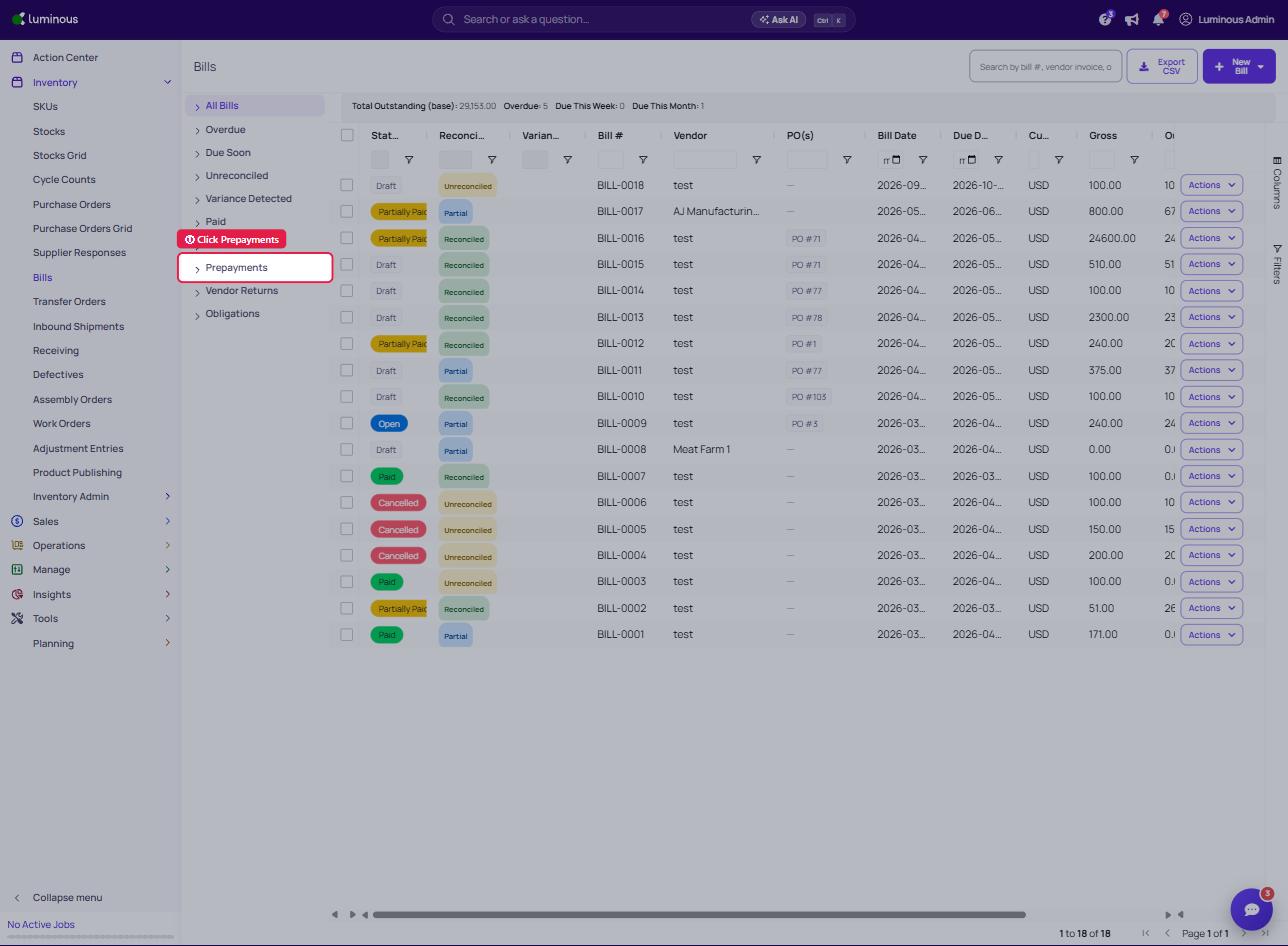
- Click Record Prepayment at the top-right of the page.
- Fill in the required fields:
- Vendor — the vendor you are paying in advance
- Amount — the prepayment amount
- Currency — the currency of the payment
- Payment Date — the date the payment was made
- Optionally, link the prepayment to a Purchase Order and add a Reference or Notes.
- Click Create.
The prepayment now appears in the Prepayments list with an unapplied balance equal to the amount you entered.
Step 2 — Apply the prepayment to a bill
- Go to Bills → Prepayments in the left sidebar.
- Find the prepayment you want to use. Bills with a remaining unapplied balance will show an Apply to Bill option in the row's Actions menu.
- Click Apply to Bill.
- In the dialog that opens, search for the bill you want to apply it to — you can search by bill number, vendor invoice number, or amount.
- Enter the Amount to apply. This cannot exceed the prepayment's remaining unapplied balance.
- Click Apply.
The bill's outstanding balance is reduced immediately by the applied amount. If the bill is fully covered, its status changes to Paid; if a balance remains, it moves to Partially Paid.
Requirement: The bill must be in Open or Partially Paid status and must not be placed on hold or marked as disputed before a prepayment can be applied.
Viewing applied prepayments on a bill
To see which prepayments have been applied to a specific bill:
- Open the bill from the Bills list.
- Click the Credits & Prepayments tab.
- The Prepayments Applied table shows each application with its amount, the date it was applied, and its current status.
Reversing a prepayment application
If you applied a prepayment by mistake or need to undo it:
- Open the bill → Credits & Prepayments tab.
- Find the prepayment application in the Prepayments Applied table.
- Click Unapply.
- Confirm with a reason.
Both the bill's outstanding balance and the prepayment's unapplied balance are restored.
Key things to know
| Concept | How it works |
|---|---|
| One prepayment → many bills | A single prepayment can be split across multiple bills as long as the unapplied balance lasts. |
| One bill → many prepayments | Multiple prepayments can be applied to the same bill. |
| Prepayment "status" | There is no separate status field — the unapplied balance tells you what's left to use. When the full amount is applied, the prepayment is effectively closed. |
| Cancelled bills | If a bill with an applied prepayment is cancelled, the application is reversed automatically and the balance is returned to the prepayment. |