Wave Policy lets you decide how and when orders are sent to your 3PL, so you can match their capacity, cut costs, and keep customers happy. Instead of pushing every order the moment it’s paid, you can batch orders into scheduled “waves”. You configure it per channel: go to Manage → Channels, edit a fulfillment channel that pushes orders, and open the Auto Push Settings section.
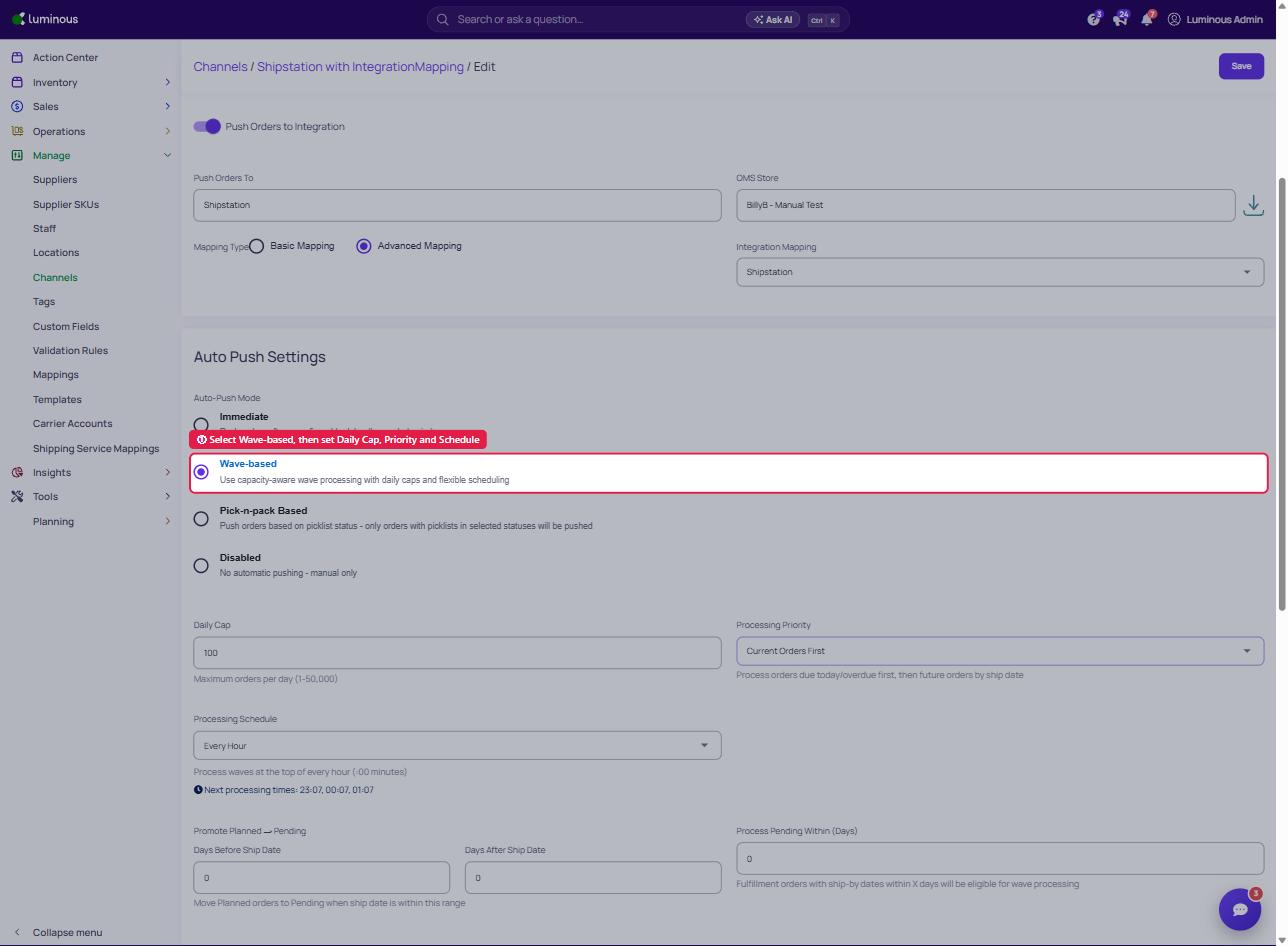
1. Auto‑Push Modes
Immediate Mode
Best for 3PLs that can process unlimited orders.
- Orders auto‑push after a short delay you choose (e.g., 15 min for payment clearance).
- No daily limits or batching—fastest possible turnaround.
Use when
- Your 3PL promises same‑day throughput on any volume.
- Speed matters more than capacity planning.
Key setting
| Field | Description | Typical value |
| Auto‑push after (minutes) | Wait time before sending each order | 15 min |
Wave‑Based Mode — Recommended
Best for most brands with capacity‑limited 3PLs.
- Orders batch into timed waves (e.g., every hour or at 8 AM / 1 PM / 5 PM).
- Honors your Daily Cap so you never overload the warehouse.
- Priority rules decide whether urgent orders, pre‑orders, or both fill each wave.
- Optional Process Pending Within (Days) and Promote Planned → Pending settings let you start fulfillment days before the ship date.
Benefits
- Predictable volumes → lower pick/pack fees.
- Rush orders always ship first.
- Lets 3PL staff plan labor and avoid overtime.
Pick‑n‑pack Based Mode
Pushes only orders whose picklists are in the picklist statuses you select.
Disabled Mode
Use for manual pushes or special workflows.
- No automatic pushes; you decide when to send each batch.
- Handy for onboarding, A/B testing, or seasonal “pop‑up” stores.
2. Wave Policy Configuration
(Visible only when Wave‑Based Mode is active.)
2.1 Daily Cap
Maximum orders sent per calendar day.
| 3PL Size | Suggested Cap |
| Small | 100–300 |
| Medium | 500–2 000 |
| Large | 5 000 + |
Tip: Start 10–20 % below the 3PL’s stated limit and adjust after the first week.
2.2 Processing Schedule
| Option | When Waves Fire | Best For |
| Every Hour (or Every 30, 20, 15 or 5 Minutes) | Top of each hour (or at the chosen interval) | Steady order flow |
| Custom Times | Exact times you list (e.g., 08:00,13:00,17:00) | Warehouses with fixed inbound windows |
Example schedules:
- Morning push:
08:00(overnight orders) - Business‑hours cadence:
09:00,12:00,15:00,18:00
2.3 Processing Priority
| Rule | What Ships First | When to Choose |
| Current Orders First | Orders due today or overdue first, then future orders by ship date | Mixed baskets (best for most brands) |
| Immediate Guaranteed | Orders due today or overdue are always processed (even beyond the Daily Cap); future orders/pre‑orders get progressive capacity | Due‑today orders must never wait |
Scenario (capacity left: 100)
- Current Orders First: 80 urgent + 20 future orders
- Immediate Guaranteed: every urgent order ships, even past the cap; pre‑orders only get their progressive share of what is left
2.4 Process Pending Within (Days)
Fulfillment orders with ship‑by dates within this many days are eligible for wave processing, so waves can start before the visible ship date. The related Promote Planned → Pending setting (Days Before / Days After Ship Date) moves Planned orders to Pending when their ship date is within range.
| Setting | Example Use‑Cases |
| 0 (same‑day) | 3PL ships everything same day |
| 2–3 | Normal pick/pack lead time |
| 5 + | Kits, customization, int’l shipping, holiday peaks |
Benefits: reserve inventory early, smooth 3PL workload, still prioritize genuine rush orders.
3. Common Set‑ups
| Business Size | Mode | Daily Cap | Schedule | Advance Days |
| Small e‑com | Wave | 50–200 | 09:00,15:00 | 1–2 |
| Mid‑market (peaks) | Wave | 500–1 000 | Every Hour | 2–3 |
| Enterprise | Wave | 2 000–10 000 | Hourly or custom | 3–5 |
Peak‑Season Tweaks
- Raise cap 50–100 %.
- Add extra waves (early AM, late PM).
- Shorten advance days to speed turnaround.
- Review metrics with the 3PL daily.
4. Getting Started
- Assess capacity, urgency mix, and 3PL preferences.
- Start conservative: low Daily Cap, hourly schedule, 2‑day advance.
- Monitor: compare processed count vs. cap; gather 3PL feedback.
- Scale: raise cap, refine schedule, tune advance days.
5. FAQ
Does Wave Policy slow shipping?
Usually no—predictable waves help 3PLs pick faster, and advance processing lets you start days early.
What if orders exceed the Daily Cap?
Extra orders queue for the next day; urgent orders always jump the line within today’s cap.
Can I change settings mid‑season?
Yes. Edits take effect on the next scheduled wave.
How do I pick the right Daily Cap?
Use 80 % of your 3PL’s stated limit to start, then adjust based on real throughput.
Multiple 3PLs?
Each channel gets its own Wave Policy—tune caps and schedules per warehouse.
6. Advanced Tips
- Holiday prep: boost cap and add late‑night waves.
- Product launches: switch to Immediate Mode temporarily.
- Relationship management: share your wave calendar so the 3PL can staff correctly.
- KPIs to watch: orders processed vs. cap, 3PL SLA hit rate, customer delivery promises.
Need a hand? Contact Support and we’ll walk you through the ideal Wave Policy for your operation.