Overview
Cost Rules is a rules engine that automatically applies extra cost line items — such as tariff estimates, freight charges, or other fees — to purchase orders and shipments based on conditions you define. Instead of manually adding these costs each time, you configure a rule once and Luminous applies it automatically whenever a PO or shipment meets your criteria, with those costs cascading through to associated shipments and receiving reports.
How It Works (Step-by-Step)
Setting Up a Cost Rule
-
Navigate to Inventory - Inventory Admin - Cost Rules.
-
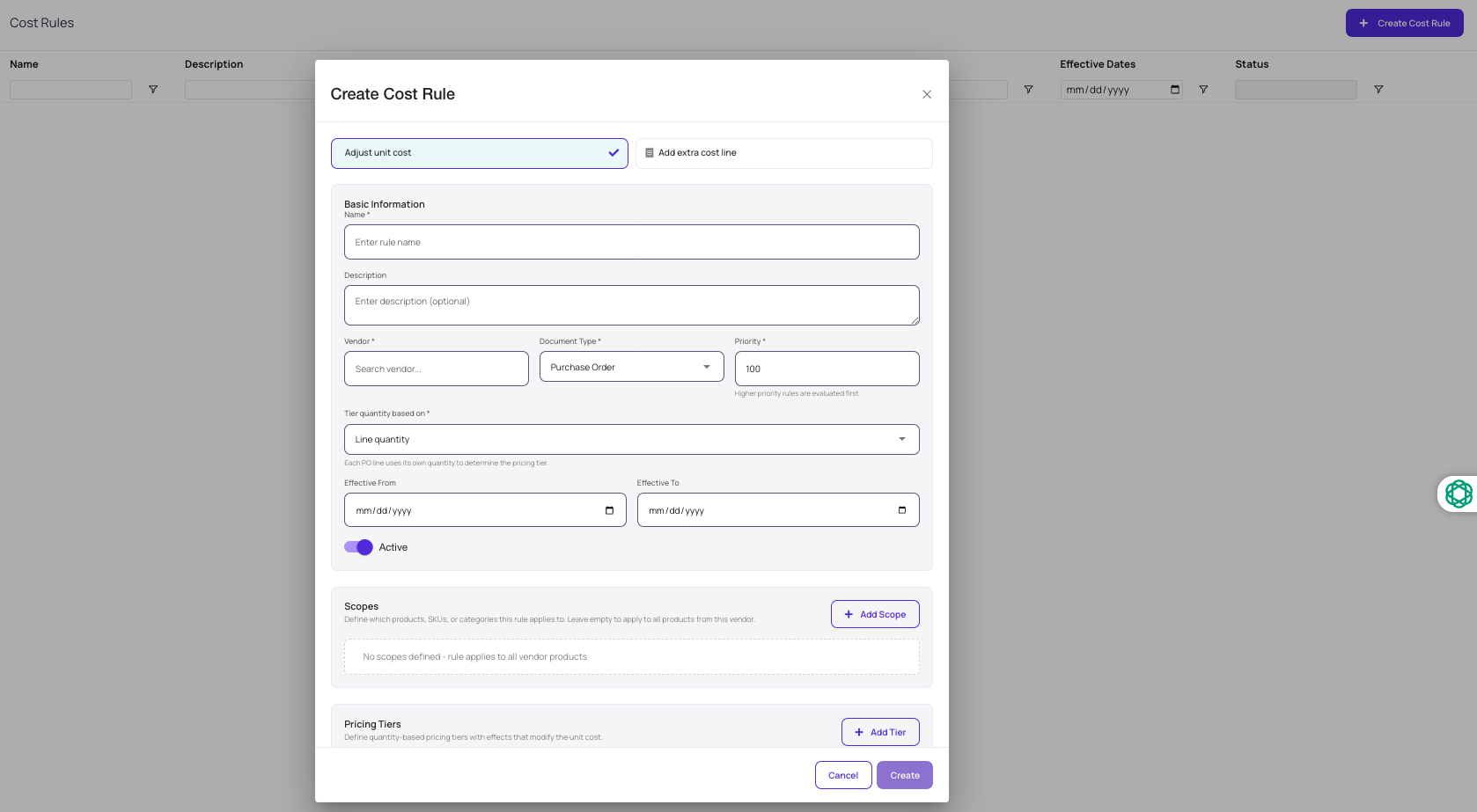
Click Create Cost Rule to start a new rule.
-
Select the rule type:
- Adjust Unit Cost Rule — automatically sets the unit cost or manufacturing service fee on a purchase order or work order based on supplier and product conditions.
- Add Extra Cost line Rule — automatically adds a cost line item (e.g., tariff, freight estimate) to a PO or shipment.
-
Set conditions for when the rule applies. Examples include:
- Specific supplier
- Source warehouse
- Destination warehouse
- Shipment type (e.g., air freight)
-
Configure the cost parameters:
- Cost basis: Choose between a percentage of order value or a fixed amount.
- Allocation method: Select how the cost is distributed across line items (e.g., value-based allocation).
- Applies to: Scope the cost to specific products, a product tag, or supplier SKUs.
- Item name: Give the cost a clear name (e.g., "Tariff," "Freight Estimate").
-
Click Create to save and activate the rule.
Applying Cost Rules to a Purchase Order
- Navigate to Inventory > Purchase Orders and open or create a PO.
- When the PO meets the conditions of an active rule, the extra cost line item will appear automatically.
- Use the Preview button on the PO to confirm which cost rules are being applied and review the calculated amounts before saving.
- Save the PO. The extra costs are now attached to the order.
How Costs Cascade
Once saved on a PO:
- Extra costs inherit down to associated shipments automatically.
- Shipments further pass those costs to the receiving report, where landed cost is finalized and cost layers are created.
- For consolidated shipments spanning multiple POs, the PO number filter ensures costs are tracked and attributed correctly.
Key Features / Options
| Feature | Description |
|---|---|
| Unit Cost Rule | Automatically updates unit cost or manufacturing service fee on POs and work orders based on supplier/product conditions |
| Extra Cost Rule | Adds a cost line item automatically to a PO or shipment when conditions are met |
| Percentage or Fixed Amount | Choose whether the cost is calculated as a % of order value or as a flat fee |
| Cost Allocation Method | Determines how the extra cost is spread across line items (e.g., value-based) |
| Condition Filtering | Scope rules by supplier, warehouse, shipment type, product, product tag, or supplier SKU |
| Preview Button | Lets you verify which rules apply and their calculated values before committing |
| Cascade Inheritance | Costs flow from PO → Shipment → Receiving Report automatically |
Tips and Best Practices
- Use the Preview button before saving any PO to confirm that cost rules are triggering correctly and the calculated amounts look right.
- Be specific with conditions. The more precisely you scope a rule (e.g., a specific supplier + specific product tag), the less risk of it applying unintentionally to unrelated orders.
- Name your cost rules clearly. Labels like "US Tariff — 8%" or "Air Freight Estimate" make it easy to audit costs on POs and receiving reports later.
- Extra costs added manually to a PO also cascade — Cost Rules automates this, but manual extra costs follow the same inheritance path through shipments to receiving.
- Cost layers are not created until receiving is complete. Cost Rules populates estimated costs upstream, but actual landed cost recognition still happens at the receiving report stage.
- For shipments consolidating multiple POs, verify the PO number filter on the shipment to ensure costs from each PO are attributed correctly.
FAQs and Troubleshooting
Q: I set up a Cost Rule but it's not appearing on my PO. Why?
Check that the PO meets all conditions defined in the rule (supplier, warehouse, product/tag). All conditions in a rule must be satisfied simultaneously for it to trigger. Use the Preview button to test.
Q: Can I have multiple Cost Rules apply to a single PO?
Yes. If a PO meets the conditions of more than one active rule, all qualifying rules will apply and appear as separate cost line items.
Q: Do Cost Rules affect inventory cost layers immediately when the PO is saved?
No. Extra costs added at the PO or shipment stage are estimates. Cost layers are only created when a receiving report is completed, at which point landed costs are recognized and applied to inventory valuation.
Q: Can I use Cost Rules for shipments only, without linking to a PO?
Yes. You can set up Extra Cost Rules scoped specifically to shipments — for example, applying a freight estimate whenever the shipment type is air and the route matches specific warehouses.
Q: What's the difference between a Unit Cost Rule and an Extra Cost Rule?
A Unit Cost Rule changes the per-unit price on the PO or work order itself (the supplier's product cost). An Extra Cost Rule adds a separate cost line item — like a tariff or freight charge — on top of the existing unit cost.
Q: Can I still add extra costs manually even with Cost Rules active?
Yes. Manual extra costs can still be added directly to a PO or shipment and will cascade to the receiving report the same way automated costs do.
Additional Help
If you have questions about configuring Cost Rules or need help troubleshooting, contact the Luminous support team via the chat icon in the bottom-right corner of the platform.