What's New?
We're excited to introduce the Edit Shipment Modal — a streamlined, all-in-one dialog that makes creating and managing shipments faster and easier than ever. No more navigating across multiple screens; everything you need to log a shipment is now in one place.
What Can You Do With It?
With the new shipment modal, you can now:
- ✅ Log shipment details — carrier, tracking number, ship date, and status all in one place
- ✅ Record package specs — weight, dimensions, cost, and SSCC without leaving the fulfillment order
- ✅ Review items being shipped — see SKUs, item names, quantities, and availability at a glance
- ✅ Track shipment status — set and update status (e.g.,
PENDING) directly from the modal
How to Access It
- Go to your Sales Order in Luminous then go to the Shipment Tab
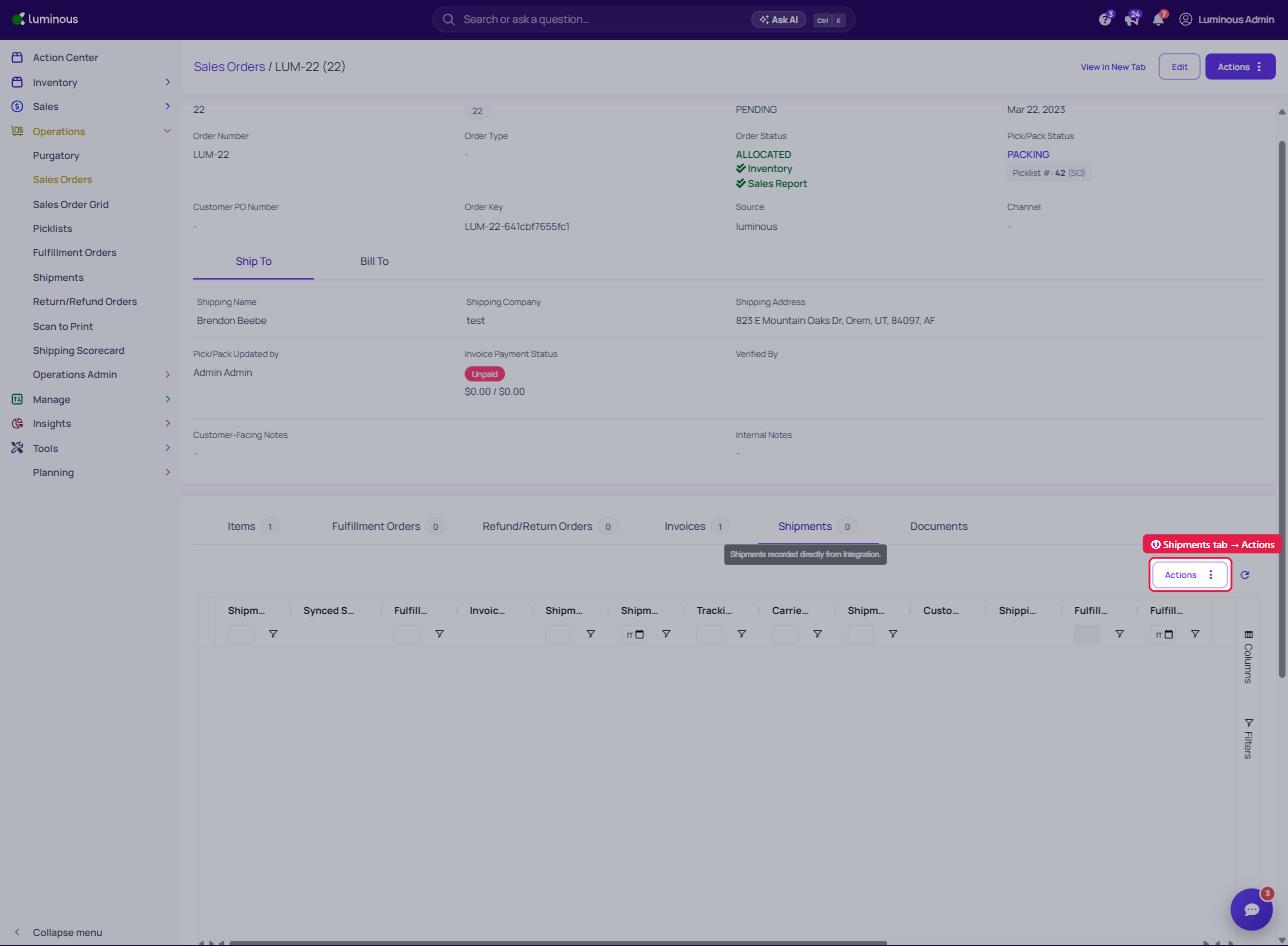
- Click the Actions menu (top-right of the Shipments tab).
- Select Create Shipment — the new modal will pop up instantly
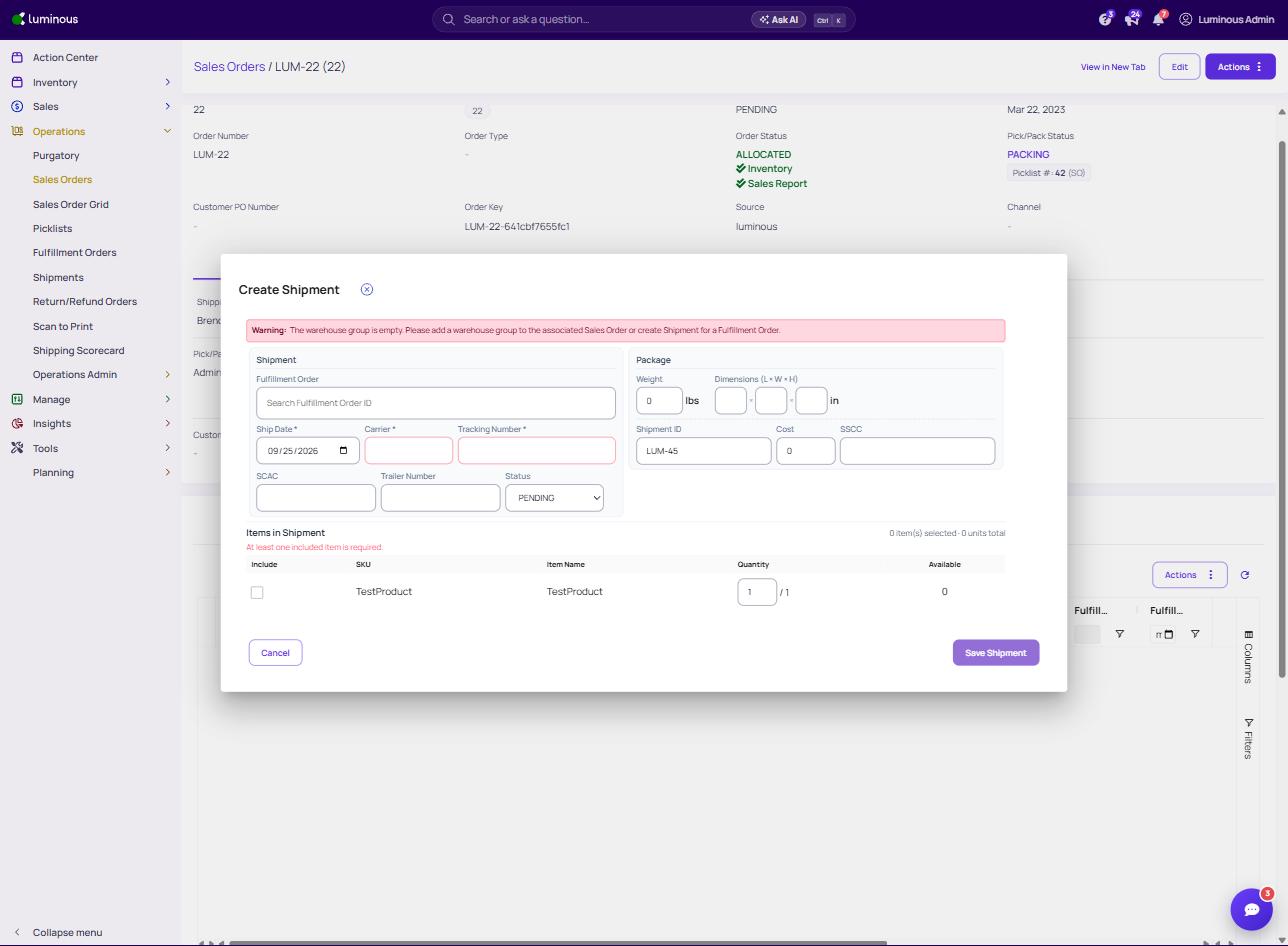
- Fill in your shipment and package details, review the items, and hit Save Shipment
That's it! Your shipment is logged and linked directly to the Sales and fulfilment order.
A Quick Look at What's Inside
| Section | What You'll Find |
|---|---|
| Shipment | Fulfillment Order, Ship Date, Carrier, Tracking Number, SCAC, Trailer Number, Status |
| Package | Weight, Dimensions (L×W×H), Cost, SSCC |
| Items in Shipment | SKU, Item Name, Quantity (shipped/total), Available stock |
Why You'll Love It
- Faster workflow — complete a shipment record without navigating away from your order
- Fewer errors — required fields (marked with *) prevent incomplete shipment records from being saved
- EDI-ready — SSCC field built right in for retail compliance
- Clear visibility — see exactly what's being shipped and how much inventory is available, all in real time
Tips to Get Started
- Always enter the tracking number before saving — it's required and keeps your order history accurate
- Use the SSCC field if you're shipping to EDI/retail partners to stay compliant
- Check the Available column — if it shows
0, inventory may already be allocated or a duplicate shipment may exist - Set the Ship Date to the actual date shipped, not the order date
Questions?
If you run into any issues or have questions about the new modal, don't hesitate to reach out to the Luminous Support Team. Have your FO number and Shipment ID (LUM-XXXXX) handy and we'll get you sorted quickly.
This feature is available now — give it a try on your next fulfillment order!