1. Overview
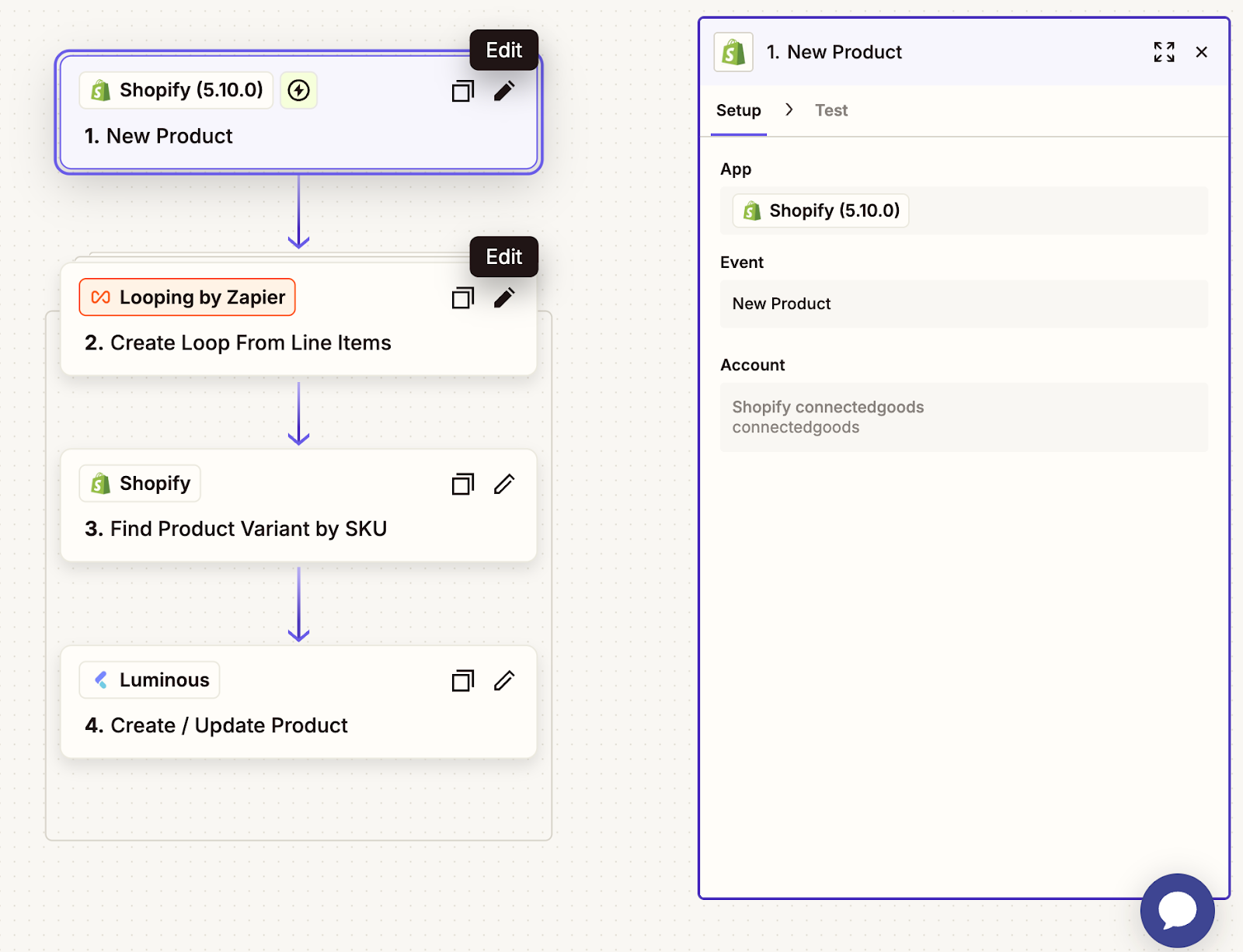
This workflow (Zap) ensures that whenever a new product is created in Shopify, a matching product is automatically created in Luminous. The process involves:
- Trigger: New product in Shopify
- Actions: Loop through product variants, map fields, and push data to Luminous
2. Step 1 — Set Up Trigger in Shopify
- In Zapier, Create a new Zap.
- For the Trigger App, select Shopify.
- Under Trigger Event, choose New Product.
- Connect your Shopify account and test the connection.
3. Step 2 — Create a Loop for Variants
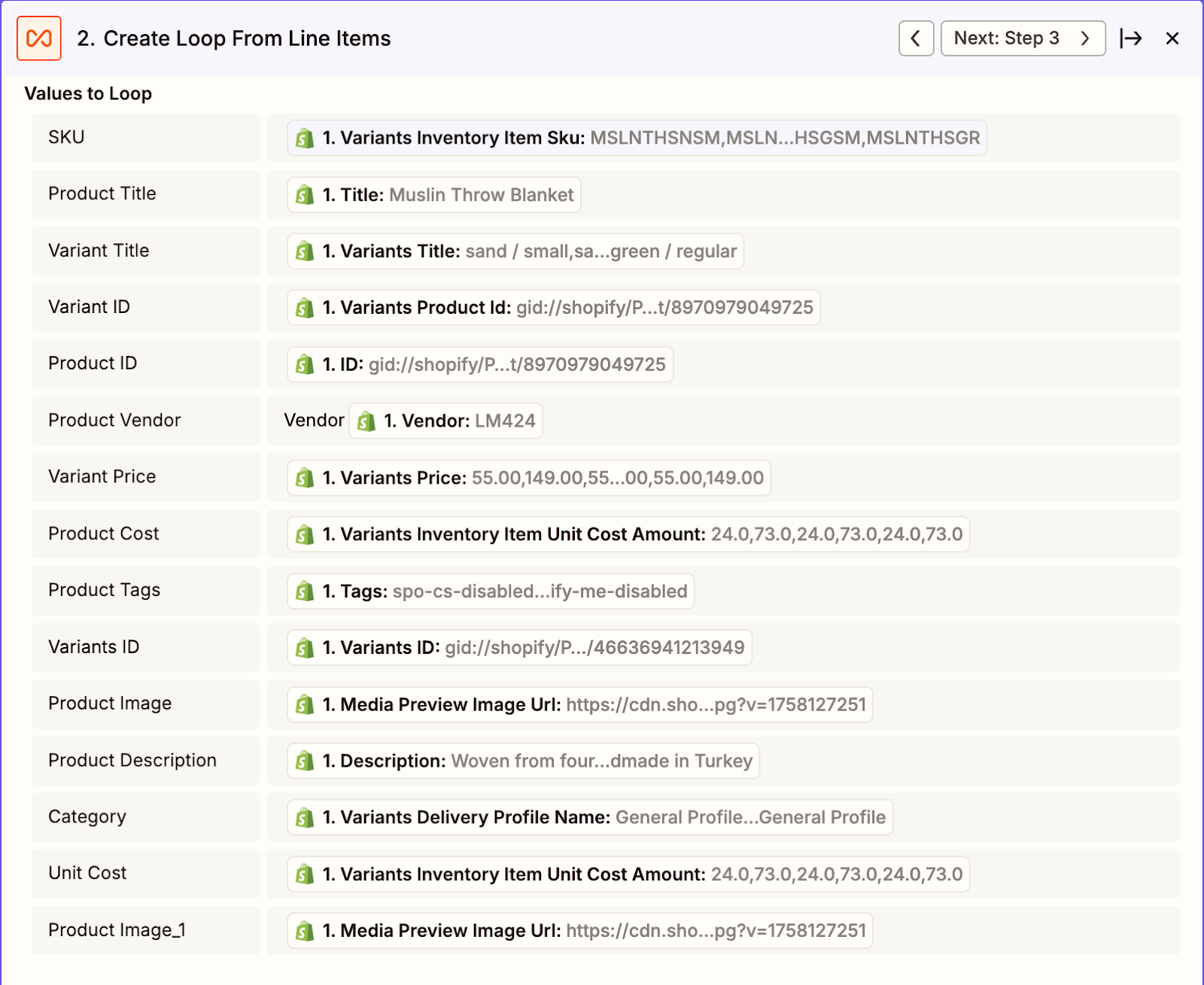
- Add a new Zapier action: Looping by Zapier.
- Configure the loop using line items from the Shopify product.
- Fields to include from Shopify:
- SKU → Use as Title.
- Category → Map from Variants Inventory Item SKU.
- Product Title → Map from Product Title.
- Variant Title → Map from Variants Title.
- Variant ID → Map from Variants Product ID.
- Product ID → Map from Shopify ID.
- Vendor → Map from Product Vendor.
- Variant Price → Map from Variants Price.
- Product Cost → Map from Variants Inventory Item Unit Cost Amount.
- Product Tags → Map from Shopify Tags.
- Product Image → Map from Media Preview Image URL.
- Description → Map from Shopify Description.
- Delivery Profile → Map from Variants Delivery Profile Name.
- Unit Cost → Map from Variants Inventory Item Unit Cost Amount.
- Image URL (alt) → Map from Media Image URL.
4. Step 3 — Find Product Variant
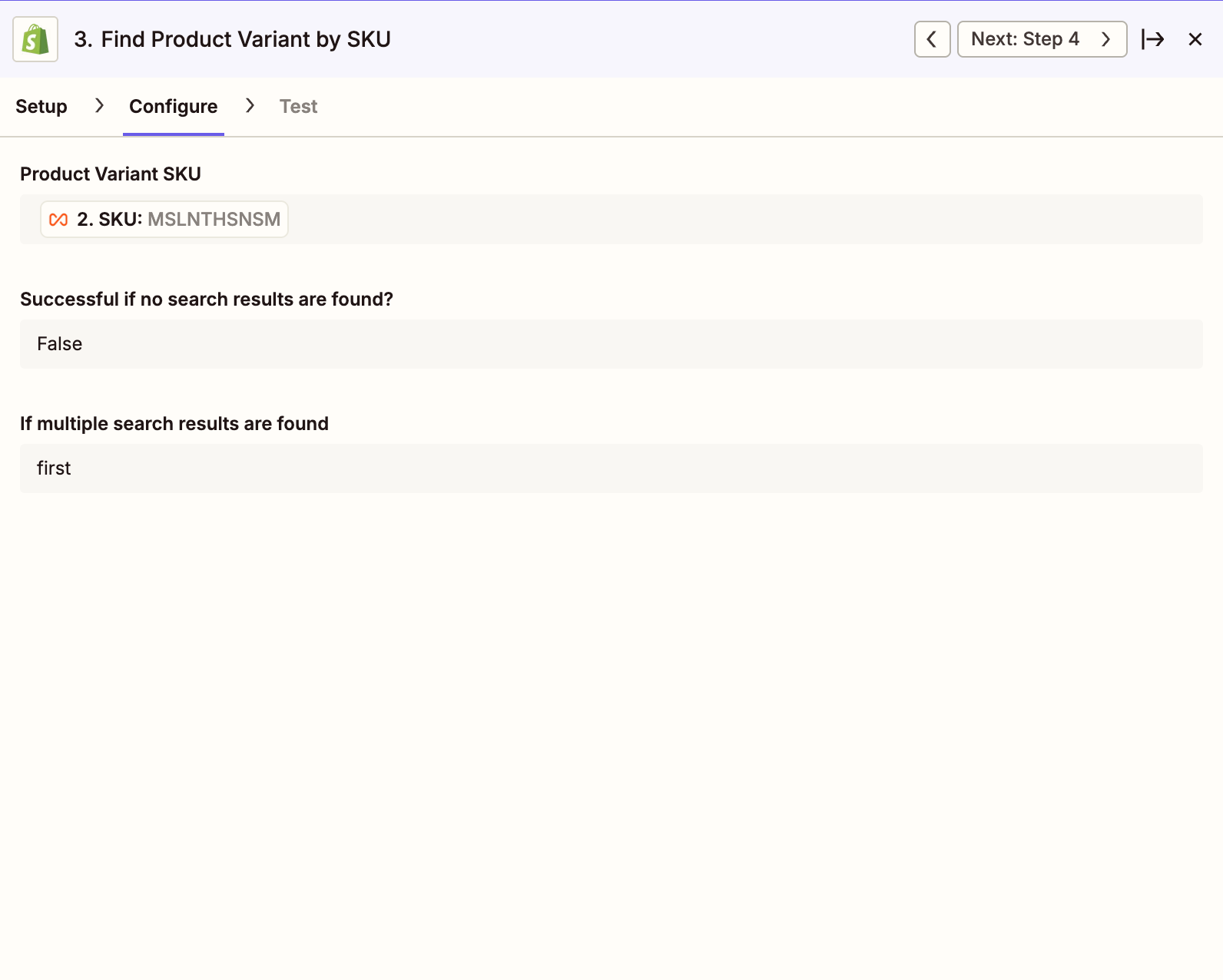
- Add another step: Shopify → Find Product Variant by SKU.
- Use the SKU from the loop as the search field.
- This ensures each variant is accurately located.
5. Step 4 — Connect to Luminous
- Add an action: Luminous (via Zapier or Webhook/Custom API if direct app not available).
- Configure with:
- Luminous API Key
- Store ID\
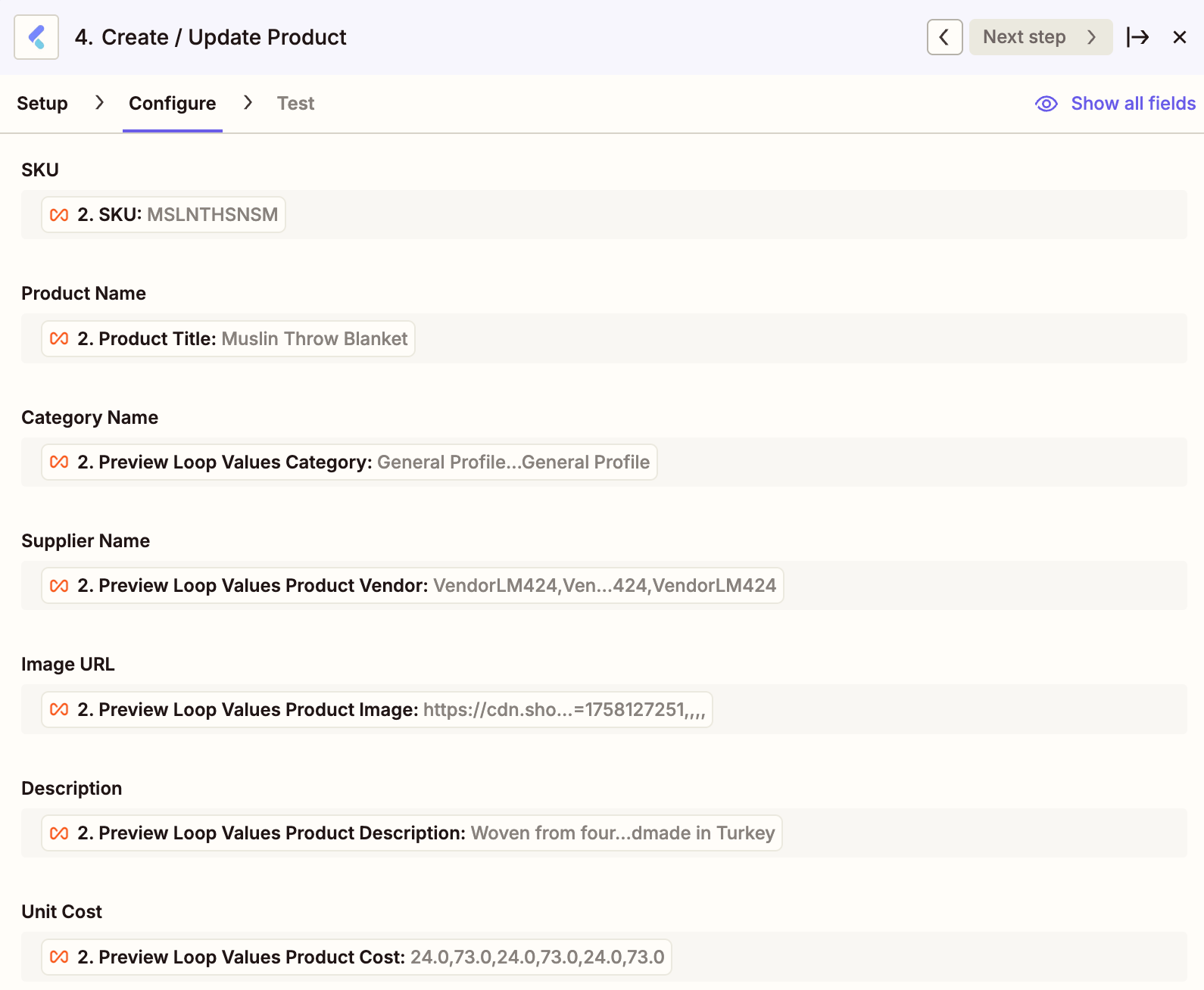
- Map fields from the loop to Luminous:
- SKU → SKU
- Product Name → Product Title
- Category Name → Category values from loop
- Supplier Name → Vendor
- Product Vendor → Vendor
- Image URL → Image URL values
- Product Description → Description
- Unit Cost → Unit Cost value
- Product Cost → Cost value
6. Step 5 — Test & Activate
- Test the Zap by creating a sample product in Shopify.
- Verify the product appears correctly in Luminous with all fields mapped.
- Turn the Zap on to activate automation.
7. Summary
With this Zap:
- Every new Shopify product triggers the automation.
- Variants are looped, processed, and mapped.
- Products are created in Luminous with all relevant details.
This ensures seamless synchronization between Shopify and Luminous, saving time and reducing errors.