Accessing the Stock Push Settings
- Navigate to Manage → Channels in Luminous.
- Select the relevant Shopify channel (Online Pickup for example).
- Click three dots on the right and Edit channel to view and modify stock push configuration.
Understanding Default Stock Push Behavior
Default (No Schedule Enabled)
- Stock push is enabled by default for Shopify channels unless others setting configure differently.
- Without a schedule, Luminous pushes stock every four hours.
- Push times are approximate, not precise.
- System load and queue timing may cause pushes to run several minutes later than expected (e.g., 1:05–1:20 instead of exactly 1:00).
Enabling a Custom Stock Push Schedule
When to Enable
- To control the exact frequency of stock pushes.
- To increase push frequency beyond the default.
- To reduce variability in push timing.
How to Enable
- In the channel settings, go to the Push Inventory Stocks and Costs section. With Push Stock to Integration turned on and a Push To Integration Account selected, locate Enable Scheduled Push Stock.
- Toggle Enable. When enable there are different option to choose
- Mode - you can choose between Daily or hourly
-
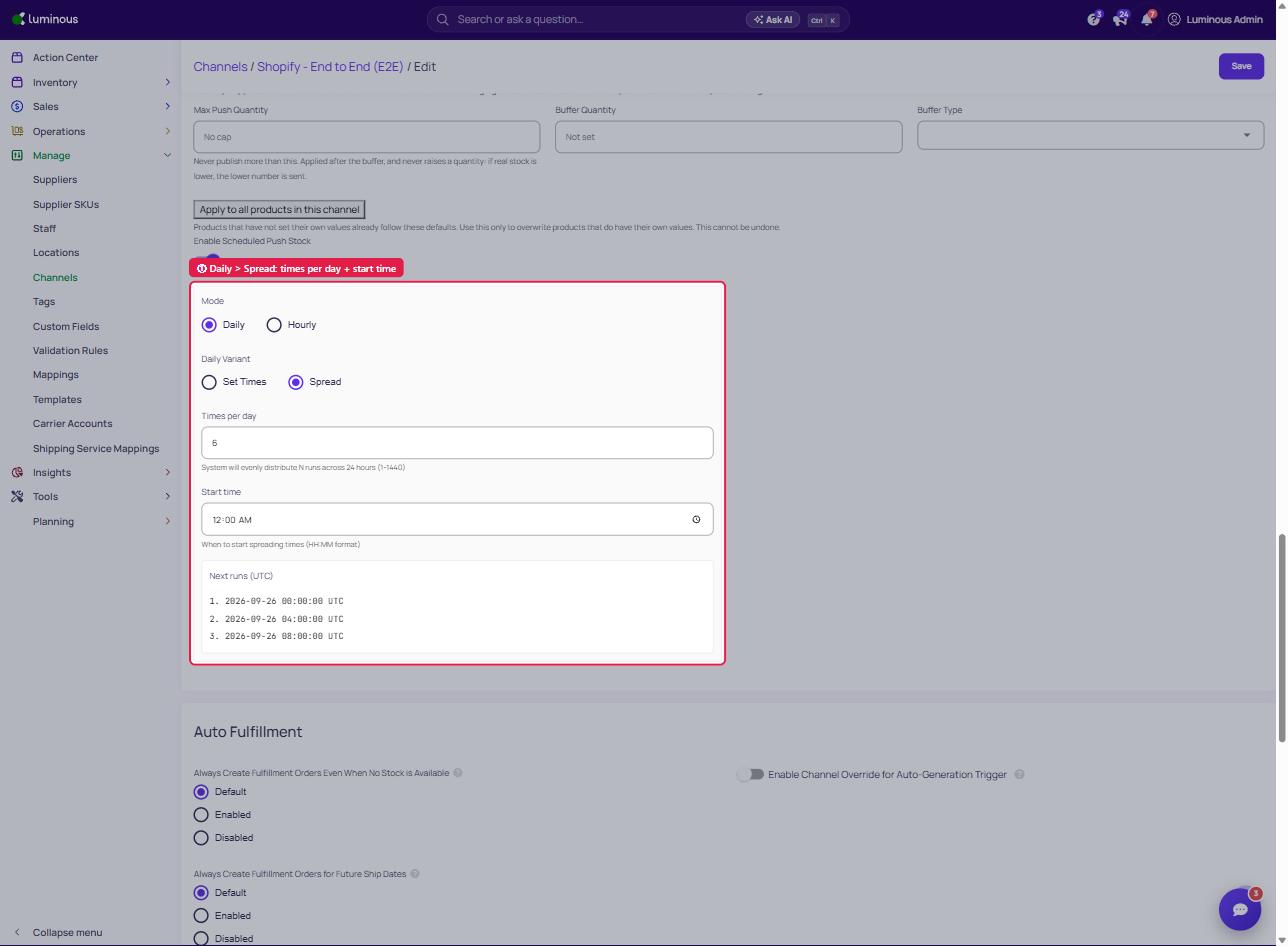
Daily -
-
Set times - add specific or different time of the day
-
Spread - set how many stock push schedule you prefer and set what time it will start(e.g., 6 times per day starting 12:00 Midnight)
-
-
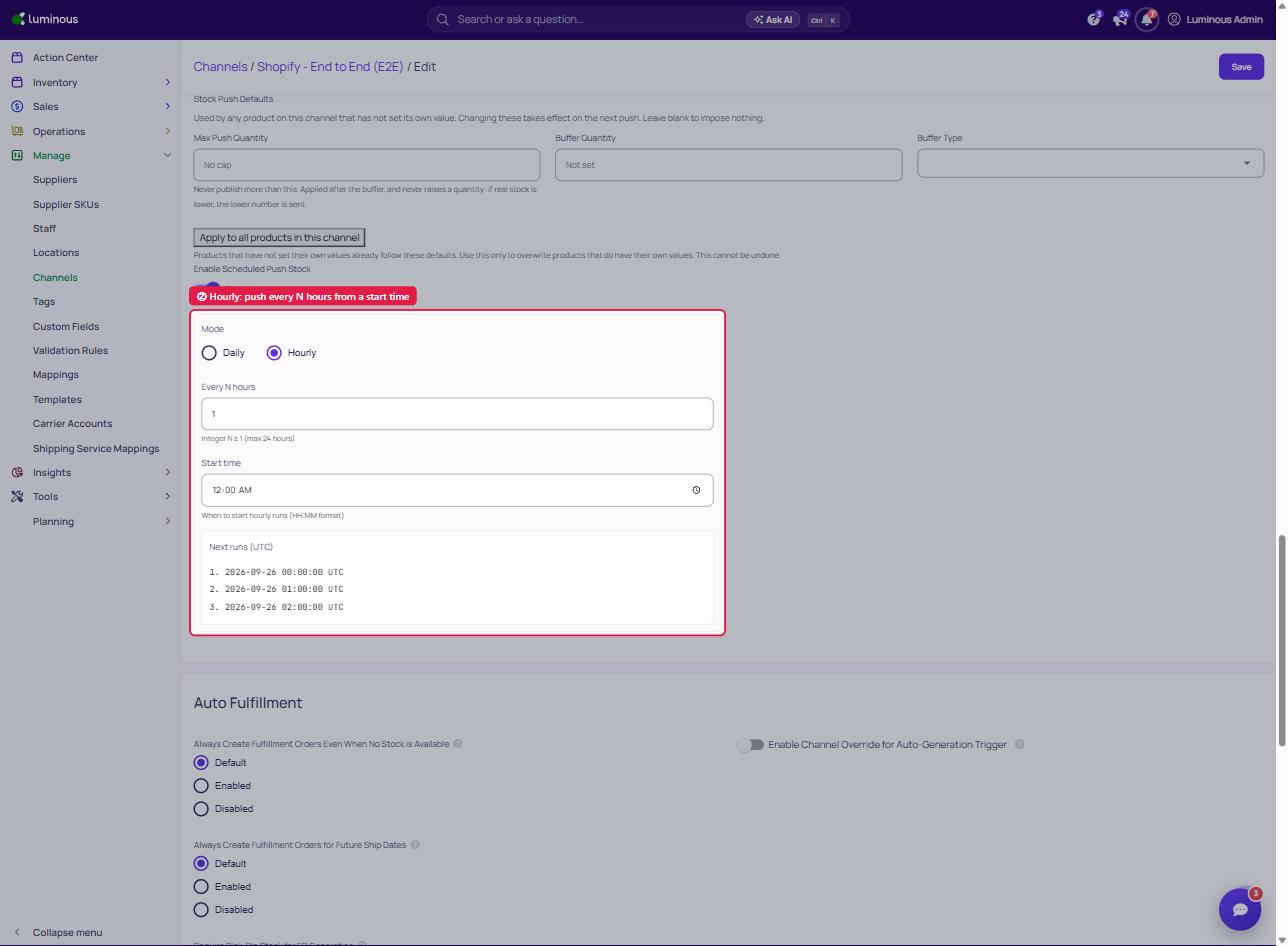
Hourly - let you set every "what: hour you want to push stock and what time you to start (e.g., every 2 hours starting 12:00 Midnight)
-
- Mode - you can choose between Daily or hourly
- Review the "Next Push Time"—may display in UTC depending on system configuration.
Recommended Push Frequencies
Hourly Push (Recommended)
- Best balance between inventory accuracy and system performance.
- Helps maintain up-to-date inventory without excessive syncing.
Why Not Push More Frequently Than Hourly
- If new orders arrive immediately after a push, inventory may appear temporarily outdated.
- More frequent pushes amplify this timing gap without improving accuracy meaningfully.
FAQ's
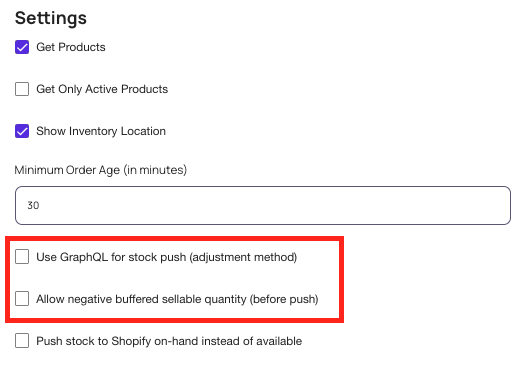
- Can I push negative stock quantities to a sales channel? Yes - if you configure it on the integration itself. Click your name in the upper right -> Settings/Integrations -> Edit the integration you want - Check both boxes indicated below to allow the push of negative quantities to the integration