Overview
The OMS Sync Status feature gives you visibility into the health of each App Integration Account's order pulling process directly from the App Integration Account list. From there, you can see the status of the most recent order pull, stop a run that's behaving unexpectedly, temporarily pause pulling, and re-pull orders from a specific point in time.
How It Works (Step-by-Step)
-
Go to Settings > Integrations.
-
In the App Integration Account list, locate the connection you want to check.
-
Opening the sync control dialog On the App Integration Accounts list, click the sync-arrows icon (two arrows in a circle) on the integration row.

What you can do:
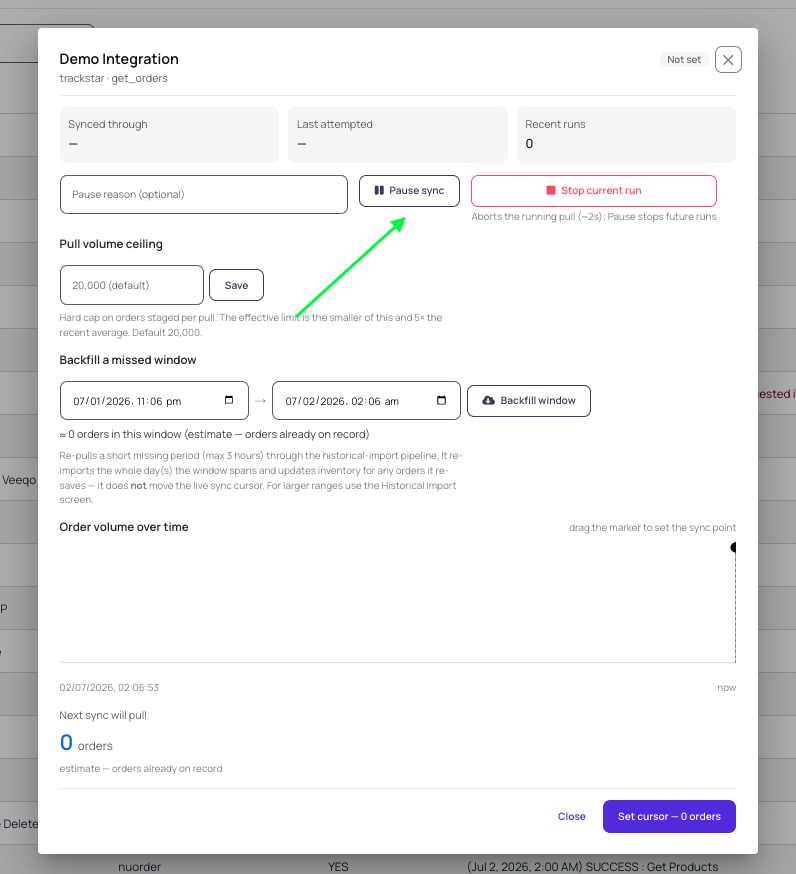
- Pause sync — stops future scheduled runs. You can add an optional pause reason.
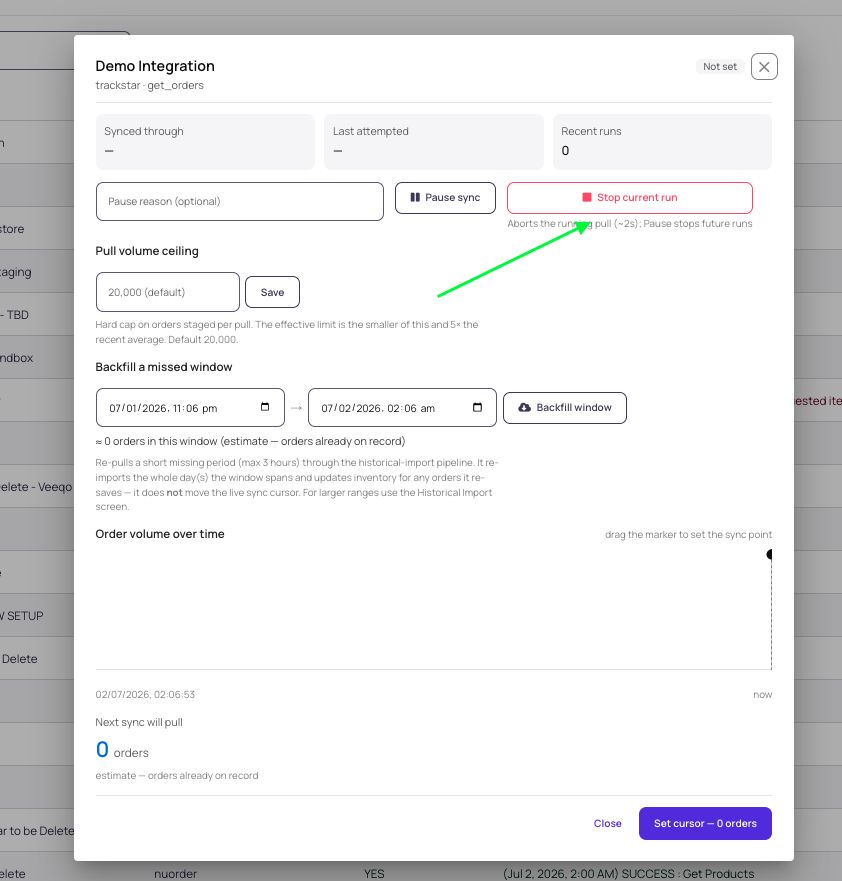
- Stop current run — aborts a pull currently in progress (takes effect in ~2 seconds).
- Pull volume ceiling — sets a hard cap on orders staged per pull (default 20,000).
- Backfill a missed window — re-pulls a short missed period (up to 3 hours) through the historical-import pipeline. For larger ranges, use the Historical Import screen instead.
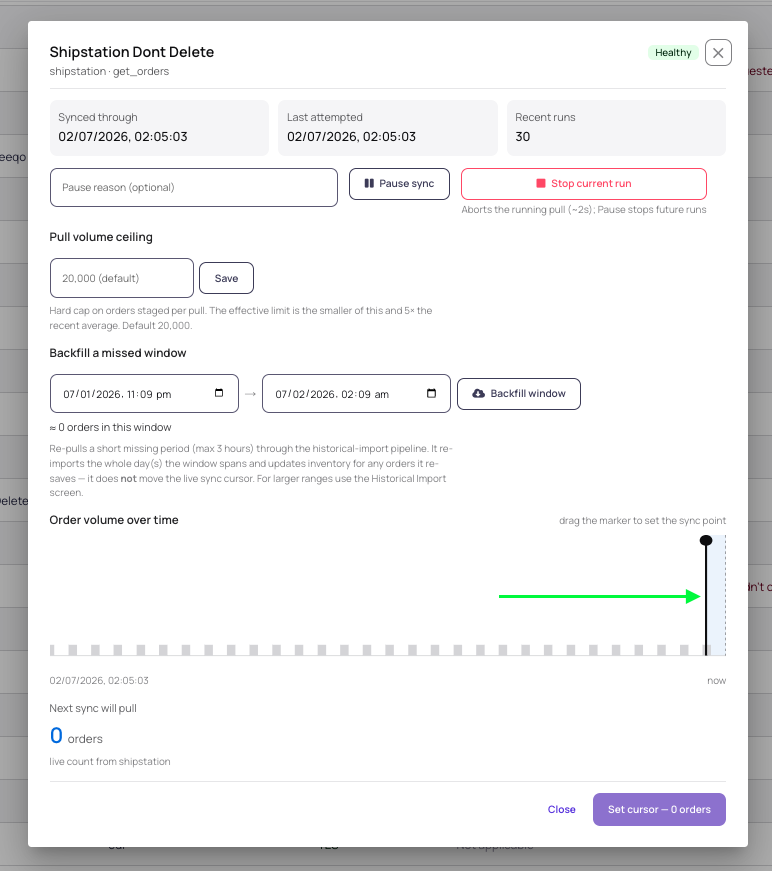
- Order volume over time / sync point — drag the marker on the chart to the point in time you want the next sync to resume from, then click "Set cursor" to confirm. The dialog shows a live preview of how many orders that would pull before you commit.
-
To stop an in-progress pull (for example, if the integration is pulling an unexpected volume of orders), click Stop Run on the active sync.
-
To temporarily halt future pulls without stopping the current run — for example, while onboarding a new client and you don't want recently synced orders pulled in — click Pause.
-
To re-pull orders from an earlier point in time:
- Open the sync timeline/slider for the integration.
- Drag the slider to the date and time you want the next pull to start from.
- As you drag, Luminous displays an estimated count of orders that would be pulled for that time range.
- Click Confirm (or the equivalent action button) to set that starting point. The next sync iteration will begin pulling from the selected time.
Key Features / Options
| Feature | What It Does |
|---|---|
| OMS Sync status icon | Shows the status and last-attempted time of order pulling for an App Integration Account. |
| Stop Run | Ends the current sync run — useful if the integration is pulling an unusually high or unexpected number of orders. |
| Pause | Temporarily halts future order pulls without affecting historical data — useful during client onboarding to avoid pulling in orders that shouldn't be synced yet. |
| Rewind / Re-pull from time | Lets you move the sync starting point backward, with a live estimated order count for the selected time range, so the next pull captures orders from that period forward. |
Tips or Best Practices
- Use Pause rather than Stop Run when you just need to delay syncing temporarily (e.g., mid-onboarding) — pausing preserves the run and lets you resume later without redefining the sync window.
- Before confirming a rewind, check the estimated order count shown while dragging the slider. A much higher-than-expected count can indicate you've selected too far back, which may pull in orders that were already processed or shouldn't be re-synced.
- Reserve Stop Run for cases where an integration is actively pulling unexpected or excessive order volume — it's meant as an emergency brake, not a routine pause.
FAQs / Troubleshooting
Q: Will pulling from an earlier time create duplicate orders?
A: The order count shown while adjusting the rewind slider is an estimate of what will be pulled for that range — check it carefully before confirming, since orders already synced may be affected depending on the integration.
Q: What's the difference between Pause and Stop Run?
A: Stop Run ends the current, in-progress sync — typically used when something is going wrong right now. Pause prevents future runs from starting until you resume it, without interrupting anything already completed.
Q: Does this feature work the same for every integration type?
A: The OMS Sync status icon and controls apply at the App Integration Account level, so behavior should be consistent regardless of which system (ShipStation, a Track Star-connected WMS, Amazon, etc.) the account represents. Confirm with support if you notice differences for a specific integration type.