Overview
Luminous has added three new ways to view lot information at a glance — directly from the SKUs grid, from within a SKU's detail page, and by hovering over any lot number throughout the platform. These enhancements give you faster access to lot status, expiry, cost, and location data without having to leave your current context or navigate to a separate report.
What's New
1. Lots Column on the SKUs Grid
The SKUs inventory grid now includes a Lots column that surfaces lot status for each SKU at a glance.
How to access:
- Navigate to Inventory > SKUs.
- If Lot Tracking is enabled on any SKUs, the Lots column will appear on the right side of the grid (if it is hidden, enable Lots from the Columns picker at the top right of the grid).
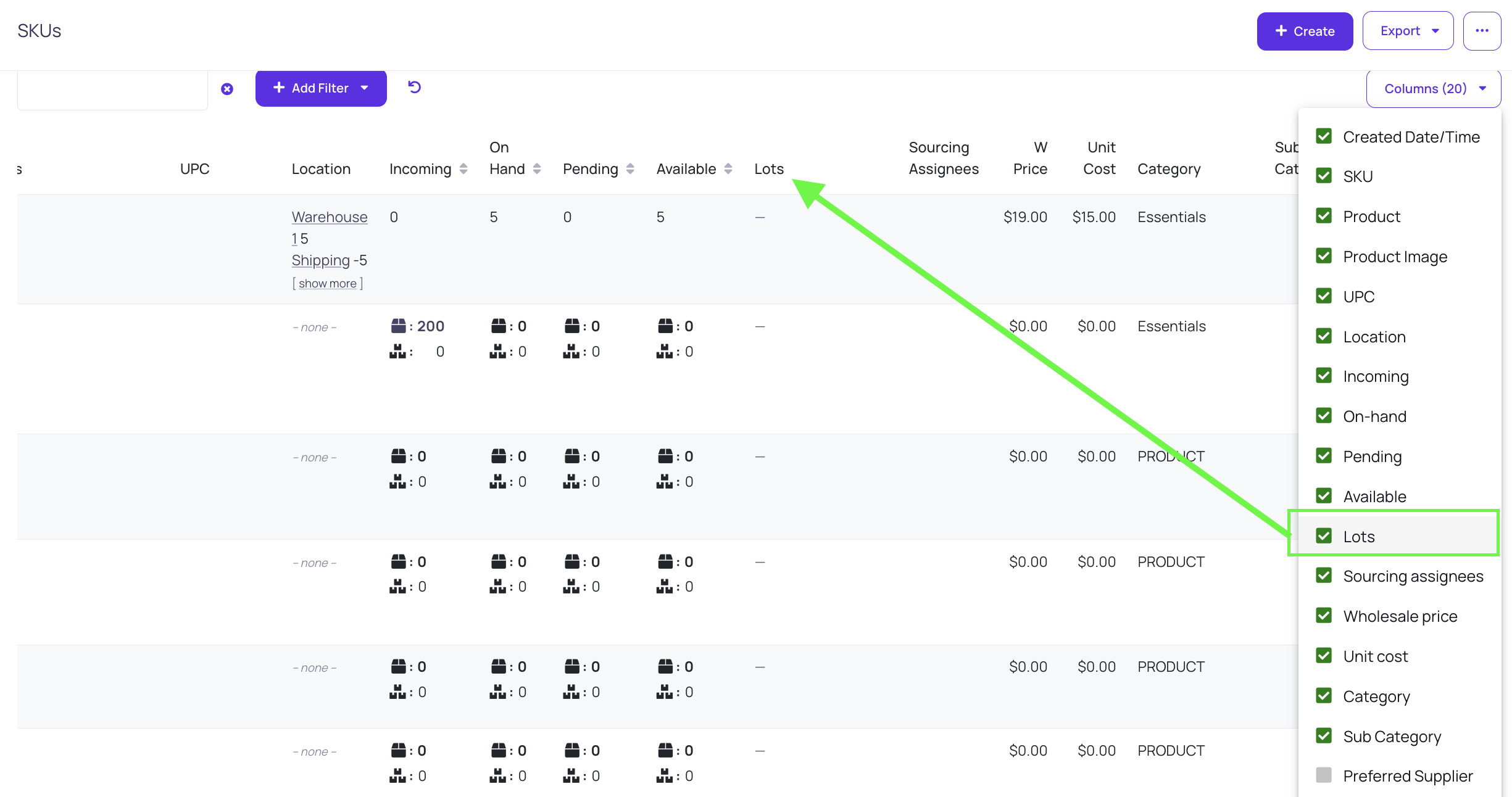
- Each row displays:
- The number of lots associated with that SKU (e.g., "1 lot," "2 lots," "3 lots")
- A red dot indicator and expiry label if any lots are expired (e.g., "● Expired 15 days ago")
💡 Tip: Use the Lot Tracking filter at the top of the SKUs grid (set to "On") to display only SKUs with lot tracking enabled, making the Lots column most useful.
2. Lots Tab on the SKU Detail Page
Within an individual SKU's detail page, a new Lots tab is now available in the left-side navigation panel.
How to access:
- Navigate to Inventory > SKUs.
- Click on any SKU name to open its detail page.
- Select Lots from the left-side navigation.
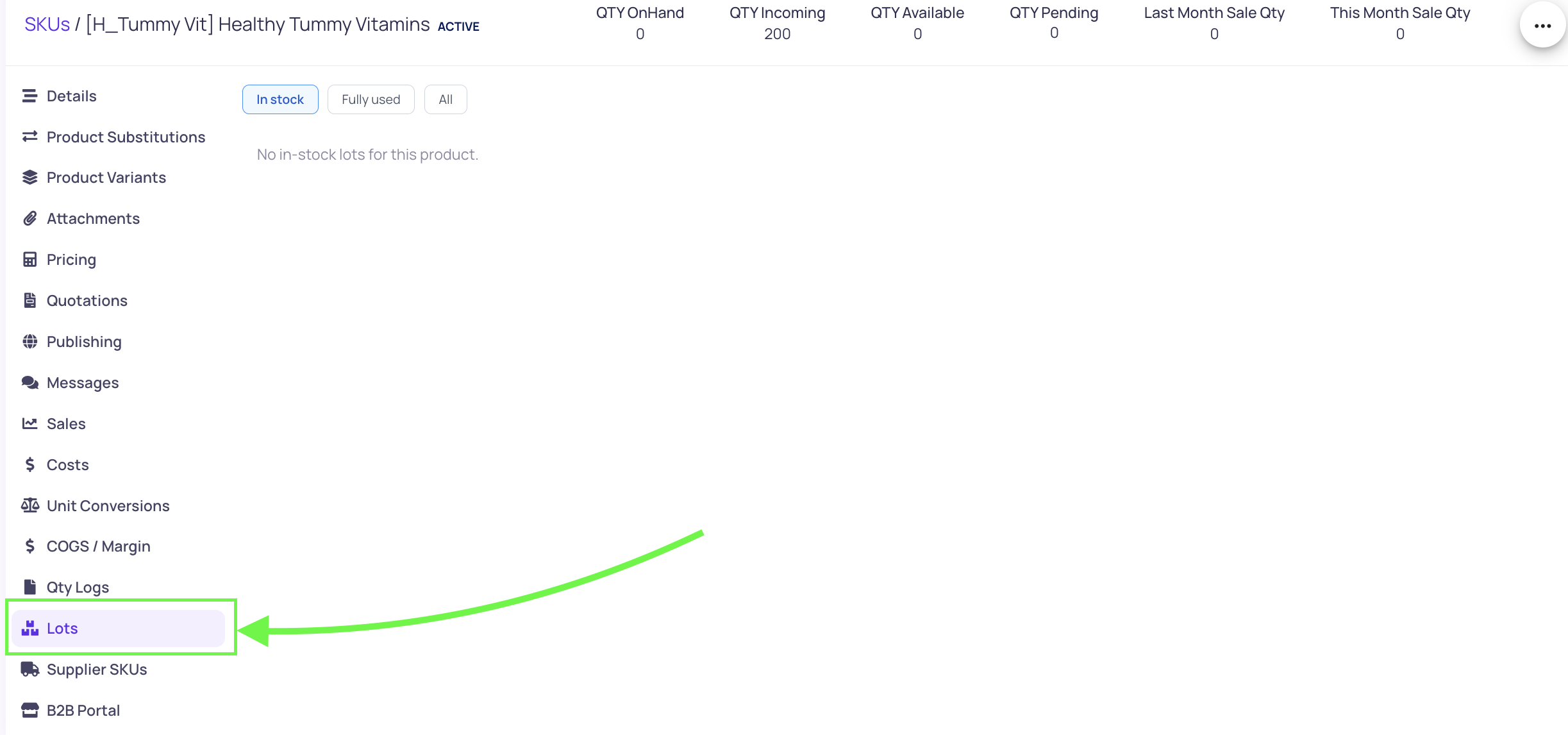
What you'll see:
The Lots tab displays a table of all lots associated with that SKU, with the following columns:
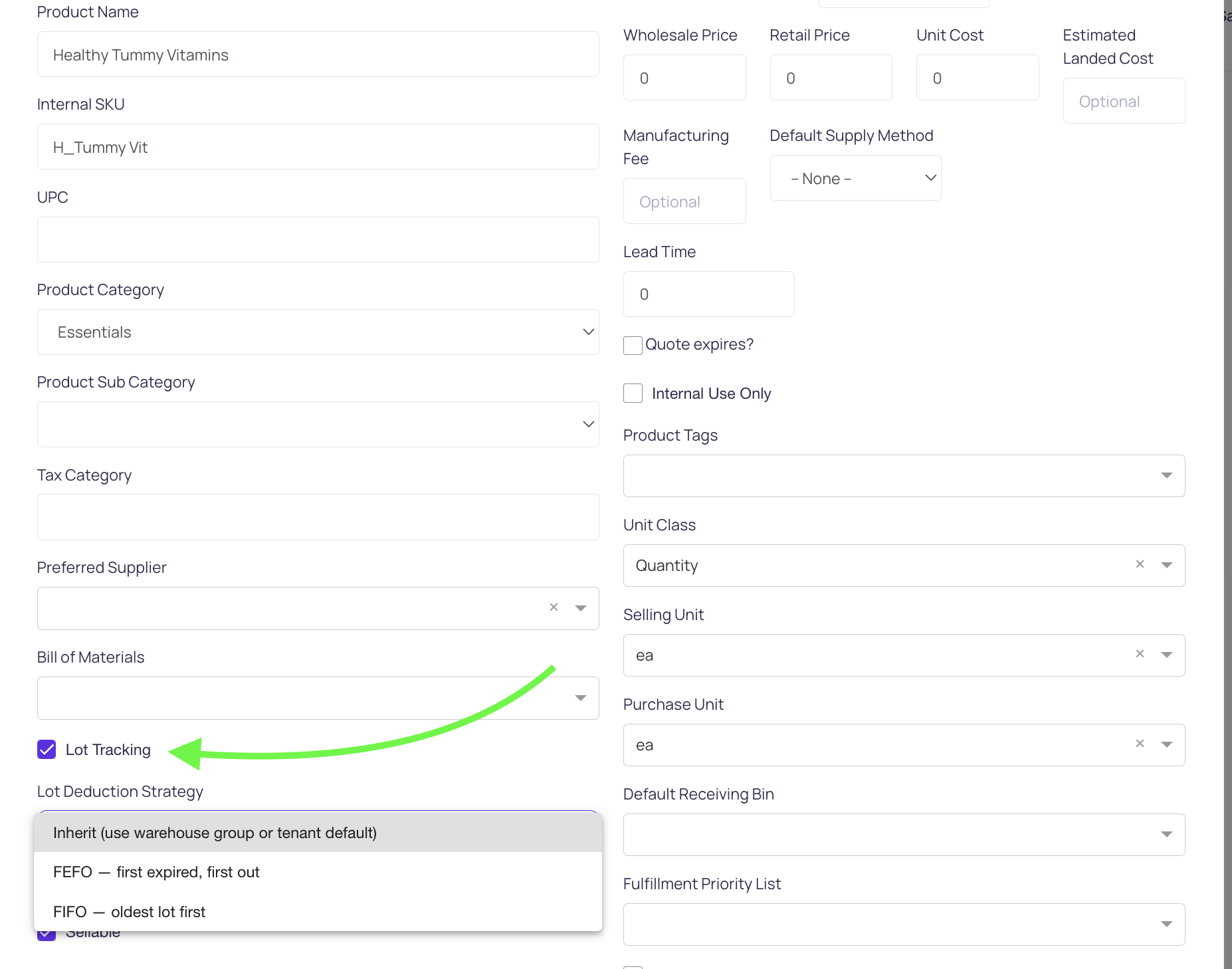
- Enabling lot tracking for a SKU
- Click on any SKU name to open its detail page.
- Click the three dots and select Edit SKU
- Enable the Lot tracking and select the Lot deduction strategy
- Inherit (Use warehouse group or tenant default)
- FEFO - first expired, fist out
- FIFO - oldest lot first or first in, first out
| Column | Description |
|---|---|
| Lot # | The lot identifier (e.g., LUM06260626-25) |
| Expiry | Expiration date, with a red dot if expired |
| Manufactured | Manufacturing date |
| Mfr Code | Manufacturer code |
| On Hand | Total units on hand across all locations |
| Received | Total units received into this lot |
| Unit Cost | Unit cost assigned to the lot |
| Landed | Landed cost value |
| Cost-layer value | Total cost-layer value for this lot |
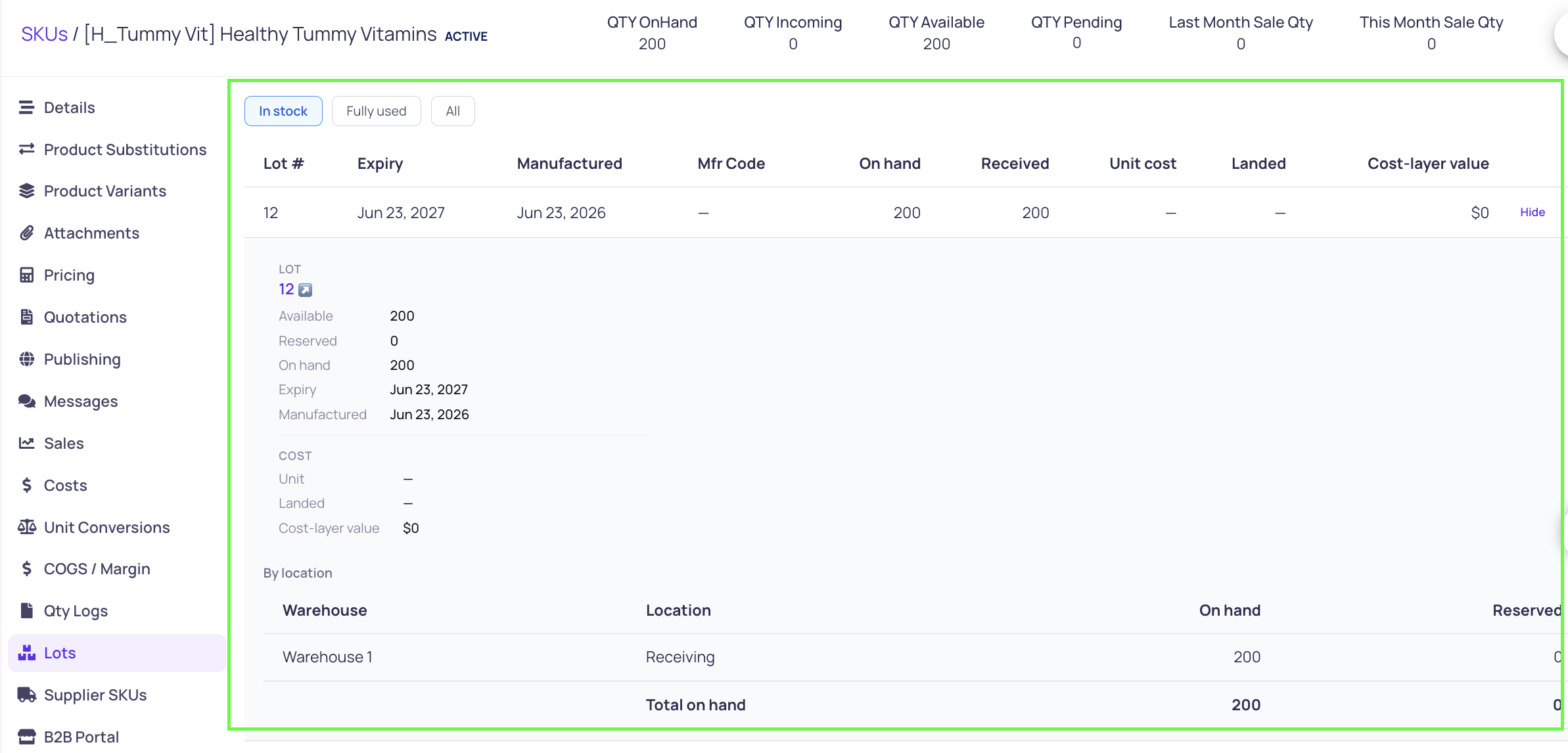
Filter tabs at the top allow you to view:
- In stock — lots with on-hand quantity > 0
- Fully used — lots that have been fully consumed
- All — every lot ever associated with this SKU
Expanding a lot row:
Clicking a lot row (or using the Hide/Show toggle — item ② in the UI) expands an inline detail panel showing:
- Available, Reserved, On Hand quantities
- Expiry and Manufactured dates
- Mfr Code
- Unit, Landed, and Cost-layer value
- A By Location breakdown table showing On Hand and Reserved quantities per warehouse and location
3. Lot Detail Hover Tooltip (Lot Number Surfaces)
Anywhere a lot number appears in Luminous as a clickable/hoverable link — including the Stocks Grid, inventory detail pages, and similar views — you can now hover over the lot number to see an inline summary of that lot's details without navigating away.
The hover tooltip displays:
- Lot number
- Expiry status (e.g., "● Expired 11 months ago")
- Available quantity
- Reserved quantity
- On Hand quantity
- Expiry date
- Manufactured date
- Mfr Code

💡 Tip: This is especially useful when reviewing the Stocks Grid for products with multiple lots across multiple locations — hover to inspect a lot's expiry and quantity without opening it.
Key Features at a Glance
| Feature | Where It Appears | What It Shows |
|---|---|---|
| Lots column | SKUs grid | Lot count + expiry status per SKU |
| Lots tab | SKU detail page (left nav) | Full lot table with cost and quantity details |
| Lot detail expand | Lots tab (row expand) | Per-lot cost breakdown + by-location quantity |
| Hover tooltip | Any lot number link in the platform | Quick lot summary: qty, expiry, mfr details |
Tips and Best Practices
- Use the Lots column as a quick health check. Red dot indicators in the SKUs grid let you immediately spot SKUs with expired lots that may need attention (adjustment, write-off, or removal from active fulfillment).
- Use the "In Stock" filter in the Lots tab to focus on actionable lots and avoid noise from fully consumed historical lots.
- The hover tooltip is read-only. To edit lot details (expiry date, lot number, mfr code), navigate into the lot record directly.
- Lot count in the SKUs grid is a sum across all warehouses. A SKU showing "2 lots" may have those lots split across different warehouse locations — use the Lots tab's By Location table to see the full breakdown.
- Expired lots still appear in inventory unless the inventory on hand is zero or you have taken a manual adjustment action. An expired lot does not automatically zero out quantity.
FAQs and Troubleshooting
Q: I don't see a Lots column on my SKUs grid. Why?
A: The Lots column is only populated for SKUs that have Lot Tracking enabled. If none of your SKUs have lot tracking turned on, the column may appear blank or may not be visible. Confirm that Lot Tracking is toggled On for at least one SKU (SKU detail page > Edit > Lot Tracking). You can also use the Lot Tracking: On filter at the top of the SKUs grid to narrow your view.
Q: The Lots column shows a red dot and "Expired X days/months ago." Does this affect fulfillment?
A: The expiry indicator is a visual flag only — it does not automatically prevent the lot from being used in fulfillment. Whether expired lots can be selected during pick/pack depends on your Smart Fulfillment lot selection settings. Review your lot selection configuration under Operations > Operations Admin > Smart Fulfillment Settings if you want to restrict expired lot usage.
Q: Can I click on the lot number in the Lots tab to open the full lot record?
A: Yes. Lot numbers displayed in the Lots tab are links. Clicking the lot number will open the full lot record where you can view and edit all lot details.
Q: The "Received" column shows 0 for a lot. Is that a problem?
A: A value of 0 in Received typically means the lot was created manually (not via a receiving report) or was transferred in from another source without a formal receiving event. This is expected for lots created through inventory adjustments or transfers.
Q: Why does my SKU show a negative Available quantity for one of its lots?
A: A negative available quantity usually indicates that more inventory was reserved or fulfilled from that lot than was on hand — often caused by a timing gap between lot assignment and a receiving event, or an over-commitment of inventory. Review recent fulfillment orders and adjustment entries for that SKU to identify the source.