Step-by-Step Instructions:
1. Pause the Affected SKU in Luminous
-
Log in to your Luminous account.
-
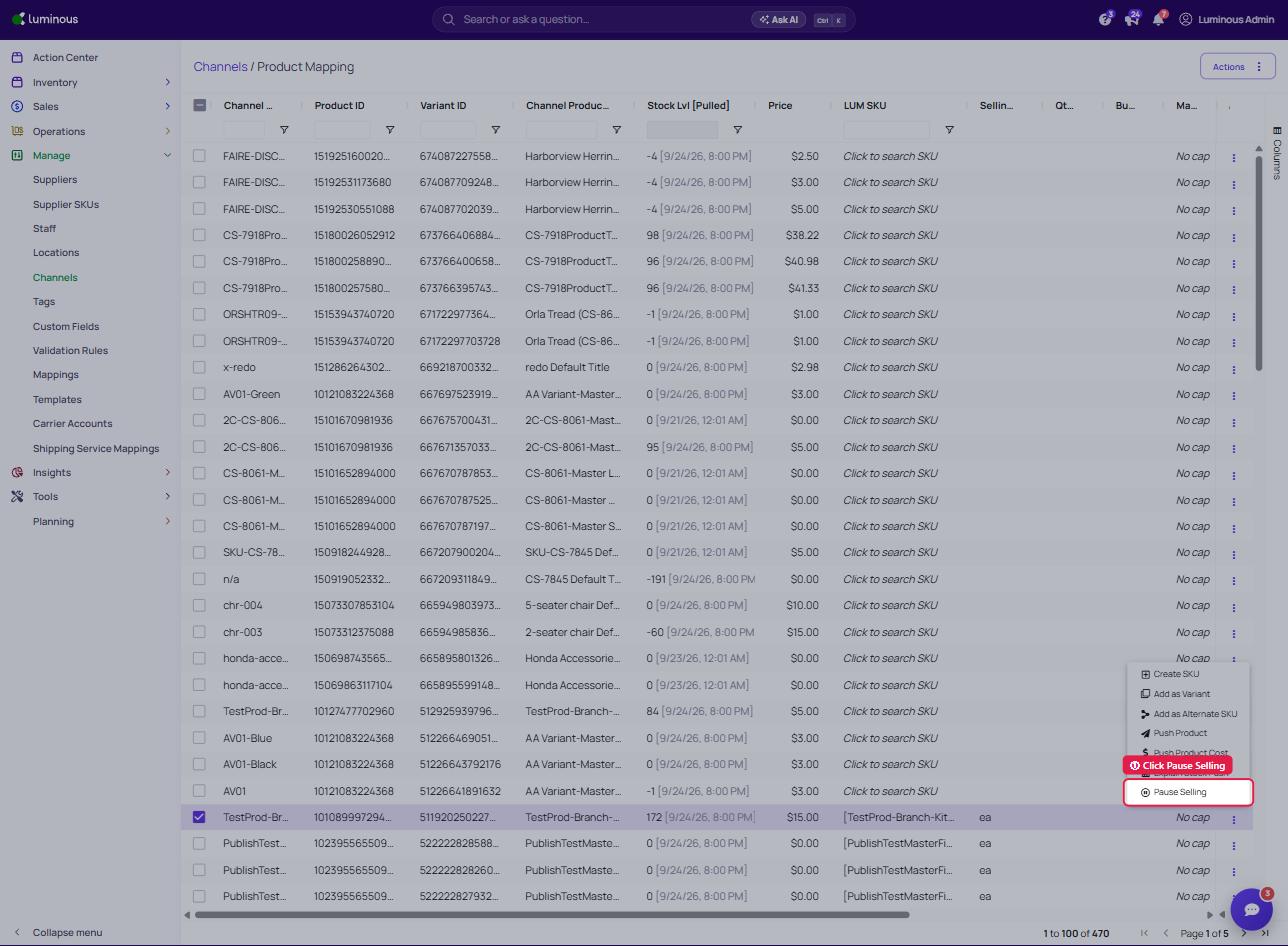
Locate the affected SKU(s) under Manage > Channels > Product Mapping.
-
Open the ⋮ menu in the "Actions" column and select "Pause Selling"
-
This will create a large buffer for that SKU (see "Buffer Quantity" heading), stopping stock from being pushed to Amazon and preventing it from being switched to FBM.
2. Check SKU Status in Amazon Seller Central
- Log in to your Amazon Seller Central account.
- Go to Inventory > Manage Inventory.
- Search for the affected SKU(s) to confirm their status.
3. Optional: Bulk Update Settings
- If you have multiple SKUs affected, consider performing a bulk update.
- In Luminous: Import under Tools > Imports > App Integration Account Products
- In Amazon Seller Central: Use the bulk inventory management tools to adjust FBA settings for multiple SKUs.
- Reach out to the Luminous support team if you need assistance with bulk updates.
If you follow these steps and the issue persists, or if you need help with bulk updates, please contact us for further assistance.