Overview
Duplicate sales orders can occasionally occur when an order is edited in a connected channel (such as Shopify) and re-sent to Luminous through integrations like ShipStation. Monitoring duplicate orders helps maintain accurate inventory and prevents fulfillment errors.
Luminous includes a Duplicate Order Filter within the Sales Order Grid that allows users to quickly identify orders that share the same Order Number. This tool helps teams locate and review duplicate orders so they can determine which record should remain in the system.
Note: The duplicate order filter requires a feature flag to be enabled by the Luminous support team before it becomes available.
Enable the Duplicate Order Filter
Before using this feature, the duplicate order filter must be enabled.
- Contact the Luminous support team.
- Request that the Duplicate Order Filter feature flag be enabled for the account.
- Once enabled, the Show Duplicates option will appear in the Sales Order Grid's Actions menu.
How to Find Duplicate Sales Orders
- Navigate to Operations → Sales Order Grid.
- In the top-right corner, click Actions and hover over Show Duplicates.
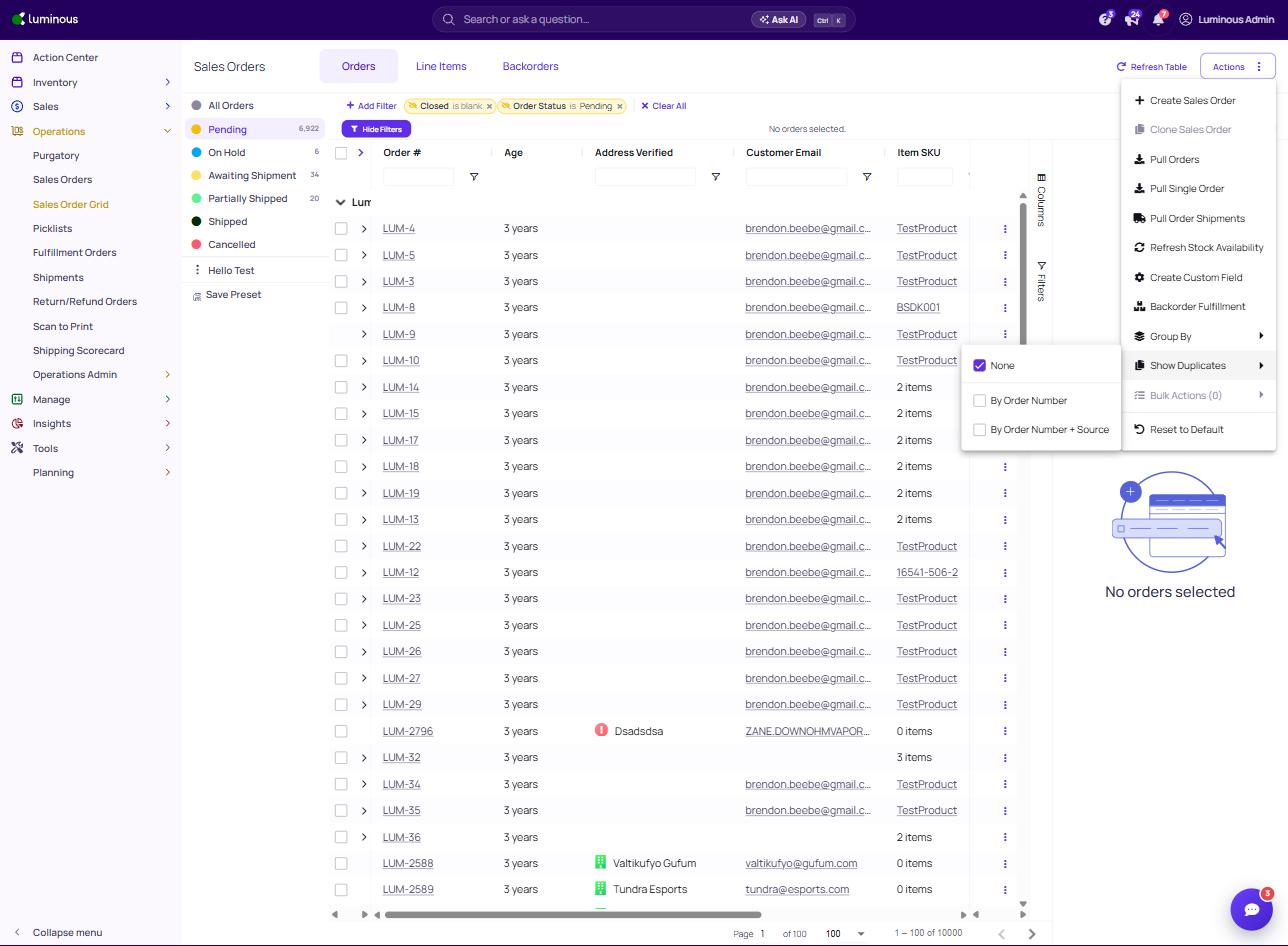
- Select By Order Number (or By Order Number + Source to match on both).
- A checkmark shows the active option; choose None to turn the duplicate view off.
The grid will refresh and display only orders that share the same Order Number.
Understanding the Duplicate Order List
The grid displays key order details to help determine which record should remain active.
Important fields to review include:
- Order # – The original order number from the sales channel.
- Order ID – The unique identifier inside Luminous.
- Order Status – Indicates whether the order is pending, shipped, awaiting shipment, etc.
- Created Date – Shows when the order was created in the system.
- Customer Name – Helps confirm the correct order record.
- Channel – Identifies where the order originated (for example Shopify or ShipStation).
Each Order ID is clickable, allowing quick navigation directly to the sales order for review.
Recommended Review Process
When duplicates appear:
- Open each order using the Order ID link.
- Compare order details such as:
- Line items
- Order status
- Shipment status
- Identify the correct order record to keep.
- Remove or cancel the duplicate record if appropriate.
Following this process helps prevent duplicate fulfillment and inventory discrepancies.
Tips for Monitoring Duplicates
- Check the Duplicate Order Filter regularly to catch new duplicates early.
- Review duplicates before running fulfillment batches.
- Investigate duplicates that appear frequently from the same channel or integration.
Troubleshooting
The Duplicates filter is not visible
The feature may not be enabled yet. Contact the Luminous support team to request the Duplicate Order Filter feature flag.
Orders appear duplicated but have different order numbers
The filter only identifies duplicates based on matching Order Numbers.