Here’s a quick breakdown of our standard sync intervals:
🔁 Sync Frequency
-
Stock to Sales Channels – Every 4 hours
We push updated stock quantities to all connected sales channels (like Shopify, Amazon, etc.) to keep your listings accurate. You can change this configuration and make stock push more/less frequently in your channel settings under a sales or end to end channel. -
Warehouse Stock Sync – Every 15 minutes
We pull current stock levels back from your (external/3PL) warehouses several times an hour, so your system reflects the latest counts — not just a few times a day. (Some warehouse integrations can be set to a custom schedule, so your cadence may differ.) -
Orders from Sales Channels – Every 15 minutes
We fetch new orders frequently so your fulfillment team stays on top of everything in near real-time. -
Sales Orders Pushed to WMS/3PL systems - Near real time
Sales orders (as fulfillment orders) are pushed to your WMS/3PL system continuously in near real time, rather than on a fixed 15-minute cycle. When they push may be affected by any auto push delays set up on your channel settings.
-
Inbound Shipments – Every Hour
We pull updates on inbound shipments from your 3PLs once per hour. This ensures you always have the latest visibility into what inventory is on its way, helping your team plan for upcoming stock and keep replenishment accurate.
-
QuickBooks Online Sync – Real-time for Invoices & POs
Invoices sync to QuickBooks automatically and near-instantly (event-triggered, not on a periodic batch schedule). By default an invoice syncs as soon as it’s marked active/saved — but you can set it to sync instead when the invoice is marked paid or when the order ships, so the exact timing depends on your configured setting. Purchase orders push instantly on creation. Make sure QuickBooks sync is enabled in System Settings > QuickBooks Settings.
⚙ Manually Triggering a Sync
Need to make something sync immediately? Here’s how you can do it:
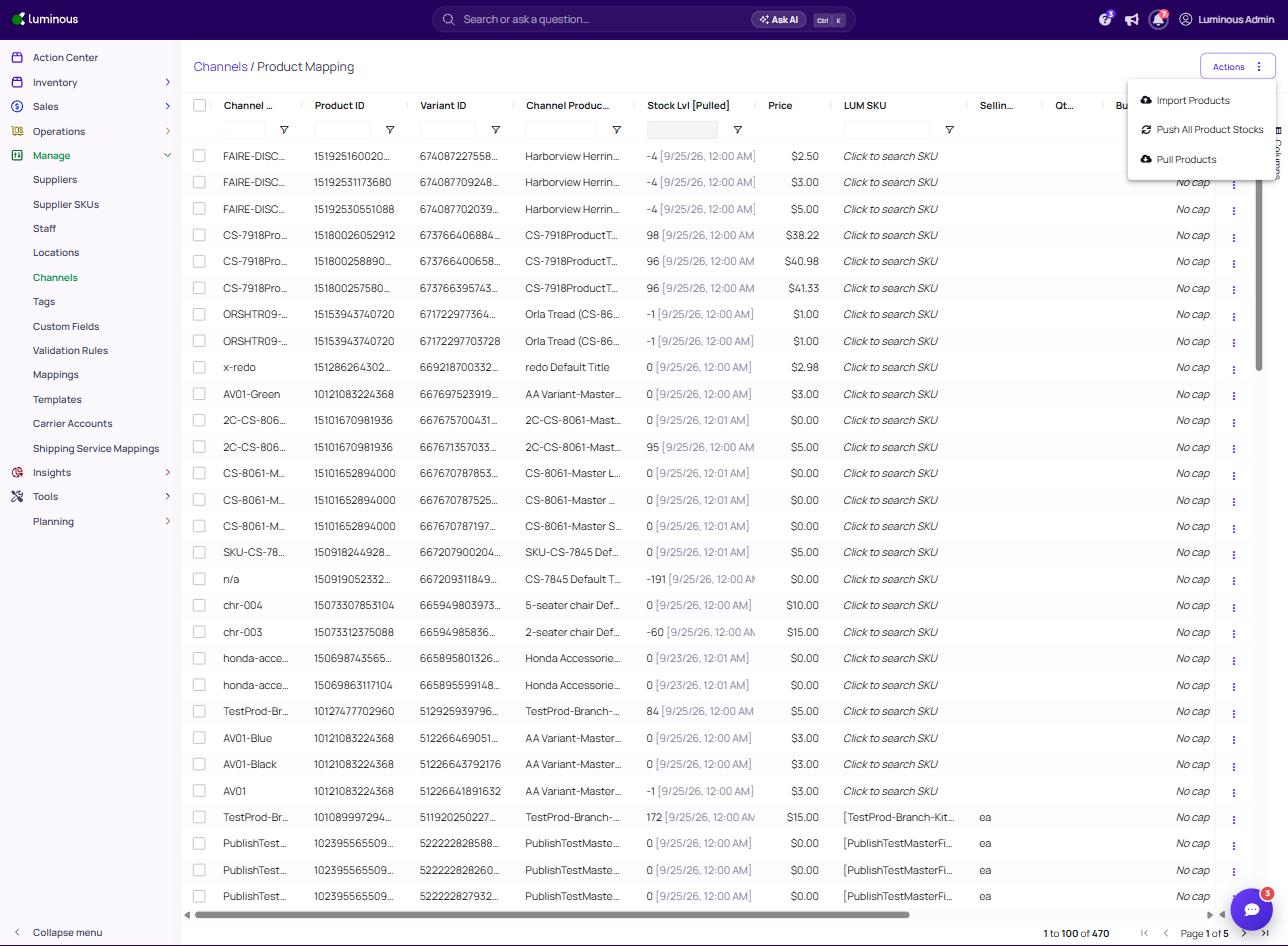
- Navigate to Manage > Channels, then click the Product Mapping button at the top of the Channels page
- Click on Actions
- Choose one of the following:
- Push All Product Stocks – to push current stock levels to your sales channels
- Pull Products – to pull product data in from the channel
You can also push stock for individual SKUs by opening the ⋮ menu on that SKU's row and choosing ✈ Push Product, as shown in the screenshot below.
Click “Push All Product Stocks” only when necessary. Each click can trigger large data transfers depending on your SKU count, and repeated clicks can slow the sync significantly. Instead, click once, wait for the process to complete, then refresh Luminous and your sales channel site to confirm updates.