Overview
When a Sales Order is updated after its associated Fulfillment Order (FO) has already been created, Luminous now flags the FO to indicate that its source order has changed. This lets your team quickly identify which FOs may be out of sync with their original order data and take corrective action.
How It Works (Step-by-Step)
Viewing the Change on the Sales Order Activity Log
- Navigate to Operations > Sales Orders and open the relevant Sales Order.
- Click the Activity Log tab within the order.
- When a Sales Order has been updated after FO creation (e.g., a field is changed by a channel sync from Shopify), the Activity Log will display what changed — showing both the From and To values for each updated field.
Identifying a Drifted Fulfillment Order
- From the same Sales Order, navigate to the Fulfillment Orders tab.
- Open the relevant Fulfillment Order, or navigate directly via Operations > Fulfillment Orders.
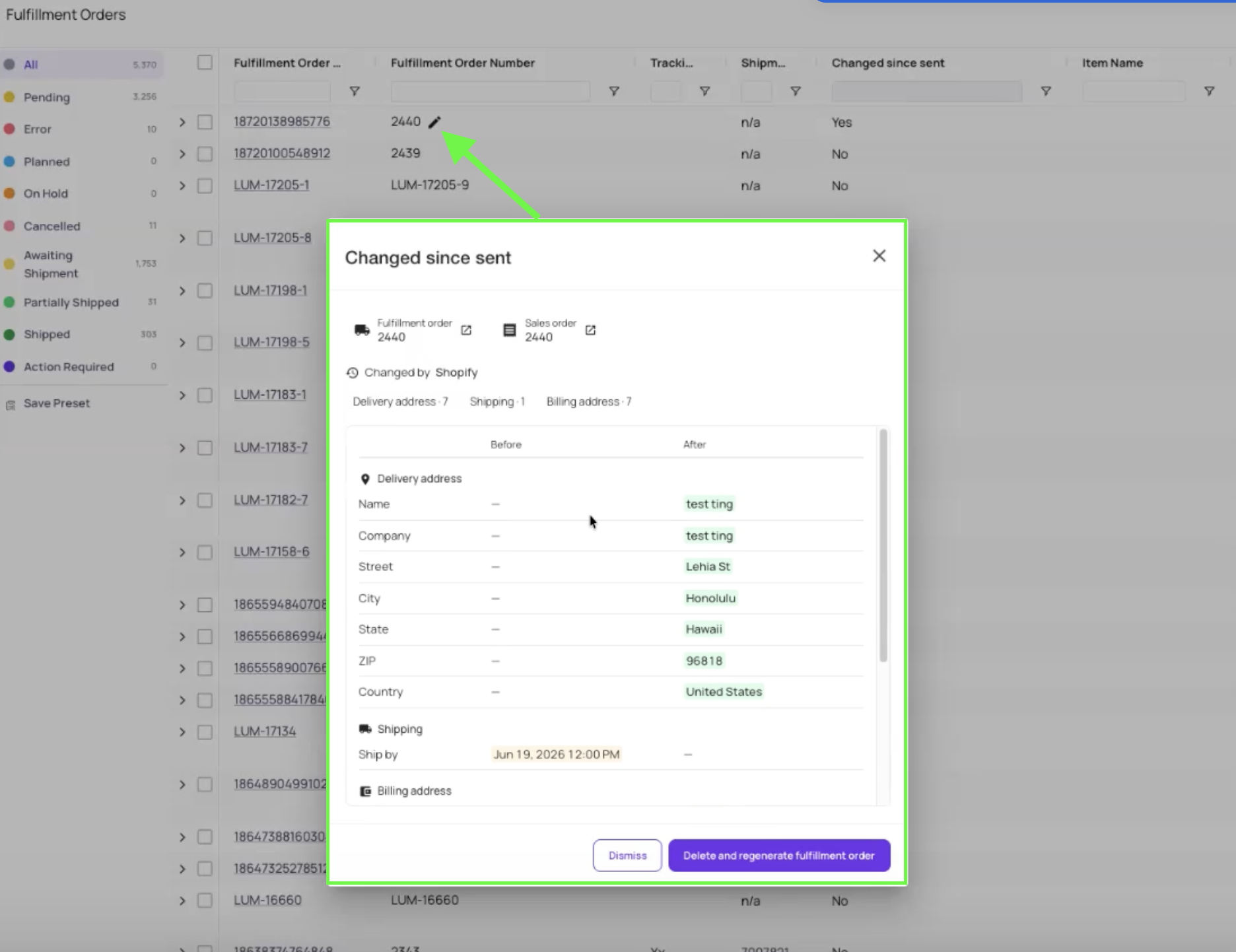
- If the associated Sales Order was updated after the FO was created, the FO will display a drift indicator icon next to the Fulfillment Order number.
Viewing the Field-Level Changes from the FO
-
Click the drift indicator icon on the Fulfillment Order.
-
A detail view will appear listing which fields changed, along with their previous and current values.
-
Review the changes to determine whether the FO needs to be deleted and regenerated.
Deleting and Regenerating the Fulfillment Order
- From the same detail view, use the Delete and Regenerate Fulfillment Order action if the changes to the Sales Order are significant enough to require a fresh FO.
Filtering Fulfillment Orders by Drift Status
- Navigate to Operations > Fulfillment Orders to view the FO grid.
- If it's not already shown, add the SO Updated column via the grid's column picker. This column displays the date and time the associated Sales Order was last updated, if it was updated after the FO was created.
- Use the column filter to sort or narrow to FOs with a recent SO Updated timestamp to surface likely-drifted FOs.
Key Features / Options
| Feature | Description |
|---|---|
| Activity Log field changes | The Sales Order Activity Log now shows From/To values for each field updated after FO creation |
| Drift indicator icon | Appears on the FO when its associated Sales Order has been modified post-creation |
| Change detail view | Clicking the indicator shows a breakdown of all changed fields with old and new values |
| Delete and Regenerate action | Available from the change detail view; removes the current FO and creates a new one reflecting the latest Sales Order data |
| SO Updated column | Date/time column on the FO grid showing when the linked Sales Order was last updated, if after FO creation. |
Tips and Best Practices
- Check the Activity Log first. Before deciding whether to delete and regenerate an FO, review the Activity Log on the Sales Order to understand what changed and whether it affects fulfillment (e.g., a shipping address change is more critical than a tag update).
- Use the SO Updated column as a daily review step. Teams processing high order volumes should make filtering the SO Updated column for recent dates a routine check before pushing FOs to ShipStation or a 3PL.
- Not all changes require regeneration. Minor field updates (e.g., order notes or internal tags) may not impact the physical shipment. Use judgment before deleting and recreating an FO.
- Regenerating an FO resets its status. If an FO has already been pushed to an external system (ShipStation, 3PL), deleting and regenerating it will require re-pushing. Coordinate with your warehouse team before doing so.
- Channel-synced orders are the most common trigger. Orders updated automatically by Shopify, Amazon, or other integrated channels are the most frequent source of post-creation Sales Order changes.
FAQs and Troubleshooting
Q: I don't see the drift indicator or the SO Updated column.
This feature may not be enabled on your account. Contact Luminous Support to confirm availability.
Q: Does the drift indicator appear automatically, or do I need to take an action?
It appears automatically when Luminous detects that a field on the Sales Order was modified after the FO was created. No manual action is needed to trigger it.
Q: Will the FO be automatically updated when the Sales Order changes?
No. The FO is not automatically updated. The indicator flags the discrepancy, but you must manually review and decide whether to delete and regenerate the FO.
Q: What kinds of Sales Order changes trigger the drift flag?
Any field-level update to the Sales Order after FO creation can trigger the flag. Common sources include channel sync updates from Shopify or other integrations. The Activity Log will show the specific fields that changed.
Q: Can I filter for drifted FOs across all channels and warehouses?
Yes. The SO Updated column on the FO grid is filterable. Filtering it to a date range will surface FOs whose Sales Order changed after the FO was created, regardless of channel or warehouse.
Q: What happens if I delete and regenerate the FO?
The existing FO is removed and a new one is created based on the current state of the Sales Order. If the FO was already pushed to ShipStation or a 3PL, you will need to re-push the new FO.
Additional Help
Contact Luminous Support through the in-app chat or at support@luminoussolutions.com.