It introduces flexible import modes to manage quantity discrepancies and integrates with current stock levels—enabling more accurate and operationally efficient inventory cost tracking.
Key Features
✅ Multi-Value Cost Layer Import
- Import multiple rows per SKU/warehouse with distinct cost values and quantities.
- Each row creates an individual cost layer, ordered by creation date (FIFO).
- Supports Brick\Math\BigDecimal for precise cost calculations.
How to Use
-
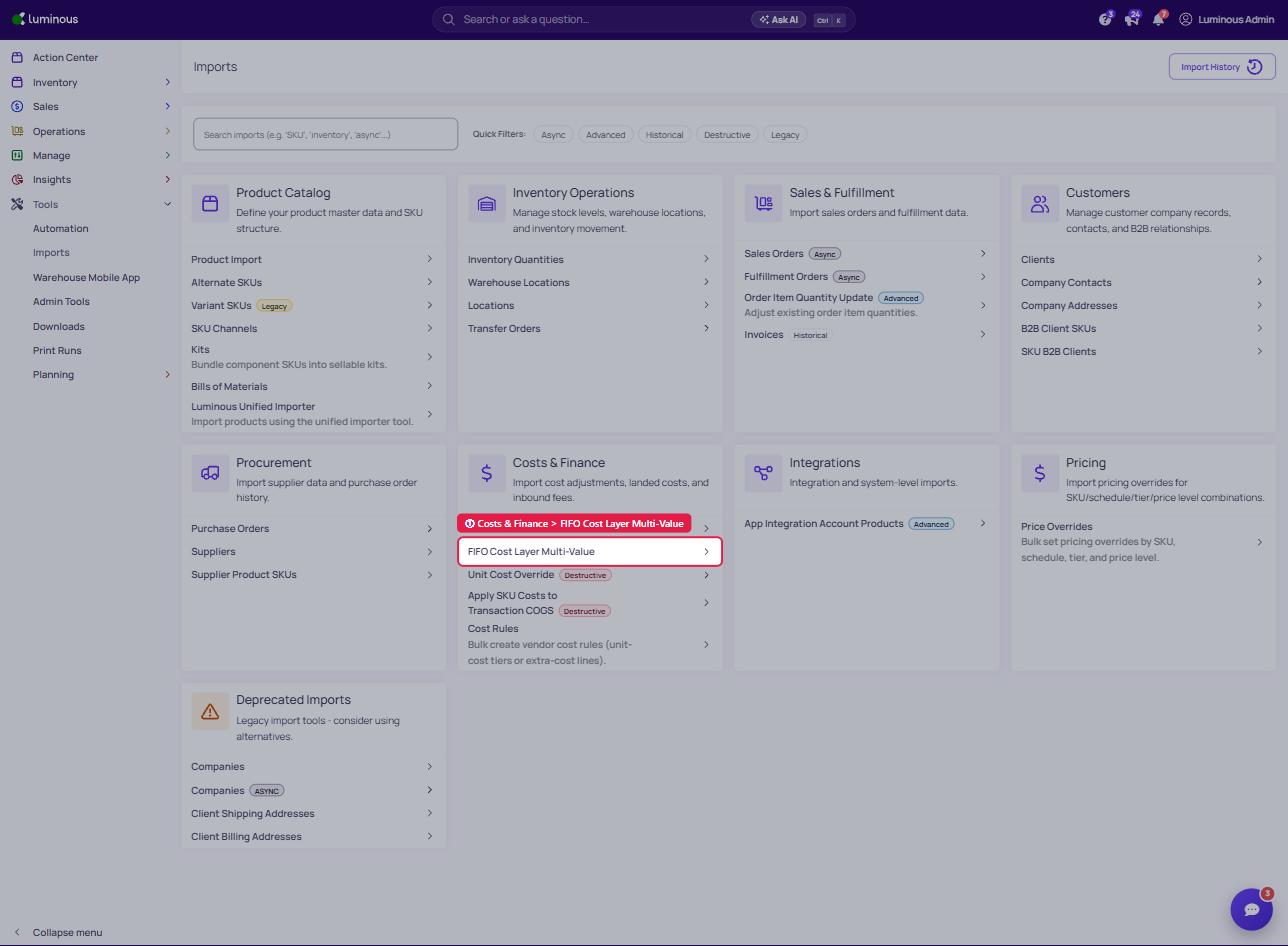
Go to Tools - Imports
-
Under Costs & Finance - Select FIFO Cost Layer Multi-Value
-
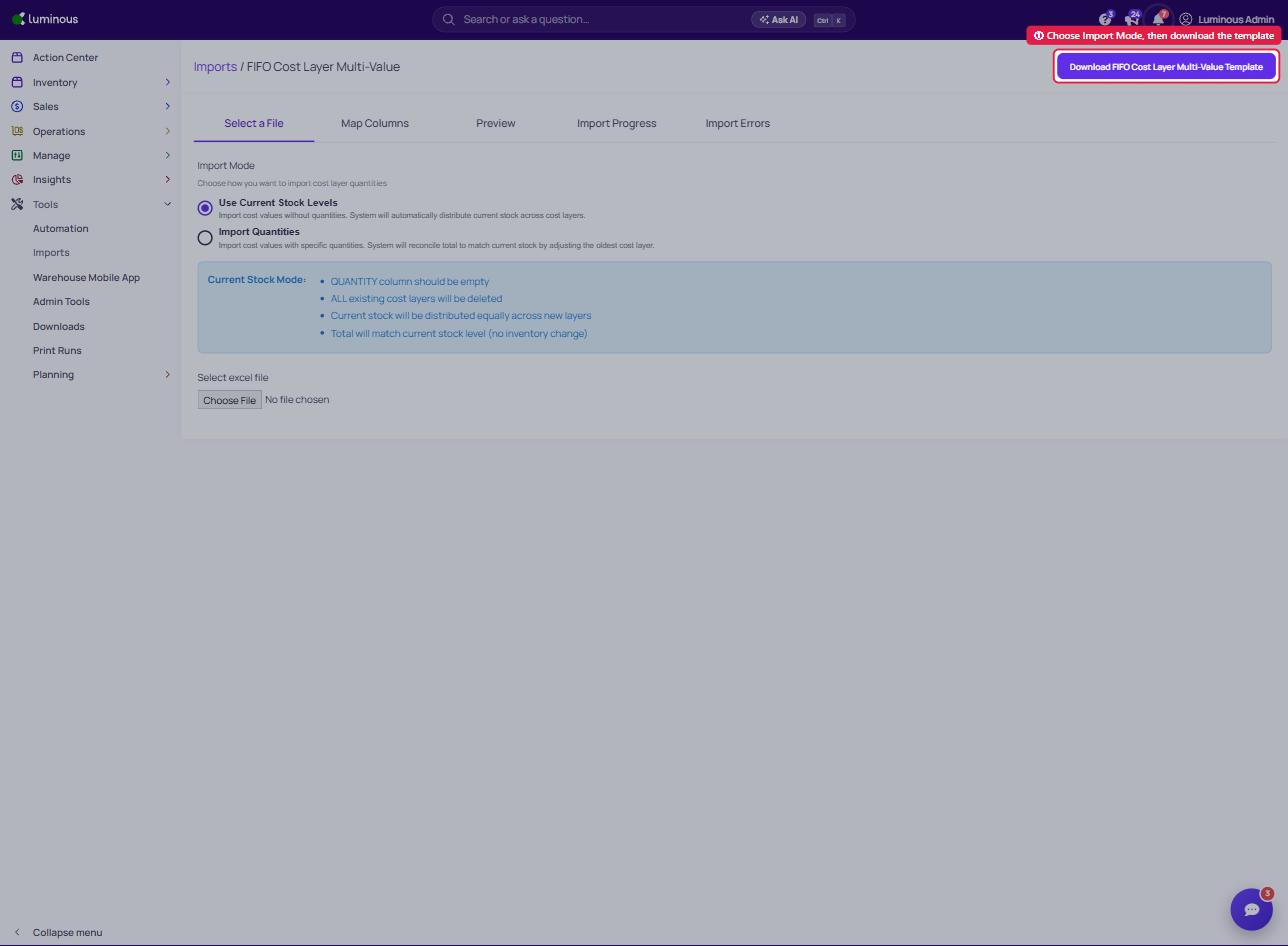
Choose between two import modes then click Download FIFO Cost Layer Multi-Value Template to get the excel file.
- Use Current Stock Levels
- QUANTITY column should be empty
- ALL existing cost layers will be deleted
- Current stock will be distributed equally across new layers
- Total will match current stock level (no inventory change)
- Import Quantities
- QUANTITY column is required for all rows
- ALL existing cost layers will be deleted
- System creates cost layers with specified quantities
- Oldest layer adjusted to reconcile with current stock
- Total will match current stock level (no inventory change)
- Use Current Stock Levels
-
Once done filling out all necessary information, your import file should include:
| SKU | Warehouse ID | Cost Per Unit | Quantity (optional) |
| 12345 | 1 | 10.50 | 100 |
| 12345 | 1 | 9.75 | 150 |
If using current stock mode, omit the Quantity column as import will use the current stock for that specific SKU.
5. Upload and Validate
System validates SKU existence, warehouse activity, stock presence, and quantity values.
Invalid files trigger detailed error messages—no changes are made on the system when uploads failed.
6. Validating
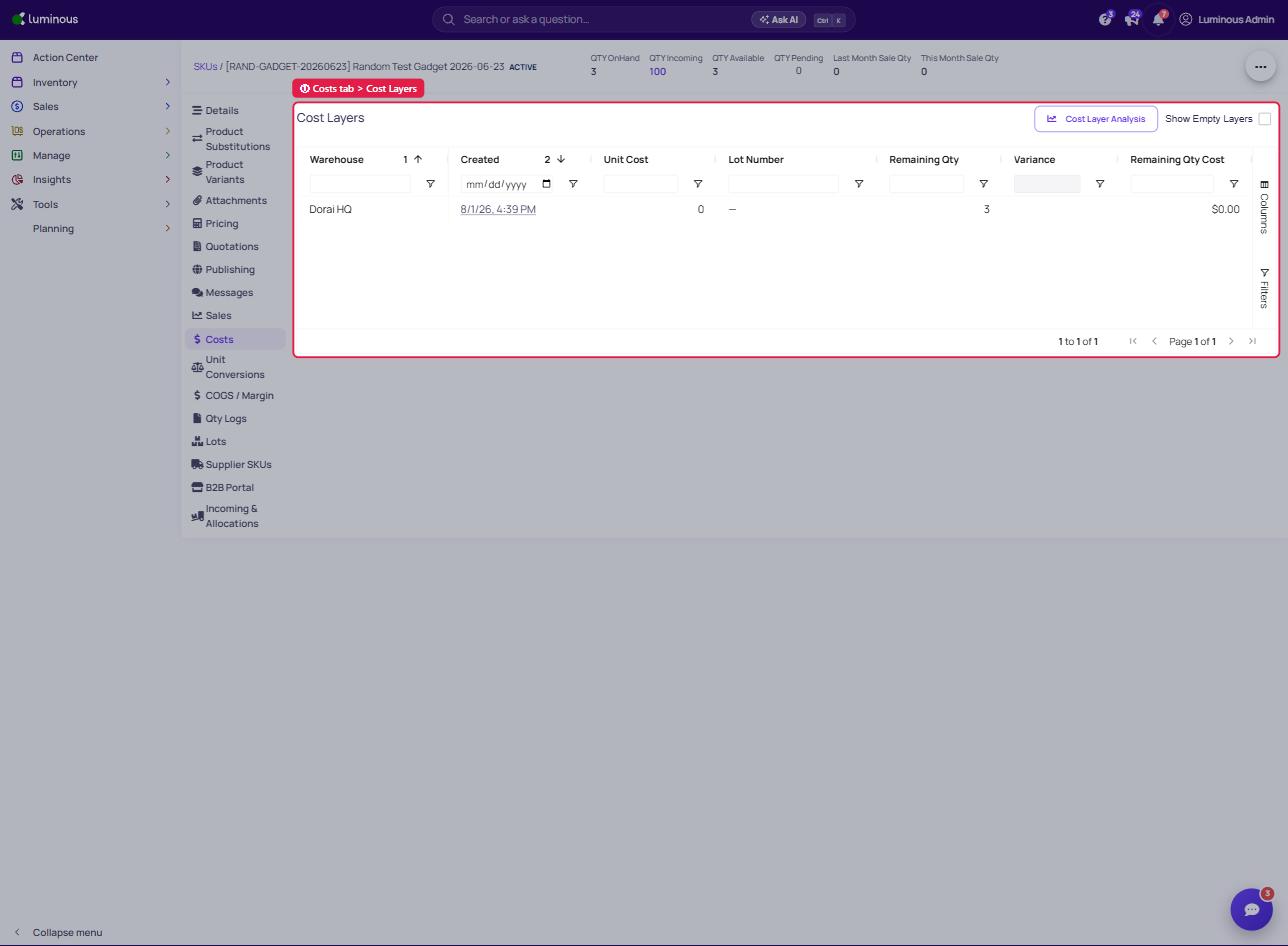
After you successfully import and no error occurs, go to Inventory > SKUs, open the SKU you just updated and check the "Costs" tab. You should be able to see the updated Cost layers.
Scenario A: Using Current Stock Levels
- Current stock: 250 units
- Import file: 2 rows with costs only
- Outcome: 2 cost layers created summing to 250 units
Scenario B: Importing Quantities
- Current stock: 300 units
- Import file: 3 rows totalling 280 units.
- Outcome: Oldest layer is adjusted to reconcile remaining 20 units.
Common Errors & Troubleshooting
| Error | Explanation | Resolution |
| “Missing required field: Cost Per Unit” | Cost value not provided | Ensure all rows have a cost |
| “Quantity required for Import Quantities mode” | Mode expects explicit quantities | Add quantity values to each row |
| “Total imported quantity does not match current stock” | Discrepancy detected | System will auto-adjust oldest layer |