Luminous supports two ways to use CSV import with Transfer Orders. Which method you use depends on what you're trying to do:
| I want to… | Use this method |
|---|---|
| Create one or more Transfer Orders entirely from a file, without using the form | Method 1: Bulk Create via Import |
| Build a single Transfer Order in the form and import a large SKU list as line items, with live stock availability | Method 2: Upload Line Items on the Create Form |
Method 1: Bulk Create Transfer Orders via CSV Import
Use this when you want to create one or multiple Transfer Orders entirely from a file — without opening the order form at all. All header fields and line items are defined in the CSV.
Where to find it
Go to Transfer Orders → Bulk Import, or access it via Tools → Imports.
Steps
-
Navigate to Inventory → Transfer Orders and click Bulk Import (top-right).
-
Click Download Transfer Order Template and open the file.
-
Fill in the required fields (marked below) plus any optional fields you need.
-
Save the file, then upload it. Before mapping, select how Luminous should handle rows where the TO ID already exists in the system:
- Skip if TO ID matches existing order — leaves the existing order untouched
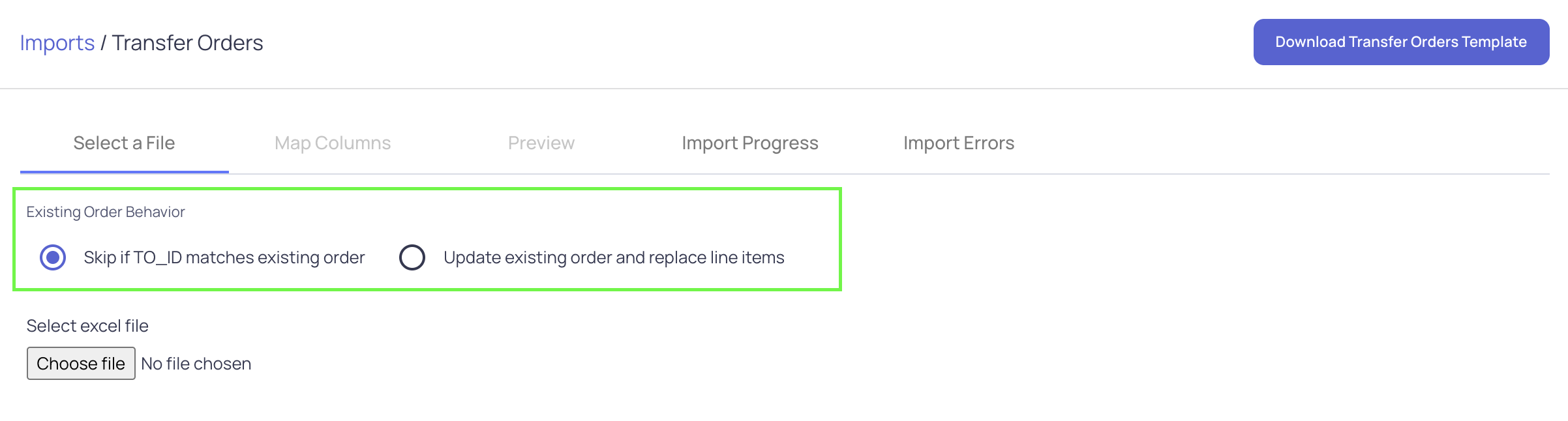
- Update existing order and replace line items — overwrites the existing order's lines
-
Map your CSV columns to the Luminous destination columns. Required columns are listed on the right side of the mapping screen. Click Next when done.
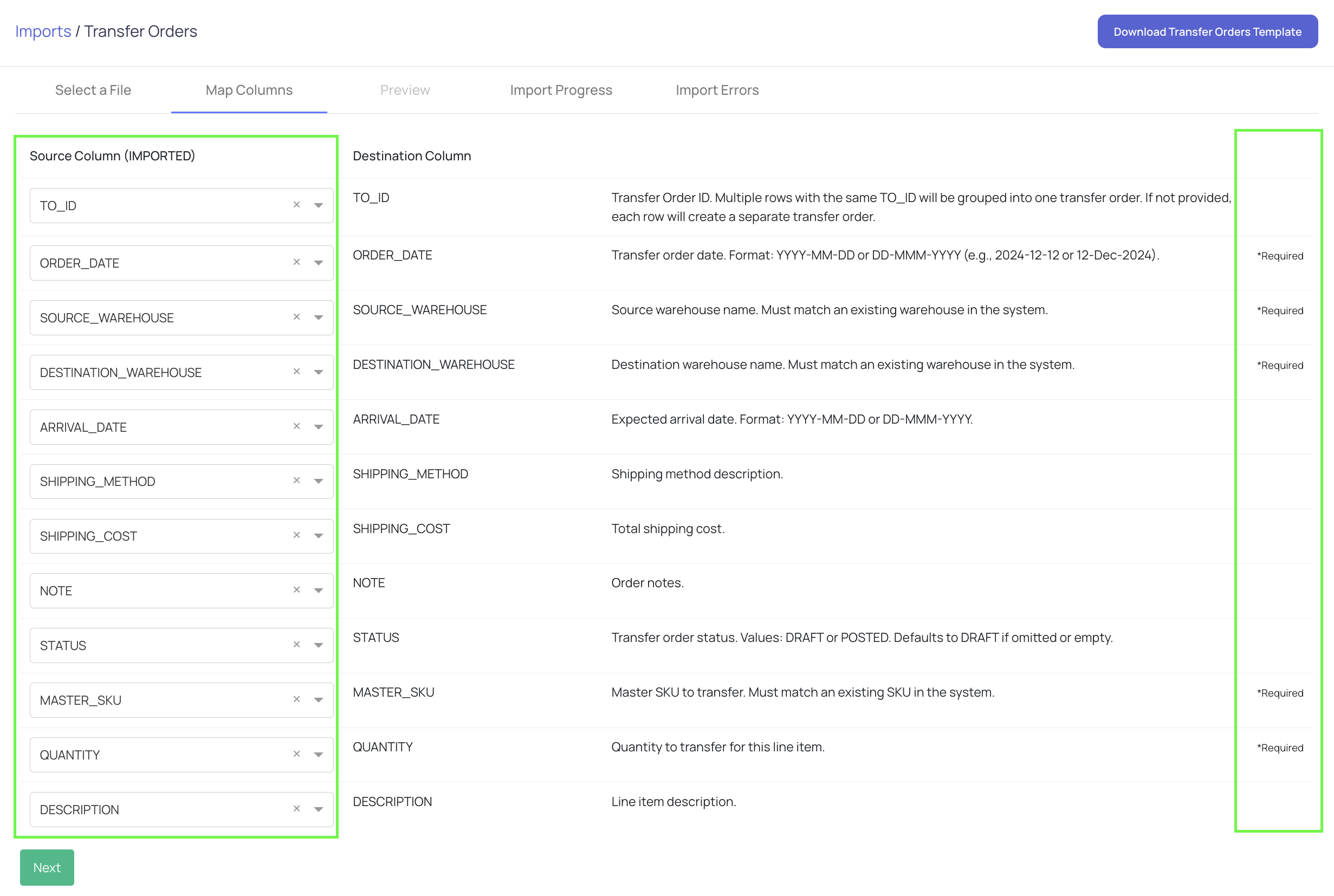
CSV Fields
| Field | Required | Description |
|---|---|---|
| TO ID | ✅ | Unique identifier for each Transfer Order. Rows sharing the same TO ID belong to the same order. |
| SKU | Product identifier | |
| Quantity | Number of units to transfer | |
| Source Warehouse | ✅ | The warehouse inventory is coming from |
| Destination Warehouse | ✅ | The warehouse inventory is going to |
| Order Date | ✅ | Date the transfer order was created |
| Fulfillment Channel | e.g. DTC, Wholesale | |
| Shipping Method | Method used to transport goods | |
| Arrival Date | Expected arrival date | |
| Auto-receive | Set to true if inventory should be received automatically upon arrival |
- Transfer orders are created automatically and will appear in the Transfer Orders list.
Method 2: Import Line Items into a Transfer Order You're Building
Use this when you're creating a single Transfer Order in the form and want to import a list of SKUs as line items instead of adding them one by one. Luminous checks live stock availability at your source warehouse for each imported SKU — so you can see which lines are ready to ship before saving.
Where to find it
Go to Inventory → Transfer Orders → Add New Transfer Order, then scroll down to the line items section.
Steps
- Go to Inventory → Transfer Orders and click Add New Transfer Order.
- Set the Fulfillment Source field (top-left of the form). This is the channel whose warehouse will be used for stock availability checks. Set this before uploading your CSV.
- Fill in other order header fields as needed — Delivery Destination, Order #, Order Date, Arrival Date, Note, and Shipping Method can be set at any point before or after the import.
- In the line items section, click Download Line Items CSV Template to get a blank file with the correct column headers.
- Fill in your SKUs and quantities, then click Upload Line Items CSV and select your file.
- After the import, each matched SKU appears as a line item with a stock availability badge showing whether the source warehouse can fulfill that line from current on-hand inventory.
- Review the lines, complete any remaining header fields, and click Save Order.
Availability Badges
| Badge | Meaning |
|---|---|
| Available (with quantity) | The source warehouse has on-hand stock at or above the line quantity |
| Unavailable | On-hand is zero or the SKU isn't stocked at that warehouse. The order can still be saved, but that line can't be fulfilled from current stock. |
| (blank / loading) | Stock check in progress — resolves within seconds of import finishing or after switching the Fulfillment Source |
Switching the Fulfillment Source after import
You can change the Fulfillment Source at any time after importing. Every line item will automatically re-check availability against the new source warehouse — no need to re-upload the CSV.
Unrecognized SKUs
If a SKU in your file doesn't match your catalog, Luminous skips that row and continues with the rest. A notification appears at the bottom of the page for each unrecognized SKU.
- Typo? Fix the SKU in your file and re-upload. Lines already in the grid won't be duplicated.
- SKU missing from the catalog? Add it at Inventory → SKUs first, then re-upload.
- Intentionally excluded? No action needed.
Tips & Best Practices
- For Method 1, ensure warehouse names in your CSV match exactly what's in Luminous — a mismatch will cause that row to fail.
- For Method 2, always set the Fulfillment Source before uploading — without it, availability badges won't reflect accurate stock data.
- Always use the downloaded template for either method to avoid column formatting issues.
- For Method 1, start with a small test file if you're using Bulk Import for the first time.
- Unavailable badges (Method 2) don't block saving the order — useful for planning transfers ahead of stock arriving.
FAQs
Which method should I use if I have 50 Transfer Orders to create at once? Method 1 (Bulk Import). You can define all 50 orders in a single CSV file using unique TO IDs.
Which method should I use if I have one Transfer Order but 200 SKUs to add? Method 2 (Upload Line Items). Build the order header in the form, then import your SKU list in one upload.
Why does my Method 1 import fail? Usually caused by missing required fields (TO ID, Source Warehouse, Destination Warehouse, or Order Date), incorrect formatting, or warehouse/SKU names that don't exactly match Luminous.
The availability badge in Method 2 shows Unavailable for a SKU I know we have stock for. The badge reflects stock at the warehouse tied to your selected Fulfillment Source channel — not total stock across all locations. Try switching the Fulfillment Source to a different channel to check if stock is available elsewhere.
Can I use Method 2 on a Transfer Order I've already saved? The CSV line item upload is available on the Create form. Open a saved draft Transfer Order and check whether the upload option appears in the line items area.
Do I need special permissions? Yes — you need the Transfer Order create permission for the relevant warehouse group. If the Create page doesn't appear in your menu or Save Order is grayed out, contact your admin.
Need Help?
If you run into issues not covered here, contact the support team for assistance.